Note
Access to this page requires authorization. You can try signing in or changing directories.
Access to this page requires authorization. You can try changing directories.
Use WinDbg MCP to investigate a debugging target with a supported AI client while you review AI-initiated debugger actions in WinDbg. WinDbg MCP uses the Model Context Protocol (MCP) to provide the client with WinDbg debugger tools and context during analysis.
AI-generated findings aren't authoritative. Validate findings, evidence, assumptions, target state, and commands against the output in WinDbg.
This article shows how to register WinDbg with Visual Studio Code with GitHub Copilot or GitHub Copilot CLI, connect the selected client to the intended WinDbg session, and use the connection for AI-assisted debugging.
Prerequisites
- Confirm that your organization permits WinDbg MCP. Administrators can disable it by enabling WinDbg restricted mode.
- Get WinDbg version 1.2610.1001.0 or later from the Microsoft Store WinDbg app or the WinDbg download.
- One of the following supported AI clients:
- Visual Studio Code with GitHub Copilot
- GitHub Copilot CLI
- Authorization to use the debugging target and its data with the selected AI client and its configured model service.
- Review of the security, privacy, and session-limit guidance in WinDbg MCP overview.
Install and enable WinDbg MCP
In this section, you register WinDbg as an MCP server with your chosen AI client, start the MCP service for the current WinDbg session, which enables secure mode by default, and connect the client to a debugging target so that you can begin AI-assisted analysis. You don't need to load or attach to a debugging target to enable the server or register WinDbg with a supported AI client.
To install and enable the MCP server, follow these steps:
Open WinDbg. To open it, search for WinDbg in the Start menu and select it.
From the WinDbg File menu, select Settings.
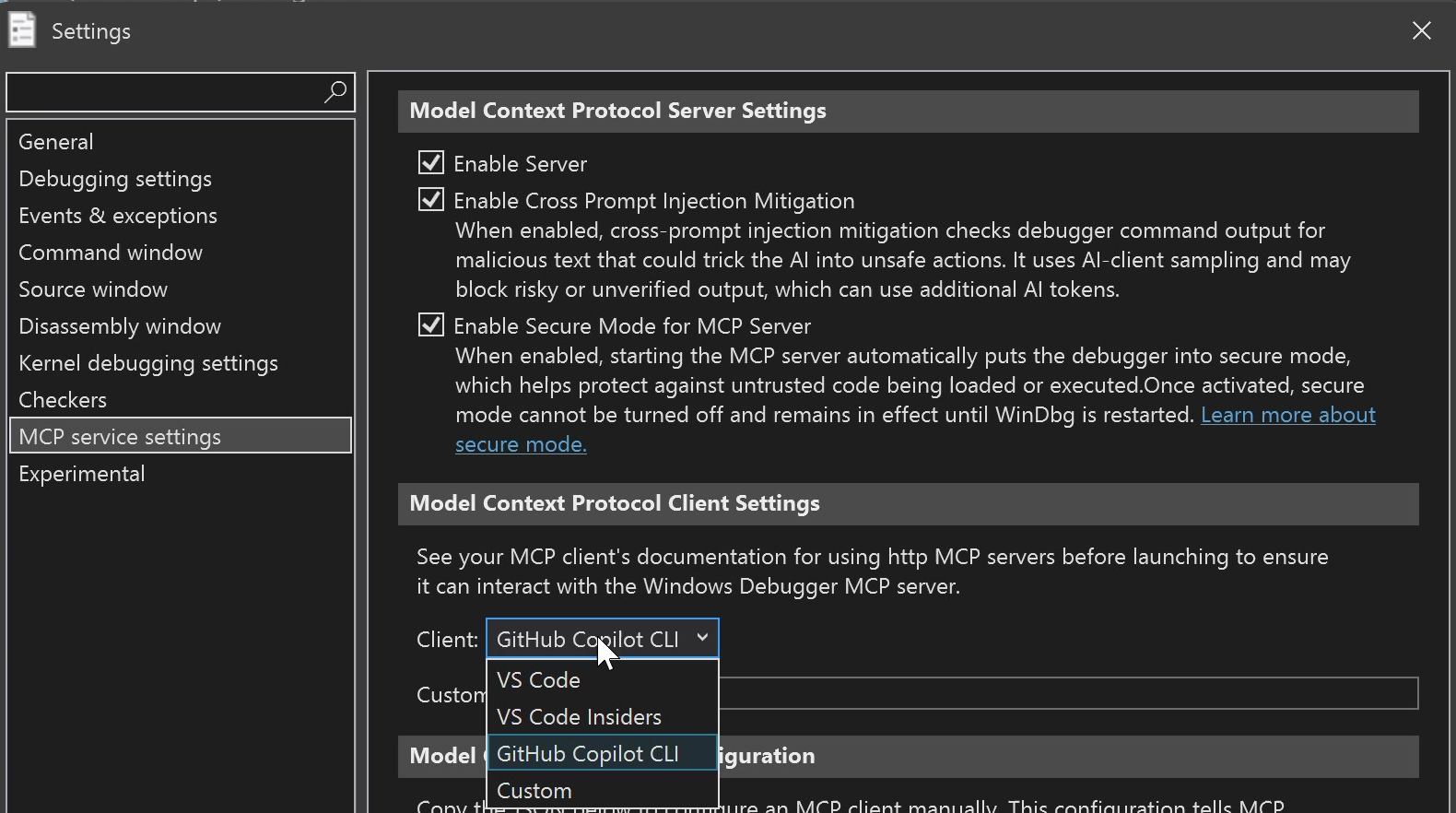
On the Settings page, select MCP service settings, select Enable Server, and then select your client in the Client list. Select VS Code for Visual Studio Code with GitHub Copilot, or select GitHub Copilot CLI if you use GitHub Copilot CLI.
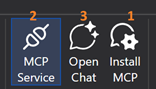
Use the numbered controls in the WinDbg ribbon to install the server, start the service, and open the client.
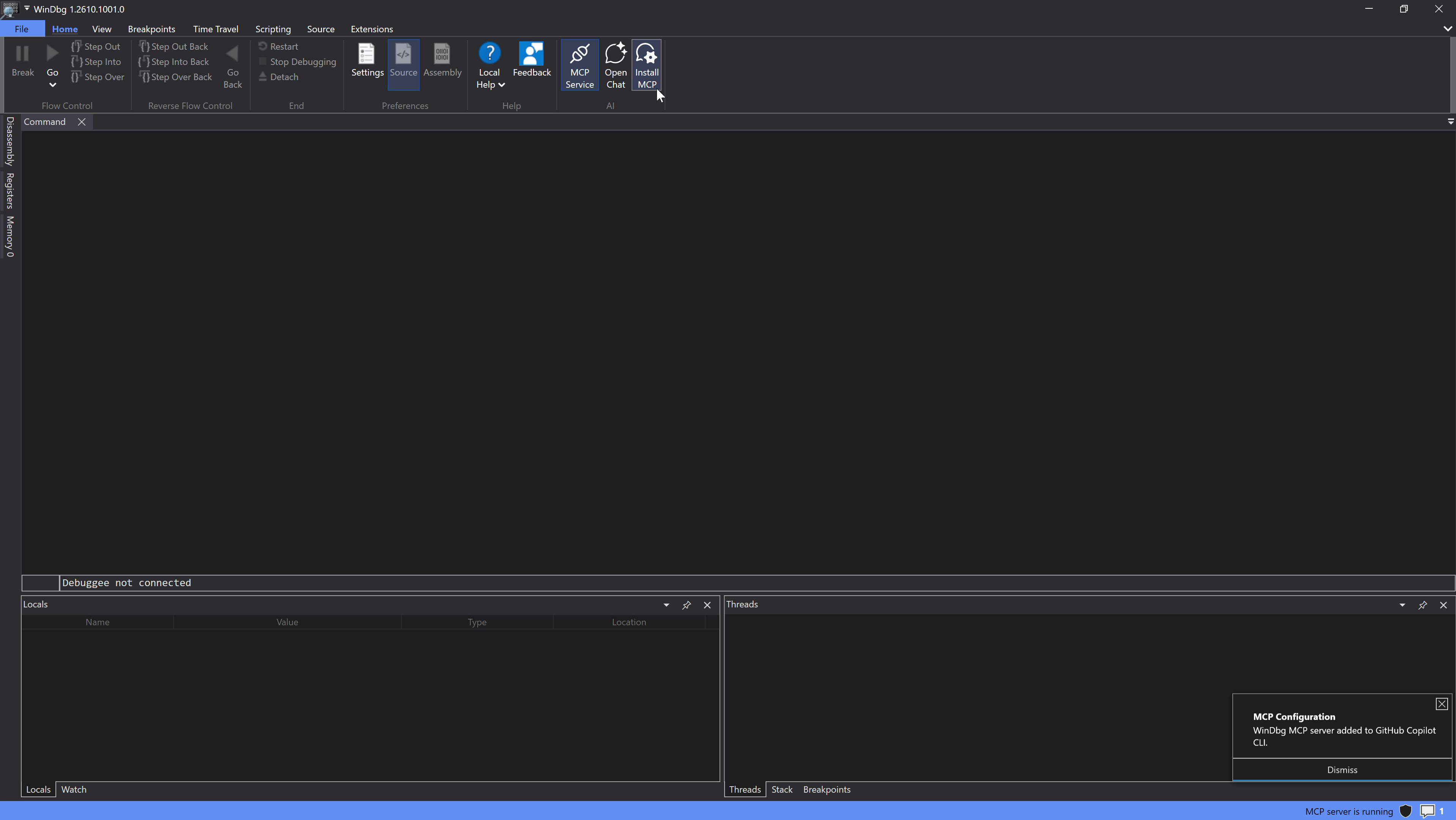
Select Install MCP (1) to register WinDbg as an MCP server with the selected client, and then complete any confirmation that the client shows. A notification confirms that WinDbg registered the MCP server with the selected client.
Select MCP Service (2) to start the MCP server for the current WinDbg session. In the Privacy and Security Warning, review these secure mode behaviors:
- Default: WinDbg selects Enable secure mode when the MCP server starts by default.
- Activation: If you leave the checkbox selected when the MCP server starts, secure mode activates. After activation, secure mode can't be turned off and remains active until WinDbg restarts.
- Saved setting: Clearing or selecting the checkbox updates the saved File > Settings > MCP service settings > Enable Secure Mode for MCP Server setting to match the checkbox state.
Confirm that you authorize the intended debugging target and its data for use with the selected AI client and its configured model service, and then select Yes.
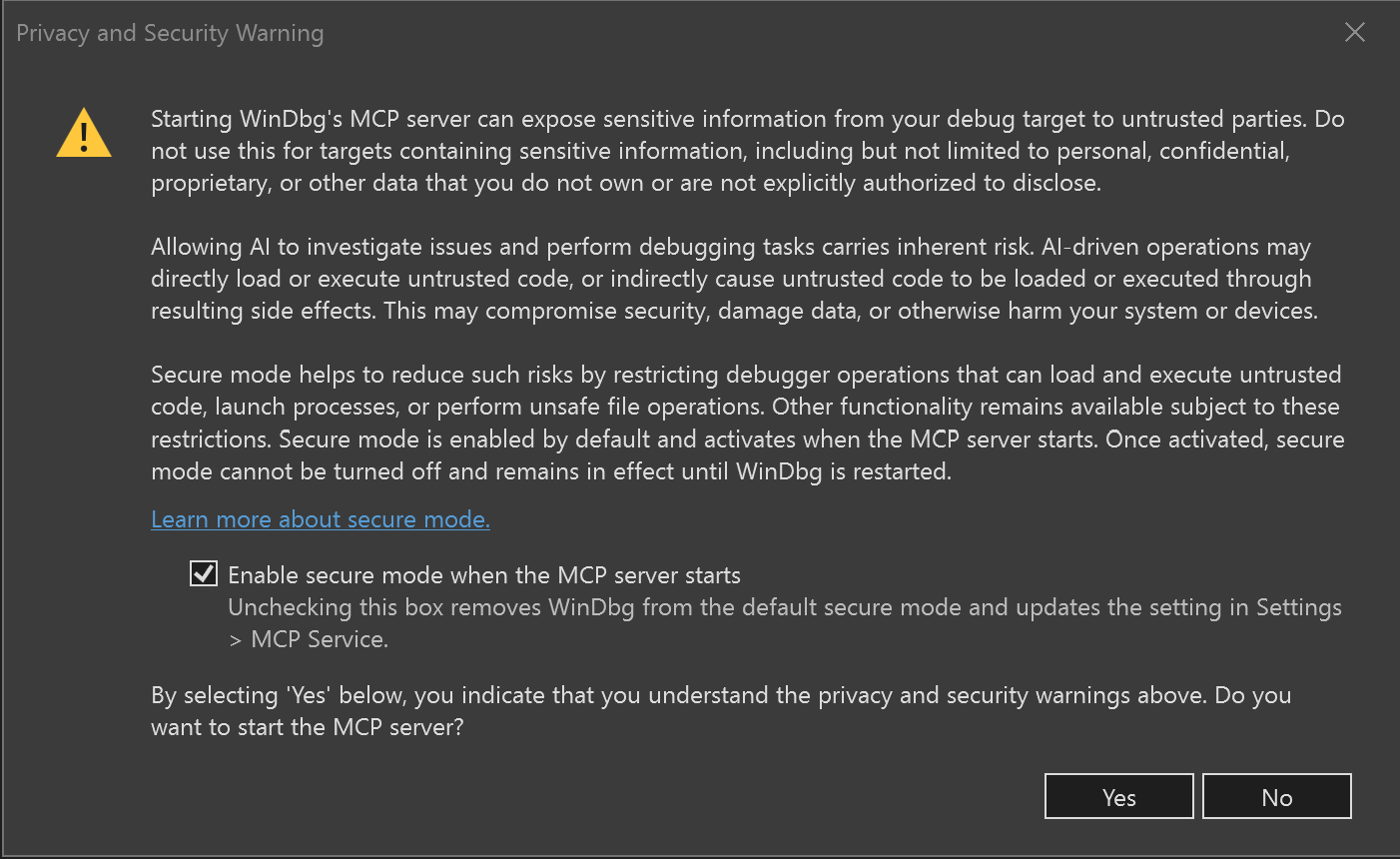
The WinDbg Privacy and Security Warning explains that starting the MCP server can expose sensitive debugging-target information to untrusted parties. It warns not to use the server with personal, confidential, proprietary, or other data that you don't own or aren't authorized to disclose. AI-driven debugging operations can directly or indirectly load or execute untrusted code, which might compromise security, damage data, or harm the system or devices. Secure mode reduces these risks by restricting debugger operations that can load or execute untrusted code, launch processes, or perform unsafe file operations. WinDbg selects the **Enable secure mode when the MCP server starts** checkbox by default. Secure mode activates when the server starts and remains active until WinDbg restarts. Clearing the checkbox changes the saved MCP service setting. Selecting **Yes** acknowledges the warnings and starts the server; selecting **No** cancels the operation.
For more information about secure mode, see Secure mode.
Load or attach to a debugging target.
Select Open Chat (3) to open the selected AI client and start a chat.
Verify the WinDbg MCP connection
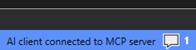
Confirm that the WinDbg status bar shows AI client connected to MCP server.
Confirm that WinDbg MCP is available in the AI client.
Enter the following prompt:
Use WinDbg MCP to report the current target type and execution state.Confirm that the AI client uses WinDbg MCP tools and reports the target type and execution state that WinDbg shows.
If the client doesn't connect or the result doesn't match the target, see Troubleshoot WinDbg MCP setup and connection issues.
Analyze a debugging target with WinDbg MCP
After you verify the connection, try an immediate analysis prompt:
Analyze this debugging target and provide the likely cause, supporting evidence, and remaining assumptions.
Compare the AI client's results with the target state and visible debugger output before you act on them. For available tools and built-in prompts, see WinDbg MCP tools and prompts. For supported scenarios, see Use WinDbg MCP for debugging.
Write effective WinDbg MCP prompts
Give the AI client enough context to select the appropriate WinDbg MCP tools and produce results that you can validate:
- Identify the debugging target and task, such as analyzing a crash dump, investigating a live target, or examining a Time Travel Debugging trace.
- Ask for supporting evidence and remaining assumptions, not only a conclusion.
- Request the relevant debugger commands, diagnostics, source review, or script when you need a specific type of analysis.
- Specify the output format, such as a tree, grid, graph, or ordered investigation plan.
- Compare the result with the target state, commands, and visible debugger output in WinDbg before you act on it.
Manage WinDbg sessions
These procedures assume that you completed setup, opened the supported AI client's chat, confirmed that WinDbg MCP is available in the client, and started MCP Service in each WinDbg window that you want to use. Request the session-selection commands through the AI client chat; don't enter the tool names directly in WinDbg.
The WinDbg MCP proxy connects automatically when it detects exactly one available WinDbg session. If more than one session is available, the AI client remains disconnected until you select a session.
Connect the AI client when multiple WinDbg sessions are available
Use this procedure when multiple WinDbg sessions are available and the AI client isn't connected to one. After the procedure, the client connects to the selected session.
- Ask the AI client to use
list_sessions. - Identify the process ID for the intended WinDbg session in the result.
- Ask the AI client to use
connect_sessionwith that process ID. - Confirm that the client reports a connection to the intended session and that its target state matches the selected WinDbg window.
Switch the AI client to another WinDbg session
Use this procedure when the AI client is connected to one WinDbg session and you want it to use another session. After the procedure, the client disconnects from the original session and connects to the selected replacement.
- Ask the AI client to use
disconnect_session. - Ask the AI client to use
list_sessions. - Identify the process ID for the new WinDbg session.
- Ask the AI client to use
connect_sessionwith that process ID. - Confirm that the client reports a connection to the new session and verify its target type and execution state against the selected WinDbg window.
Disconnect the AI client from the current WinDbg session
Use this procedure when the AI client is connected to a WinDbg session and you want to end that connection. After the procedure, the client has no connection to a WinDbg session; WinDbg and MCP Service can remain running.
- Ask the AI client to use
disconnect_session. - Confirm that the client reports that the proxy disconnected from the WinDbg session.
Only one active MCP client can connect to a WinDbg session at a time. If a session is unavailable, disconnect the other AI client from that session, and then connect the intended client.