Note
Access to this page requires authorization. You can try signing in or changing directories.
Access to this page requires authorization. You can try changing directories.
Introduction
Windows Server 2025 Device.Network.LAN.AzureStack profile validates drivers for Software Defined Networking. These tests are not the typical unit/ functional tests found in other networking HLK test suites. These tests are end-to-end tests which deploy VMs, install SDN, configure routing, validate variety of traffic patterns, and trigger migrations. These tests ensure that the manufacturer's network driver is fully functional for SDN support on Windows Server 2025.
Target Audience
The target audience for this document are vendor/partner teams who want to validate their drivers for HLK certification of Microsoft Azure Stack solutions and Microsoft Azure Stack HCI solutions.
Links to the required files
No external files need to be downloaded. The tests will automatically download the latest PowerShell modules from PowerShell gallery. Note that internet connectivity is required for running these tests. If your lab environment does not have internet connectivity, please refer to Disconnected Lab Environments for instructions on setting up your environment to run these tests without internet. For reference the following items will be downloaded automatically:
- SdnTurnkey powershell module downloaded and copied to the [WorkingDir]
- SdnExpress powershell module downloaded and copied to the [WorkingDir]
- RestoreReplay.ps1 script downloaded to the same location of [WorkingDir]
- Ctstraffic.exe downloaded from GitHub to each Host & all the tenant VMs created
Disconnected Lab Environments
Downloading the test modules from PowerShell gallery keeps this HLK test up to date. This allows the Windows developer team to push updates/ improvements and bug fixes which can get picked up when partner teams rerun the tests. These assets are downloaded and copied over to a common [WorkingDir] folder every time the tests are executed.
If your lab does not have internet access, run the below commands on a machine with internet connectivity follow these steps to make an offline copy of these modules. Install the required modules on a machine where internet connectivity is available.
Install-Module -Name TurnKeySdn -Confirm:$false -Force
Install-Module -Name SdnExpress -Confirm:$false -Force
Install-Script -Name RestoreReplay -Confirm:$false -Force
Install-Module -Name SdnDiagnostics -Confirm:$false -Force
Get-SdnHLKOfflinePackage # -Destination "$env:SystemDrive\Tools\Deployment"

Copy the modules from the destination (default: C:\Tools\Deployment) to each of the HLK client machines and place them under the folder corresponding to the [WorkingDir] (default: C:\Tools\Deployment) parameter of 'PrivateCloudSimulator -Device.Network.LAN.AzureStack' test. Once the files are copied, please disable the "Install SDN Tools" task in HLK manager.
Lab Infrastructure Setup

The lab environment must contain the following elements:
- An Active Directory domain controller/DNS/DHCP server for the test domain. Active Directory Domain Services functional levels needs to be Windows Server 2012 or higher.
- A dedicated HLK controller machine. OS must be Windows Server 2022.
- A compute cluster, which hosts Hyper-V virtual machines. A minimum of 2 nodes is required in the cluster.
Notes:
- All the above machines must be joined to the same test domain.
- All tests need to be run as the same user in the 'Domain Admins' group for the test domain.
- Use the same user with Domain Admin credentials to install the HLK controller.
Switch Configuration
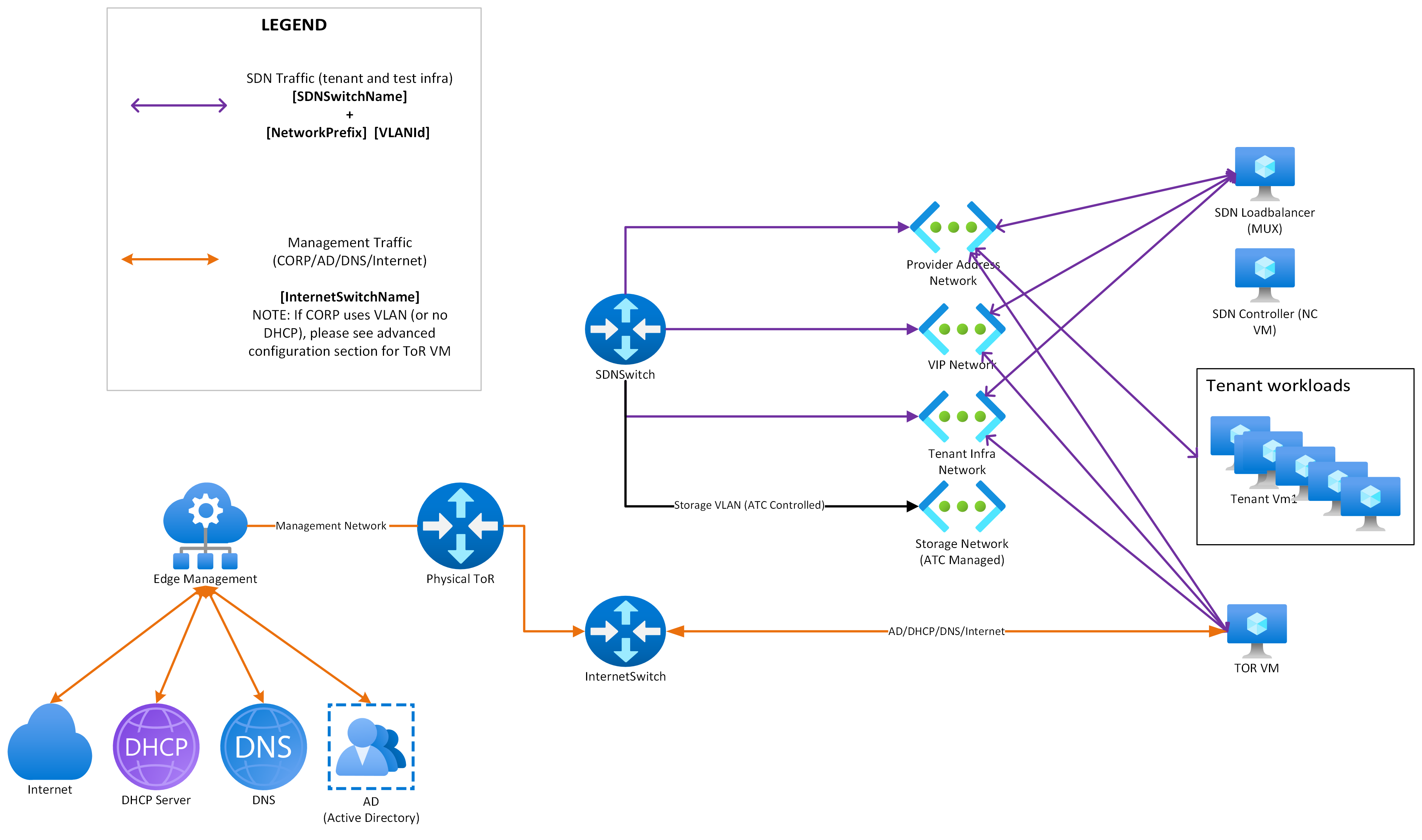
The LAN.AzureStack tests require that a virtual switch be pre-created before the tests are run. The switch should be created for the configuration being targeted for tests and should have the settings that vendor is targeting for testing. (E.g. the tests do not check if Teaming is enabled, however if NIC Teaming is supported by the hardware vendor, it must be enabled by the vendor. For extra validation, you may choose to disable Teaming and run the tests again.) The tests do not enforce a particular switch configuration to allow flexibility in terms of testing. However, Microsoft requires that all virtual switches be created using Network ATC.
The tests use two parameters for switch names: SdnSwitchName and InternetSwitchName. This was done based on feedback that some topologies may have different data center networks such as 'Compute' networks which are not routable to CORP/AD or internet. The InternetSwitchName on the other hand is typically a slower NIC which is used for 'Management' purposes with access to the AD/DNS and internet.
When using Network ATC, the InternetSwitchName would be the one with 'Management' intent and the SdnSwitchName would be the one with 'Compute' intent.
The user may also specify the same switch if there is only a single switch available and it has access to both datacenter network/ internet and AD. This configuration is typically referred to as Hyper-Converged.
Below is a sample script to the create switch using Network ATC. Make sure the below features are installed on each of the cluster nodes.
Install-WindowsFeature -Name 'NetworkATC', 'NetworkHUD', 'Hyper-V', 'Failover-Clustering', 'Data-Center-Bridging' -IncludeManagementTools
Run the below powershell snippet from one of the cluster nodes.
    # Usually JumboPacket is not required and instead SDN manages EncapOverhead settings.
    # We are investigating certain issues when EncapOverhead is dynamically set.
    # As a workaround set JumboPacket
    $adapterProperties = New-NetIntentAdapterPropertyOverrides
    $adapterProperties.JumboPacket = 4088
    # Disable software RSC.
    # This is also a workaround as we investigate certain issues with SoftwareRsc enabled.
    $s = New-NetIntentSwitchConfigurationOverrides
    $s.EnableSoftwareRsc = $false
    Add-NetIntent -Name "HLK" -Management -Compute -Storage -AdapterName @(<'pnic1>', '<pnic2>') `
        -StorageVlans @('<storage vlan 1>', '<storage vlan 2>') `
        -SwitchPropertyOverrides $s -AdapterPropertyOverrides $adapterProperties -Wait
    # NOTE: For non-Hyper-Converged scenarios where two switches are used, remove the -Management parameter
    # (the switch without 'Management' will be used for SdnSwitchName parameter,
    # then create a separate switch for InternetSwitchName parameter using the below command)
    # Add-NetIntent -Name "Management" -Management -AdapterName @(<'pnic1>', '<pnic2>')
To set the VLAN id for the management network or the static IP for the TOR VM, update "torVMConfig" in Advanced Configuration. For additional resources, refer to Network ATC Common Error Messages.
Storage Configuration
A CSV (Cluster Shared Volume) must be available across all nodes of the cluster. Since the LAN.AzureStack tests do not take a node offline or bug check, the storage may be configured as per the manufacturer's discretion. Unlike the prior PCS based tests, there is no enforcement of storage redundancy count. It is still recommended to have a 3-way redundancy when configuring Storage Spaces Direct.
The [StoragePath] property indicates the location for the networking VMs and test VMs. Please provide a storage destination that can handle up to 20 virtual machines. The storage destination will need 200 GB per VM to handle the base disk space and the swap file space. See the calculation below to determine the storage space needed for the testing.
Typical storage calculation:
200 GB per VM * 20 VMs under test * 3-way redundancy (Recommended)
= Total of 1.2-1.3 TB (virtual disk in Storage Spaces Direct)
Test Environment Setup
- For Windows Server 2025 certification using LAN.AzureStack, a PCS Controller VM is no longer required. The updated test does not use PcsFiles.vhd, so do not download that file.
- Follow the Windows HLK Getting Started guide to install HLK client software on all cluster nodes.
- Follow the Windows Server 2022 (or newer) Storage Spaces Direct guide to deploy a cluster. For instructions on how to setup networking for Storage Spaces Direct, see Windows Server 2016 Converged NIC and Guest RDMA Deployment Guide.
- VXLAN Encapsulated Task Offload, JumboPacket, Encapsulation Overhead, and MtuSize are managed by the deployment.
- Log off DTMLLUAdminUser. This user may be created by HLK manager and improperly used as the active logged on user. See Issue: "Install SDN (with params)" failed for more details.
Deploying the tests
- Open HLK Studio.
- Navigate to the Project tab and click Create Project.
- Enter a project name and press Enter.
- Navigate to the Selection tab.
- Select the machine pool containing the network adapter device. Note: LAN.AzureStack profile will execute tests all the nodes which are a part of the failover cluster. However, while deploying the tests, only 2 nodes are required to be configured in the HLK Pool.
- Select device manager.
- Select the device. It should be OK to select any relevant NIC device (does not matter which member of the virtual switch team) on any of the compute nodes that is targeted for certification.
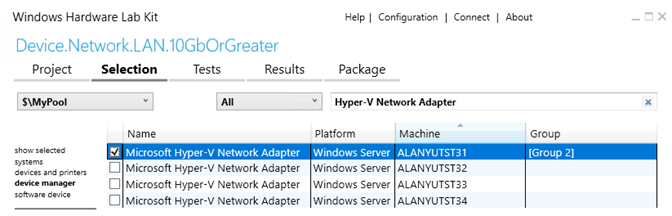
- Right-click on the selected device and select Add/Modify Features
- In the features dialog, select Device.Network.LAN.AzureStack and click OK.

- Navigate to the Tests tab.
- Select PrivateCloudSimulator - Device.Network.LAN.AzureStack

- Click Run Selected
Users of the previous versions might see a slight change in the set of parameters being presented.
Selecting Machines
In this release of Device.Network.LAN.AzureStack, tests no longer rely on the machine selection from the HLK Studio. The deployment scripts will automatically detect the nodes which are part of the cluster and include all of them for testing. The selection of 'PrimaryNode' and 'TestController' are just providing machines to run the tests from. The target will automatically be the set of machines which are in the cluster. You must ensure that the cluster and all nodes in the cluster are healthy before proceeding.
The following table will walk through the parameter values and their impact on the configuration:
| Property Name | Description |
|---|---|
| Domain Name | Domain name from the AD. You need not provide FQDN as long as it can be resolved by DNS. SDN infrastructure VMs created during the tests will be joined to this domain. Eg; Contoso |
| DomainUserName | Domain user name. VMs will be joined to the domain using this user. Eg; Administrator |
| DomainPassword | Domain password Eg; Password |
| StoragePath | Folder where all the workload and SDN VMs will be created. This folder should be manually created on the cluster storage space volume (CSV) and be accessible to all the nodes in the cluster. Eg; C:\ClusterStorage\ClusterVolume\sdnVMs |
| VHDFolderPath | Folder containing the base VHD file. For each workload VM, a copy of this VHD will be made. Eg; C:\ClusterStorage\ClusterVolume\vhd |
| VHDFileName | Base VHD file. Copy a WS2025 datacenter VHDX into the folder VHDFolderPath. We no longer have a PCS file download that includes the VHD in the package. Manually download the WS2025 VHDX file from the Microsoft Partner Center. The test bootstraps the VMs using an answer file (unattend.xml). Do not use a customized image that may conflict with this. Eg; 26100.1.amd64fre.ge_release.240331-1435_server_serverdatacenter_en-us.vhdx |
| SdnSwitchName | Switch under test. SDN test traffic will flow over this switch. Network ATC is required for all switch creation. If your switch name has any special characters such as 'ManagementSwitch(NIC01)' or 'ConvergedSwitch(PNIC1#PNIC2)', then please make sure that while entering the switch name in the UI the quotes are included. Eg; SdnSwitch |
| InternetSwitchName | This switch provides connectivity to external networks for Internet, CORP, AD (Active Directory Authentication), and DNS resolutions. SDN test traffic will not flow over this switch. Network ATC is required for all switch creation. If you are using a Hyper-Converged switch configuration you may specify the [SdnSwitchName] here. The InternetSwitchName must have the 'Management' intent applied to it. If your switch name has any special characters such as 'ManagementSwitch(NIC01)' or 'ConvergedSwitch(PNIC1#PNIC2)', then please make sure that while entering the switch name in the UI the quotes are included. Eg; CorpSwitch |
| VLANId | 0 or the VLAN for the network listed in [NetworkPrefix]. If a non-zero VLAN id is used, that VLAN must be enabled in the TOR switch. Eg; 8 |
| NetworkPrefix | A /16 network prefix from the private IPv4 address space as defined in RFC1918. You may choose any network prefix from this range that does not collide with the existing networks. This network space is managed by the test. The network should not be explicitly blocked in the TOR switch/ firewall to which the cluster nodes are connected. (For more details, refer to Test Network) Eg; 172.25.0.0/16 |
| WorkingDir | A local working directory in the cluster nodes used by the test. We recommend using the default value. Eg; C:\Tools\Deployment |
| ManagementDnsIPAddresses | Comma separated values of the DNS server addresses of the active directory. These DNS servers must be able to resolve the AD domain name and VMs joined to the domain. Eg; 10.0.0.1, 10.0.0.2 |
Test Network
Four /24 networks are created internally from the user provided /16 address prefix.
- x.x.1.0/24 - Infrastructure network used by the test. Test infrastructure VMs (TOR, NC, and MUX) and cluster nodes receive a virtual network interface from this network. VMs communicate to the user network/AD via this network, leveraging NAT configuration in the TOR VM.
- x.x.2.0/24 - Hyper-V Network Virtualization Provider Network (HNVPA). This network is the underlay network for the SDN virtual networks.
- x.x.3.0/24 - Public VIP logical network, used for deploying SDN load balancers.
- x.x.4.0/24 - Private VIP logical network, used internally by SDN.
Advanced Configuration
Advanced configurations which are not available in the HLK Studio user interface is provided via SDNHLKConfig.json file. Create this file using the below sample and copy it under the CSV folder set in [StoragePath] parameter. Ex. C:\ClusterStorage\Volume1\HLK.
{
    "windowsServerProductKey" : "",
    "torVMConfig" : {
        "ipaddress": "<eg; 192.168.1.100>",
        "prefixLength": "<eg; 24>",
        "defaultGateway": "<eg; 192.168.1.1>",
        "vlanId": "0",
        "dnsservers": [
            "<server 1>"
        ]
    },
    "reuseTopology" : "false"
}
| Parameter Name | Description |
|---|---|
| windowsServerProductKey | Windows server multi activation product key to use for the VMs created by the test. Obtain the product key from Visual Studio Download Center key center. |
| torVMConfig | Static IP configuration for the TOR VM. Use this if management network is not on VLAN 0 and/or DHCP server is not available in the management network. |
| ipaddress | Static IP address from the management network to set for the TOR VM. Eg; 192.168.1.100 |
| prefixLength | Prefix length of the management network. Eg; 24 |
| defaultGateway | Default Gateway of the management network. Use a dummy value if you don't have a default gateway. Eg; 192.168.1.1 |
| vlanId | VLAN id of the management network. |
| dnsservers | One or more DNS servers for the management network. |
| reuseTopology | Set this parameter to preserve the test topology between different runs. This parameter is useful if you want to debug some test failures and want to rerun the test without redeploying the topology. |
Monitoring Tests
End-to-end tests can take up to 12 hours to complete. While the console is visible on the machine which is running the tests, you may choose to manually check the status progress in the log file located at [StoragePath]\hlk-deployment.log.
Change From the Previous Tests
Customers who have previously used the PCS-based HLK for AzureStack profile are aware of the challenges faced with configuring and managing the older tests. With this release, we have replaced those with more predictable and simpler tests. The new tests are focused on targeting a variety of workloads and traffic patterns.
The previous tests relied on compiled .NET code. This made it difficult to update, customize, or extend. The new tests are purely PowerShell based, which allows for a better experience while investigating issues.
Cleaning Up
The tests were designed to be completed within 12 hours. Setup and configuration should take 1-2 hours. The environment is deep-cleaned after each run. To prevent clean up, refer to the Advanced Configuration section and set "reuseTopology" to true. If "reuseTopology" is set to true and at any point there is a failure, rerunning the job will re-do the same set of steps and no change will be made if a resource is already configured. Reruns also allow you to keep the hardware on hold for validation and quickly run the tests whenever there is a change in the firmware.
To manually deep-clean the topology, log onto the primary node which was used to run tests. Then run the following commands to delete. The last step will DELETE ALL VMs on the cluster, please approach with caution!
cd c:\tools\deployment
ipmo .\TurnKeySdn\TurnKeySdn.psd1
Uninstall-TurnKeySdn
# <When asked to confirm, please confirm with yes>
# Once completed, the infrastructure VMs will be uninstalled
# Next remove all tenant workload VMs
$nodes = (Get-ClusterNode).name
Get-Vm -ComputerName $nodes | Stop-Vm -Turnoff - Force
Get-Vm -ComputerName $nodes | Remove-Vm -Force
Diagnostic Collection
Ideally all logs should be collected whenever there is a failure. However, there are cases when a log fails to copy; if this happens, please collect the logs manually before you reach out to Microsoft for support.
Logs available:
- [WorkingDir]\InstallSdn.log: Contains deployment logs
- [WorkingDir]\SdnExpress-<date>.log: Contains verbose deployment logs
- [StoragePath]\Logs\HLK-Deployment.log: Contains both deployment and traffic test logs (logs append on reruns)
- [StoragePath]\Logs\* SdnDataCollection*: Contains full dump of data collection from the cluster
If log collection has failed to copy the files, but the SDN diagnostics log collection passed, then the files should be available under [StoragePath]\logs\*SdnDataCollection* If log collection itself has failed, please try to collect the logs manually by logging onto the primary machine on the cluster and running:
cd c:\tools\deployment
ipmo .\TurnKeySdn\TurnKeySdn.psd1
ipmo .\TurnKeySdn\HLK-Driver.psm1
Get-SdnDiagnostics -StorageRoot <Destination_For_Logs>
Share the logs with Microsoft for further investigation.
Known Issues and Troubleshooting
There are some known issues that we have identified, some of them might be applicable to your test runs. Please make sure you go over this list of issues before you start your investigation or report to Microsoft Support.
Issue: Job failed on Step "Set Driver Verifier Register Settings" or Issue: "Set Driver Verifier Registry Settings" step fails

This usually indicates a problem while enabling driver verifier on the driver being tested. The HLK job makes an attempt to enable driver verifier based on your selection of devices. This job may fail in certain cases. If this happens, please follow this article on How To Enable Driver Verifier.
Please work with your driver development team to identify the driver under test and enable the driver verifier manually. This issue should not reproduce once driver verifier has been enabled manually. If it continues to fail, you may disable the 'HLK Config Library Tasks Per Test - Native' task.
Running your tests with a driver verifier is recommended. Please ensure that it's enabled before this is disabled. Hit the Save Job icon. Then re-run your test and this time, this task will be skipped.
Issue: "Copy Logs" task failed
This is a known issue where copy logs task fails and causes the entire run to be reported as a failure. This could happen even if the SDN-HLK BVTs (Iteration 1 & 2) or both have passed.

If this happens in your environment, please disable the Copy/Cleanup tasks and re-run the tests. Disabling the collection only impacts diagnostic log collection and should not act as a hinderance when your tests are passed.
If your tests are failing and you need to collect logs, please see the Diagnostic Collection section which explains how to collect diagnostic information before contacting support.
Issue: "Install SDN Tools" failed
If this phase has failed, it's very likely that there is a missing internet connection or some issue with downloading PowerShell gallery content onto the machine. As a workaround, follow the steps for Disconnected Lab Environments.
Issue: "Install SDN (with params)" failed
The first step is to look at the 'InstallSdn.log' file on the primary machine on which the tests were executed. The default location of the file is C:\Tools\Deployment. The file should point to the exact reason for failure.
A common failure is Access Denied. If you encounter this issue, check if DTMLLUAdminUser is currently logged on (open 'Task Manager' -> Users). If you see a user named DTMLLUAdminUser, this might be causing the tests to pick up that user account for validation. Force logout of the user by running the following command: 'logoff console'. This command will force the console session of the DTMLLUAdminUser to be forced logged off. If there are multiple machines in the cluster, repeat the same step on each node of the cluster. Once complete, please re-run the HLK LAN.AzureStack profile. The SDN installation step should now pick up the active logged on user.

Troubleshooting: How to Disable a Task
To disable, open the Job 969 in HLK Manager. You can search for the job by pressing ctrl+g and searching for 969.
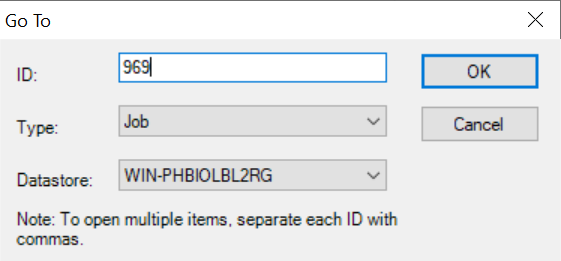
At the top, click edit job.

Then, navigate to Tasks tab, then find the job you want to disable under the corresponding tab.
- HLK Config Library Tasks Per Test - Native is under Setup
- Install SDN Tools is under Regular
- Copy Logs is under Cleanup
Then select, right-click and click disable tasks.
