Note
Access to this page requires authorization. You can try signing in or changing directories.
Access to this page requires authorization. You can try changing directories.
We know there's a lot of categories and subcategories, which can be confusing, but filing things in the right category is key to us getting the right diagnostics and being able to help with your issue. Feedback Hub will in most cases automatically include a category based on the description and title of your suggestion, problem, or compliment to help you with this process. Use this page to check if your feedback has been placed into the category and subcategory and to make sure you're attaching the information we need to investigate.
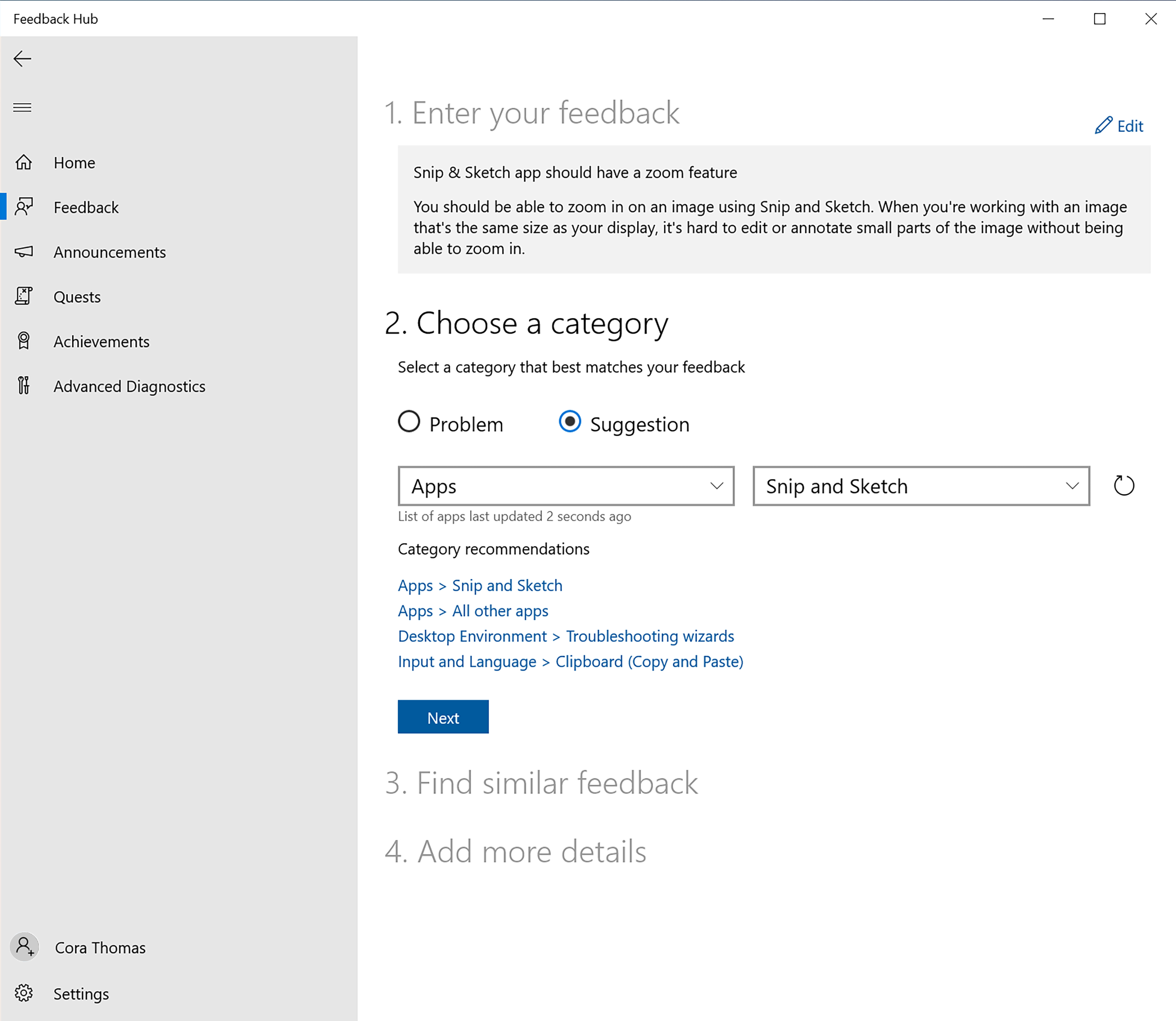
If you’re seeing an issue from an update of Windows, be sure to file feedback under the category and subcategory for where you’re seeing the issue, not just under Install and update.
Choose a category and subcategory
When you look through the list of categories and subcategories in the Select a category field, some likely seem straight-forward, like the Microsoft Store category for feedback on the store experience. But this guide can help you find the best sub category by understanding the different categories:
Apps
Use Apps for issues you experience using apps on your device. The subcategory should be the app's name. Do not use these categories if you are facing issues installing applications though, which should instead go to Developer Platform > App Deployment, Install and Update > App installation issues, Gaming and Xbox > Game installation, and Apps > MSIX app depending on the issue.
Gaming and Xbox
Use Gaming and Xbox for issues you experience while gaming or using Xbox features on Windows, including Game Bar, using controllers, game installation, game crashes and performance, issues using your Xbox account, or recording. If your issue doesn't fit neatly into its subcategories, use All other issues.
Accessibility
Use Accessibility for features we've built specifically to help users make the most of their device, especially users with functional needs, like Narrator, Magnifier, eye control, or live captions. Do not use this for just any issue accessing something. If your feedback isn't for one of these features or something available as a setting in the Settings > Accessibility section, it probably needs to be sent directly to the feature's category instead. Still be sure to tell us that it's an accessibility issue in your feedback description though.
Customer programs
Use Customer programs for feedback on the Windows Insider Program's content or forums, like their blog posts or Answers forum.
Desktop environment
Desktop environment includes many parts of Windows, like the Start menu and the taskbar. Some tips to avoid confusion when filing in this category:
(Virtual) desktops
Use (Virtual) desktops only for the desktops that you can switch between in Task view. Issues for your desktop icons should go the Desktop icons subcategory, issues for your background and wallpaper should go to the Background and wallpaper subcategory, issues for windows on your desktop should go to the DWM (Desktop Window Manager) subcategory, and issues with the desktop right-click context menu should go to the Right-click context menu subcategory.
Clock and calendar flyout
Use Clock and calendar flyout only for the taskbar date and time and the calendar that opens when you select it. Feedback for the calendar app should go to Apps > Calendar instead, and issues with your settings should go to Settings > Date and Time Settings instead.
Desktop icons
Use Desktop icons only for desktop icon issues. Issues for the desktops that you can switch between in Task view, should go to the (Virtual) desktops subcategory, issues for your background and wallpaper should go to the Background and wallpaper subcategory, issues for windows on your desktop should go to the DWM (Desktop Window Manager) subcategory, and issues with the desktop right-click context menu should go to the Right-click context menu subcategory.
DWM (Desktop Window Management)
Use DWM (Desktop Window Management) for issues with using app windows on your desktop, like windows going behind other windows, their frame, mica transparency effects of the window, or the close, maximize, and minimize buttons on your app window.
Lock screen
Use Lock screen for the screen you see when you log in to your device with the time and some settings options. If you're having problems with the Spotlight image backgrounds here though, please use the Windows Spotlight subcategory instead.
Start menu
Use Start menu only for the Start menu, not for the taskbar, other things like apps not starting, or your device not starting up correctly. While there is a search box in the new Windows 11 Start menu, Start and search are still different features with different categories. Use Desktop environment > Search instead for your search feedback.
System tray
Use System tray only for the right side of the taskbar with your date and time, small system icons, and the show hidden icons flyout.
Taskbar
Use Taskbar only for the taskbar outside of the right side with your date and time, small system icons and the show hidden icons flyout, which has its own subcategory called System tray. Task manager and Start menu also shouldn't go here, they have their own subcategories.
All other issues
Use All other issues if you're experiencing explorer crashes when you're not sure what caused them, issues with small system dialogs that pop up as you do things like run programs, or other major issues on Windows that you're not sure where to put.
Developer Platform
Use Developer platform if you’re experiencing any issues with our developer tooling.
Devices and Drivers
Use Devices and Drivers if something is wrong with your device and its hardware, like audio or sound, or connecting to other devices, like Bluetooth, USB keyboards, printers, or scanners.
Display and graphics
Use Display and graphics if something is wrong with your display, like using multiple displays, graphics driver installation, bug check blue screens, brightness, night light, scaling, or resolutions.
Files, folders, and online storage
Use Files, folders, and online storage for any issues with your files and storage, like File Explorer, OneDrive, your storage settings, or disk space.
Input and language
Use Input and language for all things input, including your mouse or pen not working, the emoji panel, or keyboard and language switching. If your keyboard isn't working to type, your hardware keys aren't working, or you’re having issues with the IME (Input Method Editor) for East Asian languages, send it to the Text input subcategory.
Install and update
Use Install and update for all issues with updates, like installing an update, backup and restore, or loss of settings after an update.
Microsoft Store
Use Microsoft Store for any feedback relating to the Microsoft Store app or store experience. This is not the path for issues with any order, please use the Microsoft Store order support paths for issues with store orders.
Mixed Reality
Use Mixed Reality for issues relating to HoloLens or Windows Mixed Reality experiences.
Network and internet
Use Network and internet for all issues around your internet and network connectivity, like VPNs, connecting to wi-fi, ethernet, or cellular, and the network troubleshooter.
Power and battery
Use Power and battery for all issues with your power—like powering on or off or sleep—or with your battery—like battery saver, overheating, or app energy consumption.
Recovery and uninstall
Use Recovery and uninstall for issues with recovery and uninstall issues like reset this PC, image backups, and USB recovery drives.
Security and privacy
Use Security and privacy for all things security, like BitLocker, encryption, Microsoft Defender, logging into your device or Windows Hello, or issues with your account.
Settings
Use Settings for any issues with the Settings app, like personalization, date and time, sound, and Windows update.
Windows 365
Use Windows 365 for feedback or issues relating to the Windows 365 experience.
Windows Server
Use Windows Server for feedback or issues relating to Windows Server products.
Include the diagnostics needed to investigate
In certain categories and subcategories, we need certain diagnostics attached with your report to be able to take action. Be sure to still give us a good title and good description first. Learn more about how to give great feedback.
App installation and deployment issues
When filing app deployment issues to Developer Platform > App Deployment, Install and Update > App installation issues, Gaming and Xbox > Game installation, and Apps > MSIX Packaging Tool, make sure you tell us which app you're trying to deploy or install in your feedback.
Then, if you're facing an issue during installation:
- Use Record steps and select Start recording.
- Try to install the app.
- Wait until the app error shows up.
- Stop the recording, and a file of your recording will be automatically attached to the feedback.
Or, if you're facing an issue when launching or running an app:
- Use Record steps and select Start recording.
- Try to launch or run the app.
- Wait until the issue shows up.
- Stop the recording, and a file of your recording will be automatically attached to the feedback.
Audio and sound
For issues with your audio and sound not working, be sure to file them to the Devices and drivers > Audio and sound category and subcategory. Then:
- Use Record steps and select Start recording.
- Go through the steps to show us your issue.
- Stop the recording, and a file of your recording will be automatically attached to the feedback.
Gaming performance
For issues with your game performance, be sure to file them to the Gaming and Xbox > Game performance category and subcategory. Then:
- Use Record steps.
- Uncheck the box for Include screenshots of each step.
- Select Start recording.
- Go to your game to reproduce the problem for 10 to 15 seconds.
- Stop the recording. The capture will only have the last 15 seconds or so of the recorded period, so make sure to switch back quickly to the Feedback Hub to stop this within seconds of reproducing the problem. Now a file of your recording will be automatically attached to the feedback.
Input and language
Input lag
For issues with performance issues in input, be sure to file them to the Input and language > Input lag category and subcategory. Then:
- Use Record steps and select Start recording.
- Go through the steps to show us your issue.
- Stop the recording, and a file of your recording will be automatically attached to the feedback.
Keyboard and language switching
For issues with your language switcher, be sure to file them to the Input and language > Keyboard and language switching category and subcategory. Then:
- Use Record steps and select Start recording.
- Go through the steps to show us your issue.
- Stop the recording, and a file of your recording will be automatically attached to the feedback.
Mouse
For issues with your mouse, be sure to file them to the Input and language > Mouse category and subcategory. Then:
- Use Record steps and select Start recording.
- Go through the steps to show us your issue.
- Stop the recording, and a file of your recording will be automatically attached to the feedback.
Pen input
For issues with your pen input, be sure to file them to the Input and language > Pen input category and subcategory. Then:
- Use Record steps and select Start recording.
- Go through the steps to show us your issue.
- Stop the recording, and a file of your recording will be automatically attached to the feedback.
Text input
For issues with your keyboard, first make sure your OEM drivers are up to date by checking for updates in Settings > Windows Update and taking any available driver updates. Once you've confirmed that, be sure to file them to the Input and language > Text input category and subcategory. Make sure to explain which keyboard behavior specifically is not working as expected. If the issue occurs when you’re using an application, be sure to give examples of which specific applications you’re seeing the issue in. Then:
- Use Record steps and select Start recording.
- Go through the steps to show us your issue.
- Stop the recording, and a file of your recording will be automatically attached to the feedback.
Touch input and gestures
For issues with your touch input and gestures, be sure to file them to the Input and language > Touch input and gestures category and subcategory. Then:
- Use Record steps and select Start recording.
- Go through the steps to show us your issue.
- Stop the recording, and a file of your recording will be automatically attached to the feedback.
Touchpad
For issues with your touchpad input, be sure to file them to the Input and language > Touchpad category and subcategory. Then:
- Use Record steps and select Start recording.
- Go through the steps to show us your issue.
- Stop the recording, and a file of your recording will be automatically attached to the feedback.
All other issues
For issues for other input related issues that you can't find a specific context for, be sure to file them to the Input and language > All other issues category and subcategory. Then:
- Use Record steps and select Start recording.
- Go through the steps to show us your issue.
- Stop the recording, and a file of your recording will be automatically attached to the feedback.
Performance
For specific performance issues like gaming, desktop environment, or your browser, try to file your feedback to the appropriate category and subcategory.
For more generic system performance issues, you can file your feedback to the Install and update > Post-update system sluggishness category and subcategory. Then:
- Use Record steps and select Start recording.
- Try to be precise about the issue you are recording. For example, if experiencing app launch slowness, immediately launch the app in question. If everything feels slow, try to take a simple action like launching your start menu.
- Stop the recording, and a file of your recording will be automatically attached to the feedback.
- Note that even if the issue has passed now that you're recording, turn on the recording, minimize Feedback Hub and keep using your device normally. Then when you encounter the issue again, immediately open Feedback Hub back up from the minimized window or using Win + F, then stop the recording to get the last 45 seconds or so attached.
If your device is slow to boot up:
- Open Command Prompt and run as administrator.
- To configure boot tracing (starting next Boot), run: wpr -boottrace -addboot GeneralProfile -filemode
- Use shutdown method of your choice, preferably command line (shutdown /r -t 0) or Restart from Start menu.
- After rebooting, log back in, then as soon as possible open command prompt and enter: wpr -boottrace -stopboot trace.etl
- Add the trace to your feedback as a file attachment.
If your device is slow to shutdown on Windows 11:
- Open Command Prompt and run as administrator.
- Be ready to shutdown the device and run this to start tracing now and configure so as to persist tracing during shutdown: wpr -start GeneralProfile -shutdown -filemode
- Use shutdown method of your choice, preferably command line (shutdown /r -t 0) or Restart from Start menu.
- After rebooting, log back in, then as soon as possible open command prompt and enter: wpr -stop ShutdownTrace.etl
- Add the trace to your feedback as a file attachment.