Note
Access to this page requires authorization. You can try signing in or changing directories.
Access to this page requires authorization. You can try changing directories.
Release date: 6 November 2026
Changes and improvements gradually being rolled out*
- This update includes a small set of general improvements and fixes that improve the overall experience for Insiders running this build on their PCs.
[Windows Search]
New Windows Search experience with inline actions: A new Windows Search experience built on WinUI 3 is beginning to roll out. It's faster, more efficient, and features a streamlined design that makes results easier to scan. Inline actions let you quickly complete tasks directly. Turn on dark mode or Bluetooth, adjust your screen brightness, mute your device, or arrange windows from Windows Search.
Windows Search is improving how it understands what you're looking for, including better matching for typos and synonyms. These improvements will continue to be fine-tuned over the coming weeks. For more information about the changes, check out the Windows Insider Blog.
English is the only supported language for this initial release.
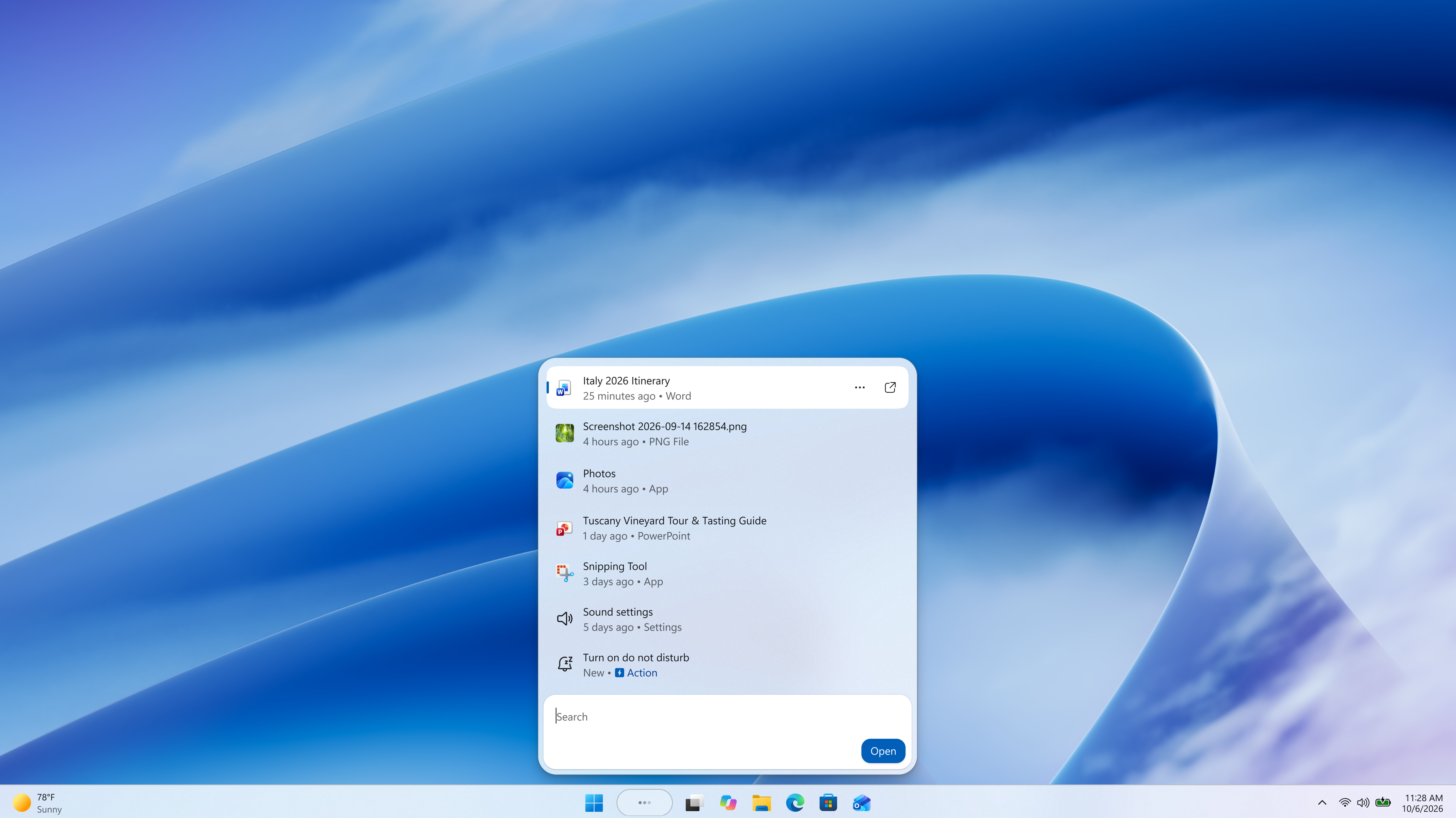
Screenshot of the new Windows Search experience.
[Magnifier]
Magnifier now understands each of your displays
- More and more of the work people do happens across more than one screen. You draft on one display and keep source material open on another. You fill in a form while a reference document sits beside it. Those extra displays can be more helpful when each one can do its own job, and now Magnifier supports exactly that.
- To use this update, set your monitors to Extend in System > Display, not Duplicate, so Windows treats each screen as its own space.
- Every screen keeps its own view at its own zoom. In earlier versions of Magnifier, zooming in stretched a single magnified view across all of your displays, so one screen's zoom followed you everywhere and screen edges blurred together. With this update, each monitor's boundary is respected, and each monitor can have its own zoom percentage. Your writing screen can be at 300% while your reference screen stays at 150%, and the magnified view no longer spills from one display into the next. This behavior matters because different tasks and screen resolutions often require different levels of magnification to remain comfortable to read.
Setting the zoom on each screen is easy. Choose whichever method feels natural:
- Move your mouse pointer onto the screen you want to adjust, then press Windows key + Plus (+) or Windows key + Minus (-), or hold Ctrl + Alt and rotate your mouse wheel.
- Set the percentages directly in Accessibility > Magnifier.
- Drag the Magnifier toolbar onto a specific screen to adjust that screen from its on-screen controls.

Magnifier with Zoom per display enabled, allowing each monitor to maintain its own zoom level.
- Per-monitor zoom is turned on by default. If you prefer the classic behavior where a single zoom spans all of your displays, you can turn per-monitor zoom off at any time from either the Magnifier toolbar or Accessibility > Magnifier. You can turn it back on whenever you like.
Keep the view that matters, right where you need it
- As you move your mouse from screen to screen, the magnified view naturally follows your pointer. Sometimes this might cause you to lose sight of the content that you're actively working on.
- Viewport locking keeps that view in place. For example, you might be drafting an email based on a section of a document open on another display. Position that display so the paragraph you need is in view, press Ctrl + Windows key + K, and the screen holds its view steady while you move your cursor over to write. The locked screen stays fully live and interactive, so you can glance back, click, or copy from it whenever you need to, and its view stays put until you release it.
- A message appears on the screen when it's locked, so you always know what's being held. To lock or unlock a screen, point your mouse at that screen and press Ctrl + Windows key + K again. To release everything at once, press Windows key + Esc to dismiss all locks. To use a different key combination, you can switch the lock shortcut to Ctrl + Alt + P in Accessibility > Magnifier.

Magnifier's multiple display controls include independent zoom and view locking options.
Magnifier new contrast theme
A new contrast theme toggle for a lower-glare screen. If bright screens are uncomfortable, many people use color inversion to reduce glare. However, inversion changes everything on screen, including photos, charts, and videos. With this update, Magnifier introduces a new contrast theme toggle.
Reduce glare with a single toggle. Turn on a contrast theme directly from the Magnifier toolbar for a more comfortable viewing experience.
Choose the contrast theme that works best for you. The dark theme is applied by default, and you can choose which contrast theme the toggle uses under Settings > Accessibility > Magnifier.
Photos, videos, and charts keep their original colors. Unlike color inversion, the contrast theme recolors the interface without touching your photos, charts, or videos, so they keep their real colors.
Color inversion is still here. This isn't a replacement. If you use inversion today, it works exactly as it always has. The contrast theme is a separate, purpose-built option to reduce glare when you want a darker interface without inverting colors.
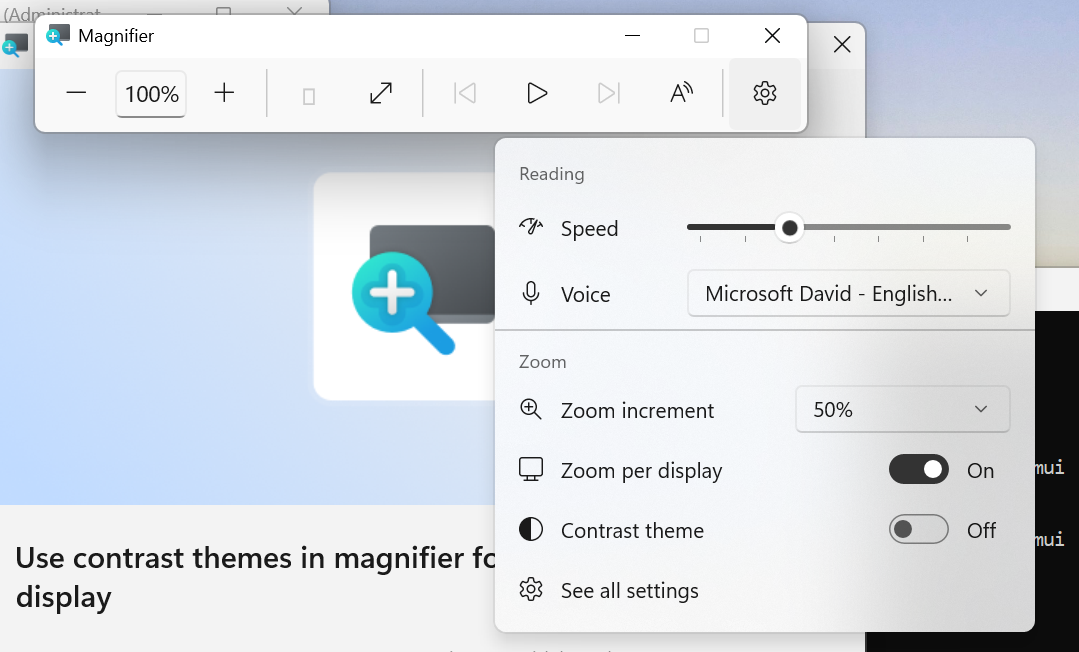
UI showing the new contrast theme toggle in Magnifier.
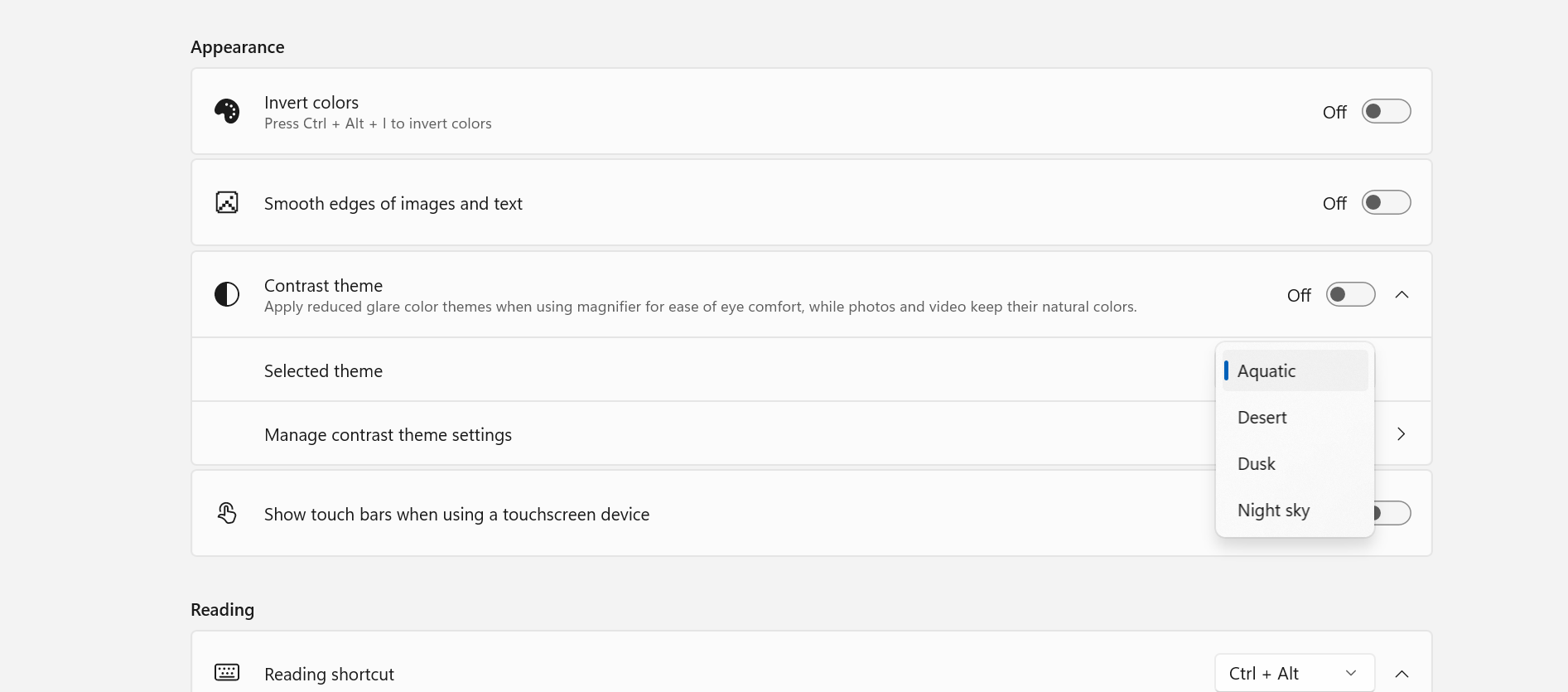
UI showing contrast theme settings for Magnifier.
[File Explorer]
- PDF and non-HTML files downloaded from the web can now be previewed automatically in the Preview pane.
Reminders for Windows Insiders in the Beta (26H1) channel
The desktop watermark shown at the lower right corner of the desktop is normal for Windows Insider pre-release builds.
Features and experiences included in these builds might never get released as we try out different concepts and get feedback. Features might change over time, be removed, or replaced and never get released beyond Windows Insiders. Some of these features and experiences could show up in future Windows releases when they're ready.
Some features in active development we preview with Windows Insiders might not be fully localized, and localization will happen over time as features are finalized. As you see issues with localization in your language, report those issues to us via Feedback Hub.
Check out Flight Hub for a complete look at what build is in which Insider channel.