Note
Access to this page requires authorization. You can try signing in or changing directories.
Access to this page requires authorization. You can try changing directories.
Release date: 8 September 2026
Changes and improvements
[Modernized AutoPlay experience]
We've updated the AutoPlay dialog that helps you choose the preferred experience when devices are connected to your PC, such as a phone, camera, or removable drive. Rebuilt with WinUI, the refreshed experience is more consistent with the rest of Windows, supports dark mode, and continues to provide the familiar AutoPlay actions you use today. The experience is also more responsive to text scaling and display settings. Notifications for this dialog are now docked in the notification center for easy access.
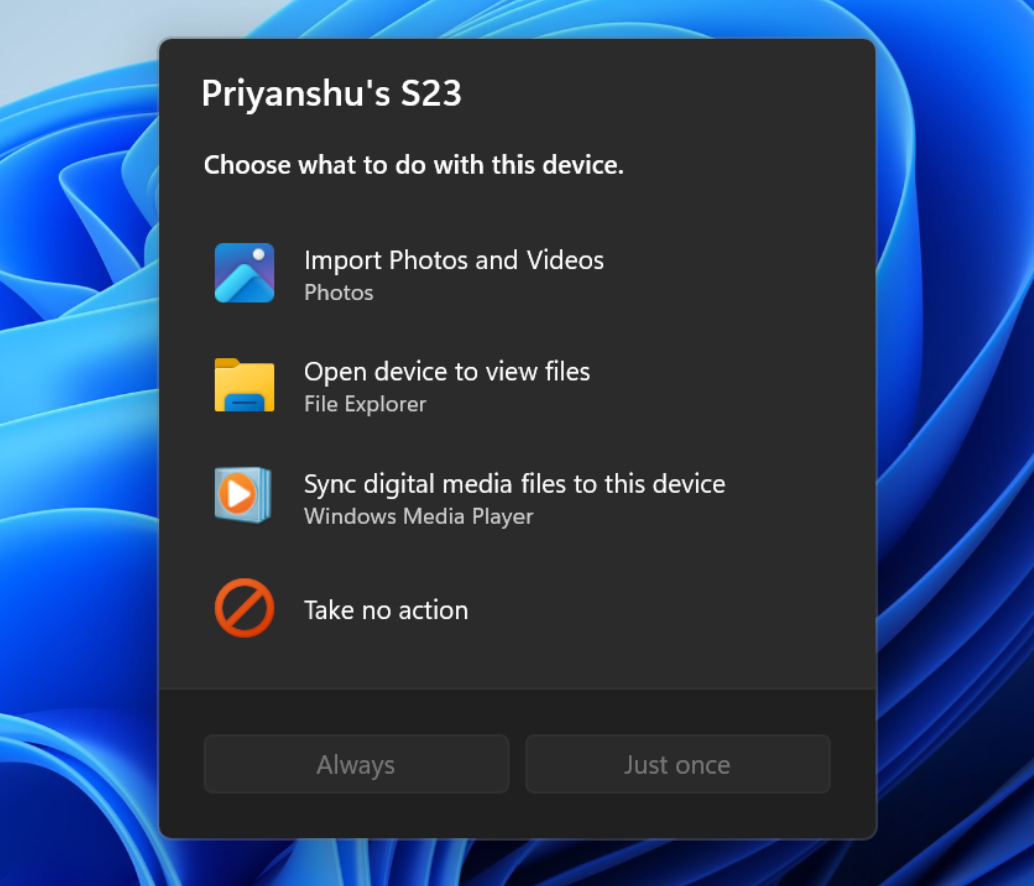
The new AutoPlay experience, shown in dark mode.
[Personalization]
- Improved reliability of the Personalization > Background page in Settings.
- Added support for using DIB image files as desktop backgrounds.
- Improved reliability of desktop slideshow transitions on newly created accounts.
- Improved the resolution of previews when selecting a desktop background in Personalization > Background.
- Improved the desktop background preview display in Settings for users with portrait mode monitors.
- Improved reliability of processing desktop wallpaper changes when they happen in quick succession.
- Added support for using slideshow wallpapers with multiple desktops so that it won't automatically switch you back to Picture.
- Fixed an issue that caused some Insiders to see their wallpaper go black after every reboot in the previous flight.
[Windows Recovery]
New enhancements to networking in WinRE
- We're adding a new WinRE networking capability that allows the Windows Recovery Environment to automatically reuse eligible Wi-Fi profiles already saved in the main Windows OS, including supported certificate-based Wi-Fi networks. Previously, WinRE could automatically connect only to wired unauthenticated Ethernet or Wi-Fi networks that were separately preconfigured for WinRE, while users had to manually connect to other WPA2/3 networks by entering a password. With this update, WinRE can use saved Wi-Fi profile information when a recovery workflow requires connectivity, helping devices get online automatically during scenarios such as quick machine recovery or cloud rebuild without requiring users or IT admins to separately preconfigure Wi-Fi credentials in WinRE. By default, this capability is enabled. However, IT admins can disable this functionality if desired.
- To test this feature in your environment, see Test networking in WinRE.
Cloud rebuild
- We're introducing Cloud rebuild, a new recovery option that restores a Windows 11 PC to a clean, known-good state by performing a full OS reinstall, even when Windows won't boot. Unlike Reset this PC, Cloud rebuild downloads both the target Windows image and the device's drivers from Windows Update, so the device comes back fully functional without USB media, without a custom image, and without depending on the health of the currently installed OS.
- In this preview, you can try Cloud rebuild today:
- Start it directly from the Windows Recovery Environment (WinRE) by selecting Troubleshoot > Recovery and uninstall > Cloud rebuild.
- Connect over wired Ethernet or a Wi-Fi network from within WinRE.
- Review the target Windows build, edition, and language, then confirm the data-loss warning before the rebuild begins.
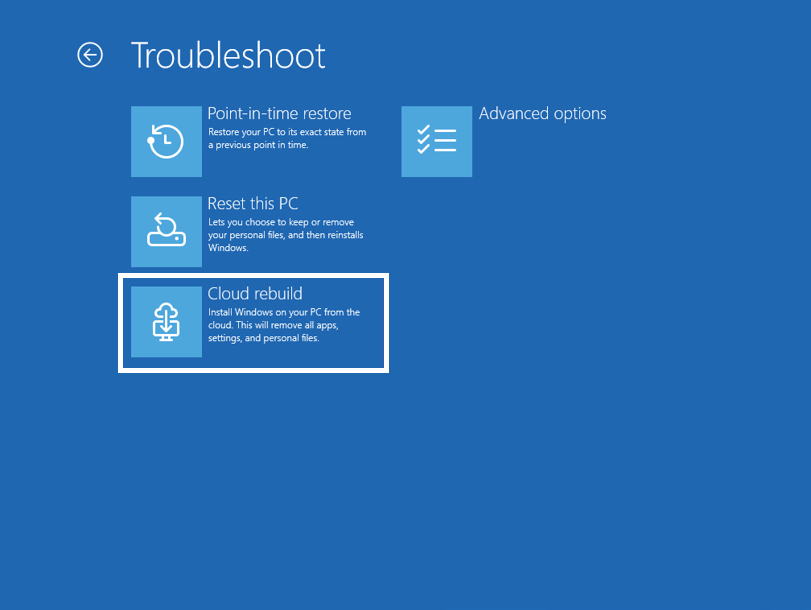
The new Cloud rebuild option in Windows Recovery Environment (WinRE), which enables a full Windows reinstall using files downloaded from Windows Update.
Feedback: Share your thoughts in Feedback Hub (WIN + F) under Recovery > Cloud rebuild.
To learn more, see Cloud rebuild.
[File Explorer]
We've made several updates to improve reliability, readability, and overall usability in File Explorer:
- Address bar improvements
- The address bar now supports paths containing double backslashes and quotation marks, for example,
C:\Users\useror"C:\Users\user", improving compatibility with a wider range of inputs. - Improved reliability of the address bar suggestion dropdown so it now consistently closes after an item is selected.
- The address bar now supports paths containing double backslashes and quotation marks, for example,
- Refinements to the rename experience
- Fixed an issue where text would be repeatedly selected while renaming items in folder views.
- Fixed an issue where updated names with case-only changes weren't immediately reflected in folder views across local and cloud storage.
- Improved keyboard navigation of File Explorer context menus in flyouts.
- File Explorer Home now preserves the state of sections (expanded or collapsed), so you can pick up where you left off.
Feedback: Share your thoughts in Feedback Hub (WIN + F) under Files, Folders, and Online Storage > File Explorer.
[Camera Roll Backup]
New entry points on the Settings > Home and Accounts pages help you set up Camera Roll Backup and automatically back up photos and videos from your mobile device to OneDrive.
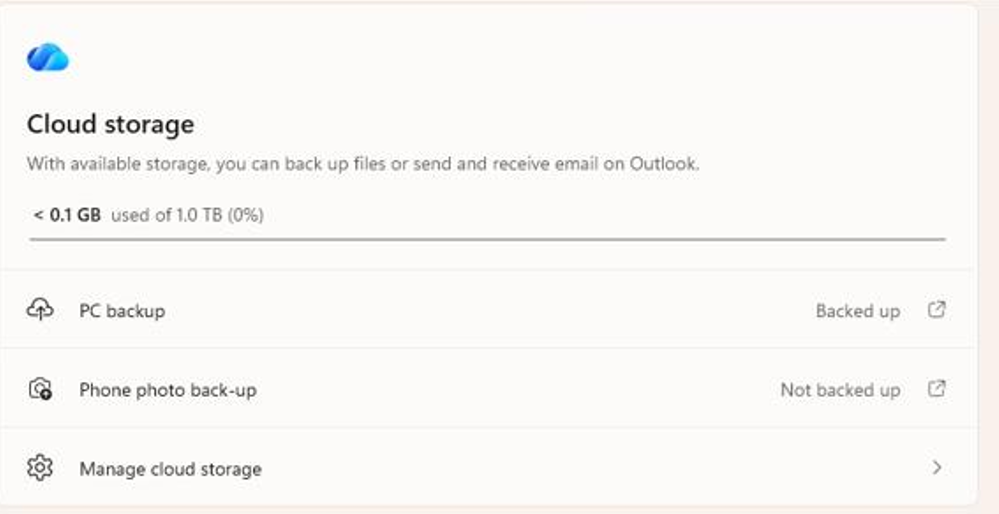
UI showing the Phone photo back-up setting in Cloud storage with the status "Not backed up" and a link to begin the backup process.
[Magnifier]
We're giving Magnifier's toolbar a modernized visual refresh.
Updated icons. We've updated Magnifier's toolbar icons to align with Windows 11 visual design, giving the tool a cleaner, more modernized feel.
Refined spacing and padding. We've adjusted the padding and spacing across the toolbar for a more polished, consistent layout.
What's not changing: The way Magnifier works. Your views, zoom controls, keyboard shortcuts, and Read Aloud all behave exactly as they did in earlier versions.
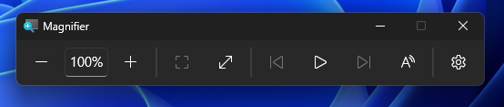
The Magnifier toolbar with updated icons and a more polished, consistent layout.
[Emoji]
We're adding support for Emoji 17.0. This includes new emoji such as distorted face, fight cloud, and hairy creature. To try the new emoji, press the Windows key plus Period (.) to open the emoji panel and insert them from there.

Examples of new emoji added with Emoji 17.0.
As part of this effort, we've also made some slight adjustments to the design of some of our current emoji to improve consistency across platforms. This includes the saluting face, face with peeking eye, goose, lotus, and kissing cat emoji.
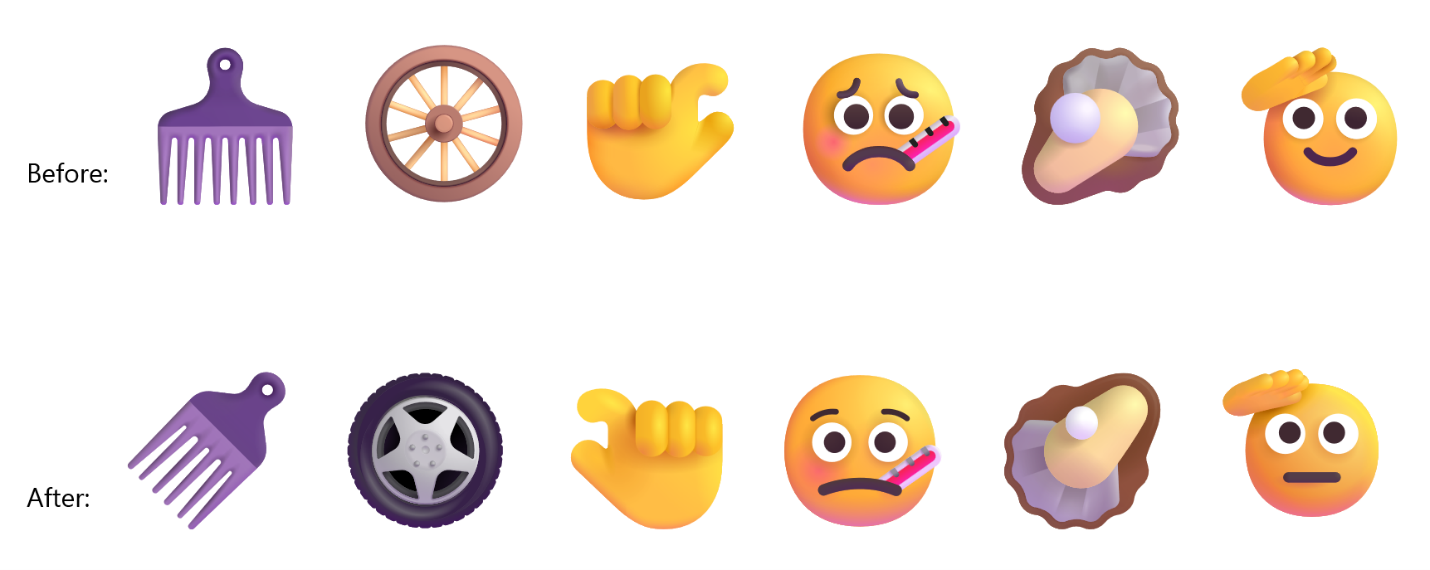
Before-and-after examples of updated emoji designs.
[Fonts]
Unicode has announced the encoding of two African writing systems in recent Unicode releases:
- Garay was encoded in Unicode 16.0, released in September 2024.
- Beria Erfe was encoded in Unicode 17.0, released in September 2025.
We're pleased to share that Ebrima is our first Microsoft font to support both Garay and Beria Erfe, continuing our work to expand support for African writing systems across Windows. Along with this support, we've refined and improved Adlam. The updated glyph designs reflect the current Unicode standard and improve consistency.

A sample of Beria Erfe in the Ebrima font.

A sample of Garay in the Ebrima font.
[Print Management]
- We're temporarily removing the modernized Print Management experience from Windows Insider Preview builds while we continue refining the experience based on feedback. The existing Print Management tools remain available and are unaffected.
- We plan to bring the updated Print Management experience back to Windows Insiders in a future build after additional improvements are complete.
Known issues
- We're working on a fix for an issue causing mouse cursor customization to not work correctly.
- We're working on a fix for an issue causing desktop background customization to not persist after a reboot.
Reminders for Windows Insiders in the Beta Channel
Updates are based on Windows 11, version 25H2 via an enablement package (Build 26220.9343).
The desktop watermark shown at the lower right corner of the desktop is normal for Windows Insider pre-release builds.
Features and experiences included in these builds might never get released as we try out different concepts and get feedback. Features might change over time, be removed, or replaced and never get released beyond Windows Insiders. Some of these features and experiences could show up in future Windows releases when they're ready.
Some features in active development we preview with Windows Insiders might not be fully localized, and localization will happen over time as features are finalized. As you see issues with localization in your language, report those issues to us via Feedback Hub.
Check out Flight Hub for a complete look at what build is in which Insider channel.