Note
Access to this page requires authorization. You can try signing in or changing directories.
Access to this page requires authorization. You can try changing directories.
Release date: 23 October 2026
Changes and improvements gradually being rolled out
[Windows Insider Program]
We've added the ability to filter Feature flags by enablement state.
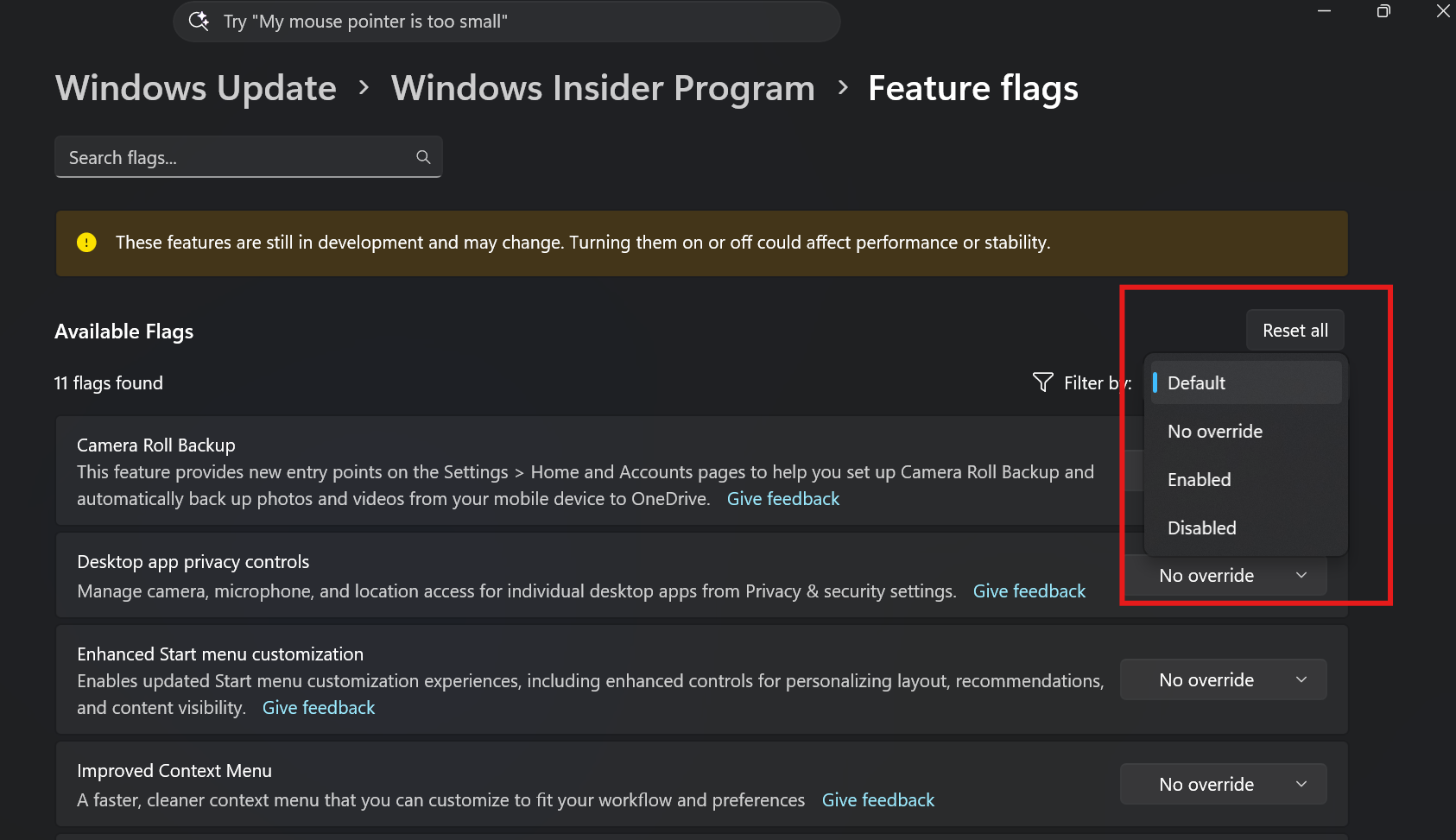
Feature flags filtered by enablement state on the Windows Insider Program settings page.
[Quick Settings]
Access your phone controls from Quick Settings
- We're beginning to roll out a new Mobile devices experience in Quick Settings, making it easier to take quick phone actions (such as ring your phone) without breaking your flow on Windows.
- With your supported Android phone connected, everyday actions are now just a click away. You can turn Do Not Disturb on before a meeting, change your phone's ringer mode, and play a sound to find your phone nearby.
- It's a simpler, faster way to manage your phone from the place you already use for quick Windows actions, helping your PC and phone work better together throughout the day.
- Capabilities can vary by phone platform and device configuration. The initial experience provides the most complete set of controls for Android phones, while iPhone support starts with a more limited status-focused experience.
How to try it
Open Quick Settings from the taskbar and look for Mobile devices. If your phone is already connected, you'll see available battery status and controls there. If you haven't connected a phone yet, Windows will help you get set up.
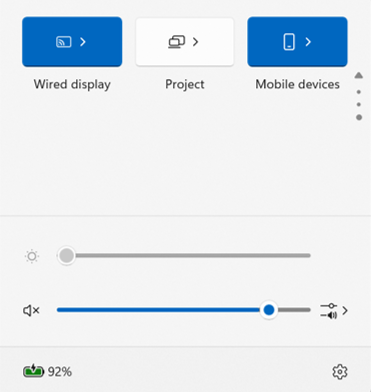
UI showing the Mobile devices experience in Quick Settings.
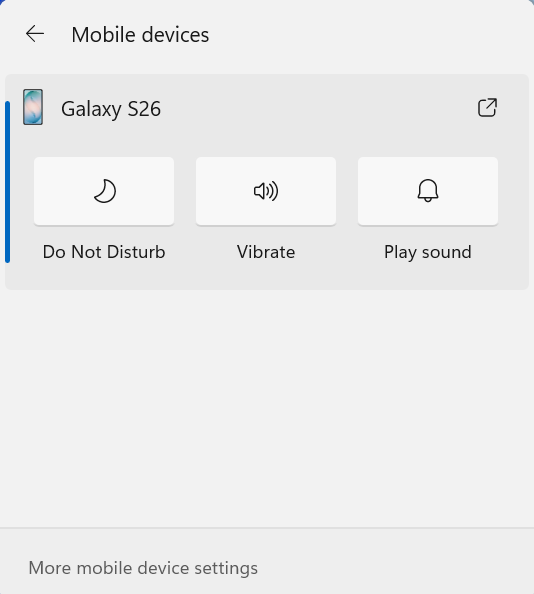
UI showing Mobile devices controls in Quick Settings for managing your connected Android phone.
Check your internet speed directly from Quick Settings
We're making it faster and easier to check the performance of your internet connection in Windows. Windows Insiders can now run an internet speed test and see the results directly in Quick Settings, without being redirected to a browser.
Start a test from the new Speed test Quick Setting, from the Wi-Fi or Cellular flyout, or by right-clicking the network icon in the system tray and selecting Test internet speed. While the test runs, Quick Settings shows its progress and results, including download speed, upload speed, and ping.
Because the test runs against your active internet connection, you can quickly understand how your current connection is performing without leaving your workflow. This updated experience builds on the internet speed test we previously introduced for Windows Insiders, bringing the test and its results directly into Windows.
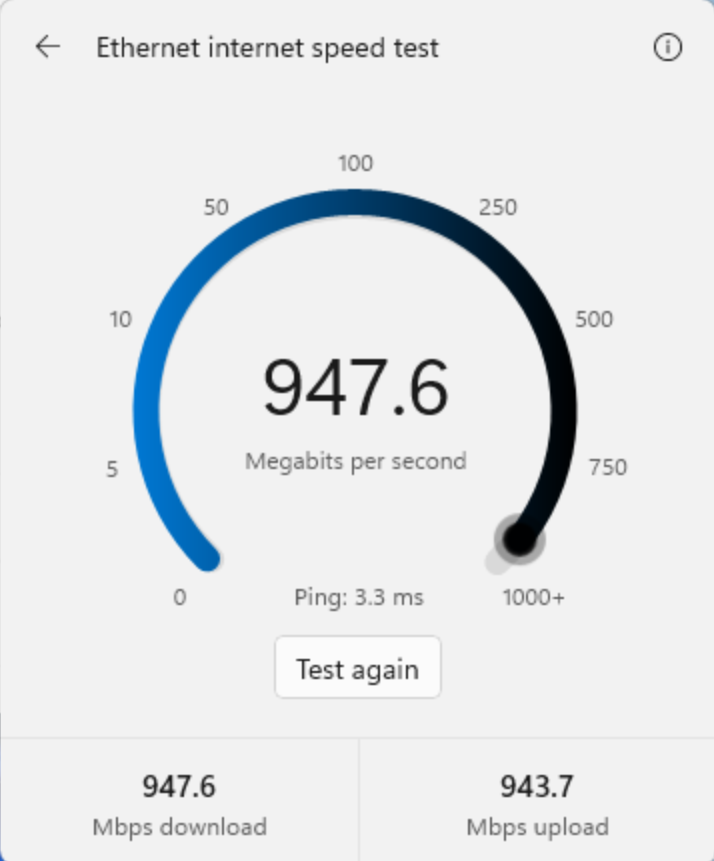
Internet speed test results in Windows.
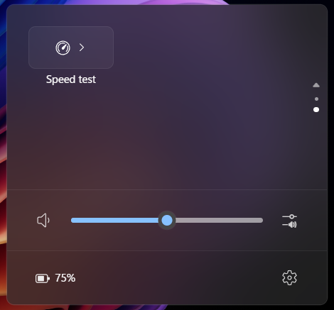
Speed test in Quick Settings.
[Magnifier]
We've added a Keyboard shortcut for Magnifier toggle in Settings > Accessibility > Magnifier. It lets you choose whether pressing Windows logo key + Plus (+) launches Magnifier.
The shortcut stays on by default, so nothing changes unless you want it to. If you find that Magnifier starts by accident, or the shortcut conflicts with another app or keyboard layout, turn the toggle off. You can still start Magnifier from Settings, and you can turn the shortcut back on at any time.
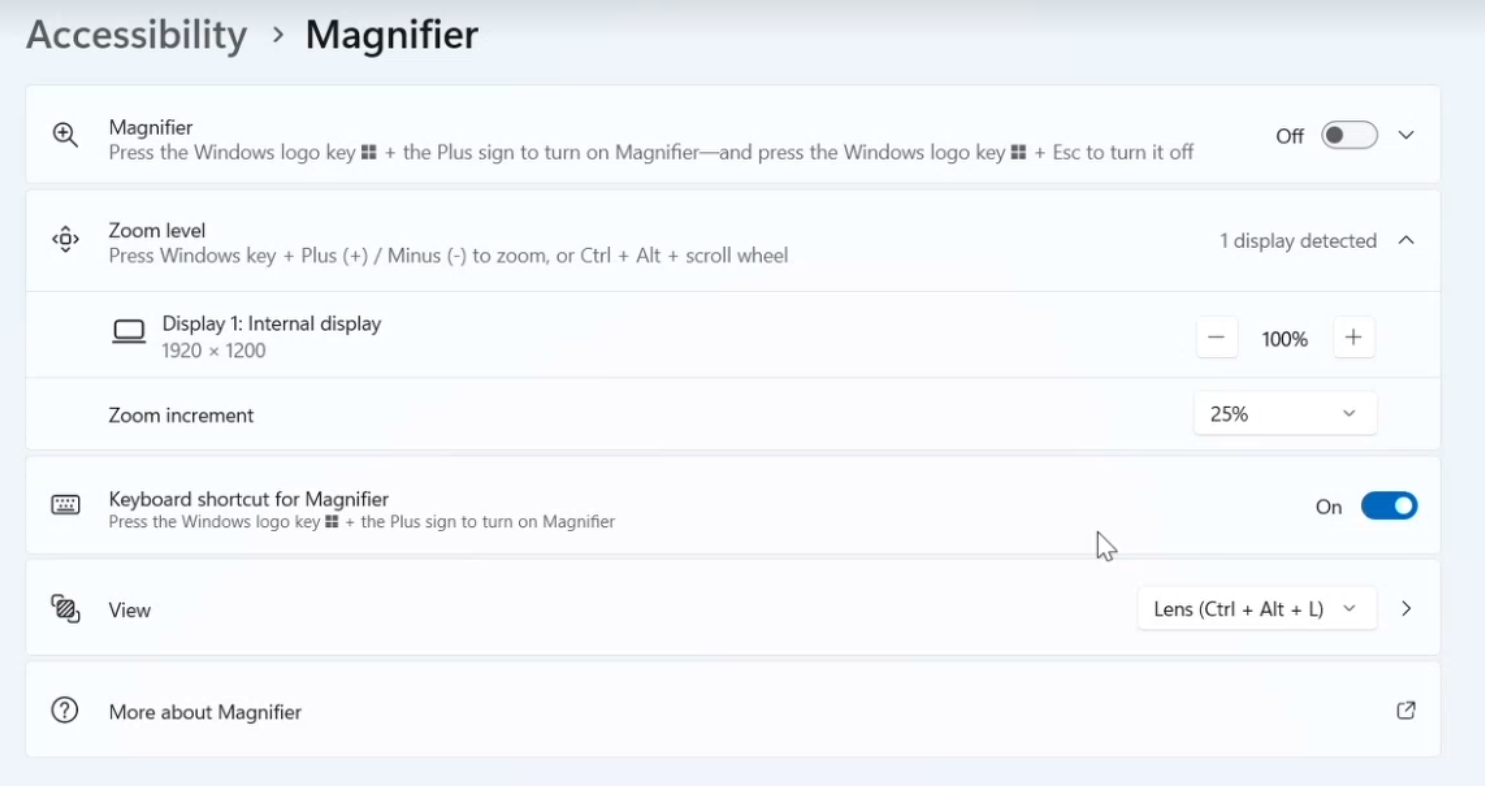
New toggle to turn the Magnifier keyboard shortcut on or off.
[Microsoft 365 subscription in Windows]
We're introducing a new inline experience that makes it easier for Microsoft 365 subscribers to manage their subscriptions in Windows. Subscribers who have recurring billing turned off can now turn it back on directly in Windows Settings, without leaving for a separate webpage. To get started, select Turn on recurring billing or Set up recurring billing from the Windows Settings Home page, the Accounts page, or the Start menu.
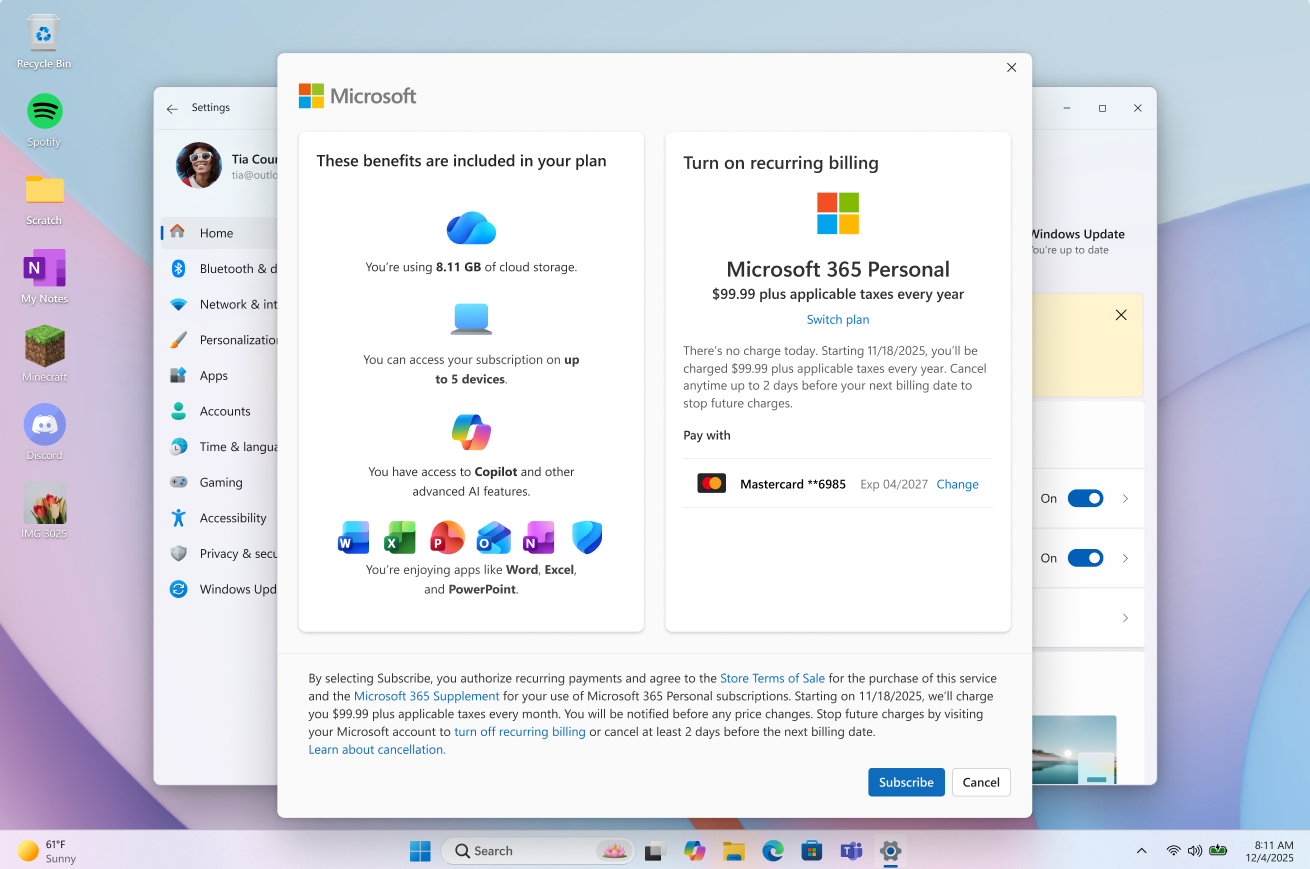
Turn on recurring billing for your Microsoft 365 subscription directly in Windows.
[File Explorer]
- Improved progress indication when navigating to locations that take longer to load, such as network drives, making it easier to see that loading is underway.
[Narrator]
- Narrator now supports additional languages for math reading, including Greek, Hungarian, Indonesian, Norwegian (Bokmål), Polish, Russian, Swedish, and Vietnamese.
[Widgets]
- The Widgets picker now has a standard Windows dialog frame and supports light and dark title bars. It also removes the blank space previously left for an icon.
[Taskbar]
- Fixed an issue with the previous update where
explorer.exewouldn't load after logging in, preventing the taskbar and other elements that rely on it from loading.
[Windows login]
- Fixed an issue with the previous update that was causing some Insiders to erroneously see a message saying their password was wrong on the login screen.
Reminders for Windows Insiders in the Experimental channel
Updates are based on Windows 11, version 26H2 via an enablement package (Build 26340.9767).
Many features are rolled out using Controlled Feature Rollout technology, starting with a subset of Insiders and ramping up over time. We monitor feedback to see how they land before pushing them out to everyone in this channel.
The desktop watermark shown at the lower right corner of the desktop is normal for Windows Insider pre-release builds.
Features and experiences included in these builds might never get released as we try out different concepts and get feedback. Features might change over time, be removed, or replaced and never get released beyond Windows Insiders. Some of these features and experiences could show up in future Windows releases when they're ready.
Some features in active development we preview with Windows Insiders might not be fully localized, and localization will happen over time as features are finalized. As you see issues with localization in your language, report those issues to us via Feedback Hub.
Check out Flight Hub for a complete look at what build is in which Insider channel.