Note
Access to this page requires authorization. You can try signing in or changing directories.
Access to this page requires authorization. You can try changing directories.
Important
Network HUD for Windows Server is currently in PREVIEW. This information relates to a prerelease product that might be substantially modified before it's released. Microsoft makes no warranties, expressed or implied, with respect to the information provided here.
Network HUD is a cluster‑aware, intent‑driven host networking diagnostics tool that continuously analyzes adapters, links, and switch signals to surface actionable health faults early. This article explains how to enable Network HUD on an Azure Arc connected Windows Server 2025 Datacenter clustered deployment and how to view health faults using Windows Admin Center or PowerShell.
Prerequisites
Before you install Network HUD, ensure you have the following prerequisites in place:
Windows Server Failover Clustering requirements:
- You have at least one node in the cluster.
- Cluster nodes must be running Windows Server 2025 Datacenter.
- Network ATC is deployed with host networking intents. To learn more about deploying Network ATC, see Deploy host networking with Network ATC.
- The cluster must have Storage Spaces Direct (S2D) enabled. To learn more about deploying Storage Spaces Direct, see Deploy Storage Spaces Direct on Windows Server.
- Each cluster node has the
DataCenterBridging LLDP Toolsinstalled from the Remote Server Administration Tools feature.
Azure Arc requirements:
- Each cluster node must be connected to Azure Arc.
- You must be eligible for Windows Server Management enabled by Azure Arc. To learn more about the availability of the Network HUD benefit, see Windows Server Management enabled by Azure Arc.
- Network HUD is only available on machines in the following regions:
- East US 2 EUAP
- Central US EUAP
- Central US
- East US 2
- East US
- Canada Central
- West US 2
- North Europe
- West Europe
- Japan East
- Southeast Asia
- Australia East
Network HUD for Windows Server has the same network switch requirements as Azure Local. When using Network HUD on Windows Server, ensure you're using validated physical switches for Azure Local and that the network switch requirements are met. To learn more, review the sections Network switches for Azure Local and Network switch requirements in Physical network requirements for Azure Local. Other sections in the Physical network requirements for Azure Local article don't apply to Network HUD Windows. Server
Enable the Network HUD extension in the Azure portal
To use the Azure portal to enable the Network HUD extension, follow these steps:
Navigate to the Azure portal, then search for and select Machines - Azure Arc.
Select the machine you want to enable the Network HUD extension on.
Select the Network HUD tile.
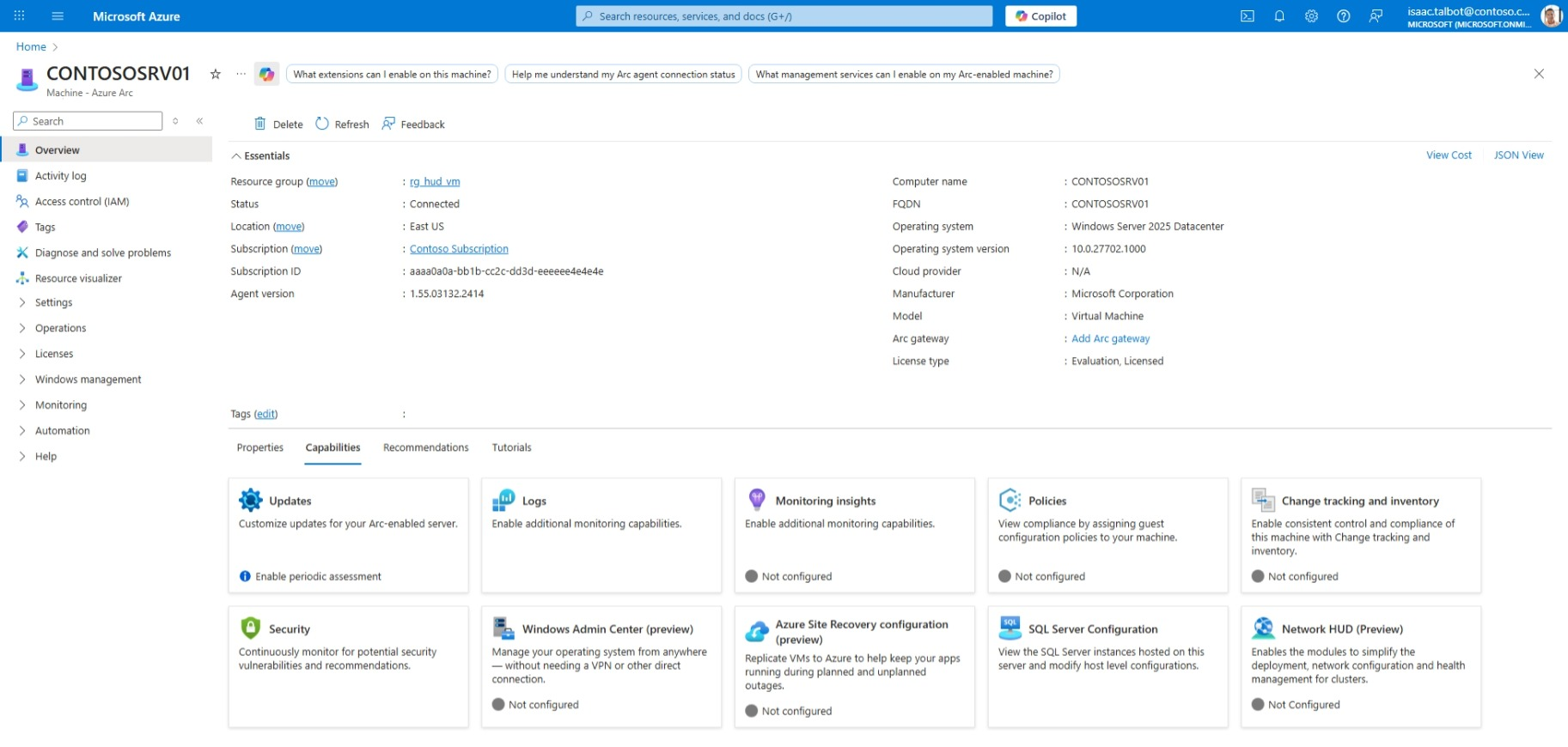
When ready, select Enable.
Once the extension is successfully enabled, you see a confirmation message and the tile shows as Enabled.
View health faults
To verify installation and view health faults, select your preferred method.
To verify the installation and view health faults using Windows Admin Center, follow these steps:
Open Windows Admin Center and connect to your Windows Server 2025 Datacenter cluster.
In the Cluster view, either view alerts from the dashboard or select the notification bell icon on the top right corner.
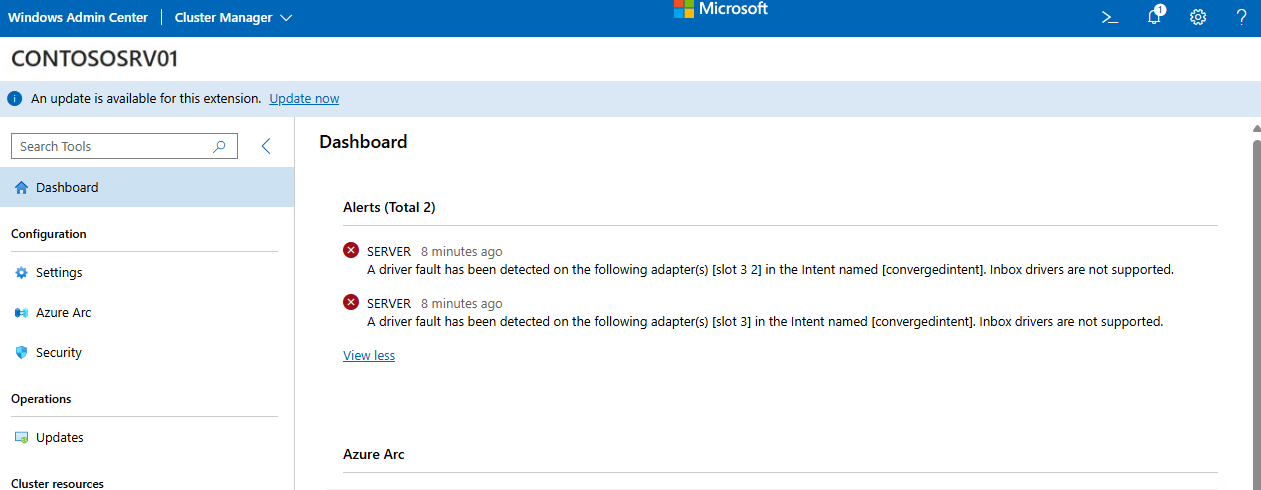
Look for alerts related to Network HUD. These alerts provide information about any detected host networking issues.
Select an alert to view more details and recommended actions for remediation.
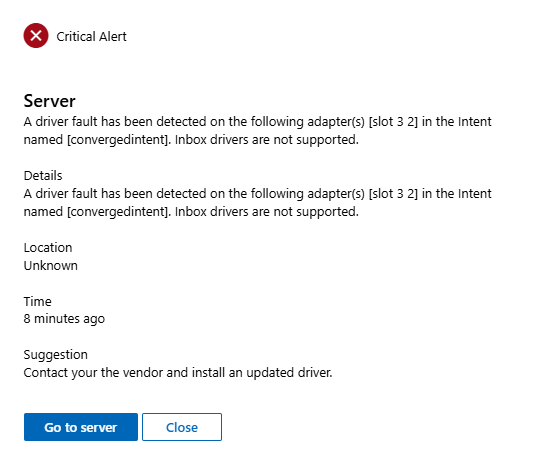
Alerts automatically resolve themselves when the underlying issue is fixed.