Note
Access to this page requires authorization. You can try signing in or changing directories.
Access to this page requires authorization. You can try changing directories.
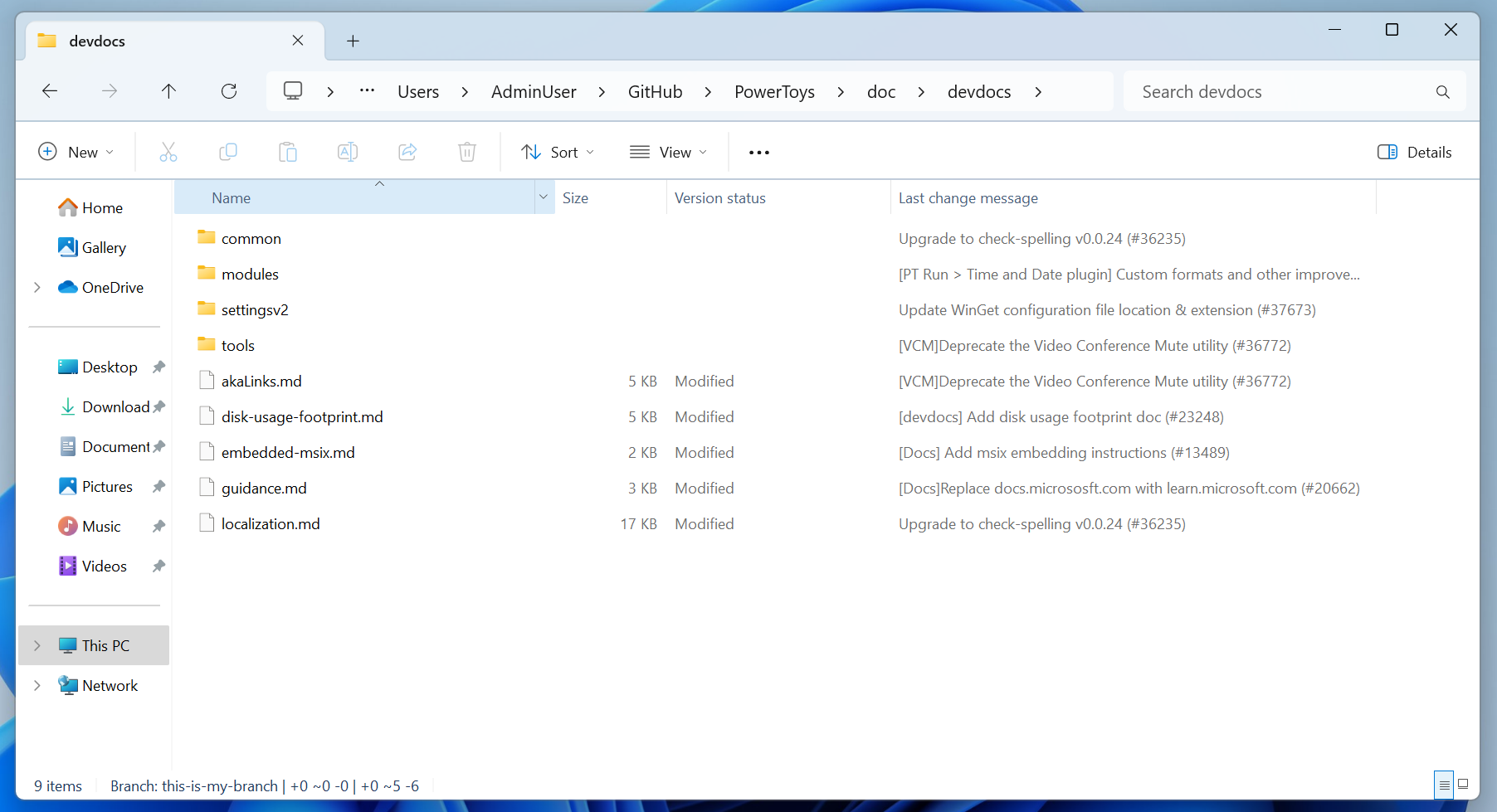
File Explorer version control integration provides version control information directly in File Explorer. This includes information such as the branch name, last commit author, last commit message, and more.
Note
As of right now, File Explorer version control integration only supports Git. The Advanced Settings system component is extensible to allow for additional version control types.
Important
Organizational policies can disable or hide Advanced settings controls. If a toggle is unavailable, contact your administrator. See related guidance in Group Policy.
Enable version control indicators
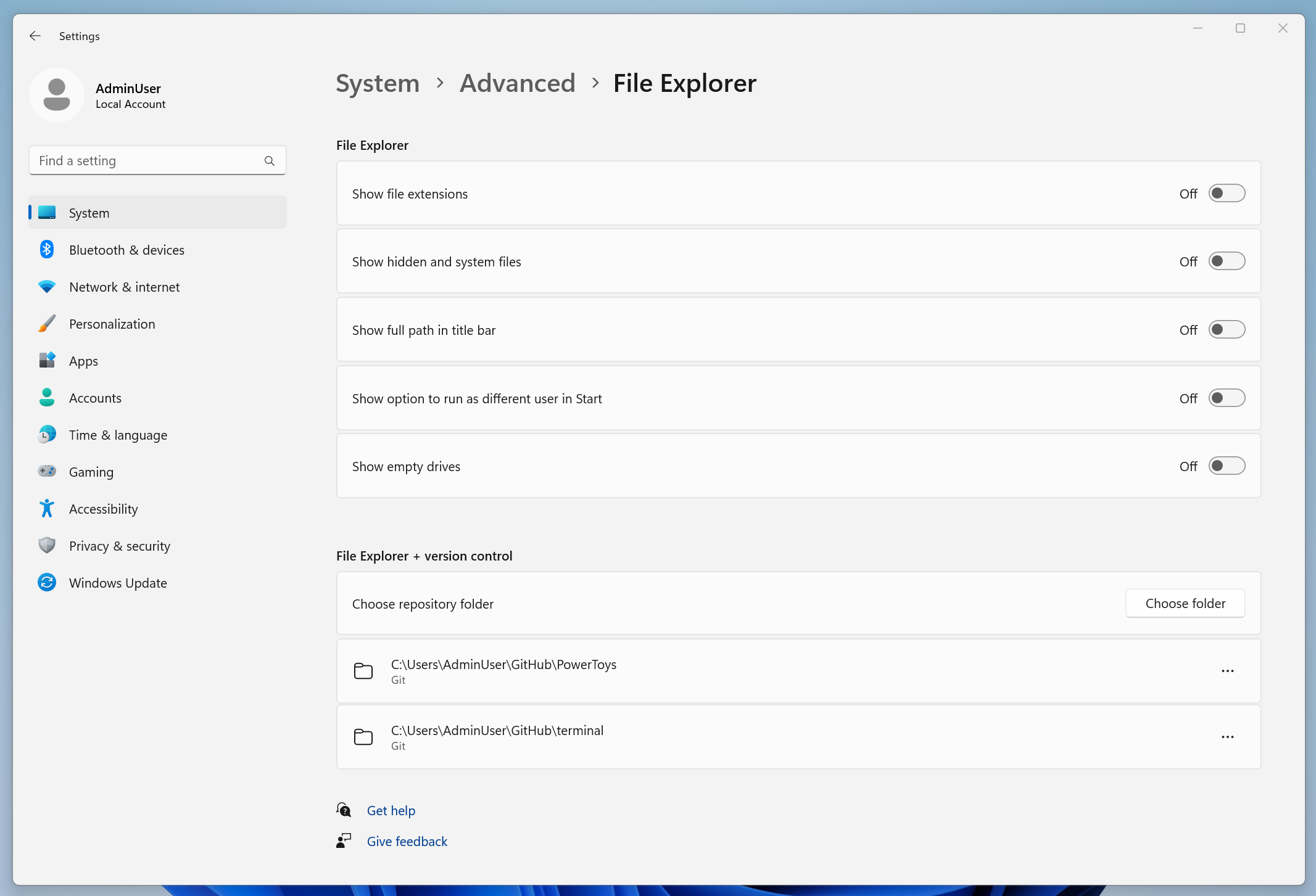
- Open Settings and go to System > Advanced*.
- Under File Explorer + version control, select Add folders and choose the repositories you want File Explorer to recognize.
- Return to File Explorer and open one of the selected folders to see repository details.
Tip
If indicators do not appear immediately, close and reopen File Explorer.
How to identify repositories
Windows has to know which folders are source code repositories so File Explorer can display the version control information. You can select your repository folders in Settings > Advanced Settings > File Explorer settings under the File Explorer + version control header.
What appears in File Explorer
When you open a selected repository folder in File Explorer, version control details are surfaced in the Explorer UI, including:
- Branch name
- Last commit author
- Last commit message
- Commit timestamp
Limitations
- Git repositories are supported; other systems may require future extensions.
- Very large repositories or folders with extensive generated content can delay indicators.
- Nested repositories and submodules may not display details consistently.
- Network shares, symlinked paths, or WSL-mounted locations may not surface metadata.
- Case-sensitive filesystems and uncommon file attributes can affect detection.
Note
To improve performance, consider excluding large generated folders (for example, node_modules, build outputs) when selecting repositories.
Troubleshooting
- Indicators not showing: Confirm the folder contains a
.gitdirectory and is selected under File Explorer + version control in Advanced settings; restart File Explorer. - Toggles disabled: Device may be managed by policy. See Group Policy and contact your administrator.
- Slow or inconsistent updates: Reduce very large folders from selection or move the repository to a local disk path.
- Conflicts with alternative SSH services: If using Developer Mode SSH features, ensure ports and services do not interfere with repository access.
Extensibility and feedback
The Windows Advanced Settings system component is open source and designed to support additional version control providers.
- Learn more or request features on GitHub.
- For broader context on Advanced settings, see the Advanced Windows Settings landing page.
Collaborate with us on GitHub
The source for this content can be found on GitHub, where you can also create and review issues and pull requests. For more information, see our contributor guide.

Windows developer