Note
Access to this page requires authorization. You can try signing in or changing directories.
Access to this page requires authorization. You can try changing directories.
Visual Studio is the recommended IDE for building Windows apps with WinUI and the Windows App SDK. It provides deep integration with the Windows platform and tools purpose-built for XAML-based app development.
Key features for Windows app developers include:
- XAML Hot Reload — modify XAML markup while your app is running and see changes applied instantly without restarting
- XAML Live Visual Tree — inspect the runtime visual tree of your running app to debug layout issues and understand element hierarchy
- IntelliSense for XAML and C#/C++ — get code completion, quick info, and error highlighting for both markup and code-behind
- Integrated debugging — set breakpoints in XAML and code, inspect data bindings, and diagnose UI rendering issues
To get started, see Create and run a WinUI 3 project.
WinUI project templates
Visual Studio includes project templates to help you quickly create WinUI apps. To find them, open File > New > Project, then filter by WinUI in the project type drop-down or search for WinUI.
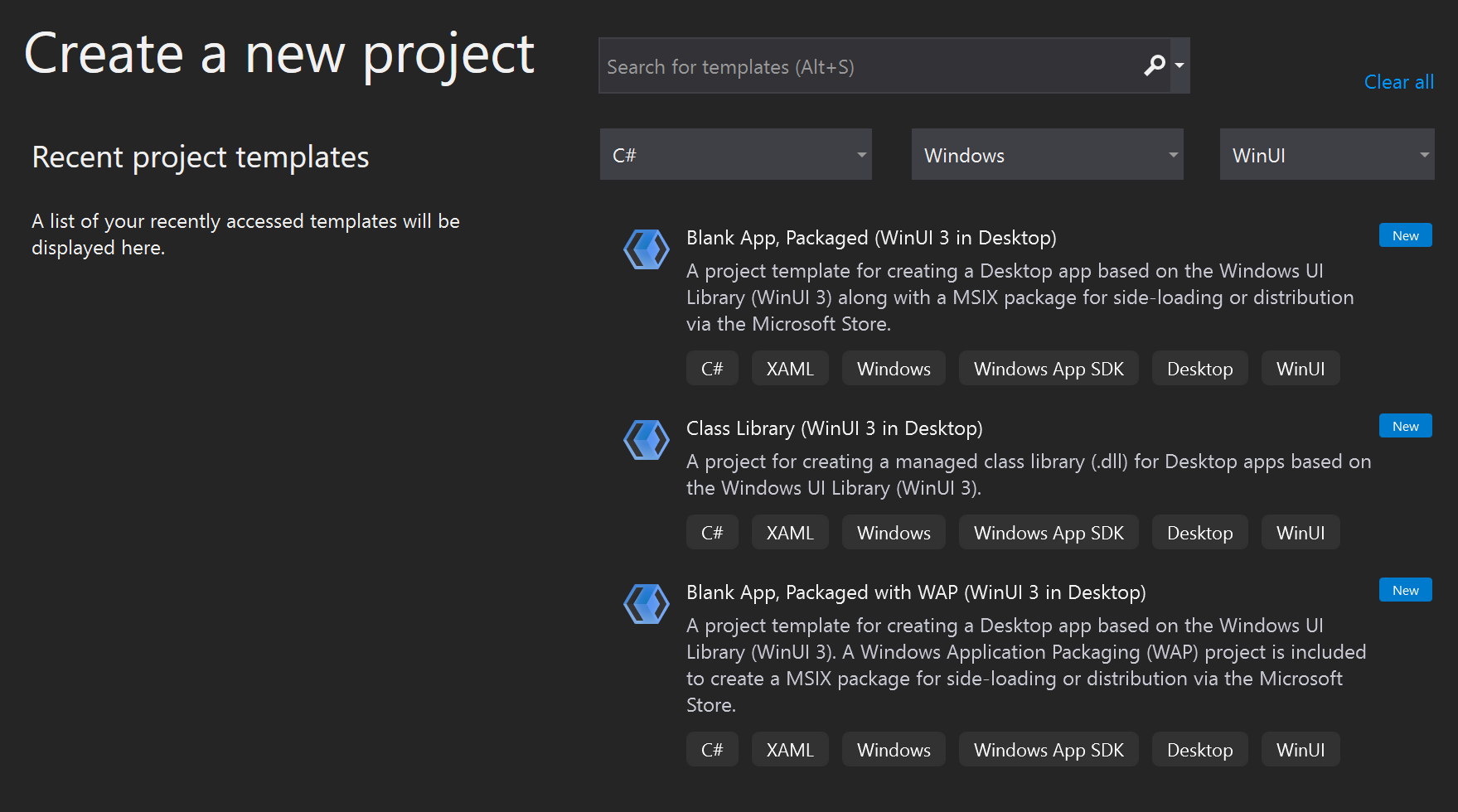
App templates
Choose a template based on the app shell you want to start from. Select a template name to see a screenshot of the app it creates.
| Template | Language | winapp CLI template | Description |
|---|---|---|---|
| WinUI Blank App (Packaged) | C# and C++ | winui (C#) |
A single window with no content. This is the recommended starting point for most new apps. |
| WinUI Navigation App | C# | winui-navview |
A NavigationView shell with Home, About, and Settings pages. |
| WinUI TabView App | C# | winui-tabview |
A TabView shell whose tabs are in the title bar. |
| WinUI MVVM App | C# | winui-mvvm |
A page and view model that use the Model-View-ViewModel (MVVM) pattern with CommunityToolkit.Mvvm. |
| Blank App (Packaged with WAP Project) | C# and C++ | Not available | A blank app plus a separate Windows Application Packaging Project. |
Create a project from the command line
The C# app templates are also available from the terminal through the Windows App Development CLI (winapp CLI). Pass the template name from the table to winapp new, then build and launch the app with winapp run:
winapp new --name MyApp --template winui-navview --use-defaults
cd MyApp
winapp run
Run winapp new --list to see every installed template. The generated project is a standard .csproj, so you can open it in Visual Studio at any time. For more information, see Using winapp CLI with WinUI.
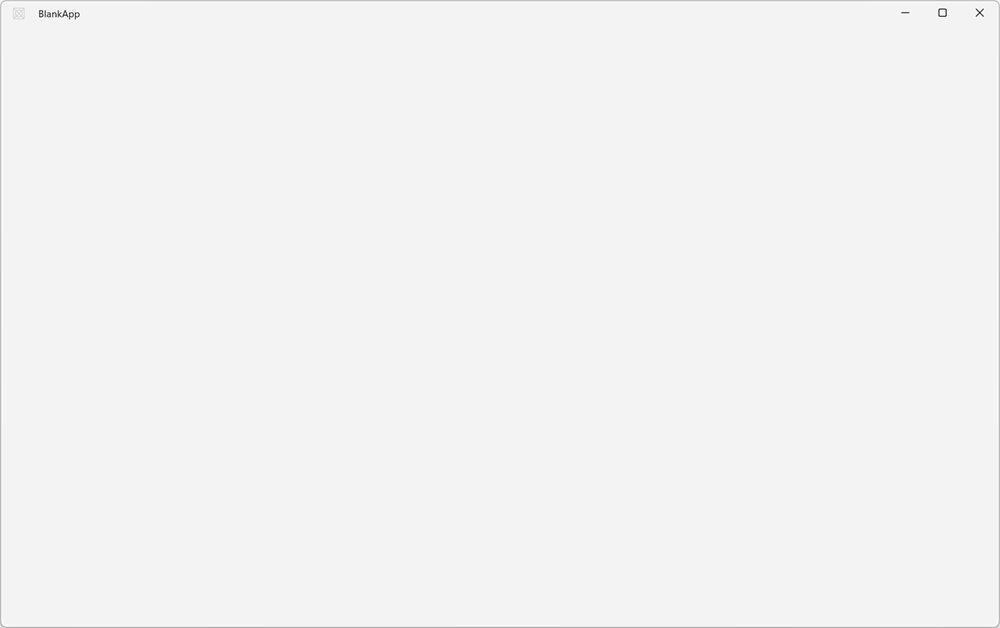
WinUI Blank App (Packaged)
Creates a desktop app in C# (.NET) or C++ (Win32) with a WinUI-based UI. The project starts with a single window derived from Microsoft.UI.Xaml.Window, ready for you to add your own controls and pages. This is the recommended starting point for most new apps. For a walkthrough, see Create and run a WinUI 3 project.
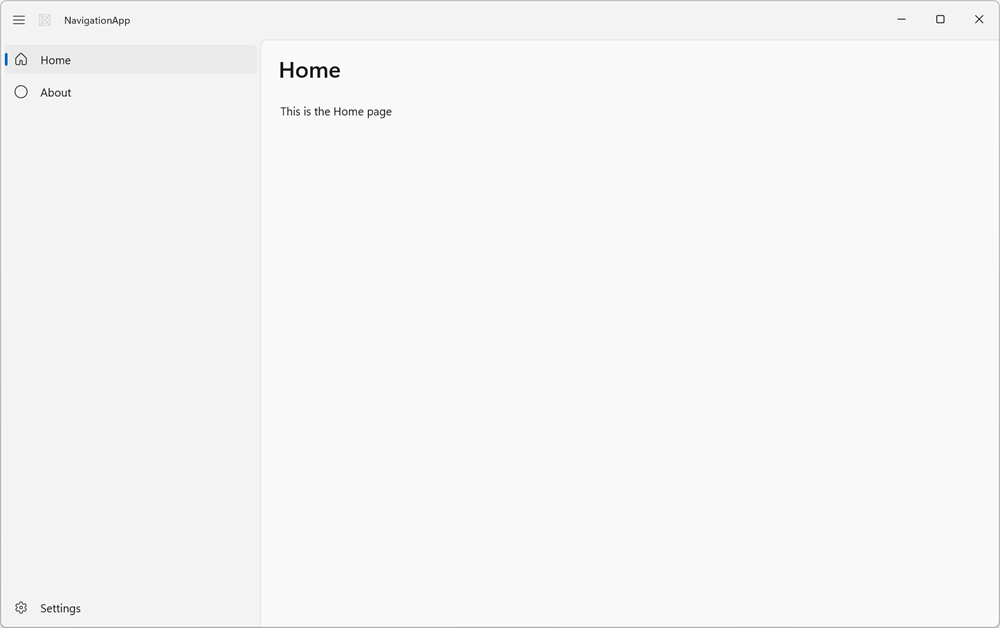
WinUI Navigation App
Creates a C# app with a NavigationView in the left pane. The template includes Home and About pages, a Settings item, and the navigation code that switches between them.
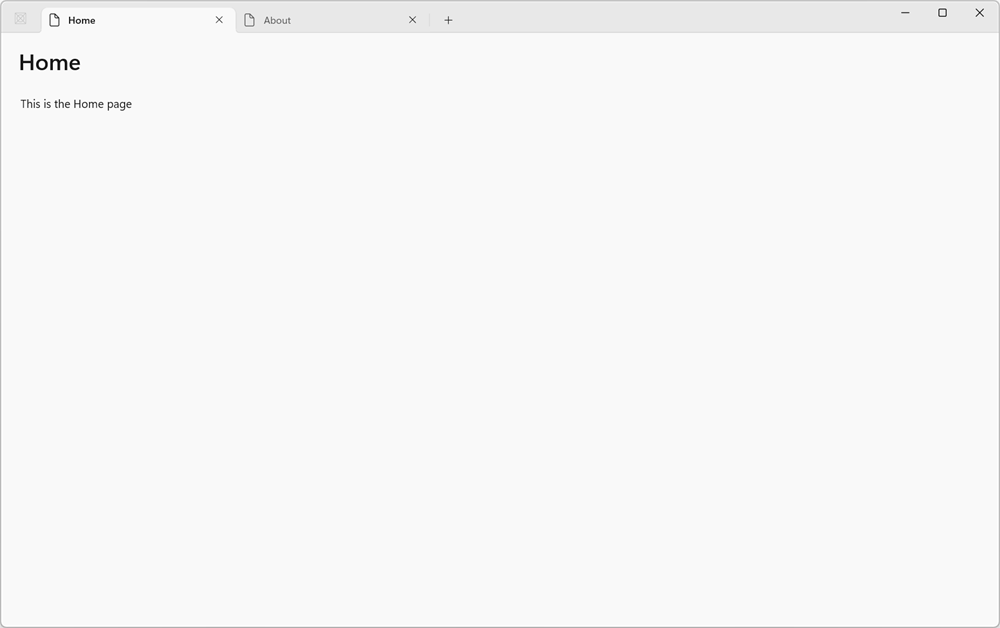
WinUI TabView App
Creates a C# app with a TabView that extends into the title bar. The template includes Home and About tabs and a button for adding new tabs.
WinUI MVVM App
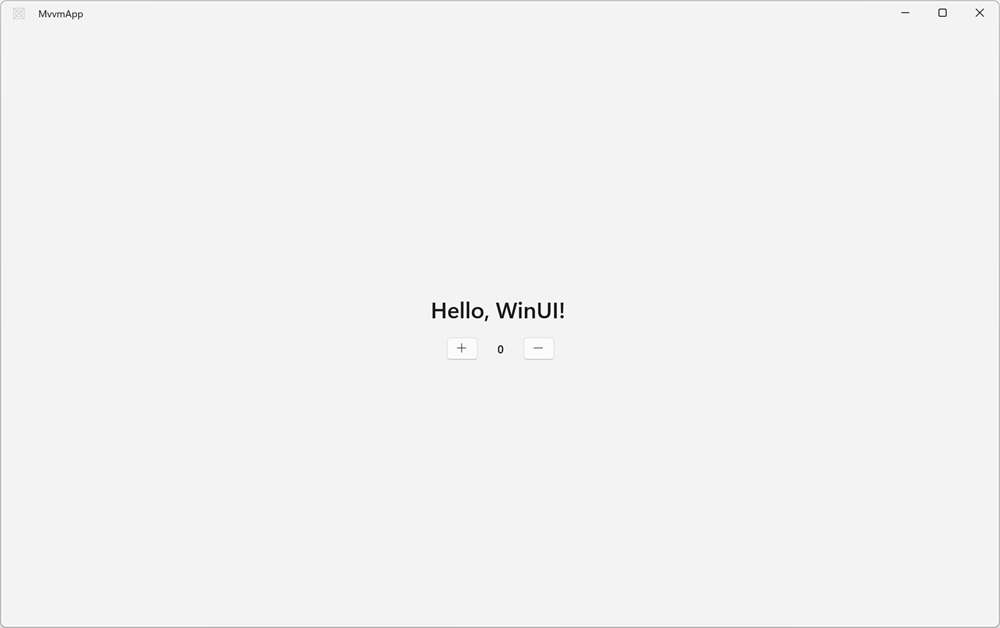
Creates a C# app that separates UI from logic with the MVVM pattern. The template uses CommunityToolkit.Mvvm for observable properties and commands, and shows a counter that's bound to a view model.
Blank App (Packaged with WAP Project)
Same as the WinUI Blank App (Packaged) template above, but adds a separate Windows Application Packaging Project to the solution. This project handles building your app into an MSIX package for distribution. If you prefer a simpler setup, you can use single-project MSIX instead to avoid maintaining the separate packaging project.
Component and test templates
These templates create libraries and test projects that work alongside a WinUI app.
| Template | Language | winapp CLI template | Description |
|---|---|---|---|
| WinUI Class Library | C# | winui-lib |
A .NET class library (DLL) for sharing code and UI components across WinUI apps. |
| Windows Runtime Component | C++ | Not available | A Windows Runtime component written in C++/WinRT that can be consumed by any app with a WinUI-based UI, regardless of programming language. |
| WinUI Unit Test App | C# and C++ | winui-unittest (C#) |
An MSTest project for writing and running automated tests against your app. |
WinUI item templates
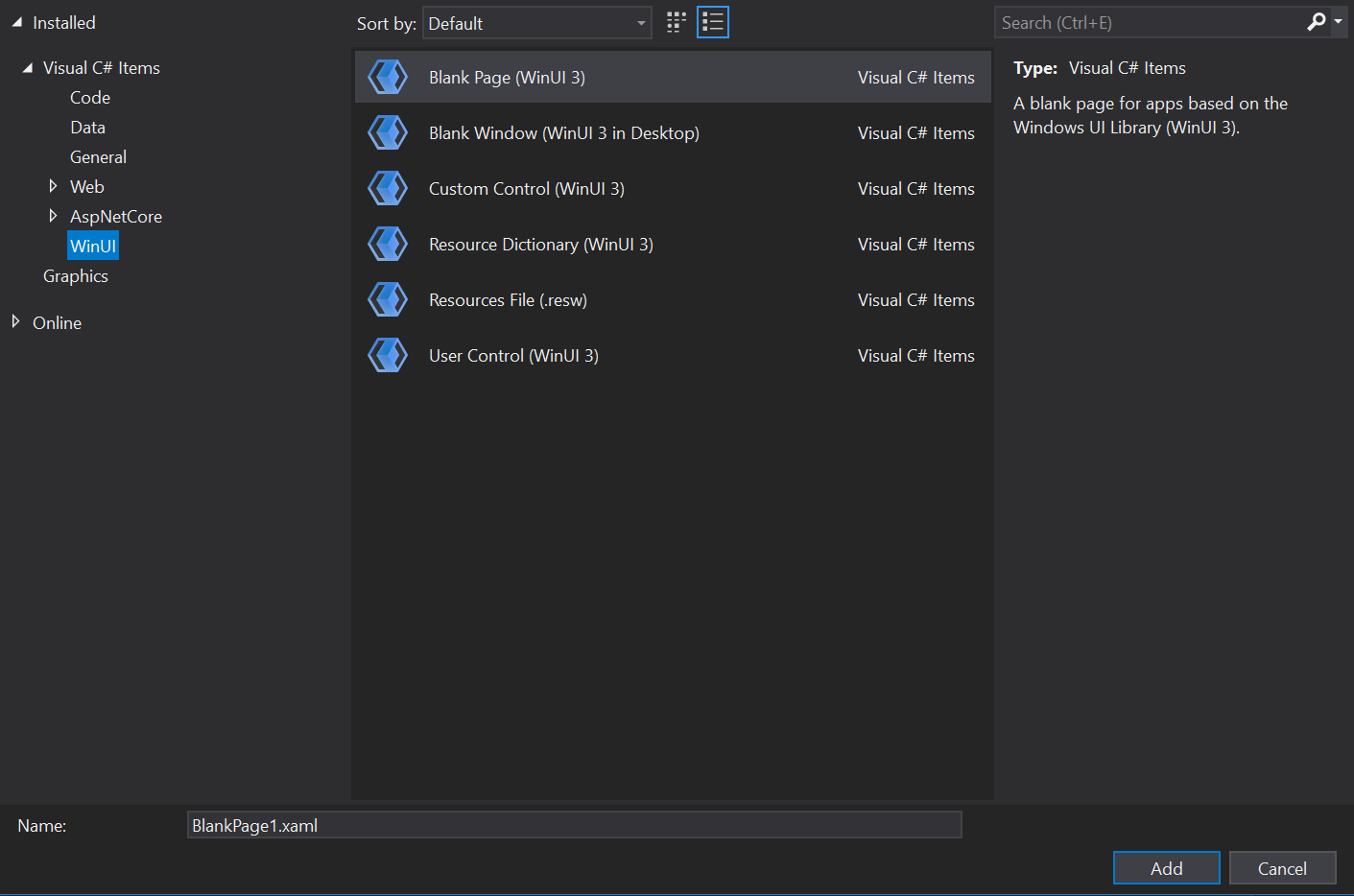
Item templates let you add new files to an existing WinUI project. Right-click your project in Solution Explorer, select Add > New Item, and choose the WinUI tab.
| Template | Language | Description |
|---|---|---|
| Blank Page | C# and C++ | Adds a XAML file and code file that defines a new page derived from the Microsoft.UI.Xaml.Controls.Page class. |
| Blank Window | C# and C++ | Adds a XAML file and code file that defines a new window derived from the Microsoft.UI.Xaml.Window class. |
| Content Dialog | C# | Adds a XAML file and code file that defines a new dialog derived from the Microsoft.UI.Xaml.Controls.ContentDialog class. For more information, see Dialog controls. |
| Resource Dictionary | C# and C++ | Adds an empty, keyed collection of XAML resources. For more information, see ResourceDictionary and XAML resource references. |
| Resources File (.resw) | C# and C++ | Adds a file for storing string and conditional resources for your app. You can use this item to help localize your app. For more info, see Localize strings in your UI and app package manifest. |
| Templated Control | C# and C++ | Adds a code file for creating a templated control with a default style. The templated control is derived from the Microsoft.UI.Xaml.Controls.Control class.For a walkthrough that demonstrates how to use this item template, see Build XAML templated controls. For more information about templated controls, see Custom XAML Controls. |
| User Control | C# and C++ | Adds a XAML file and code file for creating a user control that derives from the Microsoft.UI.Xaml.Controls.UserControl class. Typically, a user control encapsulates related existing controls and provide its own logic.For more information about user controls, see Custom XAML Controls. |
To add these items from the command line in a C# project, use the matching dotnet new item template, such as dotnet new winui-page -n SettingsPage. Run dotnet new list winui to see all item templates.
See also
Collaborate with us on GitHub
The source for this content can be found on GitHub, where you can also create and review issues and pull requests. For more information, see our contributor guide.

Windows developer