Note
Access to this page requires authorization. You can try signing in or changing directories.
Access to this page requires authorization. You can try changing directories.
Important
PagerControl is an experimental control. In Windows App SDK 2.0, it's available starting in Windows App SDK 2.0 Experimental 1. The APIs are marked experimental and might change or be removed in a future release. Don't use them in production apps.
Use the experimental PagerControl to let users move through content that's divided into numbered pages, such as search results, a product catalog, or a long table. The control shows the current page and, when it's known, the total number of pages. Users can select a page number directly, or use buttons to go to the first, previous, next, or last page.
PagerControl doesn't load or display your content. When the selected page changes, your app gets the items for that page and shows them in another control, such as a ListView or GridView.
To try the control, install a Windows App SDK experimental package and the matching runtime. For download links and setup information, see Latest Windows App SDK downloads.
Is this the right control?
Use a PagerControl when:
- Your content is divided into numbered pages, and the page number helps users keep track of where they are.
- Users need to go directly to a specific page, or to the first or last page.
- Your app loads content one page at a time, for example, from a web service that returns paged results.
Consider a different control when:
- Pages don't need visible numbers, or the available space is limited. Use a PipsPager.
- Users browse items one at a time, such as photos in an album. Use a FlipView, optionally with a PipsPager.
- Users scroll through a long, continuous collection. Use a ListView or GridView, which virtualizes its items, instead of dividing the content into pages.
The following table compares PagerControl with PipsPager.
| Feature | PagerControl | PipsPager |
|---|---|---|
| Page representation | Page numbers in a combo box, a number box, or a row of buttons | Glyphs, typically dots, without page numbers |
| Total number of pages | Shown when the number of pages is known | Not shown |
| Navigation buttons | First, previous, next, and last page | Previous and next page |
| Typical use | Search results, data tables, and catalogs with many pages | Photo viewers, carousels, and app lists where space is limited |
| API status | Experimental | Stable |
Create a PagerControl
The WinUI 3 Gallery app includes interactive examples of WinUI controls and features. Get the app from the Microsoft Store or browse the source code on GitHub.

Set the NumberOfPages property to the total number of pages. Use the SelectedPageIndex property to get or set the current page. SelectedPageIndex is zero-based, so a value of 0 selects page 1.
<PagerControl
    AutomationProperties.Name="Search results pages"
    NumberOfPages="12"
    SelectedPageIndex="2" />
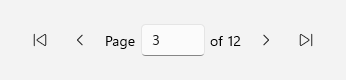
This example creates a pager for 12 pages and selects page 3. By default, the control shows the text Page, a box that contains the current page number, and the text of 12. The first, previous, next, and last page buttons appear on either side.
Choose a display mode
The DisplayMode property determines how users select a page number. Set it to one of the PagerControlDisplayMode values.
| Value | Description |
|---|---|
| Auto | The default. The control shows a combo box when there are fewer than 10 pages. It shows a number box when there are 10 or more pages, or when the number of pages is unknown. |
| ComboBox | Users select the page number from a drop-down list. |
| NumberBox | Users type the page number in a NumberBox. |
| ButtonPanel | Users select the page number from a row of buttons. When there are too many pages to show a button for each one, the control shows the page numbers around the current page and replaces the others with an ellipsis. |
The following example creates a pager in each of the ComboBox, NumberBox, and ButtonPanel display modes.
<StackPanel Spacing="20">
    <PagerControl
        AutomationProperties.Name="Chapter pages"
        DisplayMode="ComboBox"
        NumberOfPages="5"
        SelectedPageIndex="1" />
    <PagerControl
        AutomationProperties.Name="Catalog pages"
        DisplayMode="NumberBox"
        NumberOfPages="50"
        SelectedPageIndex="9" />
    <PagerControl
        AutomationProperties.Name="Article pages"
        DisplayMode="ButtonPanel"
        NumberOfPages="20"
        SelectedPageIndex="4" />
</StackPanel>
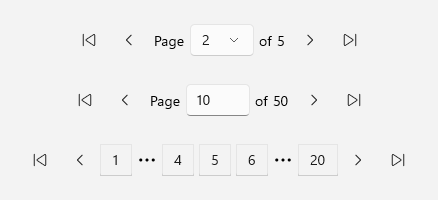
In this example, the ButtonPanel pager has 20 pages and page 5 is selected, so it shows buttons for pages 4, 5, and 6 and replaces the other pages with an ellipsis. In ButtonPanel mode, the control always shows buttons for the first and last pages by default. To show only the page numbers around the current page, set ButtonPanelAlwaysShowFirstLastPageIndex to false.
Configure the navigation buttons
PagerControl has four navigation buttons: first page, previous page, next page, and last page. Use the FirstButtonVisibility, PreviousButtonVisibility, NextButtonVisibility, and LastButtonVisibility properties to set when each button appears. Set each property to one of the PagerControlButtonVisibility values.
| Value | Description |
|---|---|
| Visible | The default. The button is always shown. It's disabled when it doesn't apply, such as the previous page button on the first page. |
| HiddenOnEdge | The button is hidden and disabled when it doesn't apply: on the first page for the first and previous page buttons, and on the last page for the next and last page buttons. The hidden button still takes up layout space, so the rest of the control doesn't move. |
| Hidden | The button isn't shown and doesn't take up layout space. |
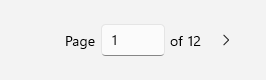
The following example hides the first and last page buttons, and hides the previous and next page buttons when they don't apply.
<PagerControl
    AutomationProperties.Name="Search results pages"
    NumberOfPages="12"
    FirstButtonVisibility="Hidden"
    PreviousButtonVisibility="HiddenOnEdge"
    NextButtonVisibility="HiddenOnEdge"
    LastButtonVisibility="Hidden" />
On the first page, the previous page button is hidden but keeps its space, so the page selector stays in place when the user moves to the next page.
When the user selects a navigation button, the control updates SelectedPageIndex. If you set the matching FirstButtonCommand, PreviousButtonCommand, NextButtonCommand, or LastButtonCommand property, the control then executes that command with a null parameter. To change the appearance of the buttons, use the FirstButtonStyle, PreviousButtonStyle, NextButtonStyle, and LastButtonStyle properties.
Handle page changes
PagerControl raises the SelectedIndexChanged event whenever SelectedPageIndex changes, whether the user selects a page or your code sets the property. The PagerControlSelectedIndexChangedEventArgs object provides the zero-based NewPageIndex and PreviousPageIndex values.
The following example shows 20 search results per page in a ListView and updates the list when the user selects another page.
<Grid RowSpacing="12">
    <Grid.RowDefinitions>
        <RowDefinition Height="*" />
        <RowDefinition Height="Auto" />
    </Grid.RowDefinitions>
    <ListView x:Name="ResultsList" />
    <PagerControl
        x:Name="ResultsPager"
        Grid.Row="1"
        HorizontalAlignment="Center"
        AutomationProperties.Name="Search results pages"
        SelectedIndexChanged="ResultsPager_SelectedIndexChanged" />
</Grid>
using System;
using System.Collections.Generic;
using System.Linq;
using Microsoft.UI.Xaml.Controls;

public sealed partial class SearchResultsPage : Page
{
    private const int PageSize = 20;

    // Sample data. In a real app, results typically come from a search service.
    private readonly List<string> _results =
        Enumerable.Range(1, 235).Select(i => $"Result {i}").ToList();

    public SearchResultsPage()
    {
        InitializeComponent();

        // 235 results at 20 per page require 12 pages.
        ResultsPager.NumberOfPages = (int)Math.Ceiling(_results.Count / (double)PageSize);
        ShowPage(0);
    }

    private void ResultsPager_SelectedIndexChanged(
        PagerControl sender,
        PagerControlSelectedIndexChangedEventArgs args)
    {
        ShowPage(args.NewPageIndex);
    }

    private void ShowPage(int pageIndex)
    {
        // Show only the results that belong to the selected page.
        ResultsList.ItemsSource = _results
            .Skip(pageIndex * PageSize)
            .Take(PageSize)
            .ToList();
    }
}
The control also raises SelectedIndexChanged when it applies its template, with PreviousPageIndex set to -1. Make sure that your handler can run before the user interacts with the control.
When the number of pages changes, for example after the user filters the results, update NumberOfPages and set SelectedPageIndex to a valid page, such as 0 for the first page.
Show an unknown number of pages
If you don't know how many pages there are, set NumberOfPages to -1. For example, a web service might return one page of results at a time without a total count. In this mode, the control doesn't show the total number of pages or the last page button, and the next page button stays enabled.
<PagerControl
    AutomationProperties.Name="Activity feed pages"
    DisplayMode="NumberBox"
    NumberOfPages="-1" />

When you learn the total number of pages, set NumberOfPages to that value.
Customize the text
In the Auto, ComboBox, and NumberBox display modes, the control shows text before and after the page selector, followed by the total number of pages. By default, the PrefixText property is Page and the SuffixText property is of, localized for the user's language. If you set these properties, provide localized strings. For more info, see Localize strings in your UI and app package manifest.
Make a PagerControl accessible
PagerControl provides the following accessibility support by default:
- The default style sets the AutomationProperties.LandmarkType attached property to Navigation, so screen reader users can move to the pager by using landmark navigation.
- The navigation buttons have localized accessible names and tooltips: First page, Previous page, Next page, and Last page.
- In ButtonPanel mode, each page button has an accessible name such as Page 3 and reports its position in the set of pages. In the other display modes, the combo box or number box has the accessible name Page.
- Users can press the Left and Right arrow keys, or press left and right on a gamepad's directional pad, to move focus between the elements of the control.
To make the control easier to use with assistive technologies:
- Set AutomationProperties.Name to describe the content that the pager controls, for example, "Search results pages". This is especially important when a page has more than one pager.
- Show the current page number in your content, for example, in a heading. In the experimental release, the control's automation peer, PagerControlAutomationPeer, supports the Selection pattern but doesn't report a selected item.
For more info, see Accessibility overview and Landmarks and headings.
See also
Collaborate with us on GitHub
The source for this content can be found on GitHub, where you can also create and review issues and pull requests. For more information, see our contributor guide.

Windows developer