Note
Access to this page requires authorization. You can try signing in or changing directories.
Access to this page requires authorization. You can try changing directories.
Materials are visual effects applied to UI surfaces to create depth, hierarchy, and visual interest. WinUI 3 provides four mechanisms for applying materials, each suited to a different scenario.
Important
AcrylicBrush is in-app acrylic only — it blurs XAML content within the app window. It does not show the desktop or other windows behind the app. For desktop-see-through effects, use Window.SystemBackdrop or SystemBackdropElement.
Which material should I use?
| Scenario | Material | API |
|---|---|---|
| App window with a Mica background (wallpaper-tinted) | Mica | Window.SystemBackdrop = new MicaBackdrop() |
| App window with a see-through frosted-glass background | Desktop Acrylic | Window.SystemBackdrop = new DesktopAcrylicBackdrop() |
| Flyout, popup, or context menu with an Acrylic background | System backdrop on a surface | Set SystemBackdrop on FlyoutBase, Popup, etc. |
| Sidebar, panel, or element with Mica or Acrylic (not the whole window) | SystemBackdropElement | <SystemBackdropElement> control |
| Navigation pane or content panel with an in-app blur effect | In-app Acrylic | {ThemeResource AcrylicInAppFillColorDefaultBrush} |
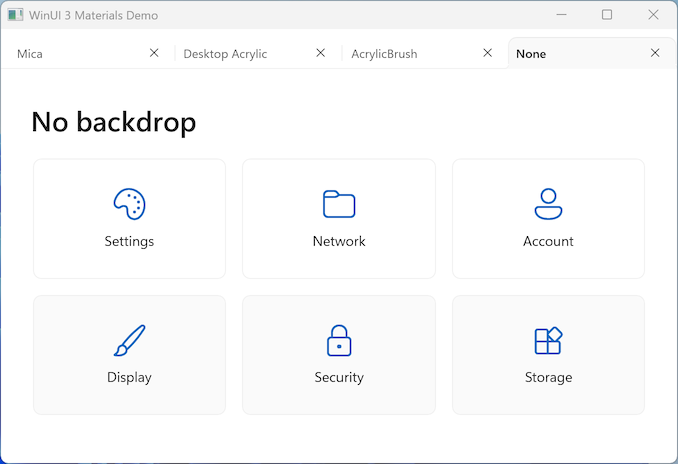
No material (default)
When no material is applied, the window background is a solid color drawn from the active light or dark theme — no blur or translucency.
Materials rely on compositor effects that require hardware support and user preferences. WinUI 3 falls back gracefully to a solid color when a material cannot be rendered:
- Remote Desktop or virtual machines — the compositor cannot blend with desktop content over RDP, so
SystemBackdropmaterials fall back automatically. - Insufficient graphics hardware — Mica and Desktop Acrylic require DirectX 11 and adequate GPU memory. Devices that don't meet the threshold fall back to a solid theme color.
- Transparency effects disabled — if the user turns off Transparency effects in Settings > Personalization > Colors, all
SystemBackdropmaterials andAcrylicBrushfall back to their solid-color alternatives. - Battery Saver active — Windows disables acrylic (
DesktopAcrylicBackdropandAcrylicBrush) when Battery Saver is on. Mica is not affected. - High contrast mode — all materials are suppressed; the system applies high-contrast theme colors instead.
Your app doesn't need to detect these conditions — the APIs handle fallback automatically. Make sure any FallbackColor or theme background you configure reads well as a plain solid color.
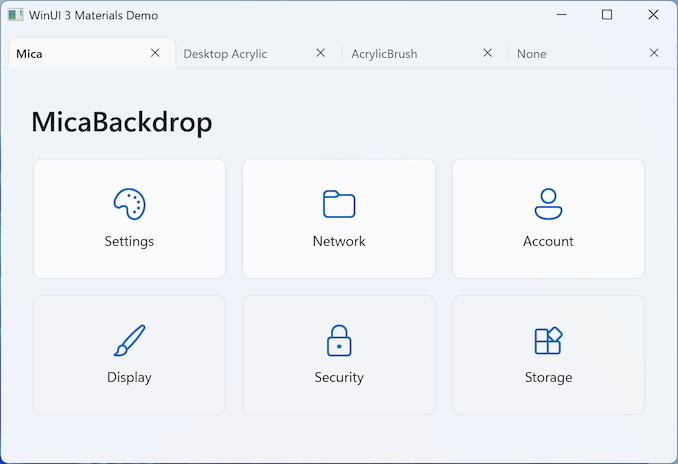
Mica
Mica incorporates the user's desktop wallpaper color into a muted, personalized background. It is designed for the main app window background, especially in the title bar and navigation pane areas.
- API:
Window.SystemBackdrop = new MicaBackdrop() - Variants:
MicaKind.Base(default) orMicaKind.BaseAlt(lighter, for secondary surfaces) - Windows version: Windows 11 only. Falls back to a solid theme color on Windows 10.
Desktop Acrylic
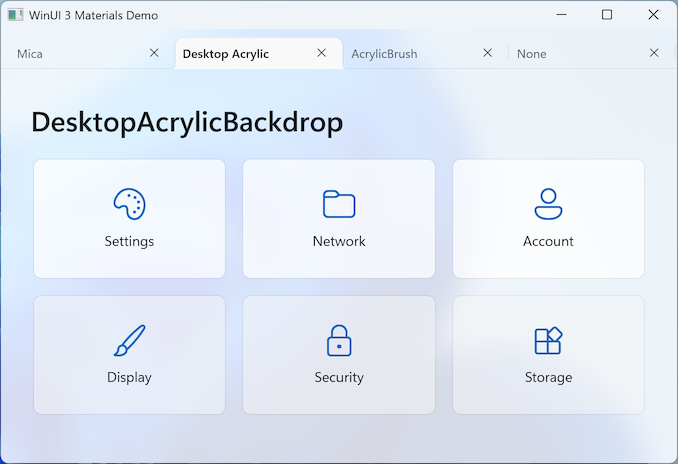
Desktop Acrylic shows a live, blurred view of the desktop and content behind the app window, creating a frosted-glass appearance.
- API:
Window.SystemBackdrop = new DesktopAcrylicBackdrop() - Variants:
DesktopAcrylicKind.Base(more opaque) orDesktopAcrylicKind.Thin(more transparent) - Windows version: Windows 10 (build 17763) and later.
Acrylic can also be applied to transient surfaces — set SystemBackdrop on FlyoutBase, Popup, MenuFlyoutPresenter, or CommandBarFlyoutCommandBar. See System backdrops for the full list.
SystemBackdropElement
SystemBackdropElement applies a Mica or Desktop Acrylic material from the OS compositor to a specific XAML element — not the whole window. Use it when a sidebar, panel, or card needs its own Mica or Acrylic background independently of the rest of the window.
- Minimum SDK: Windows App SDK 2.0
- For details and code samples, see Apply a system backdrop to any XAML element.
In-app Acrylic (AcrylicBrush)
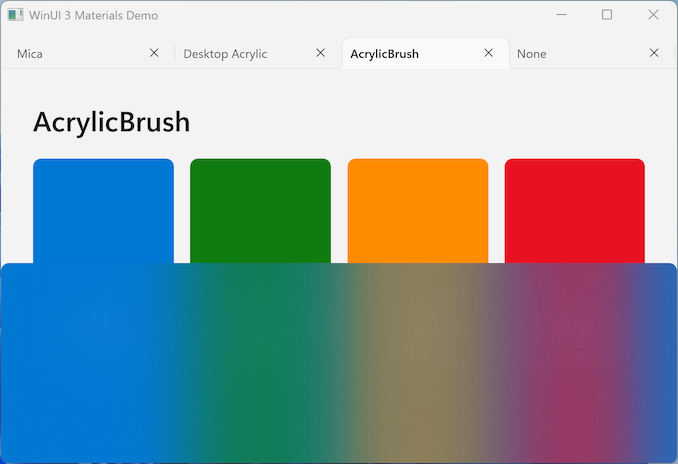
AcrylicBrush blurs XAML content within the app window. It does not show the desktop or other windows through the surface. Use it for navigation panes, sidebars, or content panels where you want a translucent in-app effect.
- API: Apply
{ThemeResource AcrylicInAppFillColorDefaultBrush}to an elementBackground, or define a customAcrylicBrushwithTintColor,TintOpacity, andTintLuminosityOpacity. - The UWP
BackgroundSource = HostBackdropproperty is not available in WinUI 3. - For details and code samples, see In-app acrylic.
Related articles
Collaborate with us on GitHub
The source for this content can be found on GitHub, where you can also create and review issues and pull requests. For more information, see our contributor guide.

Windows developer