Note
Access to this page requires authorization. You can try signing in or changing directories.
Access to this page requires authorization. You can try changing directories.
Note
App update operations through GitHub actions is currently supported for free products only. Paid products will be supported in a future release.
GitHub Actions enables you to implement a robust CI/CD pipeline for your Microsoft Store apps. By automating build, test, and deployment steps directly from your code repository, you ensure that every change, whether it’s a bug fix, feature update, or metadata change, is validated and securely published to the Microsoft Store.
To understand how to set up pre-requisites for the app update process, check out the following video:
Pre-requisite
Register as a Windows app developer in Partner Center.
Have a tenant associated with your Partner Center account. You can achieve that by either associating an existing Microsoft Entra ID in Partner Center or by creating a new Microsoft Entra ID in Partner Center.
Register an application in Microsoft Entra ID
Next, from the Microsoft Entra applications tab under User management page in the Account settings section of Partner Center, add the Microsoft Entra ID application that represents the app or service that you will use to access submissions for your Partner Center account. Make sure you assign this application the Manager role.
The app you want to update must already be published and live in Microsoft Store.
Required IDs and Secrets:
- Tenant ID (This is the unique identifier for your Microsoft Entra tenant. Go to https://entra.microsoft.com/. Navigate to Identity > Overview. Copy the "Tenant ID" value.)
- Client ID (This is the Application ID of the app registration you created. In the Entra admin center, go to Identity > Applications > App registrations. Select your registered app. Copy the "Application (client) ID".)
- Client Secret (This is a password-like value generated for your app registration, used for secure authentication. In the Entra admin center, go to Identity > Applications > App registrations. Select your registered app, go to Certificates & secrets. Under "Client secrets", create a new secret if you haven't already. Copy the value immediately as it will not be shown again)
- Seller ID (This is your unique publisher/seller identifier in Microsoft Partner Center. Sign in to Partner Center. Go to Account settings > Developer settings or Identifiers. Look for “Publisher ID” or “Seller ID”.)
These will be used as secrets in your GitHub repository.
Setting up GitHub Actions to update apps on Microsoft Store
If your project already has a GitHub repository, you can use it directly for automating Microsoft Store app updates.
In your GitHub repo, go to Settings > Secrets and variables > Actions > New Repository Secret.

Add the following secrets:
- AZURE_AD_APPLICATION_CLIENT_ID
- AZURE_AD_APPLICATION_SECRET
- AZURE_AD_TENANT_ID
- SELLER_ID
You can automate app updates using GitHub Actions for both types of apps, MSIX and MSI/EXE. Select the app type that you want to update below:
Add the GitHub Action Workflow to invoke the Microsoft GitHub action (microsoft-store-apppublisher) for publishing package and app metadata updates to store.
To understand how to automate package and metadata updates using GitHub Actions, check out the following video:
For package updates
Under .github/workflows/, create AppPackageAutoUpdate.yml using the provided workflow snippet:
name: AppPackageAutoUpdate

on:
  push:
    paths:
      - 'release/package.msix'

jobs:
  build:
    runs-on: windows-latest

    steps:
      - name: Checkout repository
        uses: actions/checkout@v4

      - name: Configure Microsoft Store CLI
        uses: microsoft/microsoft-store-apppublisher@v1.1

      - name: Reconfigure store credentials
        run: msstore reconfigure `
              --tenantId ${{ secrets.AZURE_AD_TENANT_ID }} `
              --sellerId ${{ secrets.SELLER_ID }} `
              --clientId ${{ secrets.AZURE_AD_APPLICATION_CLIENT_ID }} `
              --clientSecret ${{ secrets.AZURE_AD_APPLICATION_SECRET }}

      - name: Publish App package
        run: msstore publish '${{ github.workspace }}/release/package.msix' -id <Store product Id>
When the package.msix is updated as part of the CI/CD flow in the release folder, the AppPackageAutoUpdate.yml workflow is triggered automatically.
For metadata updates
Before publishing metadata updates for the first time, obtain the base metadata JSON from Partner Center for your app submission. This ensures you start with the correct structure for your app. So, create a GitHub Actions workflow under .github/workflows/GetBaseMetadata.yml using the provided snippet:
name: GetBaseMetadata

on:
  workflow_dispatch:

jobs:
  build:
    runs-on: windows-latest

    steps:
    - uses: actions/checkout@v4

    - uses: microsoft/microsoft-store-apppublisher@v1.1

    - name: Configure MSStore CLI
      run: |
        msstore reconfigure `
          --tenantId ${{ secrets.AZURE_AD_TENANT_ID }} `
          --sellerId ${{ secrets.SELLER_ID }} `
          --clientId ${{ secrets.AZURE_AD_APPLICATION_CLIENT_ID }} `
          --clientSecret ${{ secrets.AZURE_AD_APPLICATION_SECRET }}

    - name: Get base metadata
      shell: pwsh
      run: |
        msstore submission get <Store product Id>
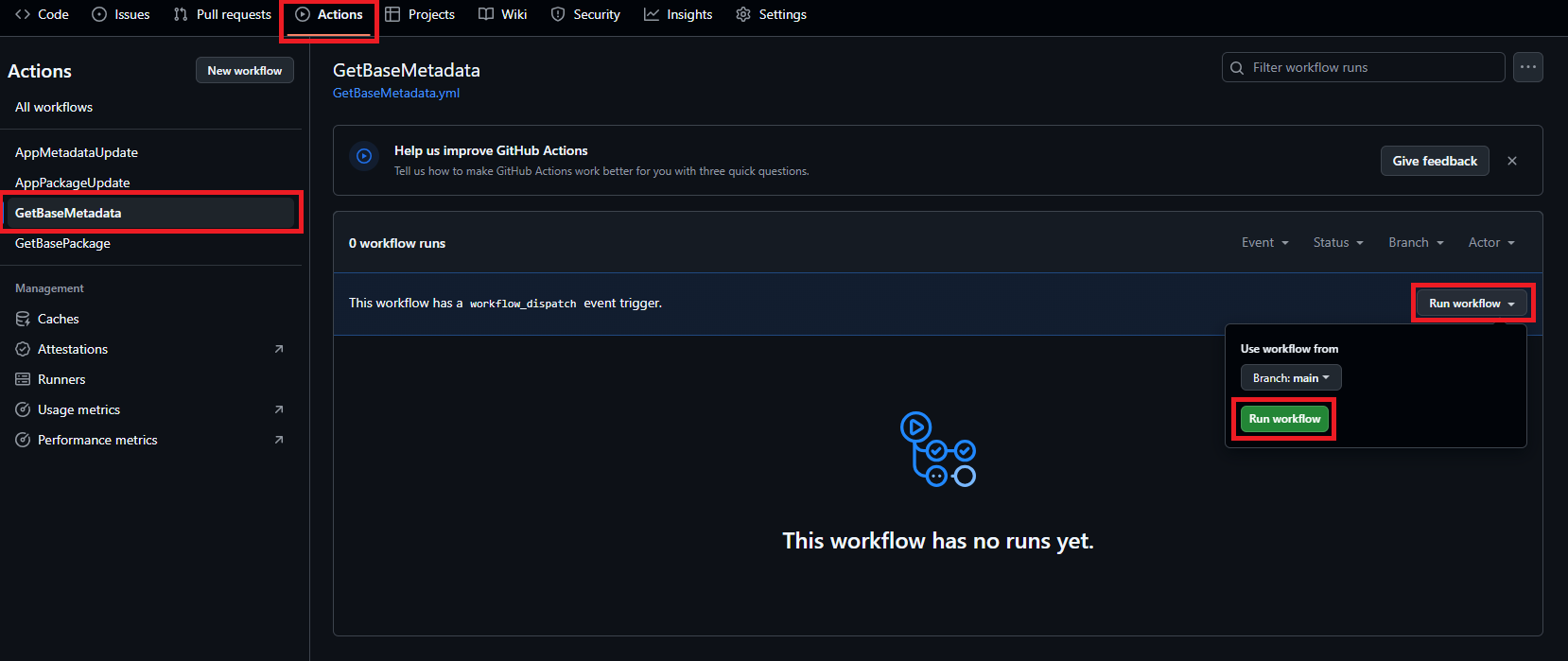
Run this workflow from the Actions tab in your GitHub repository. Select the relevant workflow and click Run workflow.

Upon completion, the workflow will obtain the metadata for your app in the build logs. Copy this and create a metadata.json file in the metadata folder.
Now, under .github/workflows/, create AppMetadataAutoUpdate.yml using the provided workflow snippet:
name: AppMetadataAutoUpdate

on:
  push:
    paths:
      - 'metadata/metadata.json'

jobs:
  build:
    runs-on: windows-latest

    steps:
      - name: Checkout repository
        uses: actions/checkout@v4

      - name: Configure Microsoft Store CLI
        uses: microsoft/microsoft-store-apppublisher@v1.1

      - name: Reconfigure store credentials
        run: msstore reconfigure `
              --tenantId ${{ secrets.AZURE_AD_TENANT_ID }} `
              --sellerId ${{ secrets.SELLER_ID }} `
              --clientId ${{ secrets.AZURE_AD_APPLICATION_CLIENT_ID }} `
              --clientSecret ${{ secrets.AZURE_AD_APPLICATION_SECRET }}

      - name: Update metadata
        run: |
          $metadata = Get-Content -Raw "${{ github.workspace }}/metadata/metadata.json"
          msstore submission updateMetadata <Store product Id> $metadata
      - name: Publish to Store
        run: msstore submission publish <Store product Id>
When metadata.json gets updated as part of the CI/CD flow in the metadata folder, it will automatically trigger the AppMetadataAutoUpdate.yml workflow.
The above workflows will do the following in the background:
- Invoke the GitHub Action (microsoft-store-apppublisher)
- Authenticate your Microsoft Store Partner Center account using the secrets you configured (Tenant ID, Client ID, Client Secret, Seller ID).
- Use the Microsoft Store Developer CLI (msstore) to obtain base metadata and publish the updated package or metadata to the Microsoft Store.
For more information on commands, refer Microsoft Store Developer CLI (MSIX).

After your GitHub Actions workflow completes successfully, check the Microsoft Store to confirm that your changes are live. Updates will appear after the certification process in Partner Center is complete.
We trust that this document will help significantly enhance the efficiency and reliability of your Microsoft Store update process. By following these best practices, you can streamline app publishing and ensure a consistent, high-quality release experience.
Collaborate with us on GitHub
The source for this content can be found on GitHub, where you can also create and review issues and pull requests. For more information, see our contributor guide.

Windows developer