Note
Access to this page requires authorization. You can try signing in or changing directories.
Access to this page requires authorization. You can try changing directories.
Looking for consumer information? See Getting started with Copilot on Windows. Looking for more information on Microsoft Copilot Chat experiences? See Understanding the different Microsoft Copilot Chat experiences.
Microsoft Copilot with enterprise data protection (EDP)
Users signing in with a Microsoft Entra work or school account to Microsoft Copilot Chat are covered by the enterprise data protection commitment. This is an improvement on top of the previous commercial data protection (CDP) promise, and offers enhanced security, privacy, and compliance. Enterprise data protection (EDP) refers to controls and commitments, under the Data Protection Addendum and Product Terms, that apply to customer data for users of Microsoft Copilot and Microsoft Copilot Chat. This means that security, privacy, compliance controls, and commitments available for Microsoft Copilot will extend to Microsoft Copilot Chat prompts and responses. Prompts and responses are protected by the same terms and commitments that are widely trusted by our customers. For more information, see the Microsoft Copilot Chat updates and enterprise data protection FAQ.
Microsoft Copilot Chat is available at no additional cost. For information on the consumer Microsoft Copilot offering, see Getting started with Copilot on Windows.

Users signing in to new Windows PCs with Microsoft Entra accounts
For users signing in to new PCs with work or school accounts, the following experience occurs:
The Microsoft Copilot app is pinned to the taskbar - this is the app previously known as the Microsoft 365 app that typically comes preinstalled with Windows and includes convenient access to Office apps such as Word, PowerPoint, etc.
Users who have the Microsoft 365 Copilot license have Microsoft Copilot Chat pinned by default inside the Microsoft Copilot app.
The web scope of Microsoft Copilot Chat is available at no additional cost to customers signed in with a Microsoft Entra account. This Copilot Chat experience grounds conversations in web data.
For users with the paid add-on Microsoft 365 Copilot license, they can toggle between
webandworkwithin the Microsoft Copilot app.The web toggle option enables access to the aforementioned web-grounded chat capabilities.
The work toggle option enables access to the work-scoped chat capabilities of the paid Microsoft 365 Copilot license.
This uses content in Microsoft Graph to personalize the responses with a user's work emails, chats, and documents. Copilot only shows the data that users have permission to access.
Customers who don't have a license for Microsoft Copilot are asked if they want to pin Microsoft Copilot Chat to ensure they have easy access to Copilot. To set the default behavior, admins should set pinning options in the Microsoft 365 admin center.
If admins elect not to pin Copilot and indicate that users can be asked, users will be asked to pin it themselves in the Microsoft Copilot app, Outlook, and Teams.
If admins elect not to pin Microsoft Copilot Chat and indicate that users can't be asked, Microsoft Copilot Chat won't be available via the Microsoft Copilot app, Outlook, or Teams. Users have access to Microsoft Copilot Chat from https://m365.cloud.microsoft/chat unless that URL is blocked by the IT admin.
If the admins make no selection, users will be asked to pin Microsoft Copilot Chat by themselves for easy access.
IT admins can pin the Microsoft Copilot app to the Windows taskbar to enable easy and seamless access for users. This can be managed using policies to configure applications pinned to the Windows taskbar.
When did this change occur?
The update to Microsoft Copilot Chat to offer enterprise data protection roll out started in September 2024. Changes were rolled out to managed PCs starting with the September 2024 optional nonsecurity preview release, and then the October 2024 monthly security update for all supported versions of Windows 11. These changes were applied to Windows 10 PCs in November 2024. This update replaced the legacy Copilot in Windows experience.
The Microsoft Copilot app is automatically enabled after you install the Windows updates listed above if you haven't previously enabled a group policy to prevent the installation of Copilot. The AppLocker policy is available to control this Copilot experience before installing these Windows updates mentioned above or any subsequent Windows updates.
Consumer vs. commercial Copilot experiences
Note that the Microsoft Copilot app, which is a consumer experience, doesn't support Microsoft Entra authentication and users trying to sign in to the app using a Microsoft Entra account will be redirected to https://m365.cloud.microsoft/chat in their default browser. For users authenticating with a Microsoft Entra account, they should use the Microsoft Copilot app as the entry point.
Remove or prevent installation of the Microsoft Copilot app
You can remove or uninstall the Microsoft Copilot app (consumer experience) from your device by using one of the following methods:
Enterprise users can uninstall the Copilot app by going to Settings > Apps > Installed Apps. Select the three dots appearing on the right side of the app and select Uninstall from the dropdown list.
If you are an IT administrator, you can prevent installation of the app or remove the Copilot app using one of the following methods:
Prevent installation of the Copilot app:
Configure AppLocker policy before installing Windows update. AppLocker helps you control which apps and files users can run.
Note
AppLocker policy should be used instead of the Turn Off Windows Copilot legacy policy setting and its MDM equivalent, TurnOffWindowsCopilot. The policy is subject to near-term deprecation.
The Applocker policy can be configured by following one of the methods listed in Edit an AppLocker policy and adding the below text to the policy:
Publisher: CN=MICROSOFT CORPORATION, O=MICROSOFT CORPORATION, L=REDMOND, S=WASHINGTON, C=US
Package name: MICROSOFT.COPILOT
Package version: * (and above)When the AppLocker policy for Copilot is enabled, it will:
- Prevent the consumer app from being installed if it isn't already on the device.
- Block the consumer app from being launched if it's already installed.
Remove the Copilot app using PowerShell script:
Open a Windows PowerShell window. You can do this by opening the Start menu, typing
PowerShell, and selecting Windows PowerShell from the results.Once the PowerShell window is open, enter the following commands:
# Get the package full name of the Copilot app
$packageFullName = Get-AppxPackage -Name "Microsoft.Copilot" | Select-Object -ExpandProperty PackageFullName
# Remove the Copilot app
Remove-AppxPackage -Package $packageFullName
Updates to the Copilot hardware key
As of the May 2025 optional nonsecurity preview release, the Copilot hardware key experience on Windows 11 devices offers a more streamlined interaction model for both consumer and commercial users. This replaced the Copilot in Windows sidebar experience.
For commercial customers, pressing the Copilot key (or Win+C for users without a Copilot key) now opens a lightweight prompt box for quick access to Microsoft Copilot, allowing users to stay in their workflow without switching apps or screens. This prompt can be expanded into the full Microsoft Copilot app for more functionality. IT admins can configure or remap the key using group policy or CSP settings to meet organizational needs.
Copilot key and voice in Microsoft Copilot

Starting November 2025, users will be able to start a new voice chat with Microsoft Copilot. With voice in Microsoft Copilot, users can have discussions with Copilot and receive real-time spoken responses, grounded in their work data through Microsoft Graph and the web.
On a Windows PC, users can easily start a voice chat with Microsoft Copilot without disrupting their flow of work, via the following options:
Short press the Copilot key (or Win+C) and select the Start a new voice chat icon on the lightweight prompt box.

Long press the Copilot key (or Win+C) to directly open the voice controller, a small window that stays on screen for multitasking with voice in Copilot.

Use the "Hey Copilot" wake word to start a voice chat completely hands-free. This opt-in feature makes it easy to start a conversation with Copilot voice whenever the feature is enabled and your PC is unlocked. Learn more about Hey Copilot. The feature will be available through the Frontier program at the end of 2025.
Voice in Microsoft Copilot adheres to the same enterprise grade commitments to data security and privacy that Copilot takes with text interactions. Text transcripts from voice chats are stored and managed like regular Copilot conversations, so your existing retention, eDiscovery, and audit policies apply to the transcript content. No user or Copilot audio is stored. There is no feature-specific toggle for admins to disable voice chat today, though web grounding can be disabled if optional connected experiences are turned off. Please note that turning off optional connected experiences will disable web grounding for not only voice, but other Copilot experiences (including text Copilot) as well.
For more information, see Frequently asked questions about voice.
Policies to manage the Copilot key
Policies are available so admins can configure the target app of the Copilot hardware key. For more information, see WindowsAI Policy CSP.
To configure the Copilot key, use the following policy:
| Setting | |
|---|---|
| CSP | ./User/Vendor/MSFT/Policy/Config/WindowsAI/SetCopilotHardwareKey |
| Group policy | User Configuration > Administrative Templates > Windows Components > Windows Copilot > Set Copilot Hardware Key |
End user settings for the Copilot key
If you choose to provide users in your organization with the choice to manage their own experience, a protocol to launch the Settings app remap the Copilot key is available. The following can be used by apps and scripts to bring the user to the setting so they can modify it to meet their needs:
ms-settings:personalization-textinput-copilot-hardwarekey
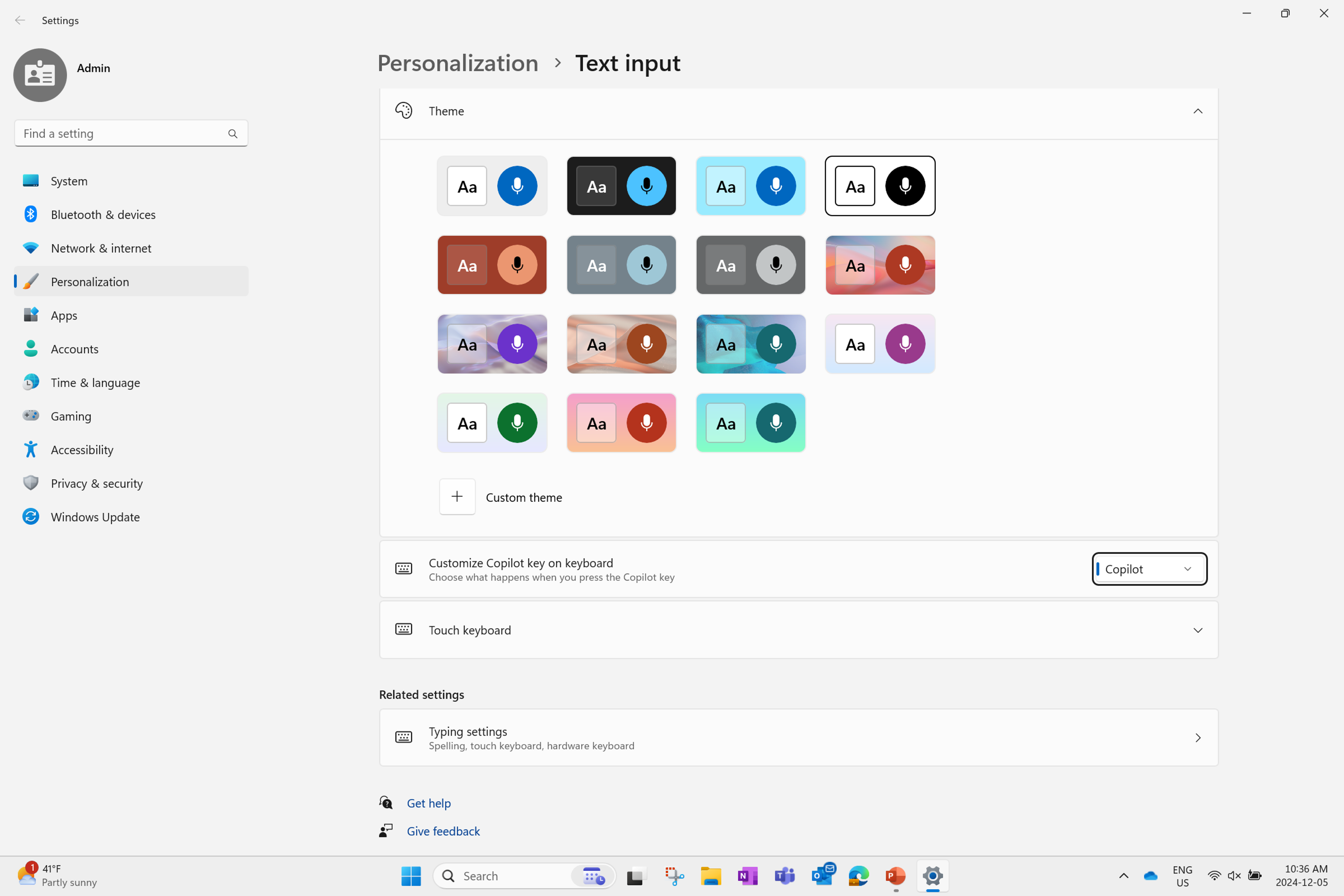
If a user signed in with their Microsoft Entra account doesn't already have the key mapped to the Microsoft Copilot app, they can select the app by going to Settings > Personalization > Text input, then selecting from the dropdown menu in the setting called Customize Copilot key on keyboard. This dropdown has options for: Search, Custom, or a currently mapped app if one is selected.
To map the key to the Microsoft Copilot app, the user should select Custom and then choose the Microsoft Copilot app from the app picker. If this app picker is empty or doesn't include the Microsoft Copilot app, they should reinstall it from the Microsoft Store.
Users can also choose to have the Copilot key launch an app that is MSIX packaged and signed, ensuring the app configured to the Copilot key can remap to meet security and privacy requirements. If the app isn't listed in the app picker for the Copilot key, it's possible that the app provider hasn't registered it yet in their package manifest file as a Microsoft Copilot hardware key provider. Check with your app provider to see if they've recently updated the app and that you have the latest version of their app installed.
Copilot key for developers
If you're a software developer, you'll need to register your app as a Microsoft Copilot hardware key provider to allow users to remap the Copilot key to your app. This is done by adding com.microsoft.windows.copilotkeyprovider as the Name within the uap3:AppExtension for your app's package manifest file.