Note
Access to this page requires authorization. You can try signing in or changing directories.
Access to this page requires authorization. You can try changing directories.
Point-in-time restore enables users to restore a Windows PC to the exact state in which it was at an earlier point in time. It happens in minutes using restore points. Restore points are stored locally on the device and are captured using Volume Shadow Copy Service (VSS). Point-in-time restore helps recover faster from issues by restoring the full system state captured within the last 72 hours. This feature is designed to help minimize downtime and simplify remediation, without the need for technical ability or lengthy troubleshooting.
Restore points
Restore points are captured automatically at a frequency configurable by administrators. The default is approximately every 24 hours. Restore points are comprehensive and include the OS, apps, settings, and local files (no user data is scoped out of the restore point). The feature stores all restore points locally on the system and captures them in the background.
Creation window: When you enable point-in-time restore or change settings, the next restore point depends on boot timing and the most recent restore point. If there’s no recent restore point, one is scheduled promptly after enablement.
Storage: Restore points are included in the system reserved storage*. Reserved storage is only used if the device is low on available disk space. If the space is needed, restore points are evicted from the reserved storage and remain on the system if there’s enough free space for them. If there isn’t enough free space, restore points are removed starting with the oldest.
Note
*Reserved storage is a Windows feature that sets aside a portion of disk space for successful update installation. It helps ensure that updates, temporary files, and system processes can run reliably, without requiring users to free up space.
Deletions: Restore points are automatically removed, starting with the oldest restore point under the following conditions:
- Restore points become older than 72 hours.
- The VSS storage exceeds its maximum configuration for restore points.
- Free disk space reaches or drops below 20 GB.
- The device reports low free space conditions that cause VSS to limit or evict restore points.
- VSS can’t preserve prior data due to a limiting condition (for example, full disk, failure to allocate memory, inability to expand diff area in time, write errors). In this case, all restore points are removed.
Configuration
You can configure the following settings for point-in-time restore:
- Feature On/Off: If feature is On, restore points are automatically captured. If you turn Off the feature, new restore points aren’t generated. Existing restore points stay on the system until they’re removed due to retention period or disk space.
- Restore point frequency: Control how often restore points are created.
- Restore point retention: Define how long restore points stay on the system before they’re automatically removed. Earlier deletion can occur under storage pressure.
- Maximum usage limit: Set an upper bound for the total space consumed by all restore points captured by VSS on the device. Space is not pre-reserved for restore points. Any space within the maximum usage limit that’s not used by restore points is available for use by the system.
Users can view the current disk usage of all restore points and current restore points on the system by their timestamp.
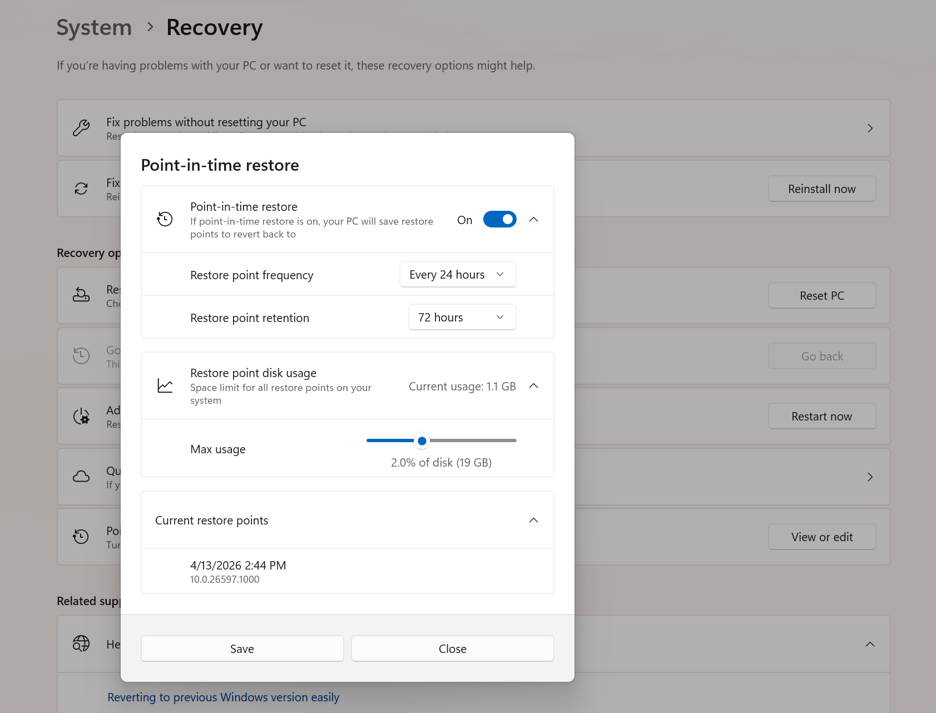
Configuration details are as follows:
| Configuration | Defaults | Options | Editions eligible to configure |
|---|---|---|---|
| Feature On/Off | See below* | On, Off | Home, Pro, Enterprise |
| Restore point frequency (approximate) |
Every 24 hours | 4, 6, 12, 16, 24 hours | Enterprise only |
| Restore point retention (approximate) |
72 hours | 4, 6, 12, 16, 24, 72 hours | Enterprise only |
| Maximum usage limit | 2% of disk | Percent of disk space (min 2 GB; max 50 GB equivalent) | Home, Pro, Enterprise |
*Point-in-time restore will be On by default on systems not under enterprise management:
- Windows Home edition devices
- Windows Pro edition devices that aren’t domain joined and aren’t enrolled in enterprise endpoint management
*Point-in-time restore will be Off by default on enterprise-managed systems until Windows 11, version 26H2:
- Windows Enterprise and Education edition devices
- Windows pro edition devices that are domain joined or managed by an organization
Note
Only devices with an OS volume size of 200 GB or greater will have the feature On by default. For devices with OS volume size below 200 GB, you can still turn On the feature if desired.
Configuration options
 CSP
CSP Settings
Configure devices using the PointInTimeRestore node within the Recovery CSP.
| Setting |
|---|
- Data type: Boolean - Description: When set to True, point-in-time restore is enabled. |
- Data type: Integer - Range: 2048-51200 - Description: Refers to the maximum disk space in megabytes that can be used for point-in-time restore snapshots. |
- Data type: Integer - Range: Greater than 0 - Description: Refers to the frequency in minutes at which restore point snapshots are automatically created. |
- Data type: Integer - Range: Greater than 0 - Description: Refers to the retention period in minutes for restore point snapshots. |
Manage restore points with command line (VSSAdmin)
You can list or remove restore points captured by VSS via command-line tools, using vssadmin.
Restoring a Windows PC
In preview, you can start restoration from Windows Recovery Environment (WinRE) only. To restore points, follow these steps:
Enter WinRE automatically after repeated boot failures or from Settings > Recovery > Advanced startup.
Select Troubleshoot > Point-in-time restore.
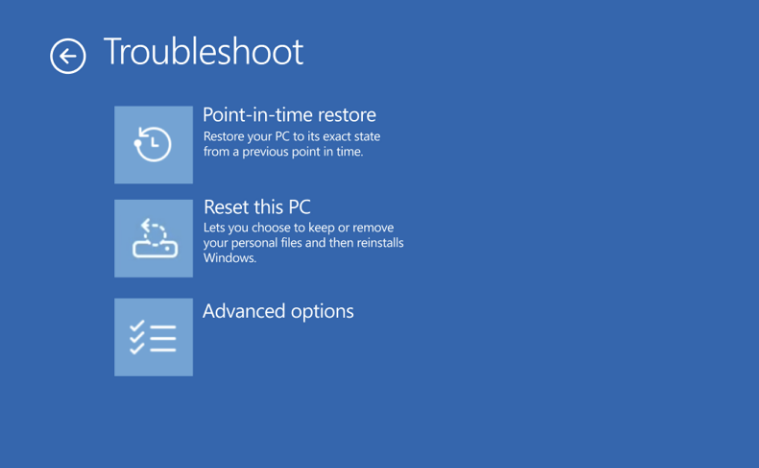
- Enter BitLocker recovery key.
- Select a restore point to restore PC to the exact state in which it was on a specific date and time.
- Select Continue to acknowledge the risks and limitations associated with this feature.
- Review the restore point choice, OS version, and warning of data loss.
- Select Restore to start the process.
- Storage buffer: If there’s 20 GB or less free disk space:
- The feature creates a new snapshot.
- Existing snapshots are removed from oldest to newest until there’s more than 20 GB of free space available. This is to avoid competing with critical system needs.
Storage buffer is only checked at the cadence of the restore point frequency.
- VSS storage shares space with multiple tools that use VSS (for example, System Restore or non-Microsoft rollback software). Point-in-time restore can’t reserve a siloed pool. The maximum restore point limit is for all restore points captured by VSS.
- The maximum VSS limit equals the maximum usage configuration for point-in-time restore.
- The configured maximum space is not pre-allocated. It’s the upper bound that VSS uses. Unused capacity is still available to the system. When needed, VSS consumes free disk space up to the maximum allowed.
- If a device reaches the VSS storage limit or updates require the space used by restore points, the oldest restore points are removed automatically.
- To complete restoration, the device must have at least as much free space as the total size of all restore points.
- Typically, most if not all the maximum space set for restore points will be used up.
- Depending on the maximum usage value, some or all this space is already reserved on the system using the system’s reserved storage. Therefore, the storage impact is greatly reduced.
- Data loss risk: Point-in-time restore is a comprehensive recovery solution that reverts the entire system to the selected restore point. This includes user files, applications, settings, passwords, certificates, and keys. Any changes made after the restore point will be lost. Data stored in cloud services, such as Microsoft OneDrive, is not affected.
- Failure to capture data: Several issues can result in failure to capture a restore point. Examples include insufficient disk space, system experiencing heavy input/output (I/O) load, or unstable VSS writer.
- Failure to restore data: The restoration of a system can fail due to insufficient free disk space, Encrypted Files System (EFS)-encrypted files changing, powering off the PC during restoration, or a corrupted file system.
- Boot failure: Certain configurations, corruption, or sudden power loss can prevent a successful boot after rollback. It could leave the device in a corrupt state.
- Updates and policies: Restoring the system can revert recent security updates or policies. Validate and remediate devices post-restore.
- Access: You can only start the restore process locally in WinRE.
- BitLocker: BitLocker recovery key is required for local restore on encrypted volumes.
- Timing and frequency: There's no guarantee that a restore point is captured at the exact configured frequency or removed exactly when the retention period is reached. This timing varies with device modes (powered off, in sleep, or modern standby mode), recent restarts, or full disk.
- Editions: It’s not possible to use a restore point taken under a different Windows edition/SKU than the one currently installed. For example, if you upgrade the device from Home to Pro, restore points created on Home are no longer available.
- Accounts: You can still restore points if you switch user accounts.
- Encryption: Usage of EFS encrypted files prevents system restoration.
- Multiple volumes: For devices that have multiple volumes, only the volume where the OS is located is restored.
- Image export: The feature doesn’t support export or mount of restore points as independent images.
- Do not turn off the device during restoration. That might leave the device in a corrupt state.
- Plug the device into a power source. Running on battery during restoration increases the risk of power loss. Interrupted processes can potentially leave your system in an unbootable or inconsistent state. While restoration can continue on battery, it's not recommended.
- Monitor and manage storage. Ensure sufficient free space on the system for both restore points and the restore process. The process requires at least as much additional space as the total space taken up by the restore points on the system.
- Ensure reliable access to BitLocker recovery keys for users and helpdesk.
- Perform post-restore validation. Validate critical apps, security agents, and policy posture.
- Maximize usability of point-in-time restore:
- Avoid combining point-in-time restore with other VSS backup tools that might compete for space.
- Ensure there’s at least as much free space as the total size of all restore points on the system.
- If needed, increase maximum usage configuration.
- Troubleshoot. In some cases, there might be a conflict between the local and cloud versions of a file stored in OneDrive. When this happens, please visit the updated documentation for this scenario.
- Point-in-time restore for Windows 365 Enterprise helps protect Cloud PCs managed through Microsoft Intune.
- Point-in-time restore for Windows targets Windows client devices. As such, it stores restore points on the local disk and restores from WinRE. While they share the same goal of minimizing downtime and restoring productivity during disruptions, their implementations differ. Evaluate the key architectural differences and design choices before deploying point-in-time restore across environments:
Outlook data file (.ost) mismatch after a restore: Depending on the types of changes made to the .ost file, users might see the following dialog in Outlook.

Users can resolve this issue using these steps:
Close Outlook.
Rename or delete the .ost in %LOCALAPPDATA%\Microsoft\Outlook.
1. Restart Outlook, letting it rebuild the cache from the server.
Recall is disabled after restoration and asks for confirming presence before enabling again. Recall snapshots captured before the restore are still available post-restore, but a new snapshot isn't created. The current solution is to confirm presence and re-enable Recall if desired.
Auto-unlock after restore: If a point-in-time restore snapshot was taken before BitLocker was enabled or a data volume was encrypted, restoring that snapshot won’t preserve auto-unlock settings. Affected volumes stay locked. Unlock them manually with the recovery key.
Once the restoration is complete, the device boots back into the main operating system.
Storage implications
Risks
Warning
Data loss risk: The restore process includes various factors that might cause data loss.
Limitations
Best practices
Difference with System Restore
Both point-in-time restore and System Restore use Volume Shadow Copy Service (VSS) to revert a device to a previous state. However, point-in-time restore introduces a newer approach and focuses on reliability and a broad range of issues. Compare the following capabilities.
| Capability | Point-in-time restore | System Restore |
|---|---|---|
| Configuration method | System Settings | Control Panel |
| Restore point trigger | Scheduled frequency (automatic only) | Event-triggered or manual |
| Retention | Maximum 72 hours per restore point | Indefinite (subject to disk space usage and cleanup) |
| Target scope | Full system state | System files and settings (app and user data coverage varies) |
| System storage impact | Mitigated storage impact due to reserved storage (lower) | Unmitigated storage impact (higher) |
| Management | Robust remote management | Limited remote management |
Difference with point-in-time restore for Windows Client and Windows 365 Enterprise
There are two distinctive features that can help organizations recover quickly from system failures, flawed updates, or user errors.
| Criteria | Windows Client | W365 Enterprise |
|---|---|---|
| Feature enablement | Can be enabled or disabled | Always enabled |
| Restore point retention | Up to 72 hours | Up to one month |
| Restore point types | Short-term only | Short-term, long-term, and manual |
| Restore point sharing | No sharing. Restore points remain local. | Supports sharing across Windows 365 and Azure. |
| Restore speed | Reduced by local storage of restore points. | Varies; can increase with network latency and bulk restores. |
| Storage constraints | Bound by physical disk limits | Scalable, cloud storage |
Known issues
Provide feedback
To provide feedback for point-in-time restore, use Feedback Hub (press the Windows logo key + F). File your feedback under the category Recovery and Uninstall > Point-in-time restore.