Note
Access to this page requires authorization. You can try signing in or changing directories.
Access to this page requires authorization. You can try changing directories.
Note
Windows Mixed Reality is deprecated and will be removed in Windows 11, version 24H2. This deprecation includes the Mixed Reality Portal app, Windows Mixed Reality for SteamVR, and Steam VR Beta. Existing Windows Mixed Reality devices will continue to work with Steam through November 2026, if users remain on their current released version of Windows 11, version 23H2. After November 2026, Windows Mixed Reality will no longer receive security updates, nonsecurity updates, bug fixes, technical support, or online technical content updates.
Get ready
To run Windows Mixed Reality, you need:
- A compatible mixed reality immersive headset. Learn more
- A Windows Mixed Reality-ready PC with the correct ports for your headset
- Motion controllers, an Xbox controller, or a mouse and keyboard
- Headphones with a mic (if your headset doesn't have them built in)
- A large, open space
Get set
Prepare your space (including your overhead space). Make sure there are no obstacles, hazards, or fragile items in the area you’ll be using. Don’t set up at the top of a staircase or under an extra-low ceiling fan. Remove any breakables or obstacles from the area and make sure that all headset users read and understand the safety guidelines.
Once your space is ready, plug in your headset, but don't put it on yet—first you need to set up your PC. The setup process runs a PC check, downloads some software, connects your controllers, and creates a boundary to help you avoid obstacles.
Then comes the fun part—put on your headset and enter the mixed world. Cortana waits to give you a tour. Have fun!
Go!
Once your space is ready, plug in your headset, but don't put it on yet—first you need to set up your PC. The setup process runs a PC check, downloads some software, connects your controllers, and creates a boundary to help you avoid obstacles.
Then comes the fun part—put on your headset and enter the mixed world. Cortana waits to give you a tour. Have fun!
Get familiar with your motion controllers
If your headset has a built-in radio, the factory pairs the controllers that come with your headset to it. When you first turn on your new controllers and headset, they're already paired.
If you have a headset without a built-in radio, you need to set up your motion controllers by pairing them to your PC. Most headsets manufactured after 2018 have built-in radio.
You don't need to pair your controllers if you plan to use only an Xbox gamepad or keyboard and mouse. If you ever plan to use motion controllers, pair them.
Note: Windows Mixed Reality motion controllers require Bluetooth 4.0. If your PC doesn't have built-in Bluetooth, you need to plug in a USB Bluetooth adapter that supports Bluetooth 4.0 to enable your motion controllers. You don't need a Bluetooth adapter to use the built-in radio in your headset.
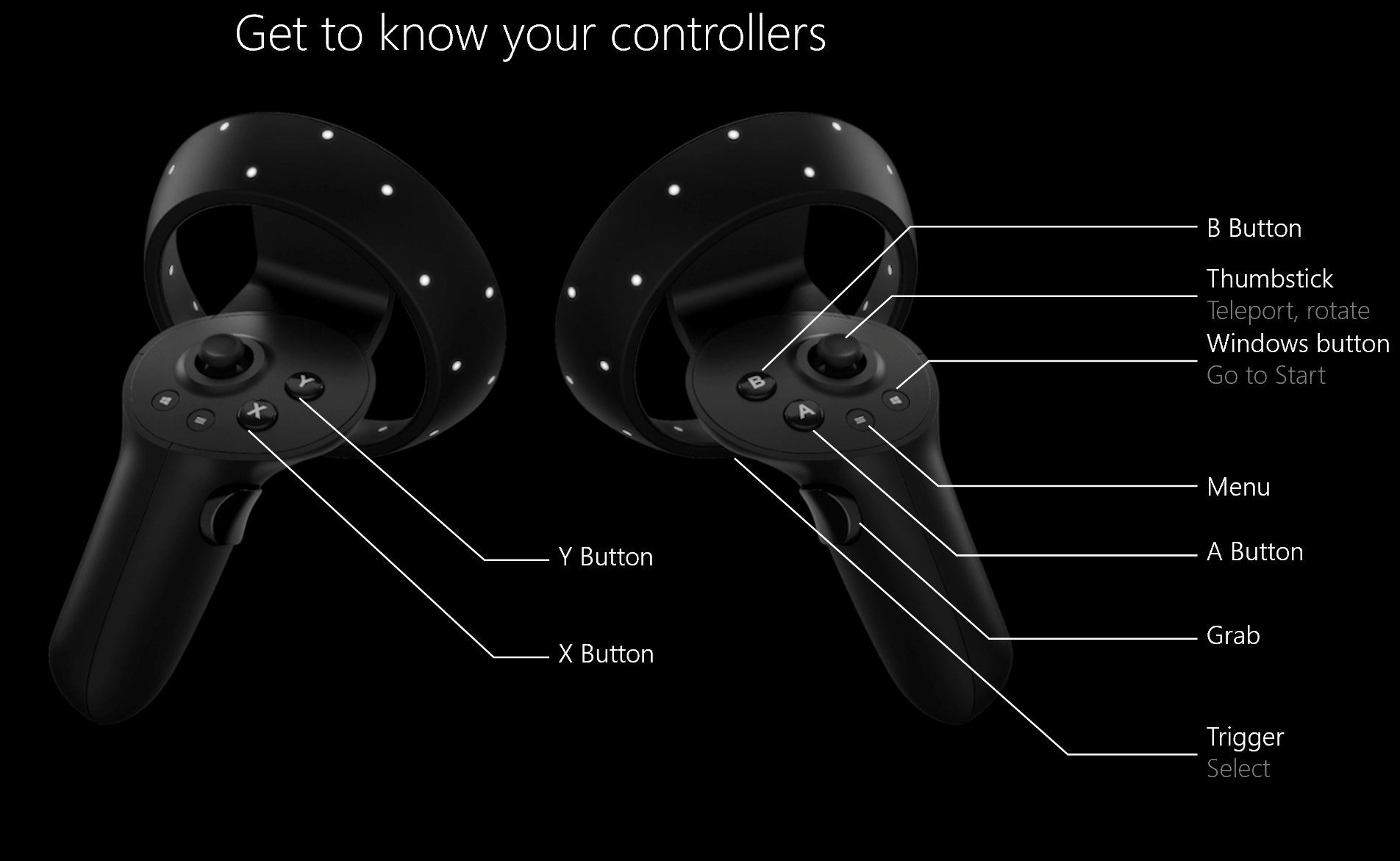
If you need to pair your motion controllers, see controllers in Windows Mixed Reality.
Set up your room boundary
Choose a room scale or desk scale experience:
Option 1: Set me up for all experiences (also known as room scale) lets you walk around the room and is the most immersive mixed reality experience. We recommend you have at least five feet by seven feet (1.5 meters by 2 meters) of clear space for mixed reality.
Option 2: Set me up for seated and standing (also known as desk scale) works at your desk. It's a good option if your space isn't large. It also means that you'll be using your headset without a boundary. You need to stay in one place, as you have no boundary to help you avoid physical obstacles. Some apps and games aren't designed to be a boundary experience, so they might not work as intended.
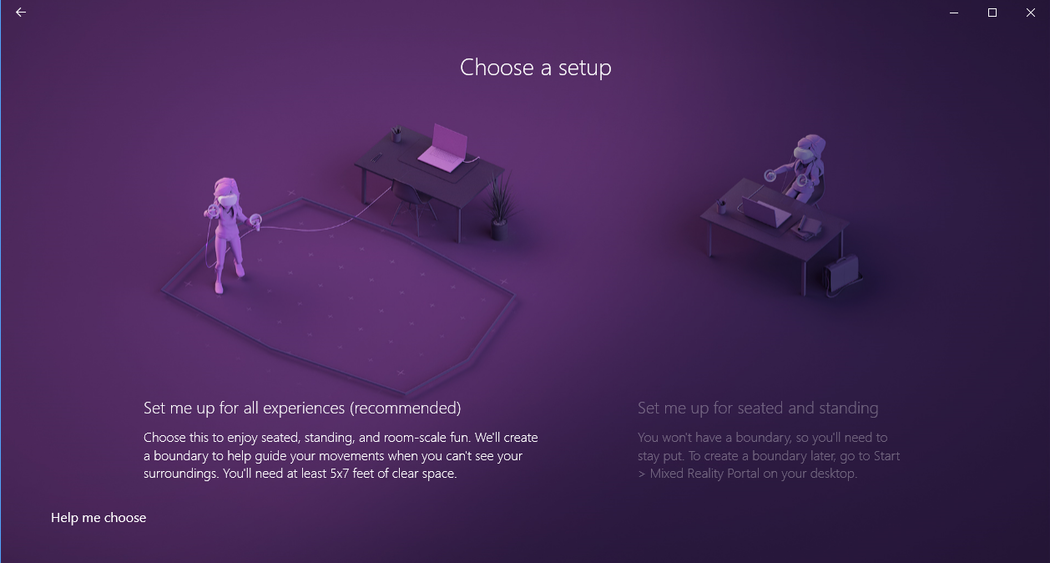
If you choose "Set me up for all experiences"
Soon, your room becomes a virtual world where you can walk around and interact! Stand up and clear some space in your room for running mixed reality. Clear at least five feet by seven feet (1.5 meters by 2 meters) of space for mixed reality.
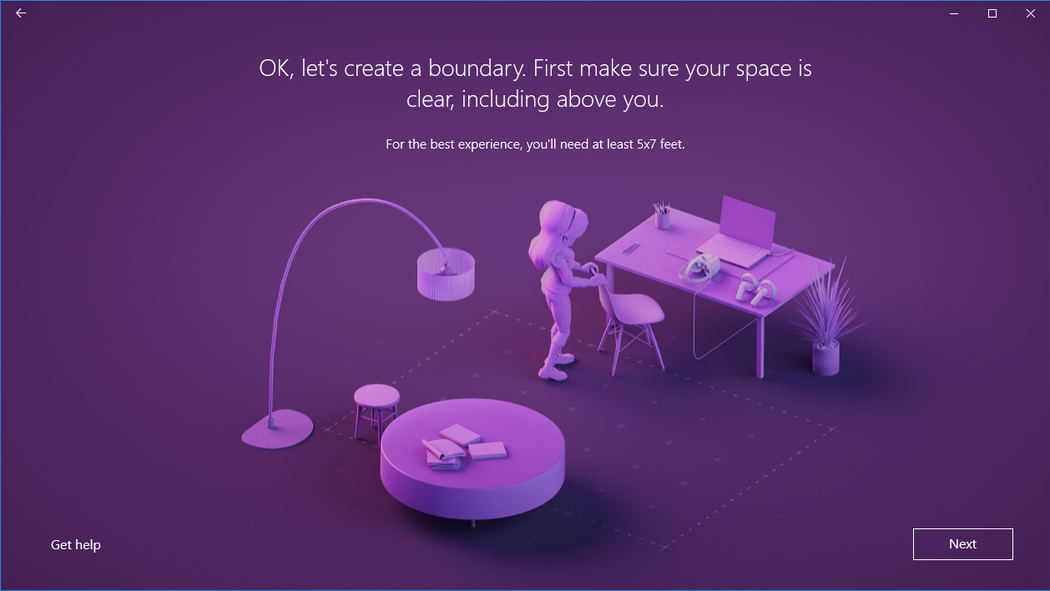
Make sure your space is clear.

Center your headset.
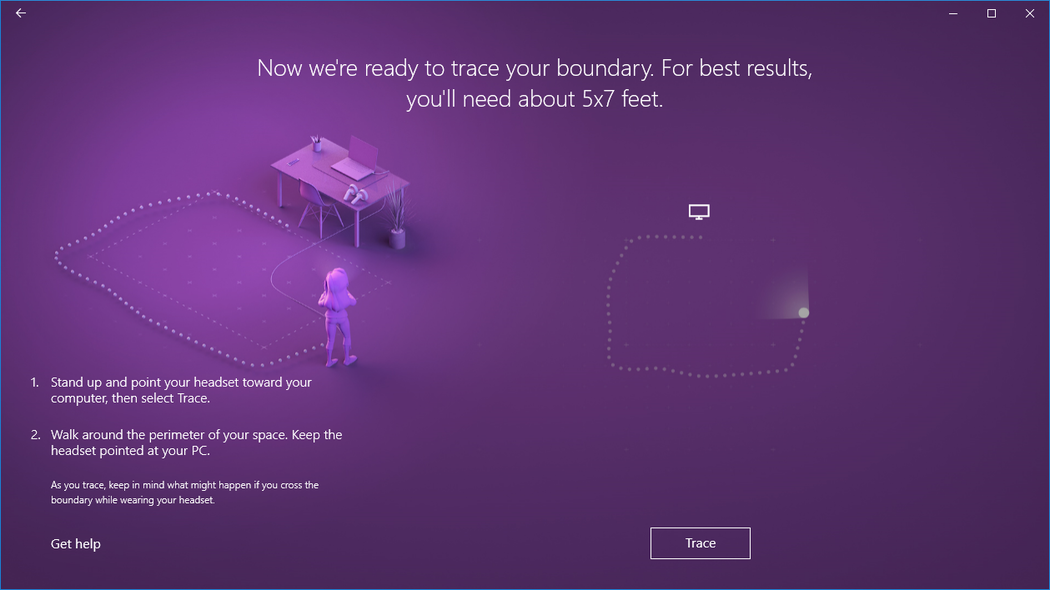
Trace your boundary.
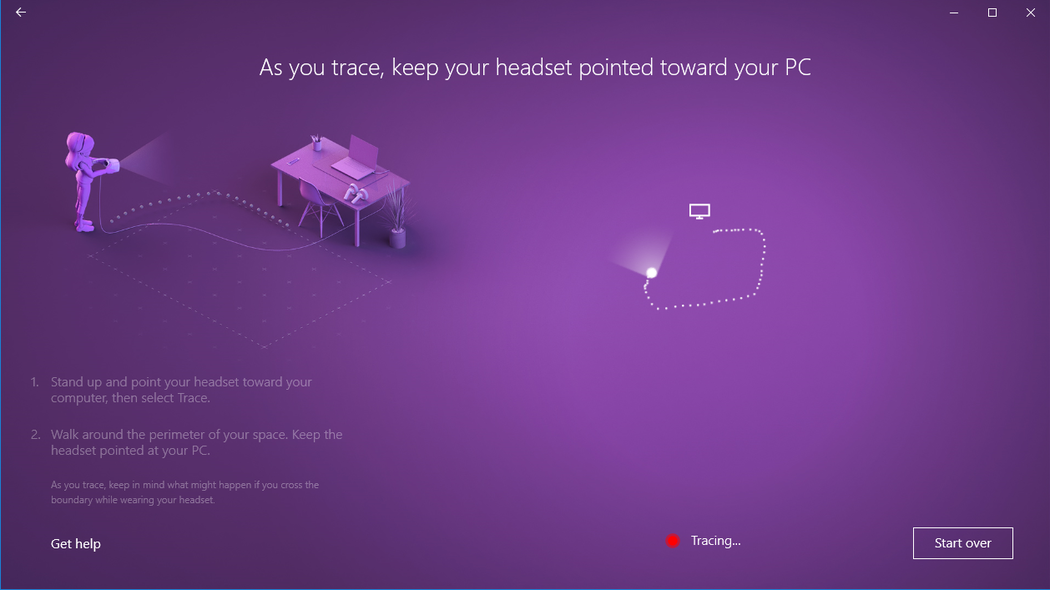
Keep your headset pointed toward your PC.
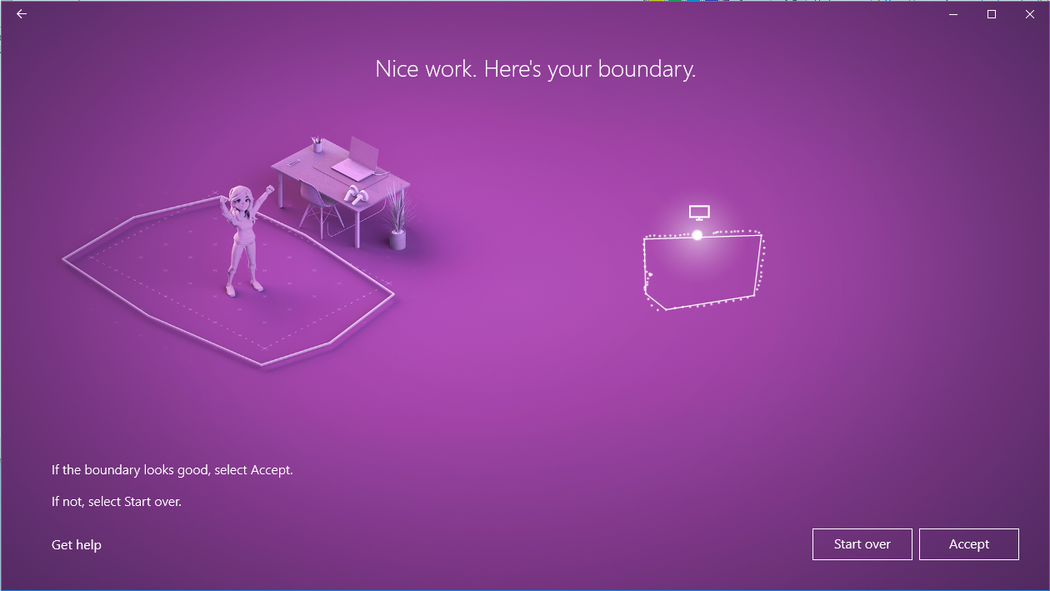
Here's your boundary.
If you choose "Set me up for seated and standing"
This option requires no extra steps.
What is the maximum size of the boundary?
The maximum supported boundary size in Windows Mixed Reality is 18 by 18 feet (5.7 by 5.7 meters) or 13 feet (4 meters) radius from the center. The boundary size depends on the anchor point and how far you can move from the anchor point before risking the stability of the boundary. Windows Mixed Reality is built on a stage abstraction, with the stage being the space you move around in. That stage depends on a single anchor, which nearly every app also assumes. Vive and Oculus also work with their single coordinate system. This point is important because with inside-out tracking, as you move further away from an anchor point, the headset tracking reliably keeps the boundary stable. The boundary is intended to help you avoid physical obstacles, but it becomes more of a problem the further out from the center you go. Two factors influenced the decision on maximum boundary size. The maximum distance at which Windows Mixed Reality headsets could provide the best room scale experience with a boundary and the length of the headset cable, which for most Windows Mixed Reality headsets is 10 feet (3 meters).
Set up speech
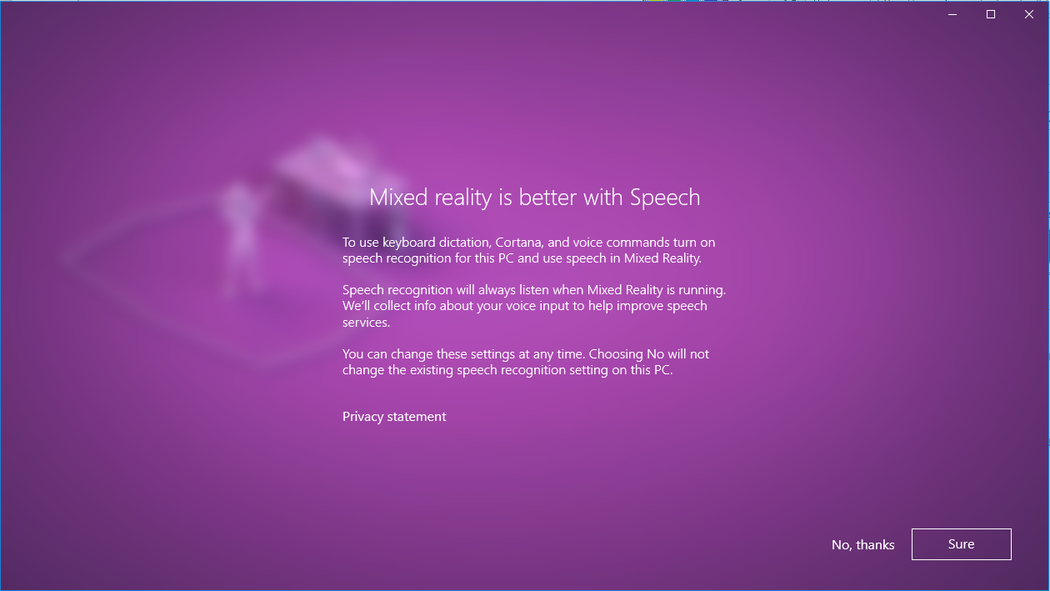
You can enable Cortana commands in mixed reality, which lets you use speech commands to teleport and open apps. You learn more about these actions in the Learn Mixed Reality chapter.
Set up your audio headset
Modern Windows Mixed Reality headsets often include speakers and microphones, but if you're using an older headset, you might need to use an audio headset with microphones and speakers. You can connect a Bluetooth headset or connect a cabled headset by plugging it into your headset's 3.5-mm audio jack. This jack is located on the underside of the headset visor or at the end of a short audio cable attached to the headset visor, depending on the headset model.
Adjust your headset's display settings
Windows Mixed Reality automatically chooses display settings that balance quality and performance, based on your PC's hardware configuration. To adjust these settings, go to Settings > Mixed Reality > Headset display.
Visuals
This setting controls the visual quality of your mixed reality home. The default is Automatic.
Resolution
This setting shows your headset's native resolution.
If you connect a headset with higher resolution displays to your PC, such as headsets with 4320x2160 displays, you see a setting to adjust the Mixed reality display resolution.
- This setting provides the option for the Windows Mixed Reality composition stack to render natively (for example, at 4320x2160), or to have the composition stack render at a lower resolution and upscale (for example, render at 2880x1440 and upscale to 4320x2160).
- The default setting is to render natively (for example, the 4320 x 2160 (best quality) option) to provide the best visual quality possible from your headset.
- Use the Automatic upscaling (best performance) option if:
- Your PC doesn't meet the minimum graphics hardware requirements for your headset with higher resolution displays
- You're seeing graphics performance issues
You can use this setting on Windows 10, version 1903 or newer, and on Windows 11.
Calibration
This setting adjusts the IPD calibration for headsets with software IPD support. If this option is grayed out, you're likely using a headset with hardware IPD support. In this case, adjust the IPD by using the slider on your headset.
Frame rate
This advanced setting overrides the default headset display refresh rate experience.
- Let Windows decide: Automatically select the 60 Hz or 90 Hz experience based on your PC's hardware configuration.
- 60 Hz
- 90 Hz
Note
When you first set up the HP Reverb G2 headset, the frame rate changes to 90 Hz to ensure the best experience. If needed, you can change this setting to 60 Hz or Let Windows decide.
Input switching
This setting controls how Windows Mixed Reality responds to your headset's presence sensor:
- Automatically switch using headset presence sensor (default): Windows automatically directs input (keyboard, mouse, and more) to Windows Mixed Reality whenever you wear your headset. You can override this behavior at any time with Win + Y.
- Manually switch using Windows logo key + Y: Windows doesn't use the headset presence sensor to detect when you wear your headset. You need to use Win + Y to switch your input between your PC desktop and Windows Mixed Reality.
You can use this setting on Windows 10, version 1903 or newer, and on Windows 11.
Installing Microsoft Edge
To use the new Chromium-based Microsoft Edge in Windows Mixed Reality home, upgrade to Windows 10 Version 1903 or later, or Windows 11 for native support of Win32 applications (like the new Microsoft Edge) in Windows Mixed Reality home. Check Windows Update, manually install the latest version of Windows 10, or install the latest version of Windows 11.
Important
The new Microsoft Edge launches with support for WebXR, the new standard for creating immersive web experiences for VR headsets. If you install the new Microsoft Edge, you can no longer play WebVR experiences in Microsoft Edge.
Issues with the new Microsoft Edge in Windows Mixed Reality
Known issues resolved by the 2020-01 Cumulative update for Windows 10 Version 1903 (or later)
- Launching any Win32 app, including the new Microsoft Edge, causes the headset display to briefly freeze.
- The Microsoft Edge tile disappears from the Windows Mixed Reality Start menu (you can find it in the Classic apps folder).
- Windows from the previous Microsoft Edge are still placed around the mixed reality home, but you can't use them. Attempting to activate those windows launches Edge in the Desktop app.
- Selecting a hyperlink in the mixed reality home launches a web browser on the desktop instead of the mixed reality home.
- The WebVR Showcase app is present in the mixed reality home, despite WebVR no longer being supported.
- General improvements to keyboard launch and visuals.
Additional known issues
- Websites open in Windows Mixed Reality are lost when Mixed Reality Portal closes, though the Microsoft Edge windows remain where you placed them in the mixed reality home.
- Audio from Microsoft Edge windows isn't spatialized.
- Fixed in 360 Viewer extension version 2.3.8: Opening a 360 video from YouTube in Windows Mixed Reality might result in the video being distorted in the headset. Restarting Edge invisibly updates the 360 Viewer extension to resolve this issue. You can confirm which version of the extension you have by entering
edge://system/in the address bar and selecting the Expand button next to extensions. - During Windows Mixed Reality sessions, virtual monitors appear as generic physical monitors in Settings > System > Display.
Launching mixed reality after the first time
Entering mixed reality a second time is as easy as putting the headset back on while it's connected to your PC. You can also launch the Mixed Reality Portal application manually by opening it from the Start menu. Input and audio automatically route to the headset when you put it on, or you can trigger this manually by pressing Windows + Y on your keyboard.