Edit

Use the Windows Package Manager MCP Server for package management with AI agents

The Windows Package Manager (WinGet) includes a built-in Model Context Protocol (MCP) server. The WinGet MCP server enables AI agents and development tools to intelligently assist you by understanding what packages are available and how to install them.

The WinGet MCP server exposes WinGet's core functionality to AI agents, enabling them to help you find packages, understand their details, and assist with installation workflows. This functionality enhances the overall authoring experience by providing contextual information about available packages directly to AI-powered tools.

What is Model Context Protocol (MCP)?

Model Context Protocol (MCP) is an open protocol that enables AI systems to interact with external data sources and tools in a consistent way. It provides a standardized interface for AI agents to discover capabilities, retrieve information, and invoke actions across different systems and services.

MCP allows AI-powered tools to understand what operations are possible and how to perform them, without requiring custom integrations for each system. This protocol makes it easier for developers to build AI assistants that can work with multiple tools and services seamlessly.

To learn more about MCP and how it works with AI agents, see Use MCP servers in VS Code.

How WinGet MCP works with AI agents

To use the WinGet MCP server with AI agents, you first need to configure your development environment to connect to the MCP server. Once connected, the WinGet MCP server can assist with:

  • Discovering available packages: When you ask an agent to help with software installation tasks, the agent can search the WinGet repository for available packages. WinGet MCP helps agents provide accurate, up-to-date information about available software.For example:

    • You ask: "I need to install Visual Studio Code"
    • Agent searches: The WinGet repository for Visual Studio Code packages
    • Agent provides: Package details including ID, version, publisher, and installation options
  • Installing packages: When you need to install specific software, agents can assist with the installation process, ensuring that your software is installed with the correct configuration. For example:

    • You ask: "Install Python for development"
    • Agent identifies: The appropriate Python package from the WinGet repository
    • Agent provides: Installation commands or can initiate the installation with your approval

Prerequisites

Before using the WinGet MCP server integration, ensure you have:

Set up WinGet MCP Server

To set up the WinGet MCP server for use with AI agents in VS Code, you must:

  1. Find the WinGet MCP server executable path
  2. Configure the MCP server in Visual Studio Code

Find the WinGet MCP server executable path

To set up the WinGet MCP server, you must first locate the path to the executable file. Use one of the following methods to find the path:

  1. Open a command prompt and enter the winget mcp command. The result displays the JSON configuration fragment that shows the path to the WindowsPackageManagerMCPServer.exe file.

    winget mcp
    

    If the following error occurs: Unrecognized command: 'mcp'

    Verify that the App Installer application is up to date on the device. This can be verified in the Store application.

  2. Open PowerShell and use the following script to locate the MCP server executable:

    # Find the WinGet executable path
    $wingetPath = (Get-Command winget).Source
    # Get the directory containing WinGet
    $wingetDir = Split-Path $wingetPath -Parent
    # The MCP server executable is in the same directory
    $mcpServerPath = Join-Path -Path $wingetDir `
        -ChildPath "Microsoft.DesktopAppInstaller_8wekyb3d8bbwe" `
        -AdditionalChildPath "WindowsPackageManagerMCPServer.exe"
    Write-Host "WinGet MCP Server path: $mcpServerPath"
    

The typical location is:C:\Users\<username>\AppData\Local\Microsoft\WindowsApps\Microsoft.DesktopAppInstaller_8wekyb3d8bbwe\WindowsPackageManagerMCPServer.exe

Configure the MCP server in Visual Studio Code

The recommended way to configure the WinGet MCP server is through an mcp.json configuration file. You need to find (you might need to show hidden files) or create a .vscode folder in the root directory of your project. In this directory, create a mcp.json file (or update it if this file already exists) with the following content:

{
  "servers": {
    "winget-mcp": {
      "type": "stdio",
      "command": "C:\\Users\\<username>\\AppData\\Local\\Microsoft\\WindowsApps\\Microsoft.DesktopAppInstaller_8wekyb3d8bbwe\\WindowsPackageManagerMCPServer.exe"
    }
  },
  "inputs": []
}

Replace <username> with your actual Windows username or use the WinGet MCP server executable path that you previously identified.

This configuration tells MCP clients to:

  • Use the Windows Package Manager (WinGet) MCP server executable as the command
  • Use standard I/O communication between the client and server
  • Register the server with the identifier winget-mcp

For detailed information about MCP configuration and setup in VS Code, see Use MCP servers in VS Code.

Manual command-line testing

To start the WinGet MCP server manually for testing or development purposes, run the executable directly by entering the following command in PowerShell:

& "C:\Users\<username>\AppData\Local\Microsoft\WindowsApps\Microsoft.DesktopAppInstaller_8wekyb3d8bbwe\WindowsPackageManagerMCPServer.exe"

Replace <username> with your actual Windows username.

The server starts and waits for MCP protocol messages on standard input. The server continues running until you terminate it (Ctrl+C) or close the input stream.

Use WinGet MCP tools in Visual Studio Code

To start using the Windows Package Manager (WinGet) MCP Server in Visual Studio Code:

  1. Open the GitHub Copilot extension chat window and select Agent Mode to enable MCP tool integration.
  2. Access WinGet MCP tools by selecting the tool icon in the GitHub Copilot chat window and search for MCP Server: winget-mcp in the available tools list.
  3. Verify that the WinGet MCP server tools are available, with a checkmark next to the entry.
  4. Begin asking questions or requesting assistance with package management tasks. The AI agent automatically uses the WinGet MCP tools when appropriate to provide accurate, context-aware help.

Use WinGet MCP with GitHub Copilot CLI

GitHub Copilot CLI brings AI-powered assistance directly to your terminal. After registering the WinGet MCP server with Copilot CLI, you can search for and install packages using natural language prompts — without leaving the command line.

Prerequisites

Add the WinGet MCP server to Copilot CLI

  1. Start Copilot CLI in your terminal:

    copilot
    
  2. At the prompt, enter the /mcp add slash command:

    /mcp add
    
  3. Fill in the MCP server details in the interactive form. Use Tab to move between fields:

    Field Value
    Name winget-mcp
    Type stdio
    Command Full path to WindowsPackageManagerMCPServer.exe
  4. Press Ctrl+S to save. Copilot CLI writes the configuration to ~/.copilot/mcp-config.json.

Option 2: Edit mcp-config.json directly

Open (or create) ~/.copilot/mcp-config.json and add the following entry, replacing <username> with your Windows username:

{
  "mcpServers": {
    "winget-mcp": {
      "type": "stdio",
      "command": "C:\\Users\\<username>\\AppData\\Local\\Microsoft\\WindowsApps\\Microsoft.DesktopAppInstaller_8wekyb3d8bbwe\\WindowsPackageManagerMCPServer.exe",
      "args": [],
      "tools": ["*"]
    }
  }
}

Note

If mcp-config.json already exists and contains other servers, add the winget-mcp entry inside the existing mcpServers object rather than replacing the file.

Verify the server is registered

After adding the server, confirm it is loaded:

  1. Start or restart Copilot CLI:

    copilot
    
  2. At the prompt, enter:

    /mcp
    

    The output lists all configured MCP servers. Verify that winget-mcp appears and shows a connected status.

Use WinGet MCP in Copilot CLI prompts

Once the server is registered, Copilot CLI automatically calls WinGet MCP tools when your prompt involves package management. After each search or install request, Copilot asks for your approval before running any command. For example prompts and prompting tips, see Example prompts for WinGet MCP.

Example prompts for WinGet MCP

The following prompts work well with both GitHub Copilot (VS Code) and GitHub Copilot CLI when the WinGet MCP server is configured:

Goal Example prompt
Search for a package "Search WinGet for a PDF reader"
Install by name "Install the latest version of Git"
Install a specific version "Install Node.js 20 LTS from WinGet"
Find packages for a task "What WinGet packages are available for container development?"
Find packages for Python development "What packages are available for Python development?"
Install a common tool "Help me install Visual Studio Code"
Find platform-specific packages "Find packages for Docker on Windows"

Tips for effective prompting

To help Copilot reliably invoke the WinGet MCP tools, use language that clearly indicates a package management intent. If Copilot does not use the WinGet MCP tools automatically, add explicit keywords such as "using WinGet", "from WinGet", or "search WinGet" to your prompt.

When using VS Code, also verify that Agent Mode is still enabled and that winget-mcp is checked in the tools panel. When using Copilot CLI, use /mcp to confirm the server is connected.

Available WinGet MCP commands

The WinGet MCP server currently supports the following commands:

find

Searches the WinGet repository for packages matching specified criteria. This tool helps discover available software and their details.

Parameters:

  • Search query or package identifier
  • Optional filters for source, version, or other criteria

install

Initiates the installation of a specified package from the WinGet repository. This tool can install packages with your approval.

Parameters:

  • Package identifier or name
  • Optional version specification
  • Optional installation parameters

Troubleshooting

Connection issues

If you encounter connection issues between VS Code and the WinGet MCP server:

  1. Verify your mcp.json configuration file syntax.
  2. Check that the path to WindowsPackageManagerMCPServer.exe is correct.
  3. Ensure the executable has proper permissions to run.
  4. Review VS Code's output panel for detailed error messages.
  5. Try restarting the MCP integration in VS Code.

Limited or no response from AI Agent

If the AI agent doesn't seem to be using WinGet MCP tools:

  • Use specific prompts that clearly indicate you want package management information.
  • Try phrases like "Search for packages" or "Install using WinGet".
  • Verify that Agent Mode is enabled in Copilot Chat.
  • Check if the WinGet MCP tools are visible in the tools list.

Package installation issues

If package installation fails or behaves unexpectedly:

  • Review the installation command or parameters suggested by the AI agent.
  • Check the WinGet troubleshooting guide for common issues.
  • Verify you have appropriate permissions to install software.
  • Ensure the package source is accessible.

Limitations

Important

You are responsible for reviewing all commands generated with AI assistance. Always validate installation commands and verify the software source before executing them on your system.

Current limitations of the WinGet MCP server integration include:

  • Agent behavior: AI agents might not use the WinGet MCP server for every query, though specific prompting can encourage its use.
  • Tool availability: The integration currently supports only find and install commands. Future releases might add support for more commands.

How WinGet MCP integrates with VS Code

The WinGet MCP server integrates with VS Code and AI agents as follows:

  1. VS Code Copilot communicates with AI agents that can access MCP servers.
  2. AI agents use the MCP protocol to query the WinGet MCP server for information.
  3. WinGet MCP server processes requests and calls the appropriate WinGet CLI commands.
  4. WinGet CLI performs package searches and installations in the repository.
  5. Results flow back through the chain to provide enhanced assistance.
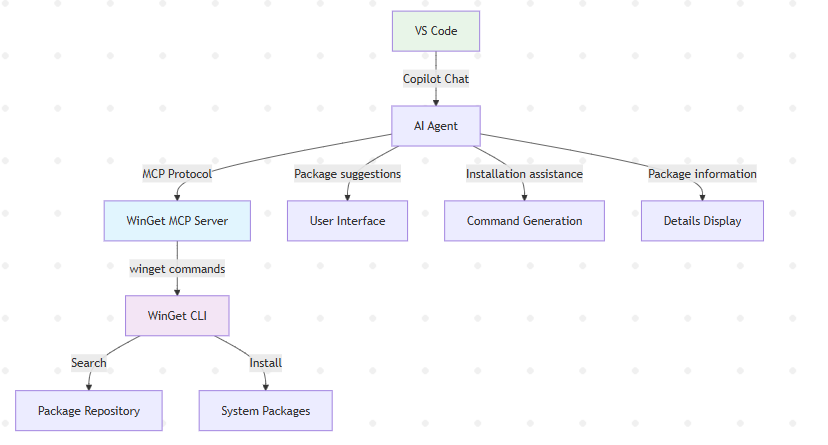
WinGet MCP integration diagram
