Note
Access to this page requires authorization. You can try signing in or changing directories.
Access to this page requires authorization. You can try changing directories.
You can arrange PIX views into layouts, change PIX settings, and share your settings with other PIX users. Most options are in File > Settings.
Arrange views
To rearrange a layout, drag a view's tab and drop it where you want it. To put a view in its own window, for example on a second monitor, drag its tab outside the main PIX window. PIX works on a single monitor, but more monitors give you more room for views.
To add a view:
- Select + at the right end of a row of tabs, or right-click an empty area of the layout.
- Select a view from the list. The list shows the views that are available for the open capture or connection.
To add an empty tab group, select [New Tab Group] from the same list.
To make text and graphics larger or smaller, hold down Ctrl+Alt and scroll the mouse wheel. You can also set Visual Scale in File > Settings > General.
Manage layouts
Use the Layout menu to switch, reset, and manage layouts. PIX keeps a separate set of layouts for each type of document, such as GPU captures and Timing captures. The menu is available when a capture or connection is open. PIX saves changes to the active layout automatically.
- Apply Layout: switch to one of your saved layouts. To create a layout, select New from Template, and then select [Blank] or one of the PIX templates.
- Reset Layout:
- Undo: undo the last change to the layout.
- Reset to Default Template: reset the active layout to the template it was created from.
- Manage Layouts: apply, rename, duplicate, or delete your saved layouts.
Change settings
To open settings, select File > Settings. To find a setting, type in the filter box at the top of the dialog. To restore every setting to its default value, select Revert.
The settings are grouped into these categories:
| Category | Contains |
|---|---|
| General | Startup, visual scale, animation, text editor, and file-handling options. |
| GPU Capture and Analysis | GPU capture options, such as the capture HUD, the capture key, and the maximum number of frames to capture. |
| Timing Captures | Timing capture collection and callstack options. |
| Timeline | Timeline display options. |
| Symbol / PDB Options | Where PIX looks for CPU and shader PDBs. |
| Shader Object Options | Where PIX looks for shader objects. |
| Source Path Options | Where PIX looks for source files. |
| Extensibility Options | Paths for PIX extensions. |
| Other Devices | Enable SSH connections to other devices. |
| Raytracing | Camera options for the acceleration structure viewer. |
| PIX Debugging | Enable the D3D12 debug layer during GPU capture playback, and pause the PIX engine at launch so you can attach a debugger. |
Debug symbols
PIX needs debug symbols (PDBs) to show function names and source code for CPU code and shaders. To tell PIX where to find them, select File > Settings > Symbol / PDB Options, and add folders to PDB Search Paths. To use the folders in the _NT_SYMBOL_PATH environment variable as well, select Use _NT_SYMBOL_PATH environment variable.
For more information, see:
- Use automatic shader PDB resolution in PIX for shader PDBs.
- Configure PIX to access PDBs for CPU captures for CPU PDBs.
Save and import settings
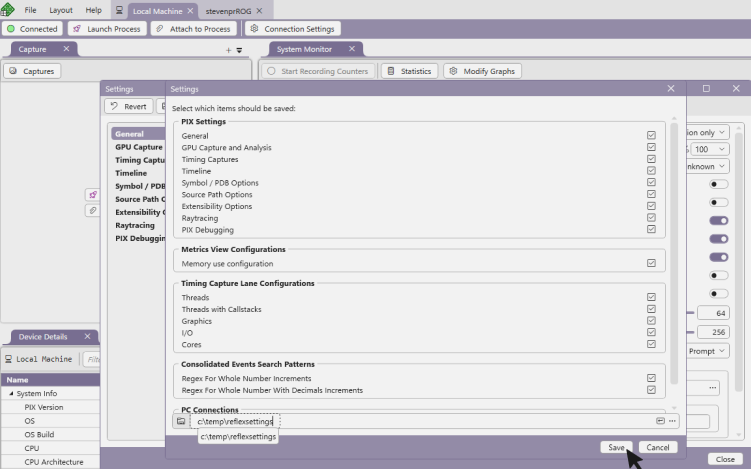
You can save your settings and configurations to an XML file and import that file into another installation of PIX. For example, a team can share a standard Timing capture configuration. You can save and import:
- PIX settings, by category.
- Timing capture lane configurations.
- Metrics view configurations.
- PC connections.
To save settings:
- Select File > Settings, and then select Save.
- Clear the check boxes for any items you don't want to save.
- Specify the file to save to, and then select Save.
To import settings:
- Select File > Settings, and then select Import.
- Select the settings file.
- Select the items you want to import, and then select Load.
Imported settings overwrite your current values. Imported lane and Metrics view configurations replace existing configurations that have the same name.