Note
Access to this page requires authorization. You can try signing in or changing directories.
Access to this page requires authorization. You can try changing directories.
PIX can capture from a game running on a different Windows PC than the one running the PIX user interface. This is useful when:
- The target device is a handheld, dev kit, or test rig that you don't want to plug a keyboard and mouse into.
- You want to keep the PIX UI off the device under test to avoid interference with measurements, especially for Timing Captures.
- You are developing for a class of Windows-powered devices (such as handhelds) that you don't physically work on day-to-day.
PIX supports two ways to set up a remote profiling session:
- Friction-free secure remote profiling (recommended). Uses the secure transport provisioned by the Xbox PC Toolbox app. PIN-pairing and certificate exchange replace Windows-account authentication and domain-join requirements, and most setup steps on the target device are eliminated. Available starting in PIX version 2605.28-preview.
- Legacy WinPIX Remote Monitor flow. The original mechanism that connects through
WinPixRemoteMonitorUI.exe. Still supported in both secure (domain-joined) and insecure modes if you prefer to keep using it. See Legacy remote profiling with PIX Remote Monitor later in this article.
Note
Regardless of which transport you use to establish the connection, only the trust relationship and control channel are affected. The capture data itself is always streamed over the PIX link.
Friction-free secure remote profiling
The friction-free flow uses the secure transport that the Xbox PC Toolbox sets up between your development PC and the remote target device. It removes Windows-account authentication, removes the need to plug a keyboard and mouse into the target device for most setup steps, and reduces UAC prompts to a small, predictable set.
Prerequisites
- Same version of PIX installed on both the development PC and the remote target device.
- Xbox PC Toolbox app installed on both the development PC and the remote target device. Download it from the Microsoft Store.
- Devices paired through the Xbox PC Toolbox. Pairing is a one-time provisioning step that you complete manually on both devices. It establishes mutual trust through PIN pairing and a certificate exchange, with no Windows account authentication required. The remote iteration tooling installed by the Toolbox is what carries the trust relationship. For step-by-step instructions, see Xbox PC Toolbox.
- Network connectivity between the development PC and the remote target device.
Connecting from PIX
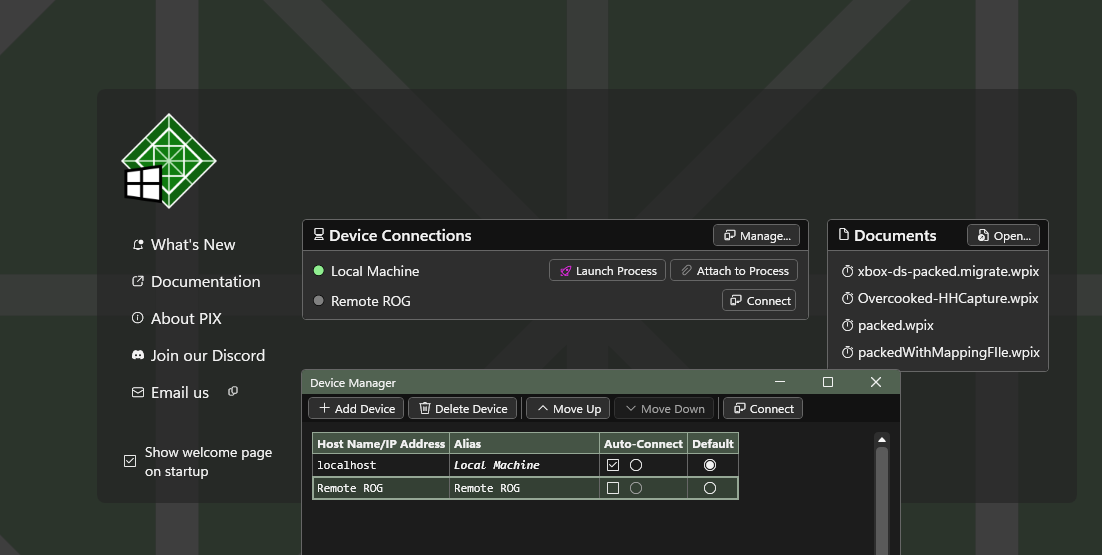
Once your devices are paired through the Xbox PC Toolbox, you connect from PIX exactly the same way you would for a legacy remote session. From the PIX UI, you have two options:
- From the Welcome page displayed on PIX startup, use the Device Connections section to add and connect to your remote device.
- From the menu, select File > Manage Devices to open the Device Manager dialog, select Add device, and enter the host name or IP address of your remote target device.
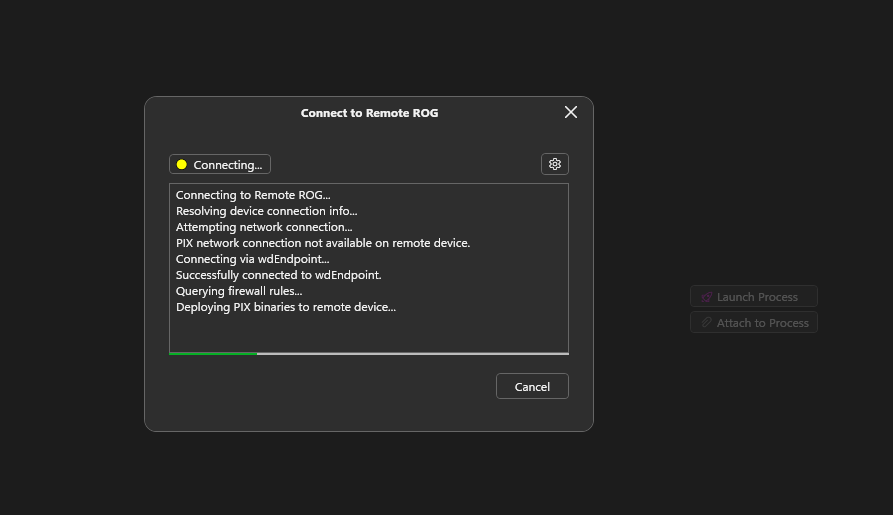
Either path opens the same dialog. Enter the host name or IP address of your remote target device, then select Connect.
PIX first tries to establish the connection through the current PIX link connection mechanism. If that isn't available or doesn't succeed, PIX automatically falls back to the secure transport provisioned by the Xbox PC Toolbox. No additional UI selection or configuration is required to opt into the new transport. If the target device is paired through the Toolbox, the friction-free flow is used automatically.
UAC prompts on the target device
The friction-free flow eliminates most manual interactions on the target device, but a small number of UAC prompts still appear and require local approval on the remote device:
- First-time connection. The first time PIX connects to a given target device through the Toolbox transport, a UAC prompt appears on the target device and must be approved locally.
- First Timing Capture after a forced disconnect or device reset. A UAC prompt appears on the target device the first time you start a Timing Capture after reconnecting following a forced disconnect, or after the device has been reset. Subsequent Timing Captures on the same connection do not prompt again.
After these prompts are approved, the rest of the workflow proceeds without further interaction on the target device.
Using PIX over a remote connection
Once the connection is established, the PIX workflow is identical to a local session:
- Use Launch Process or Attach to Process as usual. When launching, the file paths you enter must be valid on the remote target device.
- Take GPU Captures and Timing Captures the same way you would locally.
- View, navigate, and analyze captures in the PIX user interface on the development PC.
For details on the capture workflows, see Profile the CPU and GPU with timing captures and Analyze frames with GPU Captures.
Legacy remote profiling with PIX Remote Monitor
The original WinPIX Remote Monitor flow is still fully supported. Use it when you prefer the existing mechanism, when the Xbox PC Toolbox isn't installed, or when you specifically need the insecure-mode behavior on a trusted network.
To use the legacy flow:
- Install the same version of PIX on both machines.
- On the remote machine, launch the PIX Remote Monitor application. It waits for a connection.
- On the development PC, select File > Manage Devices to open the Device Manager dialog, select Add device, and enter the host name or IP address of the remote machine.
- Select Connect.
By default, the legacy flow uses secure mode, which is authenticated and encrypted. Secure mode requires both machines to be domain-joined, and the user account on the development PC must be a member of the WinPix Remote Users group on the remote machine (the PIX installer creates this group and adds the installing user to it).
If the machines aren't domain-joined, switch to insecure mode from the Connection dropdown in the PIX Remote Monitor, or pass insecure as a command-line argument to WinPixRemoteMonitorUI.exe. Insecure mode is faster but should only be used on a trusted network where you control access.
For more background on the legacy flow, see the PIX on Windows remoting blog post.
Remoting the PIX analysis engine
The PIX analysis engine can also be run on a different machine than the one running the user interface, regardless of which transport is used to connect to the target device. This is useful to keep heavy analysis work off the development PC. Select the analysis target from the dropdown next to the analysis Start button.