Note
Access to this page requires authorization. You can try signing in or changing directories.
Access to this page requires authorization. You can try changing directories.
Use the PIX Welcome page to connect to a device, launch or attach to an application, and take GPU or Timing captures. The Device Connections section lists the local machine and any configured remote devices. After a device is connected, use its Launch Process or Attach to Process button to choose the target application.
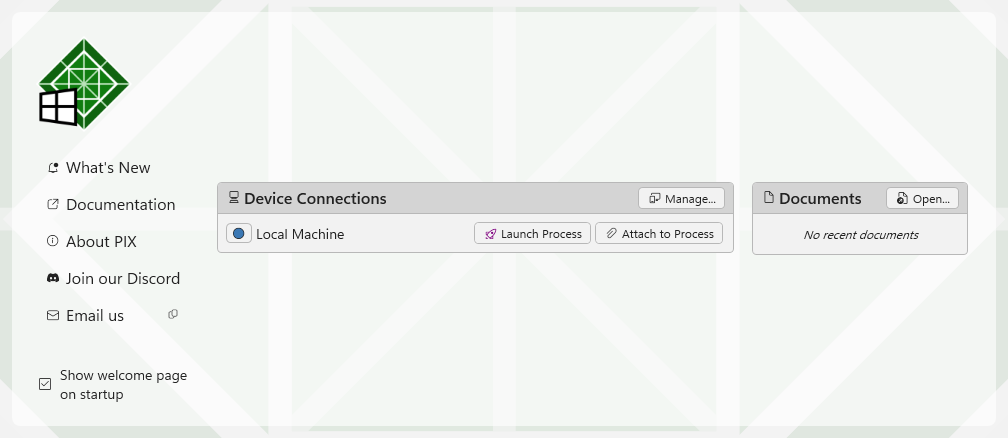
Launch an application from PIX
Use Launch Process when PIX should start the application for you.
- On the Welcome page, find the connected device in Device Connections, and then select Launch Process.
- On Process Selection, choose Win32 or Packaged App.
- For Win32, select the executable, working directory, command-line arguments, and environment variables that your application needs.
- For Packaged App, select an installed app from the list.
- In Capture Type, choose GPU Capture or Timing Capture.
- For Win32 launches, select Capture at Launch if the capture must include startup or the first frame. When this option is enabled, PIX also shows a Capture Options page before launch.
- For GPU captures, select Force D3D11On12 only when you need PIX to capture a D3D11 application through the D3D11On12 mapping layer. For more information, see Capture D3D11 apps.
- For GPU captures, select Enable DRED Logging when you want D3D12 Device Removed Extended Data diagnostics enabled for the launched process.
- Select Launch. If a packaged app is already running, PIX prompts you to terminate and restart it. Select Attach to Process instead if you need to keep the running instance.
Attach to a running application
Use Attach to Process when the application is already running.
Important
To attach for a GPU Capture, the application must load WinPixGpuCapturer.dll from the same PIX installation before it calls any D3D12 APIs. The simplest way is to call PIXLoadLatestWinPixGpuCapturerLibrary() at startup. If the DLL isn't loaded, or came from a different PIX version, the attach fails. For details, see Load the GPU capturer before you attach.
You don't need to load the DLL when PIX launches the application, or when you attach for a Timing Capture.
- For a GPU capture, make sure the application loads
WinPixGpuCapturer.dllat startup, and then start the application. - On the Welcome page, find the connected device in Device Connections, and then select Attach to Process.
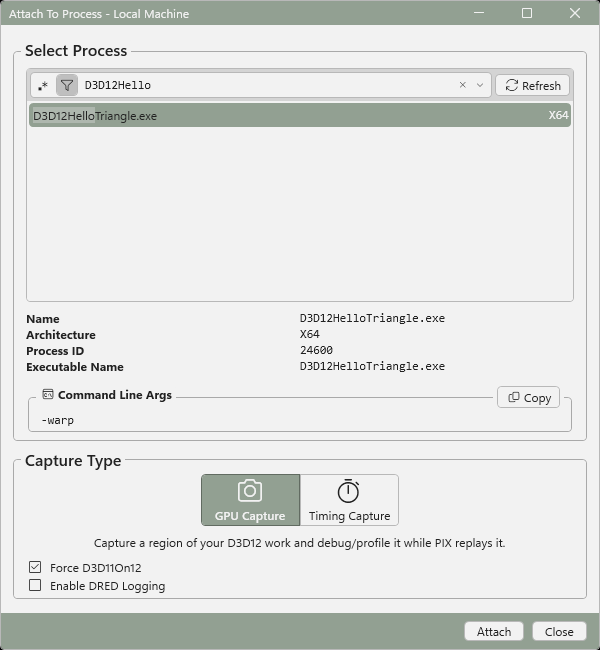
- In Attach To Process, use the process list, filter box, and Refresh button to find the target process.
- Select the process and confirm the Name, Architecture, Process ID, and Executable Name details.
- In Capture Type, choose GPU Capture or Timing Capture.
- Select Attach.
After PIX attaches, the connection toolbar shows Detach and Terminate. If the same process is available again later, the toolbar can also show Reattach to Process for iterative sessions.
Take a capture
After the target process is attached, use the capture controls in the connection view.
- For a GPU capture, select Take Capture. PIX also registers Ctrl+N for the same command in the capture view.
- For a Timing capture, use the recording button. Select Start Capture to begin recording, and then select Stop Capture to end it.
- For a GPU capture from the target application's window, use Print Screen, Alt+Print Screen, or Shift+Print Screen. PIX also supports one additional Win32-only GPU capture key. The default is F11.
- To change the additional GPU capture key, select File > Settings, open GPU Capture and Analysis, and change Additional GPU capture key (Win32 only).
GPU capture options include Frame Count and Delimiter. The default delimiter is Present-to-Present. PIX also supports Windows ML Work as a delimiter for applications that use capturable regions.
Each capture is saved as a separate .wpix file. Use programmatic capture when your application needs to start or end captures from code.
Capture applications with launchers or multiple processes
GPU captures can follow child processes when PIX manages the GPU-capture launch, either through the UI or pixtool. If the application loads WinPixGpuCapturer.dll itself, child processes must load the DLL themselves if they also need to be capturable.
When PIX sees more than one GPU capture target process, the capture view shows a process selector. A brush icon marks a process that is ready for GPU capture, and its tooltip says Rendering child process. Choose the process that owns the frame you want to capture.
Timing captures attach to the target process selected in the launch or attach flow. If your game uses a launcher process and a separate game process, bypass the launcher when you need timing data from the game process. To profile more than one process in a Timing Capture, see Multi-process profiling.
Load the GPU capturer before you attach
To attach PIX for GPU capture, the application must load the matching WinPixGpuCapturer.dll before it calls D3D12 APIs such as D3D12CreateDevice or D3D12EnableExperimentalFeatures. The DLL must come from the PIX installation that attaches to the process, including the applicable architecture subdirectory. The recommended helper is PIXLoadLatestWinPixGpuCapturerLibrary() from pix3.h, in builds where USE_PIX is enabled on a supported architecture.
#include <Windows.h>
#include <pix3.h>

int WINAPI wWinMain(HINSTANCE, HINSTANCE, PWSTR, int)
{
    HMODULE gpuCapturer = PIXLoadLatestWinPixGpuCapturerLibrary();
    if (gpuCapturer == nullptr)
    {
        return static_cast<int>(GetLastError());
    }

    // Create D3D12 devices after this point.
    return 0;
}
PIXLoadLatestWinPixGpuCapturerLibrary() searches the installed PIX versions under Program Files\Microsoft PIX, loads the newest copy of WinPixGpuCapturer.dll, and returns a module handle. If your application is already running under PIX and the DLL is already loaded, the helper returns the existing module handle. If you run an older PIX version while a newer version is installed, attach can fail because the helper loads the newest capturer. In that case, run the newest PIX or explicitly load the capturer from the PIX installation that you use to attach.
You can still call LoadLibrary yourself as an alternative, including in builds where USE_PIX isn't enabled and the helper compiles to a nullptr stub. If you do, load the matching WinPixGpuCapturer.dll from the installed PIX version that you're using, and load it before D3D12 initialization. Don't load WinPixGpuCapturer.dll unconditionally in modes where your application intentionally runs invalid D3D12 code, because the capture DLL isn't a replacement for the D3D12 debug layer.
PIXLoadLatestWinPixTimingCapturerLibrary() is the timing-capture equivalent, but it applies to programmatic Timing captures. You don't need it just to use Attach to Process for a Timing capture in the PIX UI.