Note
Access to this page requires authorization. You can try signing in or changing directories.
Access to this page requires authorization. You can try changing directories.
pixtool.exe is the PIX command-line tool for automating common capture workflows. Use it to launch or attach to an app, take GPU or timing captures, open .wpix captures, export capture data, recapture parts of a GPU capture, upgrade GPU captures, and run playback checks without opening the PIX UI.
pixtool.exe installs with PIX in the same versioned install folder as WinPix.exe, under %ProgramFiles%\Microsoft PIX\<version>\. PIX Preview and Experimental builds use their matching %ProgramFiles% product folders.
Run pixtool from the PIX install folder, add that folder to PATH, or specify the full quoted path to the executable:
"%ProgramFiles%\Microsoft PIX\<version>\pixtool.exe" --help
Run pixtool --help to see the command list, or run pixtool --help <command> to see detailed help for one command.
Command chaining
A pixtool command line can contain any number of commands. pixtool parses the global options first, then runs each command from left to right in the same session. Later commands can use state from earlier commands, such as the launched app, the newly taken capture, or the capture opened by open-capture.
Use a caret (^) in Command Prompt to split long command lines across multiple lines:
pixtool ^
  open-capture foo.wpix --remote=192.168.1.1 ^
  save-event-list eventlist.csv --counters=*
Global options
| Option | Description |
|---|---|
--help |
Shows general help. |
--help <command> |
Shows help for a specific command. |
--output=<level> |
Sets console output verbosity to quiet, trace, engine, or verbose. The default is trace. |
--log=<level> |
Sets log-file verbosity to quiet, trace, engine, verbose, or off. The default is verbose. |
--log-file=<filename> |
Sets the log-file path. The default is pixtool.log in your temporary files folder. |
Commands
The following table lists the public commands shown by pixtool --help. Options come from each command's help text.
| Command | Description | Options |
|---|---|---|
launch <exe> [...] |
Launches an executable for GPU capture. | --command-line=<cl> passes command-line parameters to the executable.--working-directory=<dir> sets the working directory; the default is the directory containing the executable.--setenv="VARNAME=VARVALUE" sets an environment variable and can be specified multiple times.--remote=<machine name> specifies the remote capture machine; the default is localhost.--timing launches the app for timing capture.--force11on12 forces PIX to use D3D11On12.--captureFromStart launches the app suspended so a following take-capture can capture from the start of execution. |
launch-app <package> <application> [...] |
Launches a UWP app for GPU capture. | <package> is the package full name.<application> is the application ID.--remote=<machine name> specifies the remote capture machine; the default is localhost.--timing launches the app for timing capture.--force11on12 forces PIX to use D3D11On12 and is mutually exclusive with --GpuCapture.--GpuCapture selects the default GPU capture mode for legacy command lines and is mutually exclusive with --force11on12. |
set-gpu-capture-parameters [--frames=<n>] [...] |
Sets the parameters for all subsequent captures. | --frames=<n> sets the number of frames to capture; the default is 1.--capture-key=<F1-F12> sets the manual capture key; the default is F11.--winml uses Windows ML work as the frame delimiter instead of present-to-present.--remote=<machine name> specifies the remote capture machine to configure; the default is localhost. |
take-capture [--open] [...] |
Takes a GPU capture of the currently launched app. | --open opens the capture on the target machine after taking it.--winml uses Windows ML work as the frame delimiter instead of present-to-present.--frames=<n> sets the number of frames to capture; the default is 1, or the value set by set-gpu-capture-parameters. |
programmatic-capture [--open] [--until-exit] |
Waits for a programmatic capture to be triggered by the currently launched app. | --open opens the programmatic capture on the target machine after it's triggered, unless --until-exit is also specified.--until-exit captures all programmatic captures from the app into multiple capture files for save-all-captures. |
save-capture <filename> |
Saves the currently open capture to the given filename. | None. |
save-all-captures <directory> |
Saves all captures recently taken in this GPU-capture-launched session to the specified directory. | None. |
open-capture <filename> [...] |
Opens a Windows GPU capture .wpix file. |
--remote=<machine name> specifies the remote analysis machine; the default is localhost.--use-replay-time-executeindirect-buffers uses replay-time ExecuteIndirect argument buffers instead of capture-time buffers.--disable-gpu-plugins doesn't load GPU plug-ins while the capture is open.--enable-recreate-at-gpuva recreates heaps and buffer resources at capture-time GPU virtual addresses if the replay device supports it.--disable-application-specific-driver-state doesn't set application-specific driver workarounds during replay.--force-set-application-specific-driver-state force-sets application-specific driver workarounds during replay regardless of device or driver mismatch. |
list-counters |
Lists all the available counters. | None. |
save-event-list <filename> [...] |
Saves the event list in CSV format. | --counters=<pattern> includes counters that match the pattern and can be specified multiple times; Queue ID, Name, and Global ID are always included.--counter-groups=<pattern> includes all counters inside counter groups that match the pattern.--queue-name=<queue name> selects the queue to use for the event list. |
run-debug-layer |
Forces a playback with the debug layer enabled. | None. |
save-high-frequency-counters <filename> [...] |
Collects and saves high-frequency counters data in CSV format. | --counters=<pattern> includes counters that match the pattern and can be specified multiple times.--merge merges timestamps to a single column and coalesces the counter data. |
save-screenshot <filename> |
Saves the capture's screenshot as a PNG file. | None. |
save-resource <filename> [...] |
Saves a resource from a given draw call. | --rtv=<RenderTargetView index> saves the specified render target view; the default is 0.--depth saves a visual representation of a depth buffer; only PNG files are supported.--global-id=<Global ID> saves the resource from the event with the specified global ID.--marker=<name> saves the resource from the last child event under the PIX marker that has a bound instance of the resource. |
begin-recapture |
Begins a capture of pixtool itself. |
None. |
end-recapture |
Ends a recapture. | None. |
recapture-single-playback [...] |
Performs capture of a playback of the currently open file. | --include-recreation captures replay recreation events.--expand-execute expands ExecuteIndirect argument buffers during replay. |
perform-single-playback [...] |
Performs one single playback of the currently open file. | --do-not-expand-executeindirect doesn't expand ExecuteIndirect argument buffers into the parent command list during replay.--loop repeats single playback until the process is terminated.--loop-count=<n> sets how many times to loop playback; the default is 0, which means indefinitely, and this option is only valid with --loop.--time-cpu measures command-list record time during playback and writes a CSV file in the current working directory.--measure-cycles measures CPU time in cycles instead of milliseconds and is only valid with --time-cpu. |
recapture-region <outputFilePath> [...] |
Recaptures a region of the currently open capture file. | --start=<GlobalID> sets the first global ID to include in the recaptured file.--end=<GlobalID> sets the last global ID to include in the recaptured file. |
take-new-timing-capture <filename> [--duration=<n>] [...] |
Takes a new timing capture of the current app and saves it. | <filename> sets the target capture file path; the target directory must exist.--duration=<n> captures for the specified duration in milliseconds; the default is 100.--until-exit captures until the target process exits and can't be combined with --duration.--circular captures into a ring buffer and can't be combined with --etl.--max-file-size-mb=<n> sets the circular ring-buffer memory limit in MB; the default is 4096, the minimum is 256, and the maximum is 8192.--etl writes the raw ETW trace to <filename> instead of processing it into a .wpix capture.--sample-rate=<n> sets the CPU sampling rate in samples per second; the default is 1000, the minimum is 1, and the maximum is 8000.--no-cpu-samples excludes CPU samples.--no-callstacks excludes call stacks on context switches.--no-gpu-timings excludes GPU timings and GPU memory usage.--no-gpu-memory excludes GPU memory usage.--no-gpu-only-events also shows PIX events raised on GPU contexts on the CPU timeline of the thread that raised them.--file-io captures file I/O events.--virtual-alloc-events captures VirtualAlloc and VirtualFree events.--heap-alloc-events captures heap allocation events.--pix-alloc-events captures PIX memory allocation events.--page-faults captures page fault events.--clr-data captures .NET/CLR data for managed applications.--stacks-for-all-processes captures call stacks for every process, not just the target.--merge-kernel-images merges kernel images so kernel symbols resolve.--minimal-instrumentation uses minimal ETW instrumentation of the D3D12 runtime and requires Agility SDK 1.717 or newer.The legacy aliases --sampleRate, --noCpuSamples, --noCallstacks, and --noGpuTimings still work. |
attach <targetProcessId> |
Attaches to the specified running process. | <targetProcessId> is the target process ID.--remote=<machine name> specifies the remote capture machine; the default is localhost. |
export-to-cpp <directory> [--force] [--use-winpixeventruntime] [...] |
Exports a PIX captured frame as a C++ project. | --force overwrites files with the same name.--use-winpixeventruntime acknowledges and accepts the WinPixEventRuntime license.--use-agilitySdk acknowledges and accepts the DirectX 12 Agility SDK license.--use-replay-time-executeindirect-buffers replays ExecuteIndirect calls using replay-time argument buffers instead of capture-time copies. |
upgrade-gpu-capture <sourceCapturePath> [--dest=<destCapturePath>] |
Upgrades a GPU capture file to the latest format. | --dest=<destCapturePath> sets the destination path for the upgraded capture. Specify --dest to control the output path; if it's omitted, the current implementation uses the current working directory as the destination directory. |
Example workflows
Replace the sample executable paths, package names, process IDs, global IDs, and counter patterns with values from your app or capture.
Take a GPU capture of a Win32 app
Launch the app for GPU capture, take one capture, open it on the target machine, and save it as a .wpix file:
pixtool launch C:\Apps\D3D12HelloTriangle.exe take-capture --open save-capture C:\Captures\triangle.wpix
Set capture parameters before taking the capture when you need more than the default one frame:
pixtool set-gpu-capture-parameters --frames=3 --capture-key=F10 launch C:\Apps\D3D12HelloTriangle.exe take-capture --open save-capture C:\Captures\triangle-3frames.wpix
Use --captureFromStart when the frame you need begins immediately after launch. Include take-capture in the same command line because the launched app remains suspended until take-capture requests the capture:
pixtool launch C:\Apps\D3D12HelloTriangle.exe --captureFromStart take-capture --open save-capture C:\Captures\triangle-start.wpix
Quote --setenv values because the environment variable value contains an equals sign:
pixtool launch C:\Apps\D3D12HelloTriangle.exe --setenv="PIX_TEST_MODE=1" take-capture --open save-capture C:\Captures\triangle-env.wpix
Save multiple captures from one launched app without opening them first:
pixtool launch C:\Apps\D3D12HelloTriangle.exe take-capture take-capture save-all-captures C:\Captures\TriangleRun
Take a timing capture
Launch an app for timing capture and save a 5-second .wpix timing capture:
pixtool launch C:\Apps\Game.exe --timing take-new-timing-capture C:\Captures\game-timing.wpix --duration=5000
Attach to an already running process and capture until the process exits:
pixtool attach 12345 take-new-timing-capture C:\Captures\game-until-exit.wpix --until-exit
Export event and counter data to CSV
Open a .wpix GPU capture and export the event list with all available event counters:
pixtool open-capture C:\Captures\frame.wpix save-event-list C:\Exports\eventlist.csv --counters=*
Use list-counters first when you need exact counter names or groups:
pixtool open-capture C:\Captures\frame.wpix list-counters
You can open the event-list CSV in Excel or another data tool.
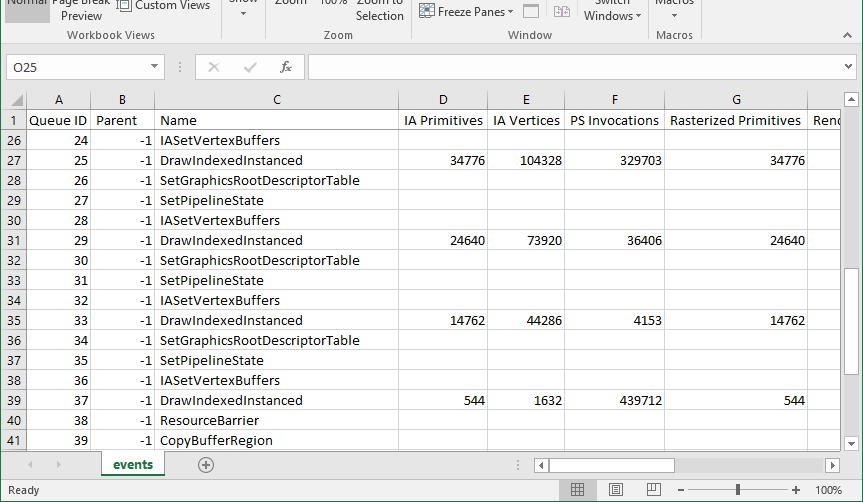
Export high-frequency counters only when the capture has supported streaming counters from a GPU plug-in:
pixtool open-capture C:\Captures\frame.wpix save-high-frequency-counters C:\Exports\high-frequency-counters.csv --counters=* --merge
Save images and resources from a capture
Open a GPU capture, save the screenshot stored in the capture, and save render target 0 from a specific event:
pixtool open-capture C:\Captures\frame.wpix save-screenshot C:\Exports\capture-screenshot.png save-resource C:\Exports\rtv0.png --global-id=42 --rtv=0
Save the depth buffer under a PIX marker when the marker uniquely identifies the event range you want:
pixtool open-capture C:\Captures\frame.wpix save-resource C:\Exports\terrain-depth.png --marker=Terrain --depth
Recapture or upgrade a GPU capture
Create a smaller capture that contains only a selected global ID range:
pixtool open-capture C:\Captures\frame.wpix recapture-region C:\Captures\frame-region.wpix --start=400 --end=520
Upgrade an older GPU capture to the current capture format without overwriting the original file:
pixtool upgrade-gpu-capture C:\Captures\old-frame.wpix --dest=C:\Captures\upgraded-frame.wpix
begin-recapture, end-recapture, and recapture-single-playback require pixtool itself to run under GPU capture from PIX or another pixtool instance.
Run playback checks
Open a capture and run a finite playback loop:
pixtool open-capture C:\Captures\frame.wpix perform-single-playback --loop --loop-count=10
Export a capture to C++
Open a capture and export the captured frame as a C++ project:
pixtool open-capture C:\Captures\frame.wpix export-to-cpp C:\Exports\FrameProject --force --use-winpixeventruntime --use-agilitySdk