Note
Access to this page requires authorization. You can try signing in or changing directories.
Access to this page requires authorization. You can try changing directories.
Bookmarks are text notes that you attach to a lane in the Timeline layout of a Timing Capture. A bookmark can mark a single point in time or a range of time. Use bookmarks to annotate parts of a capture that are interesting from a performance perspective.
Bookmarks are stored in the capture file. When you share a saved capture, other developers see your bookmarks, and they can add their own. The Summary layout lists every bookmark in the capture, with links to each one in the Timeline layout.
Bookmarks are available in PIX on Windows 2408.05 and later.
Add a bookmark at a point in time
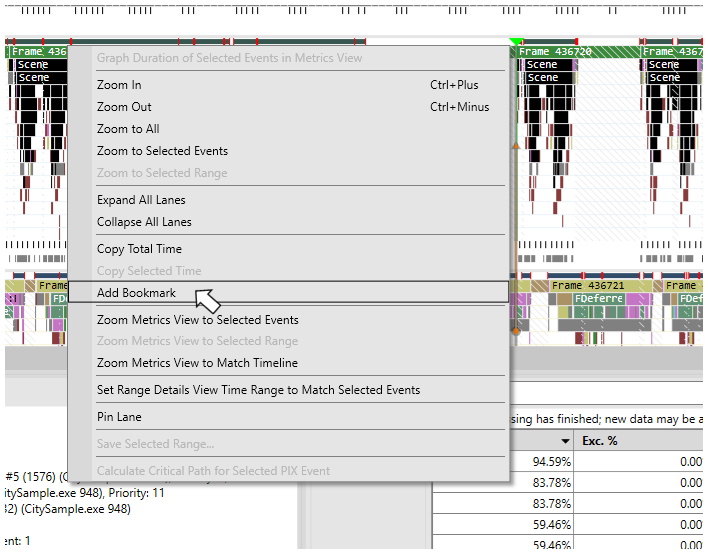
In the Timeline layout, right-click a lane at the point in time that you want to bookmark.
Select Add Bookmark.
In the bookmark dialog, enter your note.
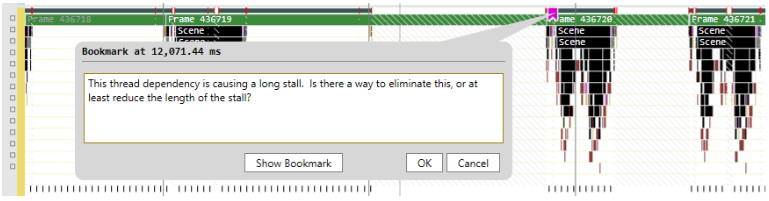
Select OK, or press Ctrl+Enter.
The bookmark appears as an icon on the lane. To discard a new bookmark instead of saving it, select Cancel or press Esc.
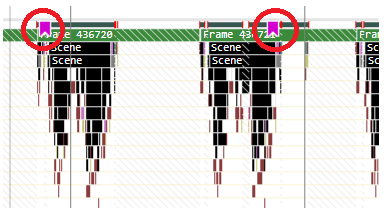
You can bookmark most lanes, but not all. On lanes that don't support bookmarks, such as Critical Path lanes, Add Bookmark is unavailable or has no effect.
Add a bookmark to a time range
- In the Timeline layout, select a time range.
- Right-click the lane that you want to bookmark.
- Select Add Bookmark.
- Enter your note.
- Select OK.
PIX draws the icon for a range bookmark in the middle of the range.
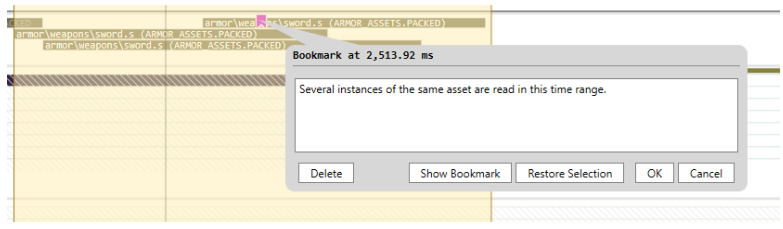
Note
While a time range is selected, Add Bookmark always bookmarks the selected range, not the point you right-clicked. To bookmark a single point, clear the selection first.
Save bookmarks
Adding, editing, or deleting a bookmark marks the capture as modified. Save the capture to store your bookmarks in the capture file. When you close a capture that has unsaved bookmark changes, PIX prompts you to save it. If you close without saving, your bookmark changes are lost.
View, edit, and delete bookmarks
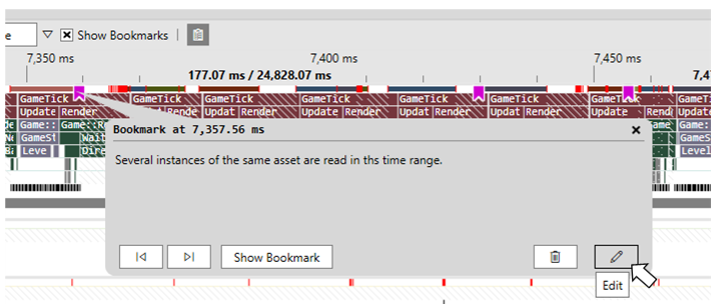
- To preview a bookmark, hover over its icon. A tooltip shows the bookmark text and its start time.
- To open a bookmark, select its icon. The bookmark dialog opens in read-only mode. Its title shows the bookmark's time in the capture. For a range bookmark, that's the middle of the range.
- To change the text, select the Edit (pencil) button, and then select OK.
- To delete the bookmark, select the Delete (trash can) button, and then confirm.
To hide or show all bookmark icons, use the Show Bookmarks check box in the Timeline layout toolbar.
Navigate between bookmarks
The Bookmarks section of the Summary layout lists the bookmarks in the capture, ordered by their time in the capture. Select a value in the Start Time column to go to that bookmark in the Timeline layout and open it.

The bookmark dialog also has buttons to move around the capture:
- Previous and Next (arrow buttons) go to the previous or next bookmark in time order, and open it. These buttons are available when the capture has at least two bookmarks. The order wraps around: Next on the last bookmark goes to the first, and Previous on the first bookmark goes to the last.
- Show Bookmark restores the zoom level that you had when you created the bookmark, and scrolls its lane into view. Use it after you scroll or zoom away from a bookmark.
- Restore Selection selects the bookmarked time range again. This button appears only for bookmarks on a time range.