Note
Access to this page requires authorization. You can try signing in or changing directories.
Access to this page requires authorization. You can try changing directories.
Previous: Command Results
The Command Palette supports rich content display beyond simple command lists. You can create extensions that show formatted text, documentation, and interactive content using markdown. This capability is particularly useful for:
- Displaying help documentation or user guides
- Showing file previews or summaries
- Providing formatted instructions or tutorials
- Creating interactive content with embedded commands
This article shows you how to create pages that display markdown content in your Command Palette extension.
So far, we've only shown how to display a list of commands in a ListPage. However, you can also display rich content in your extension, such as markdown. This can be useful for showing documentation, or a preview of a document.
Working with markdown content
IContentPage (and its toolkit implementation, ContentPage) is the base for displaying all types of rich content in the Command Palette. To display markdown content, you can use the MarkdownContent class.
- In the
Pagesdirectory, add a new class - Name the class
MarkdownPage.cs - Update the file to:
using Microsoft.CommandPalette.Extensions;
using Microsoft.CommandPalette.Extensions.Toolkit;
using System.Text.Json.Nodes;

internal sealed partial class MarkdownPage : ContentPage
{
    public MarkdownPage()
    {
        Icon = new("\uE8A5"); // Document icon
        Title = "Markdown page";
        Name = "Preview file";
    }

    public override IContent[] GetContent()
    {
        return [
            new MarkdownContent("# Hello, world!\n This is a **markdown** page."),
        ];
    }
}
- Open
<ExtensionName>CommandsProvider.cs - Replace the
CommandItems for theMarkdownPage:
public <ExtensionName>CommandsProvider()
{
    DisplayName = "My sample extension";
    Icon = IconHelpers.FromRelativePath("Assets\\StoreLogo.png");
    _commands = [
+       new CommandItem(new MarkdownPage()) { Title = DisplayName },
    ];
}
- Deploy your extension
- In Command Palette,
Reload
In this example, a new ContentPage that displays a simple markdown string is created. The 'MarkdownContent' class takes a string of markdown content and renders it in the Command Palette.
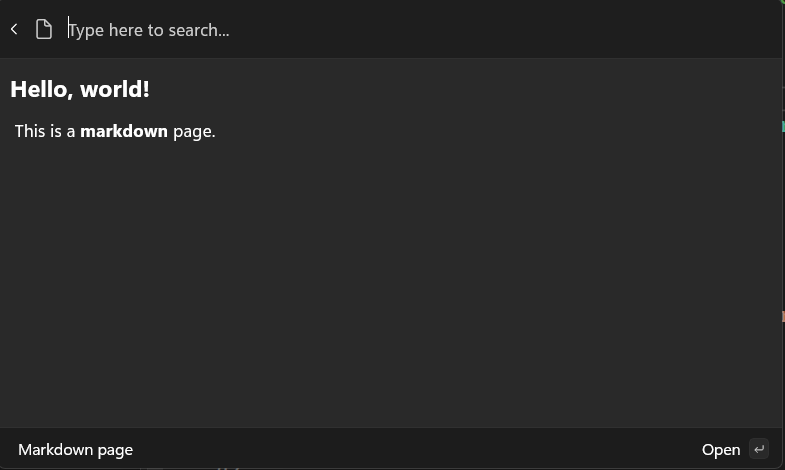
You can also add multiple blocks of content to a page. For example, you can add two blocks of markdown content.
- Update
GetContent:
public override IContent[] GetContent()
{
    return [
        new MarkdownContent("# Hello, world!\n This is a **markdown** page."),
+       new MarkdownContent("## Second block\n This is another block of content."),
    ];
}
- Deploy your extension
- In command palette,
Reload
This allows you to mix-and-match different types of content on a single page.
Adding CommandContextItem
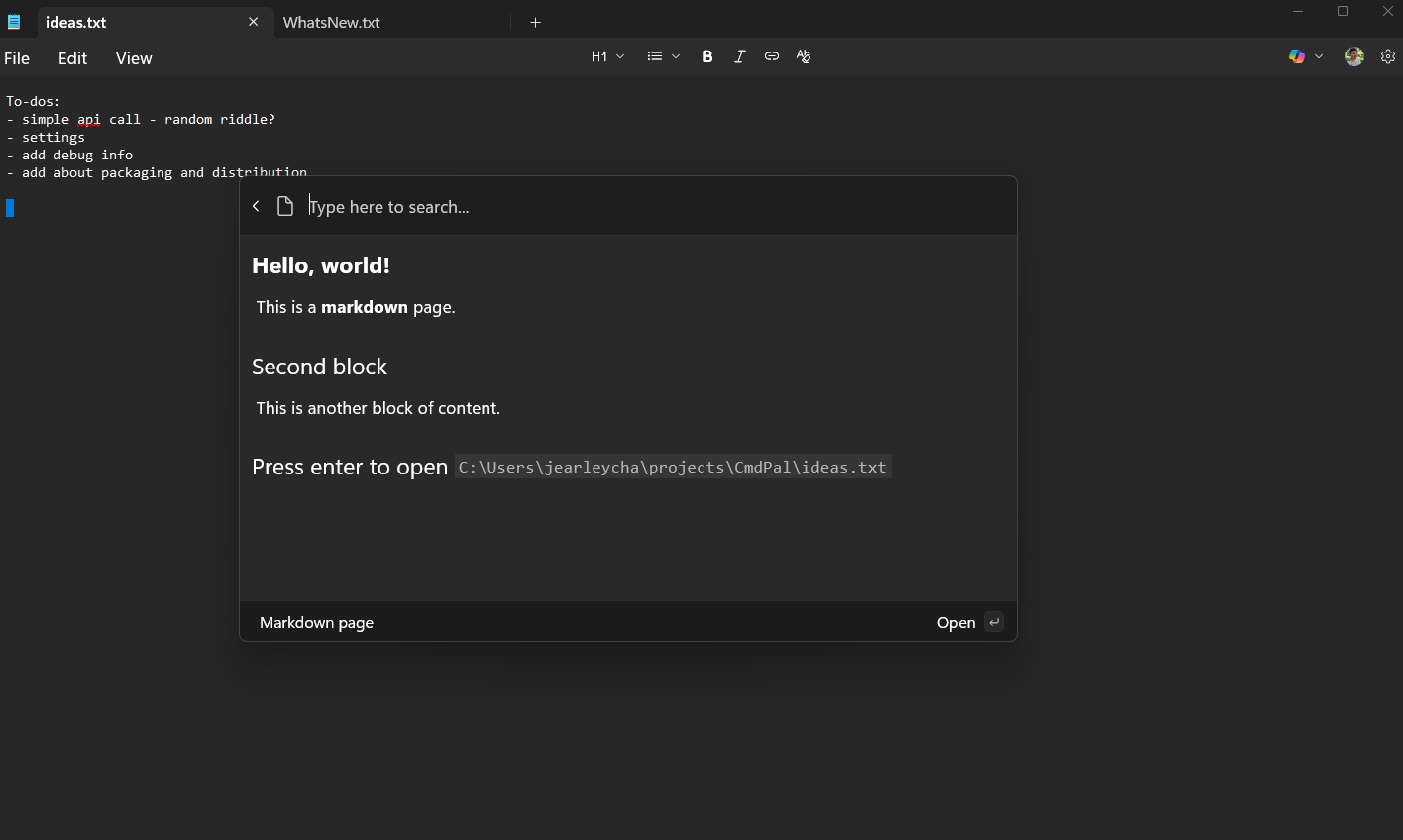
You can also add commands to a ContentPage. This allows you to add additional commands to be invoked by the user, while in the context of the content. For example, if you had a page that displayed a document, you could add a command to open the document in File Explorer:
- In your <ExtensionName>Page.cs, add
doc_path,CommandsandMarkdownContent:
public class <ExtensionName>Page : ContentPage
{
+   private string doc_path = "C:\\Path\\to\\file.txt";
    public <ExtensionName>Page()
    {
        Icon = new("\uE8A5"); // Document icon
        Title = "Markdown page";
        Name = "Preview file";

+       Commands = [
+           new CommandContextItem(new OpenUrlCommand(doc_path)) { Title = "Open in File Explorer" },
+       ];
    }
    public override IContent[] GetContent()
    {
        return [
            new MarkdownContent("# Hello, world!\n This is a **markdown** document."),
            new MarkdownContent("## Second block\n This is another block of content."),
+           new MarkdownContent($"## Press enter to open `{doc_path}`"),
        ];
    }
}
- Update the path in the
doc_pathto a .txt file on your local machine - Deploy your extension
- In Command Palette,
Reload - Select <ExtensionName>
- Press
Enterkey, the docs should open
Add images to markdown content
With Command Palette in PowerToys 0.95 and later, you can add images to your markdown content from additional sources using one of the following schemes:
- File scheme: Enables loading images using the
file:scheme.- This scheme intentionally restricts file URIs to absolute paths to ensure correct resolution when passed through the Command Palette extension/host boundary. In most cases, 3rd-party extensions provide the paths. However, the Command Palette host performs the actual loading and would otherwise resolve paths relative to itself.
- Data scheme: Enables loading images from URIs with the
data:scheme (both Base64 and URL-encoded forms).- Note: Before the changes introduced in PowerToys 0.95 and later, the markdown control could hang or become unresponsive when processing very large input, such as images larger than 5 MB or with dimensions exceeding 4000×4000 pixels, or markdown files exceeding 1 MB in size. Even with the changes, it is recommended to keep image file sizes below 5 MB and resize images to reasonable dimensions before embedding. For best results, compress images and split very large markdown content into smaller sections where possible.
ms-appxscheme: This scheme is now supported for loading images.- Note: Since the Command Palette host performs the loading,
ms-appx:resolution applies to the host and not the extensions, which limits its usefulness.
- Note: Since the Command Palette host performs the loading,
ms-appdatascheme: This scheme is now supported for loading images.- Similar to
ms-appx:,ms-appdata:resolution applies to the host, not the extensions. This limits its usefulness for 3rd-party extensions.
- Similar to
Additionally, Command Palette in PowerToys 0.95 and later introduces the concept of image source hints, implemented as query string parameters piggy-backed on the original URI.
These hints allow extension developers to influence the behavior of images within the markdown content.
--x-cmdpal-fitnone: No automatic scaling, provides image as is (default)fit: Scale to fit the available space
--x-cmdpal-upscaletrue: Allow upscalingfalse: Downscale only (default)
--x-cmdpal-width: Desired width in pixels--x-cmdpal-height: Desired height in pixels--x-cmdpal-maxwidth: Max width in pixels--x-cmdpal-maxheight: Max height in pixels
See the SampleMarkdownImages page in the SamplePagesExtension generic sample project in the PowerToys GitHub repository for examples of using images in your extension's markdown content.
Next up: Get user input with forms
Related content
Collaborate with us on GitHub
The source for this content can be found on GitHub, where you can also create and review issues and pull requests. For more information, see our contributor guide.

Windows developer