Note
Access to this page requires authorization. You can try signing in or changing directories.
Access to this page requires authorization. You can try changing directories.
Remote lock lets IT lock a lost, stolen or compromised Windows device from Microsoft Intune without wiping it. Windows signs out every active session, hides all sign-in options and shows a locked screen. Nothing is erased: the device stays enrolled and managed, BitLocker stays on and user data stays in place. The lock holds across restarts and while offline, and only an admin can lift it remotely, so the user picks up where they left off.
What the user sees
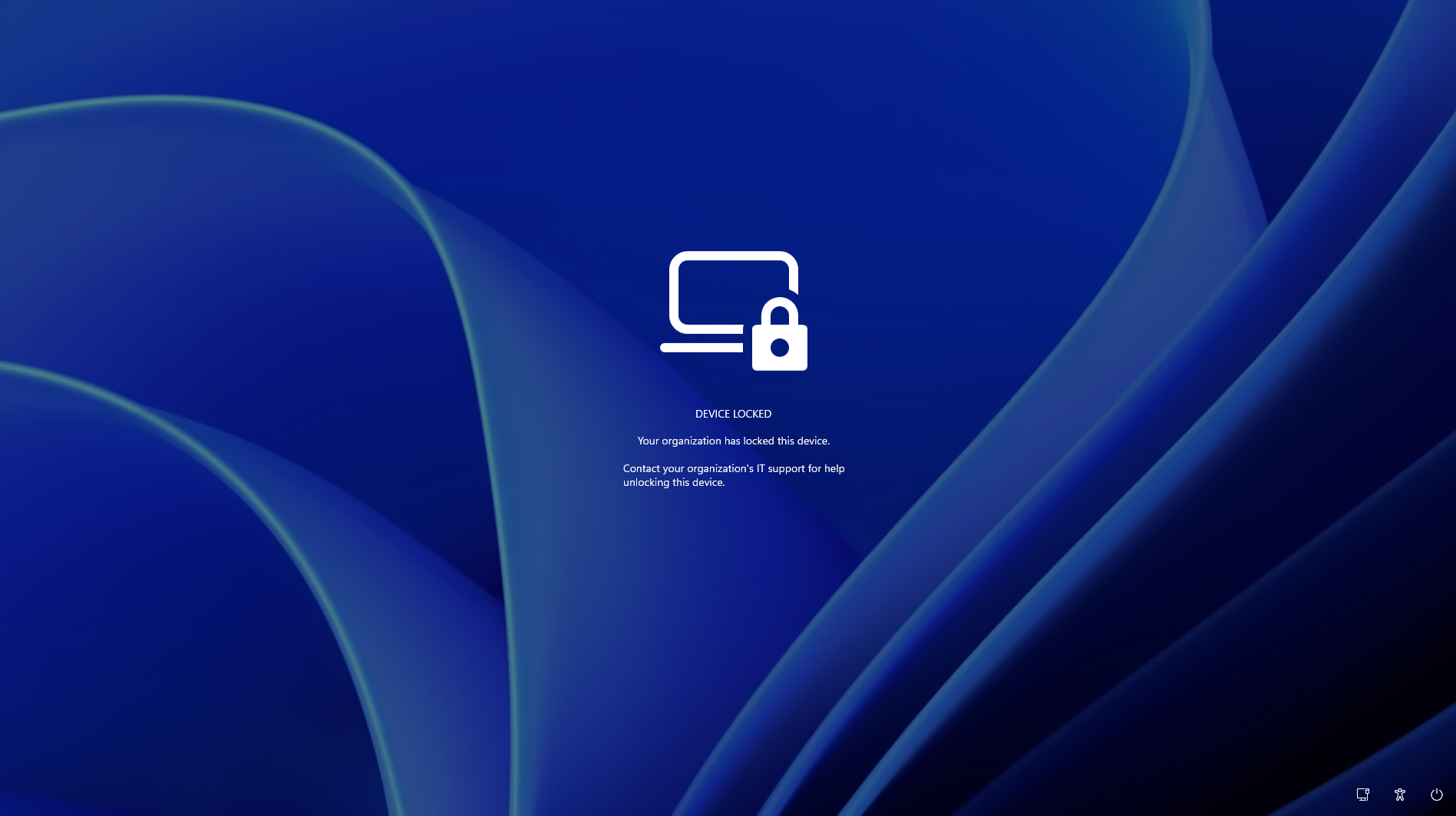
The default lock screen. LockReason and RecoveryHint add your own reason and help desk contact.
Enable it with a custom OMA-URI profile
In the preview, remote lock is configured through a custom configuration profile in Intune. Devices must be Microsoft Entra joined, hybrid joined or MDM-enrolled, running Windows Enterprise, Education or Pro.
In the Intune admin center, go to Devices > Windows > Configuration > Create > New policy. Choose Windows 10 and later, then Templates > Custom.
Name the profile (for example, Remote lock - ON) and add the settings below, with LockState = 1.
Assign the profile to a device group reserved for locked devices. To lock a device, add it to that group; the lock applies at the device's next check-in.
To unlock, create a second profile with LockState set to 0 and assign it to an unlock group. Move the device from the lock group to the unlock group.
| Setting | OMA-URI | Data type | Value |
|---|---|---|---|
| Lock state (required) | ./Device/Vendor/MSFT/RemoteDeviceLock/LockState | Integer | 1 = lock, 0 = unlock |
| Lock reason (optional) | ./Device/Vendor/MSFT/RemoteDeviceLock/LockReason | String | Reason shown on the lock screen (up to 1,024 characters) |
| Recovery hint (optional) | ./Device/Vendor/MSFT/RemoteDeviceLock/RecoveryHint | String | Help desk contact (up to 256 characters) |
The read-only Status node reports the effective state: 0 Unlocked, 1 Locked, 2 Lock pending, 3 Error.
What's not in scope
The user's account is not touched. Credentials stay valid and the user can still sign in on other devices; use Microsoft Entra ID to disable the account or revoke sessions.
Remote Lock does not isolate the device from the network or erase data; use existing Intune controls for that.
There is no offline or local unlock. No PIN, password, local admin or web sign-in works on a locked device; unlock arrives only through Intune.
Boot and recovery paths are not blocked: Windows Recovery Environment, Safe Mode and booting from USB or other media. Keep BitLocker on to protect data if the drive is removed or the device is reimaged.