Note
Access to this page requires authorization. You can try signing in or changing directories.
Access to this page requires authorization. You can try changing directories.
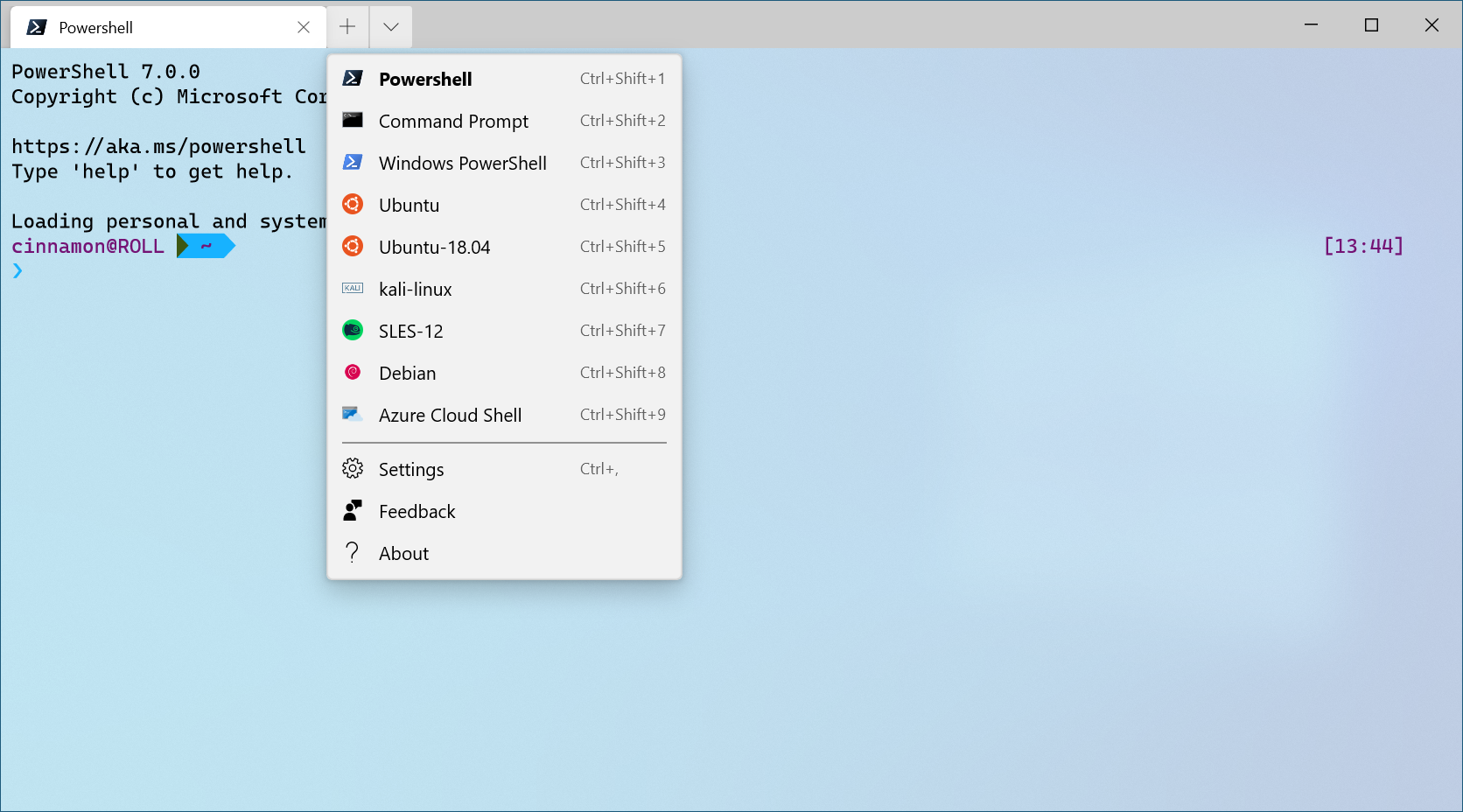
Windows Terminal automatically creates Windows Subsystem for Linux (WSL) and PowerShell profiles if you install these shells on your machine. This feature makes it easier for you to include all of your shells in the terminal without having to locate their executable files. The terminal generates these profiles with the source property, which tells the terminal where to find the proper executable.
When you install the terminal, it sets PowerShell as your default profile. To learn how to change your default profile, visit the Startup page.
 Configuration: Light Theme
Install a new shell after installing Windows Terminal
Regardless of whether you install a new shell before or after your terminal installation, the terminal creates a new profile for the newly installed shell.
Hide a profile
To hide a profile from your terminal dropdown menu, add the hidden property to the profile object in your settings.json file and set it to true.
"hidden": true
Prevent a profile from being generated
To prevent the terminal from generating a dynamic profile, add the profile generator to the disabledProfileSources array in your global settings. For more information, see the Global settings page.
"disabledProfileSources": ["Windows.Terminal.Wsl", "Windows.Terminal.Azure", "Windows.Terminal.PowershellCore", "Windows.Terminal.SSH"]
Add a third party profile
If a third party command line tool doesn't have a profile auto-generated in your settings.json file, you can add it manually. The following profiles are for a few common third party tools for your reference.
Anaconda
Assuming that you've installed Anaconda into %USERPROFILE%\Anaconda3:
{
    "commandline": "cmd.exe /k \"%USERPROFILE%\\Anaconda3\\Scripts\\activate.bat %USERPROFILE%\\Anaconda3\"",
    "icon": "%USERPROFILE%\\Anaconda3\\Menu\\anaconda-navigator.ico",
    "name": "Anaconda3",
    "startingDirectory": "%USERPROFILE%"
}
cmder
Assuming that you've installed cmder into %CMDER_ROOT%:
{
    "commandline": "cmd.exe /k %CMDER_ROOT%\\vendor\\init.bat",
    "name": "cmder",
    "icon": "%CMDER_ROOT%\\icons\\cmder.ico",
    "startingDirectory": "%USERPROFILE%"
}
Cygwin
Assuming that you've installed Cygwin into C:\cygwin64:
{
    "name": "Cygwin",
    "commandline": "C:\\cygwin64\\bin\\bash --login -i",
    "icon": "C:\\cygwin64\\Cygwin.ico",
    "startingDirectory": "C:\\cygwin64\\bin"
}
![NOTE] The starting directory of Cygwin is set in order for the path to work. The default directory opened when starting Cygwin will be
$HOMEbecause of the--loginflag.
Far Manager
Assuming that you've installed Far into c:\Program Files\Far Manager:
{
    "name": "Far",
    "commandline": "\"c:\\program files\\far manager\\far.exe\"",
    "startingDirectory": "%USERPROFILE%",
    "useAcrylic": false
},
Git Bash
Assuming that you've installed Git Bash into C:\\Program Files\\Git:
{
    "name": "Git Bash",
    "commandline": "C:\\Program Files\\Git\\bin\\bash.exe -li",
    "icon": "C:\\Program Files\\Git\\mingw64\\share\\git\\git-for-windows.ico",
    "startingDirectory": "%USERPROFILE%"
}
Git Bash (WOW64)
Assuming that you installed Git Bash into C:\\Program Files (x86)\\Git:
{
    "name": "Git Bash",
    "commandline": "%ProgramFiles(x86)%\\Git\\bin\\bash.exe -li",
    "icon": "%ProgramFiles(x86)%\\Git\\mingw32\\share\\git\\git-for-windows.ico",
    "startingDirectory": "%USERPROFILE%"
}
MSYS2
Assuming that you installed MSYS2 into C:\\msys64:
{
    "name": "MSYS2",
    "commandline": "C:\\msys64\\msys2_shell.cmd -defterm -no-start -mingw64",
    "icon": "C:\\msys64\\msys2.ico",
    "startingDirectory": "C:\\msys64\\home\\user"
}
For more details, see the Terminals section of the MSYS2 documentation.
Collaborate with us on GitHub
The source for this content can be found on GitHub, where you can also create and review issues and pull requests. For more information, see our contributor guide.

Windows Terminal