Note
Access to this page requires authorization. You can try signing in or changing directories.
Access to this page requires authorization. You can try changing directories.
Applies to: Azure Logic Apps (Standard)
In enterprise integration scenarios, such as business-to-business (B2B) or BizTalk migrations, you might need to parse XML documents. Standard logic app workflows in Azure Logic Apps can parse XML using the action named Parse XML with schema, which requires an XSD schema.
For example, suppose you regularly receive customer orders or invoices in XML format. Suppose you must access individual XML elements directly in the workflow designer for Azure Logic Apps.
Limitations
The Consumption logic app resource and workflow doesn't support this action.
Prerequisites
An Azure account and subscription. Get a free Azure account.
A Standard logic app workflow that starts with a trigger so that you can add the Parse XML with schema action to your workflow.
An integration account resource where you define and store artifacts, such as trading partners, agreements, certificates, and other items, for use in your enterprise integration and B2B workflows. This resource must meet the following requirements:
Is associated with the same Azure subscription as your logic app resource.
Exists in the same location or Azure region as your logic app resource where you plan to use the Parse XML with schema action.
If you're working on a Standard logic app resource and workflow, you can link your integration account to your logic app resource, upload XSD schemas directly to your logic app resource, or both, based on the following scenarios:
If you already have an integration account with the artifacts that you need or want to use, you can link your integration account to multiple Standard logic app resources where you want to use the artifacts. You don't have to upload XSD schemas to each individual logic app. For more information, see Link your logic app resource to your integration account.
If you don't have an integration account or only plan to use your artifacts across multiple workflows within the same logic app resource, you can directly add schemas to your logic app resource by using either the Azure portal or Visual Studio Code.
If you don't have or need an integration account, you can use the upload option. Otherwise, use the linking option. Either way, you can use these artifacts across all child workflows within the same logic app resource.
You still need an integration account to store other artifacts, such as partners, agreements, and certificates, if you use the AS2, X12, and EDIFACT operations.
The XSD schema to use with the Parse XML with schema action. Make sure that this schema includes a root element, which looks like the following example:
<xs:element name="Root">
    <....>
</xs:element>
Add a Parse XML with schema action
In the Azure portal, open your Standard logic app and workflow in the designer.
If you have a blank workflow that doesn't have a trigger, follow these general steps to add any trigger you want. Otherwise, continue to the next step.
This example uses the Request trigger.
Under the step in your workflow where you want to add the Parse XML with schema action, follow these general steps to add the action named Parse XML with schema.
In the Content box, specify the XML content that you want to parse by using any XML data that you receive in the HTTP request.
To select outputs from previous operations in the workflow, in the Parse XML with schema action, select inside the Content box, and select the dynamic content list option (lightning icon).
From the dynamic content list, select the token for the content that you want to parse.
This example selects the Body token from the trigger.
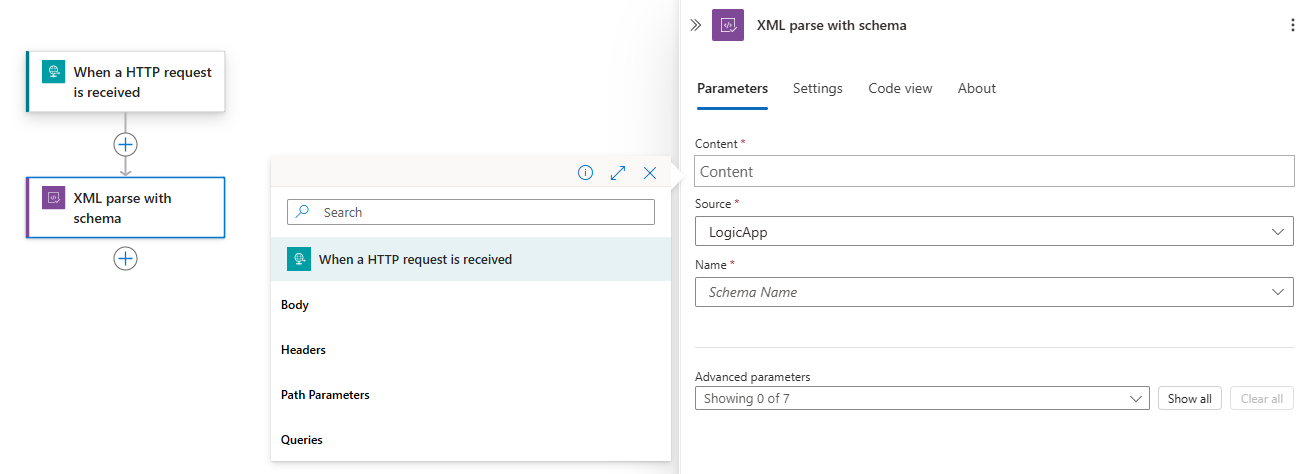
From the Source list, select the location where you uploaded your XSD schema, either your LogicApp resource or your IntegrationAccount.
From the Name list, select your XSD schema.
When you're done, save your workflow.
You're now finished setting up your Parse XML with schema action. In a real-world app, you might want to store the parsed data in a line-of-business (LOB) app such as Salesforce. To send the parsed output to Salesforce, add a Salesforce action.
To test your parsing action, trigger and run your workflow. For example, for the Request trigger, send a request to the trigger's endpoint URL.
The Parse XML with schema action runs after your workflow is triggered and when XML content is available for parsing.
Advanced parameters
The following table describes the advanced parameters available in this action:
| Parameter | Value | Description |
|---|---|---|
| DTD Processing | - Ignore - Parse - Prohibit |
Specify how to handle the XML document type definition (DTD). |
| Normalize XML | No or Yes | Whether to normalize XML content. |
| Ignore Whitespace? | No or Yes | Whether to parse or ignore insignificant whitespace, such as spaces, tabs, and blank lines in XML documents. |
| Ignore XML Processing Instructions? | No or Yes | Whether to follow or ignore the XML processing instructions. |
| Ignore XML Attributes | No or Yes | Whether to write or ignore XML attributes. |
| Use Fully Qualified Names? | No or Yes | Whether to use simpler local names or fully qualified XML names. |
| Root Node Qualified Name | <root-node-qualified-name> | The root node's qualified name in case the schema contains multiple unreferenced element definitions. |
Troubleshoot problems
This section describes problems that you might encounter and possible solutions or workarounds to address these problems.
XML element order isn't preserved
If your XML has repeating elements that appear in mixed order, the Parse XML with schema action might not preserve the original order and groups these elements by their name in alphabetical order.
This behavior is expected because the Parse XML with schema action converts the XML to JSON. This format doesn't have a way to represent a single ordered list with different types of items. Instead, the action groups the elements by name in alphabetical order.
For example, suppose you have items with the following names in this specific order: A, B, B, A:
Before
<Items>
   <A>1</A>
   <B>2</B>
   <A>3</A>
   <B>4</B>
</Items>
After the action parses the XML, the resulting JSON groups and reorders these items by name as follows: A, A, B, and B:
After
{
   "A": ["1", "3"],
   "B": ["2", "4"]
}
The Parse XML with schema action doesn't have any setting that preserves the order of mixed repeating elements. This limitation results from converting XML to JSON.
The following list describes options for you to fix or work around this problem:
If you control the schema, design the schema so you have only one repeating list without multiple repeating element types.
For example, rather than separately repeat
AandB, use a single repeating wrapper element, such asItem. Each item then indicates whetherAorBis represented. The system can then keep all the items in a single ordered list and preserve the original order. This option is best for long-term, predictable behavior.If the original order is required or critical, don't parse the XML.
- Avoid breaking up the XML into JSON.
- Handle the XML document as a whole.
- Pass the XML document unchanged or transform the content by using XML-based tools such as XSLT.
Keep this limitation in mind.
If you can't change the schema or workflow, remember the following:
- Mixed repeating elements are grouped by element name, losing the original order.
- Design the downstream logic with this behavior in mind.