Note
Access to this page requires authorization. You can try signing in or changing directories.
Access to this page requires authorization. You can try changing directories.
Before combined registration was introduced, users registered authentication methods for Microsoft Entra multifactor authentication (MFA) and self-service password reset (SSPR) separately. Users were confused that similar methods were used for Microsoft Entra MFA and SSPR, but they had to register for both features. Now, with combined registration, users can register once and get the benefits of both Microsoft Entra MFA and SSPR.
To help you understand the functionality and effects of the new experience, see Combined security information registration concepts.
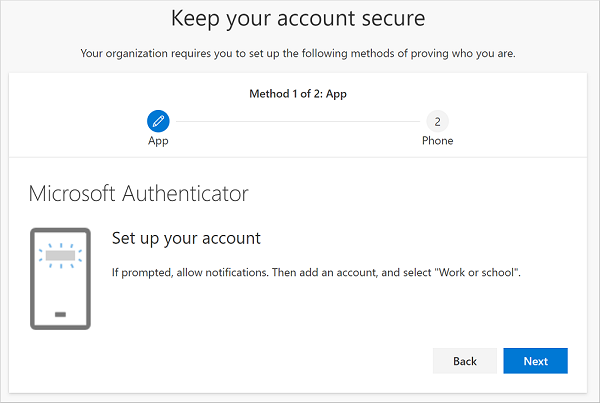
Conditional Access policies for combined registration
To secure when and how users register for Microsoft Entra MFA and SSPR, you can use user actions in a Microsoft Entra Conditional Access policy. Organizations can enable this functionality so that users can register for Microsoft Entra MFA and SSPR from a central location. For example, users can use a trusted network location that they access during human resources onboarding.
Note
This policy applies only when a user accesses a combined registration page. This policy doesn't enforce MFA enrollment when a user accesses other applications.
To create an MFA registration policy, see Microsoft Entra ID Protection: Configure MFA policy.
For more information about how to create trusted locations in Conditional Access, see What is the location condition in Microsoft Entra Conditional Access?.
Create a policy to require registration from a trusted location
In the following procedure, you create a policy that applies to all selected users who attempt to register by using the combined registration experience. Users connected on a nontrusted network must either perform MFA or sign in by using a temporary access pass to register for MFA or reset their password by using SSPR.
Sign in to the Microsoft Entra admin center as at least a Conditional Access Administrator.
Browse to Entra ID > Conditional Access.
Select + New policy.
Enter a name for this policy, such as Combined Security Info Registration on Trusted Networks.
Under Assignments, select Users. Choose the users and groups that must use this policy.
Warning
Users must be enabled for combined registration.
Under Cloud apps or actions, select User actions. Select the Register security information checkbox, and then select Done.
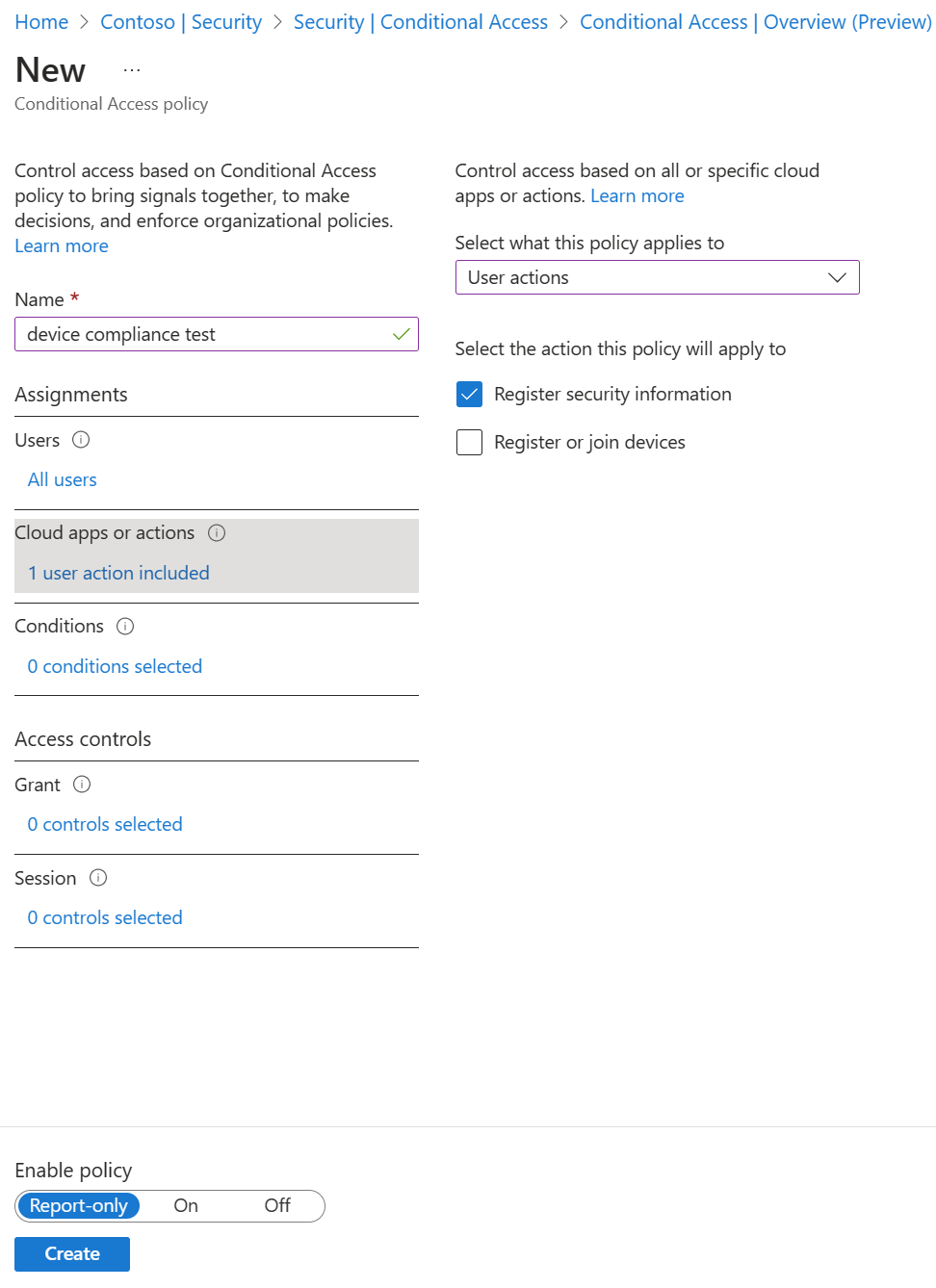
Under Conditions > Locations, configure the following options:
- Configure Yes.
- Include Any location.
- Exclude All trusted locations.
Under Access controls > Grant, select Require multifactor authentication, and then choose Select.
Set Enable policy to On.
To finalize the policy, select Create.
Related content
- See Troubleshoot combined security information registration or Conditional Access: Network assignment.
- Review how you can enable SSPR and enable Microsoft Entra MFA in your tenant.
- Learn how to force users to reregister authentication methods.