Note
Access to this page requires authorization. You can try signing in or changing directories.
Access to this page requires authorization. You can try changing directories.
Overview
Global Secure Access enables you to apply comprehensive security policies to remote network traffic, providing consistent protection across your entire network perimeter. By leveraging the baseline security profile, you can enforce tenant-wide security controls on all remote networks without requiring Conditional Access policies.
This article explains how to configure and apply security policies to protect traffic from remote networks such as branch offices, retail locations, and other remote sites.
Prerequisites
To apply security policies to remote network traffic, you must have:
- A Global Secure Access Administrator role in Microsoft Entra ID.
- Remote networks configured and connected to Global Secure Access. For more information, see How to create a remote network.
- At least one security policy created (such as web content filtering, threat intelligence, TLS inspection, cloud firewall).
- The product requires licensing. For details, see the licensing section of What is Global Secure Access. If needed, you can purchase licenses or get trial licenses.
Known limitations
For detailed information about known issues and limitations, see Known limitations for Global Secure Access.
Understanding the baseline security profile
The baseline security profile is a special tenant-wide security profile that applies to all traffic routed through Global Secure Access, including both client-based and remote network traffic. Unlike user-specific security profiles that require Conditional Access policies, the baseline profile enforces policies at the tenant level by default.
Key characteristics of the baseline profile:
- Automatic enforcement: Applies to all traffic without requiring Conditional Access policy configuration.
- Tenant-wide coverage: Enforces policies on all remote network traffic automatically.
- Lowest priority: Operates at priority 65,000 in the policy stack, allowing user-specific profiles to override when needed.
For more information on security profile concepts, see Understand Microsoft Entra Internet Access.
Follow these steps to apply security policies to remote network traffic using the baseline profile.
Step 1: Create or select a security policy
If you haven't already created a security policy, create one first:
- Sign in to the Microsoft Entra admin center as a Global Secure Access Administrator.
- Browse to Global Secure Access > Secure and select the type of policy you want to create, such as:
- Web content filtering policy
- Threat intelligence policies
- TLS inspection policies
- Cloud firewall policies
- Select Create policy and configure your policy rules.
- Save the policy.
Step 2: Link the policy to the baseline profile
Browse to Global Secure Access > Secure > Security profiles > Baseline profile.
Select Edit profile.
In the Link policies view, select Link a policy > Existing policy.
Choose the policy type (such as web content filtering, threat intelligence, TLS inspection, or cloud firewall).
Select the policy you want to apply and assign it a priority.
Select Add.
Select Save.
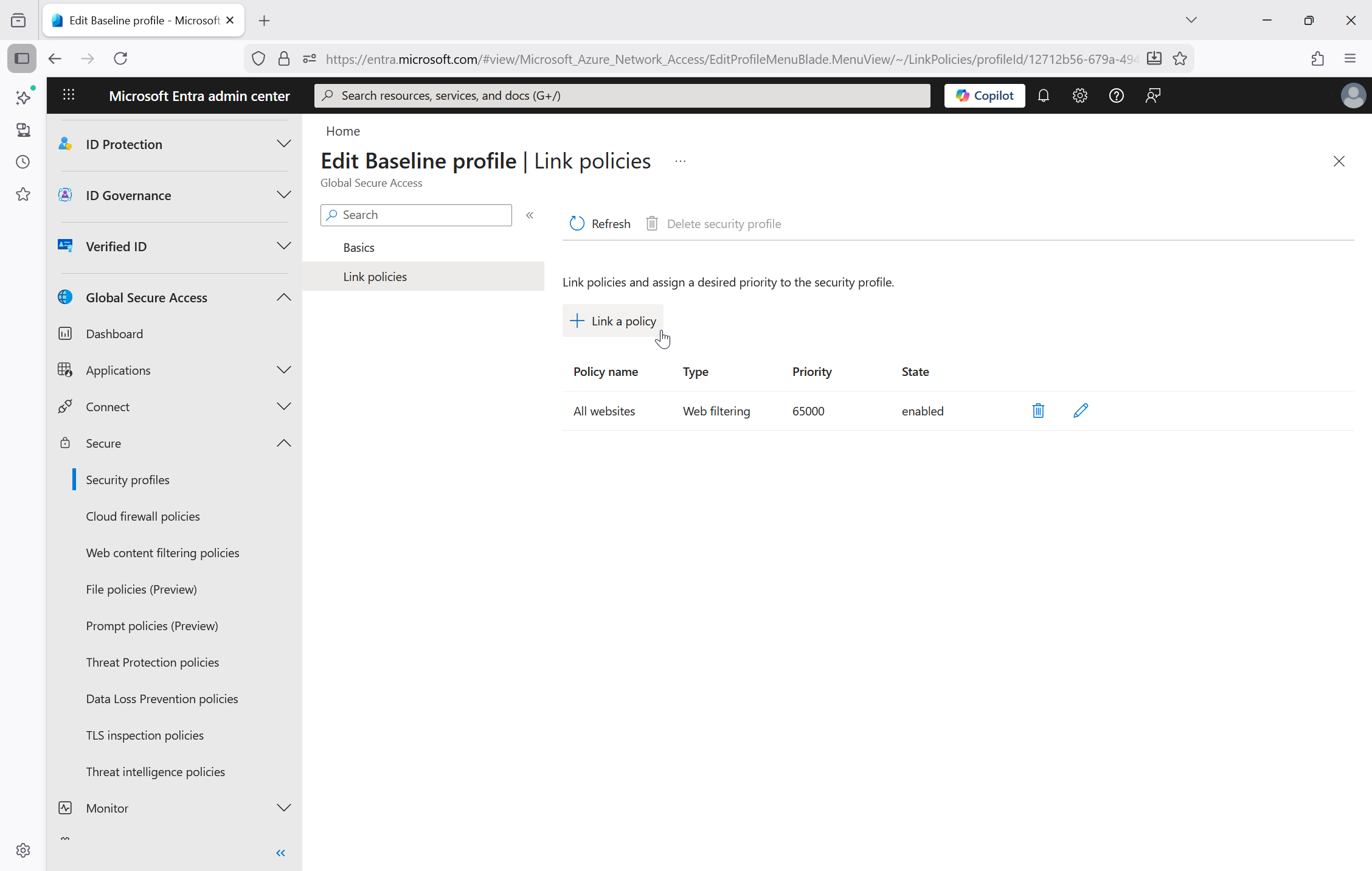
Note
The baseline security profile automatically applies to all traffic routed through Global Secure Access, including remote network traffic. No Conditional Access policy configuration is required.
Verify policy enforcement
After configuring security policies for remote networks, verify that they're being enforced:
- Browse to Global Secure Access > Monitor > Traffic logs.
- Filter the logs by traffic from your remote networks by applying the DeviceCategory filter.
- Verify that blocked traffic shows the appropriate action and policy information.
- Check that allowed traffic flows through as expected.
Note
Configuration changes to the baseline profile typically take effect within a few minutes. Monitor traffic logs to confirm policy enforcement.
Policy priority and interaction
When both the baseline profile and user-specific security profiles are configured:
- User-specific profiles (linked to Conditional Access policies) are evaluated first and have higher priority.
- The baseline profile operates at the lowest priority (65,000) and provides a fallback policy.
- Policies within a profile are evaluated based on their assigned priority numbers (100 is highest priority).
- Once a policy matches and takes action (block/allow), policy evaluation stops.
This design allows you to:
- Apply broad tenant-wide policies via the baseline profile.
- Override baseline policies for specific users or groups using Conditional Access-linked profiles. User awareness is possible only through the Global Secure Access client. Non-client traffic coming through remote networks goes through the baseline profile.
- Ensure consistent protection for all remote network traffic while maintaining flexibility for exceptions.