Note
Access to this page requires authorization. You can try signing in or changing directories.
Access to this page requires authorization. You can try changing directories.
Lifecycle Workflows allow you to automate the updating of user attributes as part of joiner, mover, and leaver scenarios. The Update user attributes task enables you to set or clear attribute values for users in your organization when lifecycle events occur, such as a department change or an employee leaving.
This article walks you through configuring a workflow with the Update user attributes task using the Microsoft Entra admin center and Microsoft Graph.
Prerequisites
Using this feature requires Microsoft Entra ID Governance or Microsoft Entra Suite licenses. To find the right license for your requirements, see Microsoft Entra ID Governance licensing fundamentals.
Supported attributes
The Update user attributes task supports the following attribute types:
- Built-in user attributes (for example,
department,jobTitle,city) - On-premises extension attributes (for example,
extensionAttribute1throughextensionAttribute15) - Directory extension attributes
Note
Custom security attributes are not supported with this task.
Limitations
Before configuring this task, be aware of the following limitations:
- Up to 10 attributes can be updated per task instance.
- Synced users are not supported. This task doesn't support updating attributes for users synchronized from Active Directory Domain Services (AD DS). The task runs only for cloud-managed users.
- The
employeeLeaveDateTimeattribute is not currently supported. Support for this attribute is planned for general availability.
Configure the Update user attributes task using the Microsoft Entra admin center
To add the Update user attributes task to a workflow using the Microsoft Entra admin center, complete the following steps:
Sign in to the Microsoft Entra admin center as at least a Lifecycle Workflows Administrator.
Browse to ID Governance > Lifecycle workflows > Workflows.
Select an existing workflow or create a new workflow where you want to add the task.
On the workflow screen, select Tasks.
Select Add task, and then select Update user attributes (Preview) from the list of available tasks.
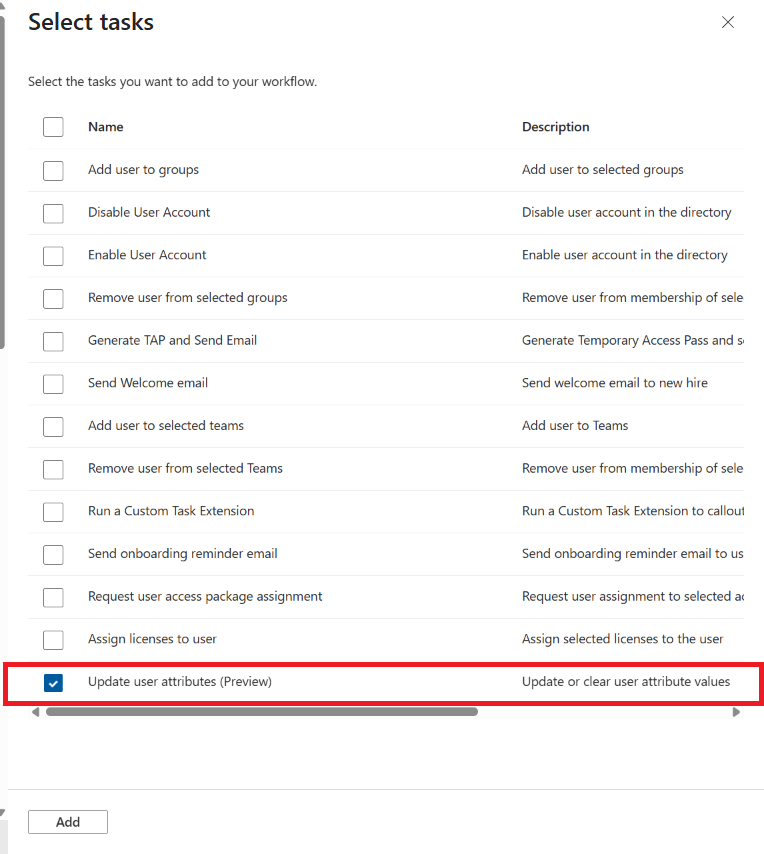
Configure the attribute updates:
- Select the attributes you want to update or clear.
- Provide the new values for each attribute, or leave the value empty to clear an attribute.
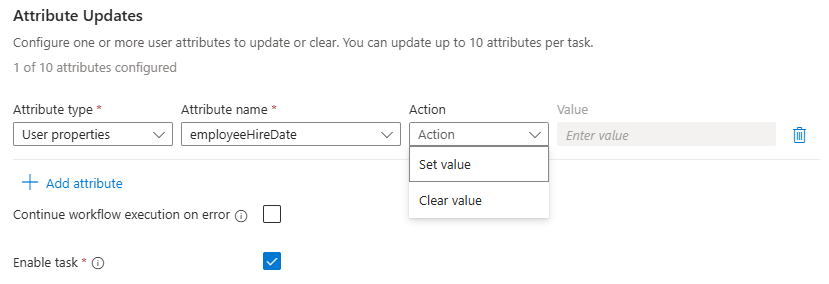
Select Save to add the task to the workflow.
Note
You can configure up to 10 attribute updates within a single task instance.