Note
Access to this page requires authorization. You can try signing in or changing directories.
Access to this page requires authorization. You can try changing directories.
Overview
Microsoft Entra ID is rolling out an improved enforcement model for Conditional Access policies that target All resources and include one or more resource exclusions. This change ensures that sign-ins requesting only baseline scopes receive the same Conditional Access protections as other resource access.
Previously, baseline scopes were automatically excluded from policy enforcement when a resource exclusion existed in an All resources policy. With this change, those scopes are now evaluated as directory access and are subject to your Conditional Access policies even when the policy has exclusions.
For detailed technical background, see New Conditional Access behavior when an ALL resources policy has a resource exclusion.
Important
Rollout of the enforcement model for baseline scopes begins on June 15, 2026.
This enforcement update aligns with Microsoft's Secure Future Initiative and defense-in-depth investments. Microsoft recommends adopting the new enforcement model to improve your security posture. For more information, see Upcoming Conditional Access change: Improved enforcement for policies with resource exclusions.
What are baseline scopes
Baseline scopes is an umbrella term for the following set of scopes:
- OpenID Connect (OIDC) scopes:
email,offline_access,openid,profile - Baseline directory scopes:
User.Read,User.Read.All,User.ReadBasic.All,People.Read,People.Read.All,GroupMember.Read.All,Member.Read.Hidden
What is changing
After the rollout, the following scenarios might now trigger Conditional Access challenges (such as MFA or device compliance) where access was previously granted without enforcement:
- Public client applications (like desktop apps) that request only baseline scopes. For example, a user signs into the Visual Studio Code desktop client, which requests
openidandprofilescopes. Another example is Azure CLI, which requests onlyUser.Read. - Confidential client applications (like web apps) that are excluded from an All resources policy and request only baseline directory scopes. For example, a web application excluded from the policy that requests only
User.ReadandPeople.Read.
The exact challenges depend on the access controls configured in your policies that target All resources or explicitly target Windows Azure Active Directory (also known as Azure AD Graph) as the resource.
What isn't changing
- When an application (public or confidential) requests any scope beyond the baseline scopes (for example,
Mail.Read), the application is already subject to Conditional Access enforcement. This behavior doesn't change. - For confidential client applications that are excluded from All resources policies and request only OIDC scopes, no change is expected.
Who is affected
This change affects your tenant if all of the following conditions are true:
- You have one or more Conditional Access policies that target All resources.
- Those policies have one or more resource exclusions.
- Users in your tenant sign in through applications that request only baseline scopes.
If your policies target All resources without any resource exclusions, this change doesn't affect you.
What you need to do
Use the following table to determine the required actions for your applications:
| Application type | Ownership | Action required |
|---|---|---|
| Public client requesting only baseline scopes | Tenant-owned or ISV-owned | Review whether these applications should remain exempt from Conditional Access enforcement. If there are valid business reasons to maintain an exemption, see Retain legacy behavior with customize behavior. |
| Confidential client requesting only baseline directory scopes, excluded from All resources policy | Tenant-owned | Review whether the exclusion is still necessary. Work with your application developers to assess whether the app can request OIDC scopes (like openid, profile) instead of directory scopes like User.Read for basic user information. If updates can't be completed before rollout, see Retain legacy behavior with customize behavior. |
| Confidential client requesting only baseline directory scopes, excluded from All resources policy | ISV-owned | Review whether the exclusion is still necessary. Engage with your ISV to evaluate whether the application can request OIDC scopes instead of directory scopes. In most cases, OIDC scopes provide the least-privilege access required for these scenarios. If the ISV can't make updates in time, see Retain legacy behavior with customize behavior. |
Important
For both public and confidential client applications owned by your tenant, ensure the application can handle Conditional Access challenges (for example, MFA or device compliance). If not, application updates might be required. Refer to the Conditional Access developer guidance on how to update your application appropriately.
Choose how baseline scopes are enforced
This enforcement change is applied to all tenants as part of the rollout. You have control over how it takes effect through the Baseline scopes settings. You can enable enforcement immediately instead of waiting for the rollout to be completed in your tenant, customize it at the policy level to retain the legacy behavior for specific scenarios, or temporarily opt out until you're ready. The rollout begins on June 15, 2026, and will be rolled out progressively over several weeks.
Tip
You can update your enforcement settings at any time from the Baseline scopes settings.
Enable enforcement (recommended)
You can enable the improved enforcement behavior before the rollout begins. Use this option in a test tenant to review the impact on your applications and users.
You're ready to enable enforcement when you have reviewed the app exclusions in your All resources policies and have not identified any scenarios similar to those outlined in the Who should use this setting section.
- Sign in to the Microsoft Entra admin center as at least a Conditional Access Administrator.
- Access the Baseline scopes settings in Conditional Access. This direct link is required to view the settings.
- Select Enable enforcement.
- Select Save.
- Select Enable enforcement again to confirm the change.
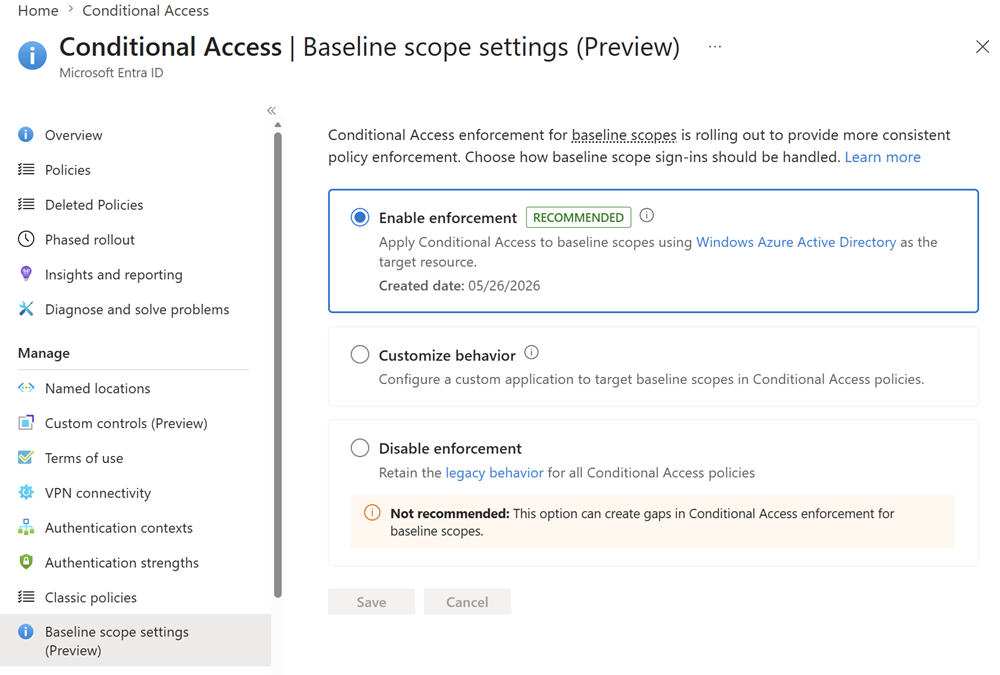
Note
This setting immediately enables the updated Conditional Access behavior for All resources policies with exclusions.
As a result, some user sign-ins that were not previously subject to Conditional Access enforcement might now be evaluated and enforced under Conditional Access using Windows Azure Active Directory as the target resource.
To revert to the legacy behavior, return to the Baseline scopes settings and select Disable enforcement.
Customize behavior
If you need to opt out of enforcement for specific policies rather than your entire tenant, use the Customize behavior option. This approach retains legacy behavior only for the policies you configure, while enforcement applies everywhere else.
You can customize the behavior if you have identified business critical scenarios similar to those described in the Who should use this setting section that would be impacted by this change. You can use this option to retain the legacy behavior for specific policies.
Note
Microsoft recommends aligning with the new enforcement model. Use the Customize behavior option only if you have specific scenarios that require the legacy behavior for certain policies.
To customize the behavior, configure a custom application to target baseline scopes.
- Create an application: Register a new application in Microsoft Entra ID to serve as the custom target resource for baseline scopes. Register the application as a single tenant application. No additional configuration is needed while registering the application.
- Exclude the application from the relevant policy: In the Conditional Access policy where you need to retain legacy behavior, exclude the custom application from the target resources.
- Select the application in the Baseline scopes settings UX: Go to the Baseline scopes settings, select Customize behavior, then select Save and choose your placeholder application from the list.
After you complete these steps, baseline scopes are evaluated against your custom placeholder application for that policy. Because the placeholder application is excluded from the policy, the legacy behavior is retained for that policy only.
Who should use the customize behavior setting
Use this setting only if you have specific scenarios that require you to retain the legacy behavior. Example scenarios include:
- All resources policies with require a compliant device grant control: You have specific applications that must be accessible from unmanaged devices.
- All resources policies with require an app protection policy grant control: You have client applications that aren't integrated with the Microsoft Intune SDK and can't satisfy the app protection policy.
- All resources policies with block control: You have specific applications that must be excluded from the block policy.
- Public clients that must be exempt from compliant device requirements: You have specific public client applications that must not be subject to the device compliance grant control.
Note
Previously in all of these scenarios, if the All resources policy had resource exclusions and if the client applications relied only on baseline scopes, access was granted without the sign-in being subject to Conditional Access enforcement. After the enforcement change, access is granted only after the sign-in satisfies the Conditional Access requirements.
Identify affected applications with a custom target resource
You can use baseline scope settings to identify which applications in your tenant are affected before the rollout. After selecting the Enable enforcement option, sign-in events where the applications request baseline scopes list the custom application as a Conditional Access audience in sign-in logs. For more information, see Troubleshoot sign-in problems with Conditional Access.
Query for affected applications
Use the following Microsoft Graph query to list applications that request only the baseline scopes:
https://graph.microsoft.com/beta/auditLogs/signIns?$filter=createdDateTime ge 2026-05-26T00:00:00Z and createdDateTime lt 2026-05-27T00:00:00Z and conditionalAccessAudiences/any(a:a eq '<your-custom-app-id>')&$select=createdDateTime,appId,appDisplayName,userDisplayName,userPrincipalName,ipAddress,conditionalAccessStatus
Replace <your-custom-app-id> with your custom application's app ID. Modify the timestamp values as needed for your specific time range.
Over a multiday period, the result of this query provides a list of client applications that request only baseline scopes.
Disable enforcement
Warning
The Disable enforcement option in the Baseline scopes settings is not recommended.
Selecting this option disables enforcement for all policies in the tenant, which could create gaps in your Conditional Access coverage.
If you choose to disable enforcement or customize behavior, your organization will continue to use the behavior you configure and the upcoming rollout will not override your configured behavior. You can manually update the configuration at any time by accessing the Baseline scopes settings.
User experience
In user sign-in flows where client applications request only the scopes listed above, users might now receive Conditional Access challenges (such as MFA or device compliance). The exact challenge depends on the access controls configured in your policies that target All resources (with or without resource exclusions) or policies that explicitly target Azure AD Graph.
In the following example, the tenant has a Conditional Access policy with the following details:
- Targeting All users and All resources
- Resource exclusions for a confidential client application and Exchange Online
- MFA is configured as the grant control
Example scenarios
| Example scenario | User impact (before → after) | Conditional Access evaluation |
|---|---|---|
| A user signs into Visual Studio Code desktop client, which requests openid and profile scopes. | Before: User not prompted for MFA After: User is prompted for MFA |
Conditional Access is now evaluated using Windows Azure Active Directory as the enforcement audience. |
A user signs in using Azure CLI, which requests only User.Read. |
Before: User not prompted for MFA After: User is prompted for MFA |
Conditional Access is now evaluated using Windows Azure Active Directory as the enforcement audience. |
A user signs in through a confidential client application (excluded from the policy) that requests only User.Read and People.Read. |
Before: User not prompted for MFA After: User is prompted for MFA |
Conditional Access is now evaluated using Windows Azure Active Directory as the enforcement audience. |
There is no change in behavior when a client application requests a scope beyond those listed previously, as illustrated in the following examples.
Example scenarios
| Example scenario | User impact | Conditional Access evaluation |
|---|---|---|
A user signs in to a confidential client application (excluded from the policy) that requests offline_access and SharePoint access (Files.Read). |
No change in behavior | Conditional Access continues to be enforced based on the SharePoint resource. |
A user signs in to the OneDrive desktop sync client. OneDrive requests offline_access and Exchange Online access (Mail.Read). |
No change in behavior | Conditional Access is not enforced because Exchange Online is excluded from the policy. |
Most applications request scopes beyond the previously listed scopes and are already subject to Conditional Access enforcement, unless the application is explicitly excluded from the policy. In such cases, there is no change in behavior.
Custom applications that are intentionally designed to request only the previously listed scopes and are not designed to handle Conditional Access challenges might need to be updated so that they can handle Conditional Access challenges. Refer to the Microsoft Conditional Access developer guidance for implementation details.
FAQ
What happens if I don't take any action?
Enforcement is applied automatically as part of the scheduled rollout beginning June 15, 2026. If you haven't made any changes to the baseline scopes settings, the enforcement is enabled automatically, over a period of approximately several weeks. You won't see any selections in the Baseline scopes settings after enforcement is applied because the behavior becomes the default.
If you previously chose Disable enforcement or Customize behavior, your tenant continues to use your selected configuration. You can switch to full enforcement at any time.
How can I enable enforcement ahead of the rollout?
Go to https://aka.ms/BaselineScopesSettingsUX, select Enable enforcement and Save. This setting immediately enforces the improved behavior. To revert back, select Disable enforcement.
How can I retain the legacy behavior after the rollout?
Use Customize behavior to assign a custom tenant-owned application as the target resource for baseline scopes, then exclude that application from your All resources policies. For more information, see Retain legacy behavior with customize behavior.
Which of my applications are impacted?
Only client applications that request exclusively baseline scopes need attention. Applications that request scopes beyond the baseline (for example, Mail.Read) are already subject to Conditional Access enforcement and aren't affected by this change. For most organizations, reviewing the applications that are explicitly excluded from All resources policies is recommended.