Note
Access to this page requires authorization. You can try signing in or changing directories.
Access to this page requires authorization. You can try changing directories.
Important
This documentation is considered legacy. For comprehensive information and resources related to Adaptive Cards, visit the Adaptive Cards documentation hub.
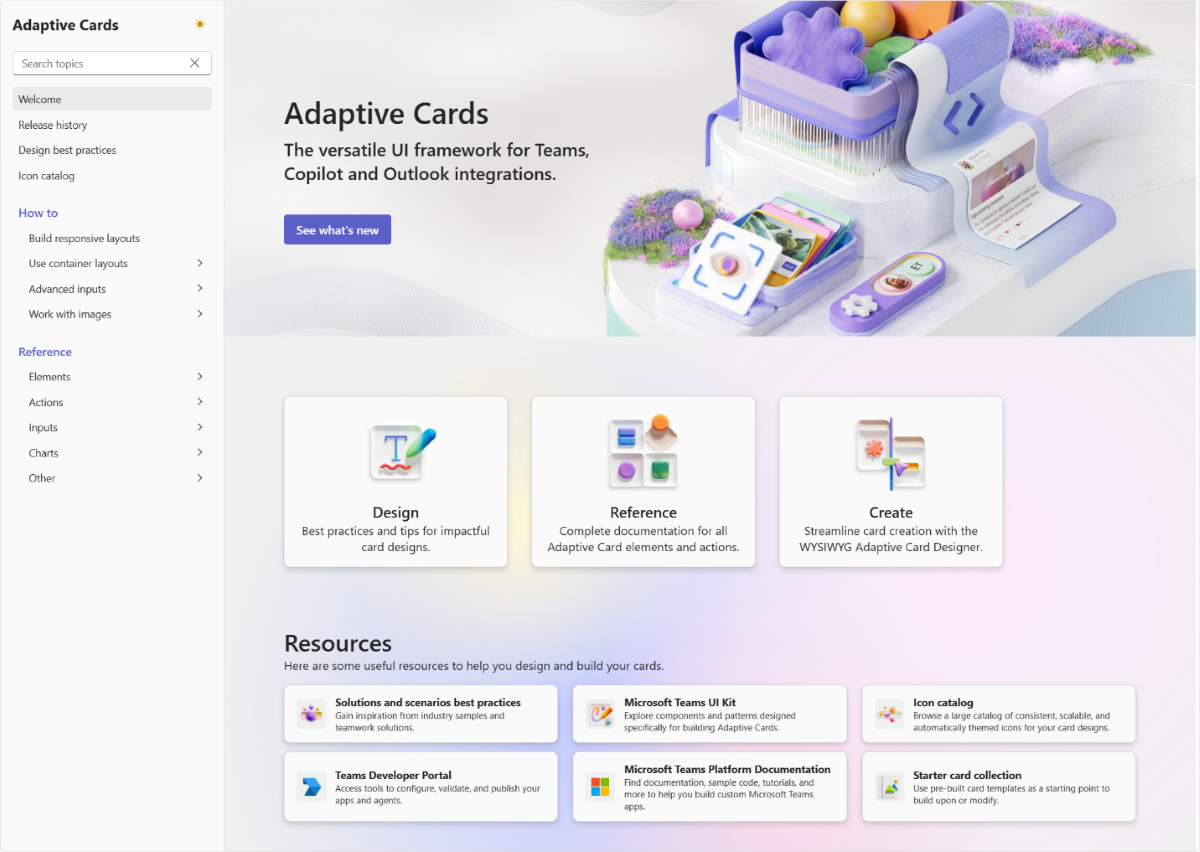
The Adaptive Cards documentation hub offers complete and latest reference documentation, an updated Adaptive Card Designer, built-in JSON examples, design best practices, and a detailed release history of Adaptive Card features. For more information, see introducing the Adaptive Cards documentation hub and new Adaptive Cards updates.
Adaptive Cards support interactive elements through actions buttons, links, and input submission triggers that respond to user interaction. You can use these to collect form input, trigger workflows, open URLs, and more.
The Teams SDK provides builder helpers and server-side handlers that simplify working with card actions. The following action types are supported:
| Action type | Use case | Description |
|---|---|---|
Action.Execute |
Server-side processing | Sends data to your bot for processing. Best for forms and multi-step workflows. |
Action.Submit |
Simple data submission | Legacy action type. Prefer Action.Execute for new projects. |
Action.OpenUrl |
External navigation | Opens a URL in the user's browser. |
Action.ShowCard |
Progressive disclosure | Displays a nested card when selected. |
Action.ToggleVisibility |
UI state management | Shows or hides card elements dynamically. |
Note
For complete reference on action types, see the Adaptive Cards documentation.
Create actions with the SDK
The SDK provides builder helpers that abstract the underlying JSON. You can create actions using strongly typed classes from the Microsoft.Teams.Cards namespace.
Action.Execute
Action.Execute is the recommended action type for server-side processing. When a user selects an Execute action, the input values and any configured data are sent to your bot as a card.action activity.
The following code shows an example of an Action.Execute action in C#:
using Microsoft.Teams.Cards;

var action = new ExecuteAction
{
    Title = "Submit Feedback",
    Data = new Union<string, SubmitActionData>(new SubmitActionData
    {
        NonSchemaProperties = new Dictionary<string, object?>
        {
            { "action", "submit_feedback" }
        }
    }),
    AssociatedInputs = AssociatedInputs.Auto
};
Action.OpenUrl
Action.OpenUrl opens a specified URL in the user's browser.
Note
When using Action.OpenUrl, make sure to include the domain of the target URL in the validDomains section of your app manifest. If the domain isn't listed, Teams displays the message URL may lead to untrusted content.
The following code shows an example of an Action.OpenUrl action in C#:
using Microsoft.Teams.Cards;

var action = new OpenUrlAction("https://adaptivecards.microsoft.com")
{
    Title = "Learn More"
};
Action sets
You can group multiple actions together using ActionSet within an Adaptive Card:
The following code shows an example of grouping actions in C#:
using Microsoft.Teams.Cards;
var card = new AdaptiveCard
{
Schema = "http://adaptivecards.io/schemas/adaptive-card.json",
Actions = new List<Microsoft.Teams.Cards.Action>
{
new ExecuteAction
{
Title = "Submit Feedback",
Data = new Union<string, SubmitActionData>(new SubmitActionData
{
NonSchemaProperties = new Dictionary<string, object?>
{
{ "action", "submit_feedback" }
}
})
},
new OpenUrlAction("https://adaptivecards.microsoft.com")
{
Title = "Learn More"
}
}
};
Raw JSON alternative
If you prefer to work with raw JSON, you can deserialize it into the SDK types:
var actionJson = """
{
  "type": "Action.OpenUrl",
  "url": "https://adaptivecards.microsoft.com",
  "title": "Learn More"
}
""";
var action = OpenUrlAction.Deserialize(actionJson);
Work with input values
Associate data with cards
You can send a card and have it be associated with specific data. Set the data value to be sent back to the client so you can associate it with a particular entity.
The following code shows an example of associating data with card actions in C#:
using Microsoft.Teams.Cards;

private static AdaptiveCard CreateProfileCard()
{
    return new AdaptiveCard
    {
        Schema = "http://adaptivecards.io/schemas/adaptive-card.json",
        Body = new List<CardElement>
        {
            new TextBlock("User Profile")
            {
                Weight = TextWeight.Bolder,
                Size = TextSize.Large
            },
            new TextInput
            {
                Id = "name",
                Label = "Name",
                Value = "John Doe"
            },
            new TextInput
            {
                Id = "email",
                Label = "Email",
                Value = "john@contoso.com"
            },
            new ToggleInput("Subscribe to newsletter")
            {
                Id = "subscribe",
                Value = "false"
            }
        },
        Actions = new List<Microsoft.Teams.Cards.Action>
        {
            new ExecuteAction
            {
                Title = "Save",
                Data = new Union<string, SubmitActionData>(new SubmitActionData
                {
                    NonSchemaProperties = new Dictionary<string, object?>
                    {
                        { "action", "save_profile" },
                        { "entity_id", "12345" }
                    }
                }),
                AssociatedInputs = AssociatedInputs.Auto
            }
        }
    };
}
When the user submits the card, the handler receives the input values merged with the action data:
data["action"]      → "save_profile"
data["entity_id"]   → "12345"
data["name"]        → "John Doe"
data["email"]       → "john@contoso.com"
data["subscribe"]   → "true"
Input validation
Input controls provide built-in validation. For more information, see the Adaptive Cards input validation documentation.
The following code shows an example of input validation in C#:
using Microsoft.Teams.Cards;

private static AdaptiveCard CreateProfileCardWithValidation()
{
    return new AdaptiveCard
    {
        Schema = "http://adaptivecards.io/schemas/adaptive-card.json",
        Body = new List<CardElement>
        {
            new TextBlock("Profile with Validation")
            {
                Weight = TextWeight.Bolder,
                Size = TextSize.Large
            },
            new NumberInput
            {
                Id = "age",
                Label = "Age",
                IsRequired = true,
                Min = 0,
                Max = 120
            },
            new TextInput
            {
                Id = "name",
                Label = "Name",
                IsRequired = true,
                ErrorMessage = "Name is required"
            },
            new TextInput
            {
                Id = "location",
                Label = "Location"
            }
        },
        Actions = new List<Microsoft.Teams.Cards.Action>
        {
            new ExecuteAction
            {
                Title = "Save",
                Data = new Union<string, SubmitActionData>(new SubmitActionData
                {
                    NonSchemaProperties = new Dictionary<string, object?>
                    {
                        { "action", "save_profile" }
                    }
                }),
                AssociatedInputs = AssociatedInputs.Auto
            }
        }
    };
}
Conditional enablement of action buttons
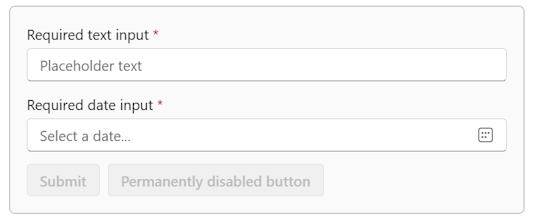
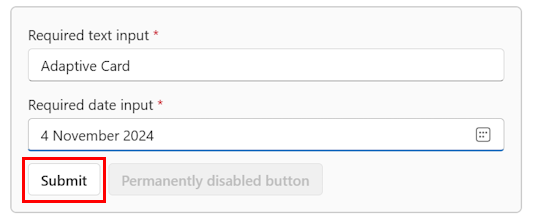
You can use the conditionallyEnabled property to disable action buttons until the user changes the value of at least one of the required inputs. This property can only be used with Action.Submit and Action.Execute actions. For a conditionally enabled button, if the isEnabled property is set to false, actions are disabled regardless of the input.
Here's how the conditionallyEnabled property is defined:
| Property | Type | Required | Description |
|---|---|---|---|
conditionallyEnabled |
Boolean | ✔️ | Controls if the action is enabled only if at least one required input has been filled by the user. |
The following card payload shows a conditionally enabled button:
{
    "type": "AdaptiveCard",
    "$schema": "http://adaptivecards.io/schemas/adaptive-card.json",
    "version": "1.5",
    "body": [
        {
            "type": "Input.Text",
            "placeholder": "Placeholder text",
            "label": "Required text input",
            "isRequired": true,
            "id": "text"
        },
        {
            "type": "Input.Date",
            "label": "Required date input",
            "isRequired": true,
            "id": "date"
        }
    ],
    "actions": [
        {
            "type": "Action.Execute",
            "title": "Submit",
            "conditionallyEnabled": true
        },
        {
            "type": "Action.Execute",
            "title": "Permanently disabled button",
            "isEnabled": false
        }
    ]
}
Disabled
Enabled
Server handlers
Universal Action submissions are delivered to your bot as invoke activities named adaptiveCard/action. In the Teams SDK, these are surfaced to your app as card.action activities, which give you access to the validated input values plus any data values you configured to be sent back to you.
Use the OnAdaptiveCardAction handler to process card actions:
using System.Text.Json;
using Microsoft.Teams.Api.Activities.Invokes.AdaptiveCards;
using Microsoft.Teams.Apps;
using Microsoft.Teams.Apps.Annotations;
using Microsoft.Teams.Common.Logging;

//...

teams.OnAdaptiveCardAction(async context =>
{
    var activity = context.Activity;
    context.Log.Info("[CARD_ACTION] Card action received");

    var data = activity.Value?.Action?.Data;

    context.Log.Info($"[CARD_ACTION] Raw data: {JsonSerializer.Serialize(data)}");

    if (data == null)
    {
        context.Log.Error("[CARD_ACTION] No data in card action");
        return new ActionResponse.Message("No data specified") { StatusCode = 400 };
    }

    string? action = data.TryGetValue("action", out var actionObj) ? actionObj?.ToString() : null;

    if (string.IsNullOrEmpty(action))
    {
        context.Log.Error("[CARD_ACTION] No action specified in card data");
        return new ActionResponse.Message("No action specified") { StatusCode = 400 };
    }
    context.Log.Info($"[CARD_ACTION] Processing action: {action}");

    string? GetFormValue(string key)
    {
        if (data.TryGetValue(key, out var val))
        {
            if (val is JsonElement element)
                return element.GetString();
            return val?.ToString();
        }
        return null;
    }

    switch (action)
    {
        case "submit_feedback":
            var feedbackText = GetFormValue("feedback") ?? "No feedback provided";
            await context.Send($"Feedback received: {feedbackText}");
            break;

        case "create_task":
            var title = GetFormValue("title") ?? "Untitled";
            var priority = GetFormValue("priority") ?? "medium";
            var dueDate = GetFormValue("due_date") ?? "No date";
            await context.Send($"Task created!\nTitle: {title}\nPriority: {priority}\nDue: {dueDate}");
            break;

        case "save_profile":
            var name = GetFormValue("name") ?? "Unknown";
            var email = GetFormValue("email") ?? "No email";
            var subscribe = GetFormValue("subscribe") ?? "false";
            await context.Send($"Profile saved!\nName: {name}\nEmail: {email}\nSubscribed: {subscribe}");
            break;

        default:
            context.Log.Error($"[CARD_ACTION] Unknown action: {action}");
            return new ActionResponse.Message("Unknown action") { StatusCode = 400 };
    }

    return new ActionResponse.Message("Action processed successfully") { StatusCode = 200 };
});
Note
The data values come from JSON and need to be extracted using the helper method shown above to handle different JSON element types.
End-to-end example: Task form card
The following example shows a complete card with input fields and an action handler.
Build the card
using Microsoft.Teams.Cards;

private static AdaptiveCard CreateTaskFormCard()
{
    return new AdaptiveCard
    {
        Schema = "http://adaptivecards.io/schemas/adaptive-card.json",
        Body = new List<CardElement>
        {
            new TextBlock("Create New Task")
            {
                Weight = TextWeight.Bolder,
                Size = TextSize.Large
            },
            new TextInput
            {
                Id = "title",
                Label = "Task Title",
                Placeholder = "Enter task title"
            },
            new TextInput
            {
                Id = "description",
                Label = "Description",
                Placeholder = "Enter task details",
                IsMultiline = true
            },
            new ChoiceSetInput
            {
                Id = "priority",
                Label = "Priority",
                Value = "medium",
                Choices = new List<Choice>
                {
                    new() { Title = "High", Value = "high" },
                    new() { Title = "Medium", Value = "medium" },
                    new() { Title = "Low", Value = "low" }
                }
            },
            new DateInput
            {
                Id = "due_date",
                Label = "Due Date",
                Value = DateTime.Now.ToString("yyyy-MM-dd")
            }
        },
        Actions = new List<Microsoft.Teams.Cards.Action>
        {
            new ExecuteAction
            {
                Title = "Create Task",
                Data = new Union<string, SubmitActionData>(new SubmitActionData
                {
                    NonSchemaProperties = new Dictionary<string, object?>
                    {
                        { "action", "create_task" }
                    }
                }),
                AssociatedInputs = AssociatedInputs.Auto,
                Style = ActionStyle.Positive
            }
        }
    };
}
Send the card
teams.OnMessage(async context =>
{
    var text = context.Activity.Text?.ToLowerInvariant() ?? "";

    if (text.Contains("form"))
    {
        await context.Typing();
        var card = CreateTaskFormCard();
        await context.Send(card);
    }
});
Code samples
| S.No. | Card | Description | .NET | Node.js | Python | Java | Manifest |
|---|---|---|---|---|---|---|---|
| 1 | Adaptive Card actions | This sample shows how to send Adaptive Cards with multiple action types using a Teams bot. | View | View | NA | NA | View |
| 2 | Using cards | Introduces all card types including thumbnail, audio, media etc. Builds on Welcoming user + multi-prompt bot by presenting a card with buttons in welcome message that route to appropriate dialog. | View | View | View | NA | NA |
| 3 | Adaptive Cards | Demonstrates how the multi-turn dialog can use a card to get user input for name and age. | View | View | View | NA | NA |
| 4 | Card Formatting | This sample demonstrates a conditionally enabled button. | View | View | NA | NA | NA |
Next step
See also
Collaborate with us on GitHub
The source for this content can be found on GitHub, where you can also create and review issues and pull requests. For more information, see our contributor guide.
Platform Docs