Note
Access to this page requires authorization. You can try signing in or changing directories.
Access to this page requires authorization. You can try changing directories.
The Power BI Desktop Bridge enables external applications and agents to interact directly with a running instance of Power BI Desktop on the local machine.
Note
The Desktop Bridge is currently in preview. Features, behavior, and the API surface may change before general availability.
In this article, you learn:
- What prerequisites you need before using the bridge
- What the bridge is and how it communicates with Power BI Desktop
- How to get started quickly with the Power BI Desktop Bridge CLI
- How to discover available API methods by calling
bridge.manifest - Available methods and what they do
- How the Report Authoring Skill uses the bridge
Prerequisites
Before using the IPC Bridge, make sure you meet the following requirements:
Power BI Desktop is installed on your Windows machine.
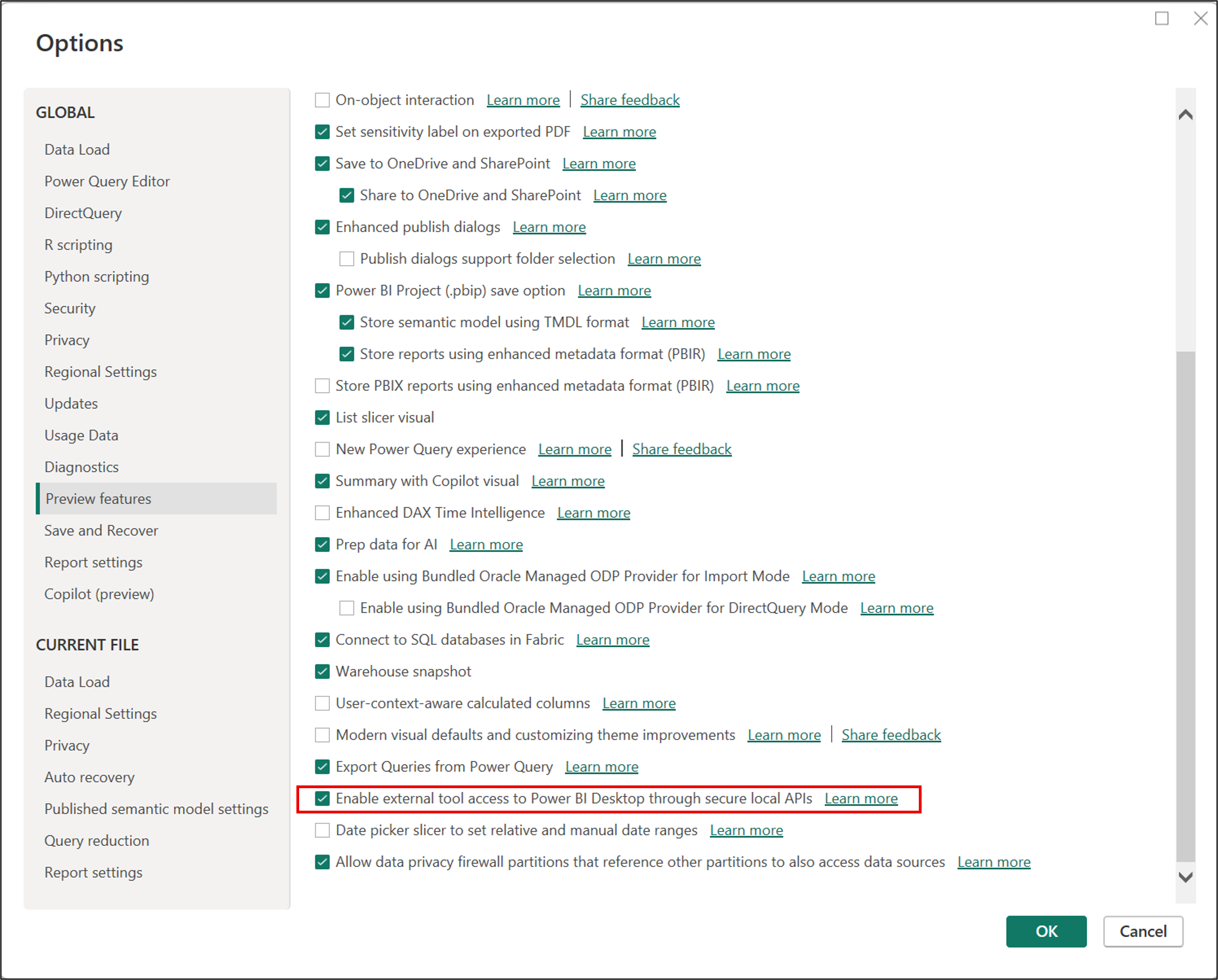
The preview feature "Enable external tool access to Power BI Desktop through secure local APIs" is enabled. It's on by default. To check or change it:
- Open Power BI Desktop.
- Go to File > Options and Settings > Options.
- Select Preview Features.
- Check Enable external tool access to Power BI Desktop through secure local APIs.
What is the Power BI Desktop Bridge?
The Power BI Desktop Bridge enables external tools to communicate with a running instance of Power BI Desktop through the APIs it exposes. By using the bridge, agents and external tools can interact directly with Power BI Desktop to reload changes without restarting the app, take screenshots for validation, and more.
A great example of how to leverage the bridge is the Report Authoring Skill, , which uses the bridge to read report definitions, apply changes, and verify results in an iterative edit-and-verify workflow.
Technical detail
The bridge is a local server running inside the Power BI Desktop process. It uses IPC (Interprocess communiacation) through a named pipe with the format:
pbi-desktop-bridge-{processId}
Key facts
| Fact | Detail |
|---|---|
| Transport | Named pipe (local only) |
| Protocol | JSON-RPC 2.0 |
| Framing | Content-Length header + body |
| Remote access | Not supported |
| Multiple windows | Each open Desktop window has its own independent pipe |
| Concurrency | Multiple clients can connect, but only one operation runs at a time. If you send a request while another operation is running, you get an error. Wait for the current operation to finish first. |
Use the Desktop Bridge with the Power BI Desktop Bridge CLI
The easiest way to start is with the Power BI Desktop Bridge CLI. It lets you leverage the bridge in a simple, practical way, without building custom integrations first. Built on top of the bridge, it includes a set of intuitive commands ready to use.
The following commands are available from powerbi-desktop help:
| Command | Description |
|---|---|
status [options] |
Lists Desktop Bridge instances, current file paths, unsaved-change state, and PBIR pages. |
manifest [options] |
Shows the Desktop Bridge manifest for a running Power BI Desktop process. |
open [options] <report> |
Opens a PBIP/PBIX file in Power BI Desktop, then waits for bridge status. |
reload [options] |
Reloads the current PBIR file in Power BI Desktop. |
screenshot [options] <page-id> |
Captures one report page as a PNG. |
screenshot-all [options] |
Captures every page listed in PBIR pages.json. |
help [command] |
Displays help for a command. |
Learn more: Power BI Desktop Bridge CLI
Available Desktop Bridge Methods
The available methods are: bridge.manifest, application.state.get/v1, report.snapshot.capture/v1, and file.reload/v1.
bridge.manifest
Returns the method manifest for the current Power BI Desktop version.
Use it to:
Discover which methods are currently supported.
Get each method's description.
Read each method's input/output schema (
paramsandresult) before calling it.- Benefits:
Prevents calling unsupported methods.
Helps avoid
-32601 MethodNotFounderrors.
Returns:
A methods array containing method definitions such as:
namedescriptionparamsschemaresultschema
application.state.get/v1
Returns the current application state, including open-file status.
What it is used for:
- Check which file is currently open.
- Detect unsaved changes before running operations that might overwrite or reload content.
- Act as a file status check before automation steps.
Returns:
| Field | Type | Description |
|---|---|---|
currentFilePath |
string or null | Full path of the open file. Empty if none. |
hasUnsavedChanges |
boolean | Whether the file has unsaved changes. |
Note
This method currently focuses on file status and may expose more state details in future versions.
report.snapshot.capture/v1
Captures a PNG screenshot of a report page.
What it is used for:
- Visual validation of report changes.
- Feedback loops where an agent needs to see the current report state.
- Quick inspection of the rendered page.
Parameters:
| Field | Type | Required | Description |
|---|---|---|---|
pageId |
string | Yes | Internal page ID from PBIR. |
scale |
number or null | .\Test-DesktopBridge.ps1 -Silent | Scale factor (1.0–3.0). Defaults to 1.0. |
Returns:
| Field | Description |
|---|---|
payload |
Base64-encoded image data. |
mimeType |
For example, image/png. |
encoding |
For example, Base64. |
pageId |
ID of the captured page. |
pageDisplayName |
Human-readable page name. |
Note
This is effectively a take a screenshot operation for a specific report page.
file.reload/v1
Reloads the currently open PBIP/PBIR file from disk. Useful after making manual edits to the report files.
What it is used for:
- Refresh Desktop state after on-disk changes.
- Control whether model definition is also re-applied.
Parameters:
| Field | Type | Required | Description |
|---|---|---|---|
reloadModelDefinition |
boolean or null | Yes | Whether to re-apply the model definition. Defaults to true. |
Returns:
| Field | Description |
|---|---|
success |
true when the reload completed successfully. |
Behavior note:
reloadModelDefinition = true(default): reloads report plus semantic model definition.reloadModelDefinition = false: reloads report without re-applying the model definition.