Note
Access to this page requires authorization. You can try signing in or changing directories.
Access to this page requires authorization. You can try changing directories.
Introduction
SQL Server 2017 now runs on Linux. It’s the same SQL Server database engine, with many similar features and services regardless of your operating system.
Prerequisites
- You must have a SLES v12 SP2 machine with at least 3.25 GB of memory.
- The file system must be XFS or EXT4. Other file systems, such as BTRFS, are unsupported.
- Internet Connectivity on SUSE Linux machine
Supported client tools
| Tool | Minimum version |
|---|---|
|
|
|
|
|
|
Environment
| Demo System Roles | Names | OS | Network NICs |
|
|
|
|
|
|
|
|
|
|
|
|
Install SQL Server
NOTE: On SUSE Linux machine, verify internet is accessible
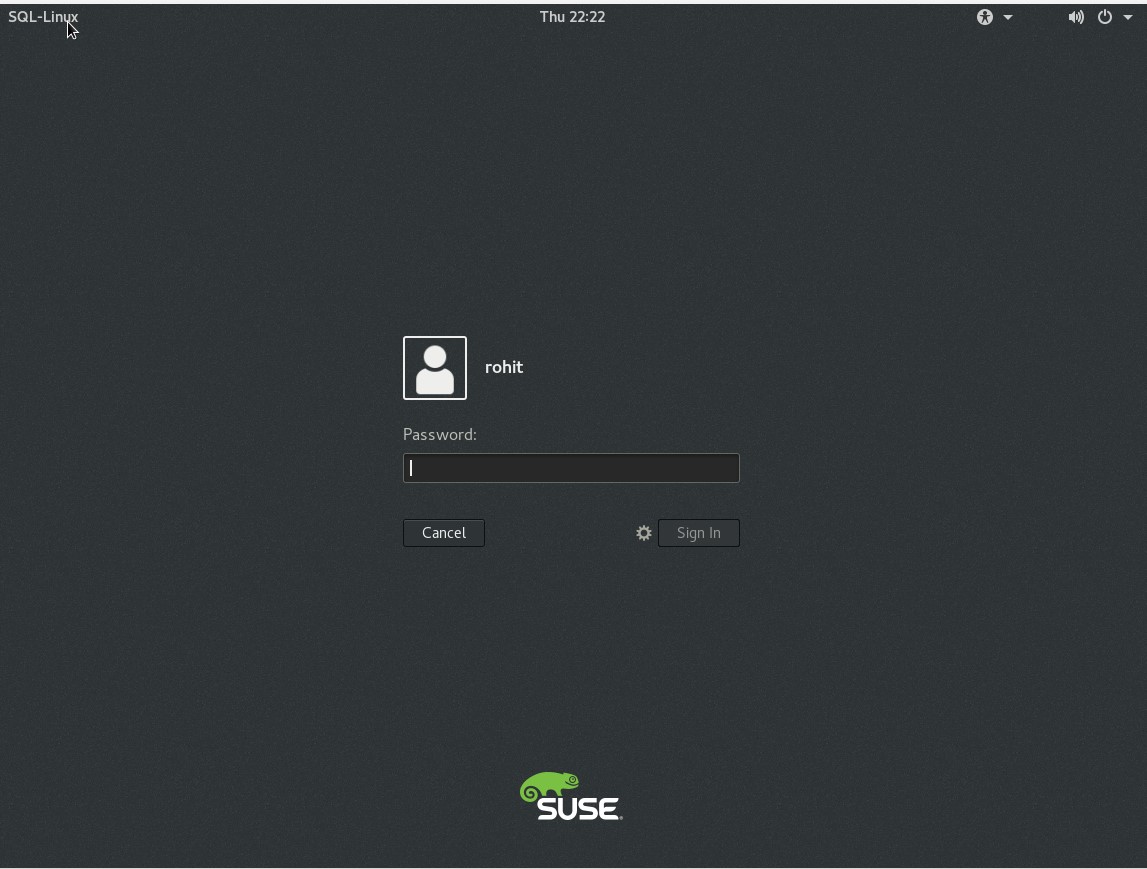
- Login to SUSE Linux
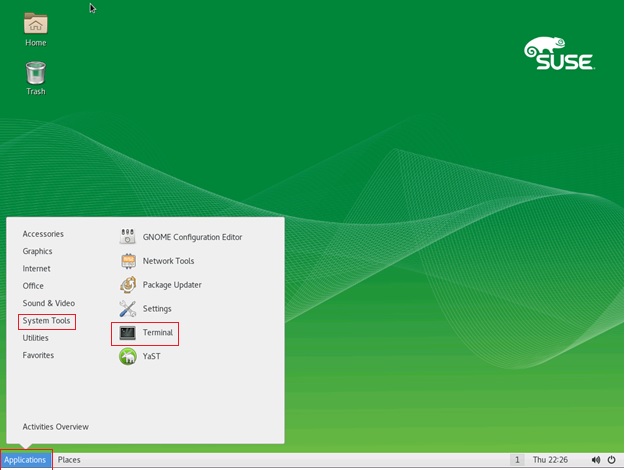
2. Open Terminal Window on SUSE Linux. Click on Application | System Tools | Terminal
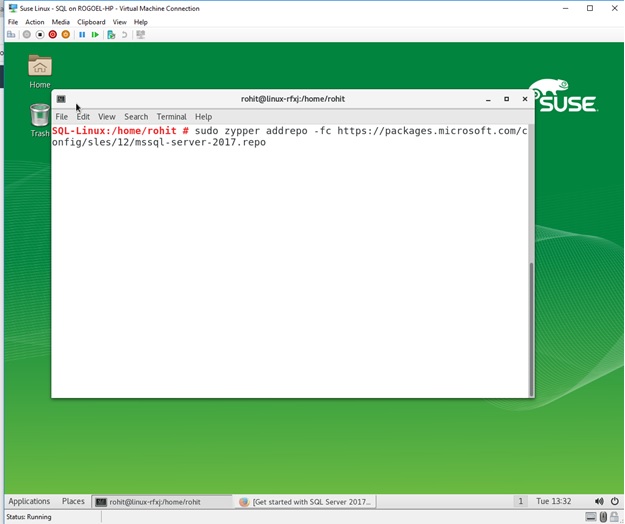
3. Download the Microsoft SQL Server SLES repository configuration file:
Run
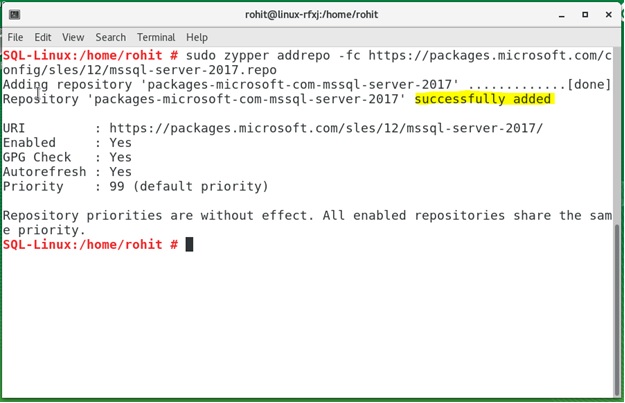
sudo zypper addrepo -fc https://packages.microsoft.com/config/sles/12/mssql-server-2017.repo
4. Verify 'package-microsoft-com-msmsql-server-2017' has successfully added to repository
5. Run
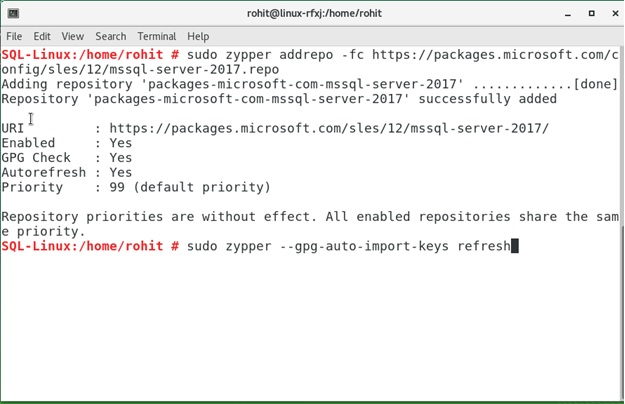
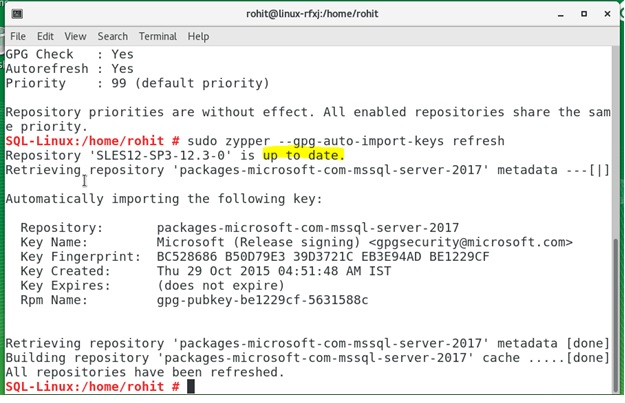
sudo zypper --gpg-auto-import-keys refresh
6. Verify if all repositories are up to date are refreshed
7. Insert SUSE Linux DVD/attach ISO to SUSE Linux machine
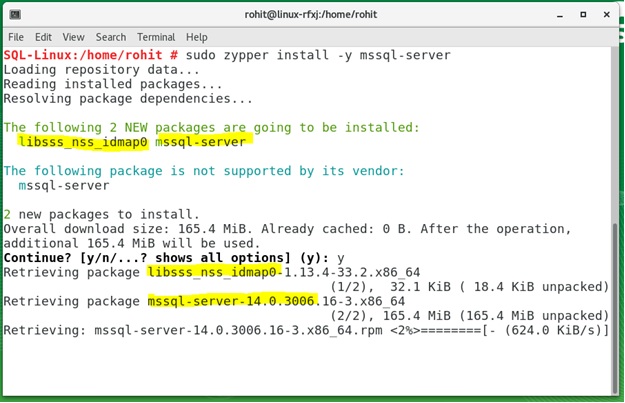
Run the following commands to install SQL Server
sudo zypper install -y mssql-server
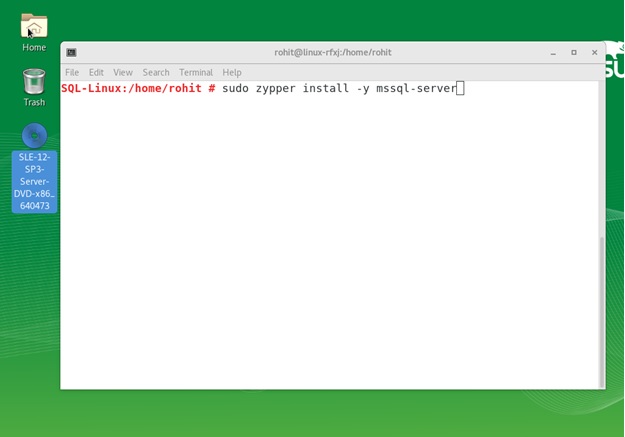
8. Verify installation has started and finish successfully

Run 'Clear' (same as 'cls' command in Windows cmd) to clear the Terminal Window
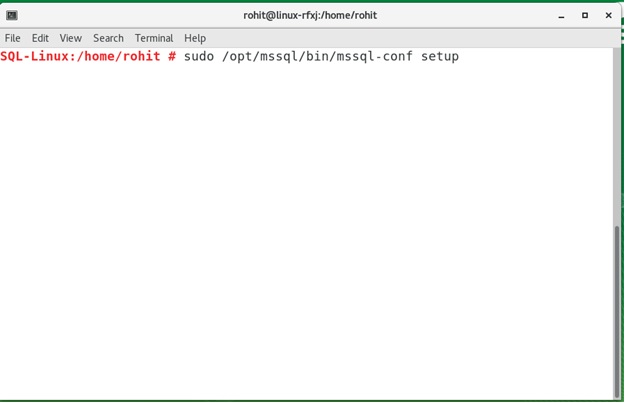
10. After the package installation finishes, run mssql-conf setup and follow the prompts to set the SA password and choose your edition.
sudo /opt/mssql/bin/mssql-conf setup
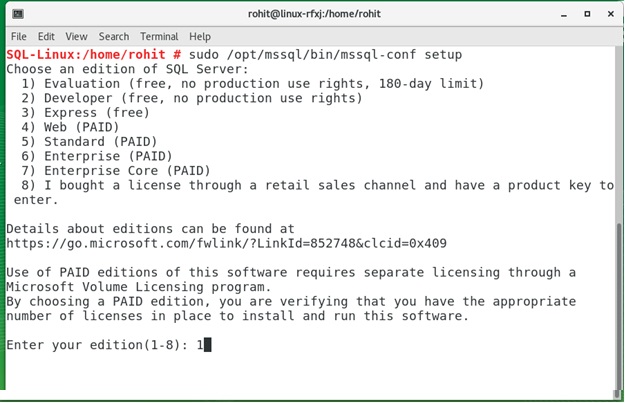
11. Choose the SQL edition. Please note few editions as free and few needs a license or are PAID.
Evaluation, Developer and Express versions are freely licensed
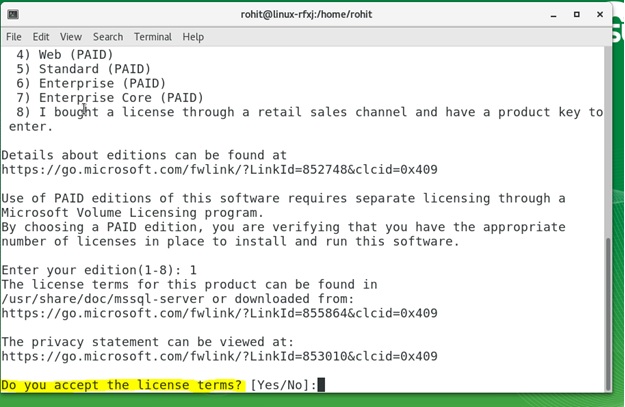
12. Accept the license terms
13. Enter the SQL Server system Administrator password
Note: Make sure to specify a strong password for the SA account (Minimum length 8 characters, including uppercase and lowercase letters, base 10 digits and/or non-alphanumeric symbols). 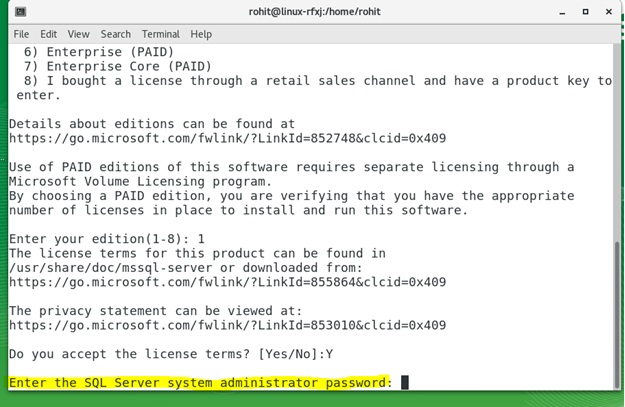
14. Verify if Licensing is processed successfully
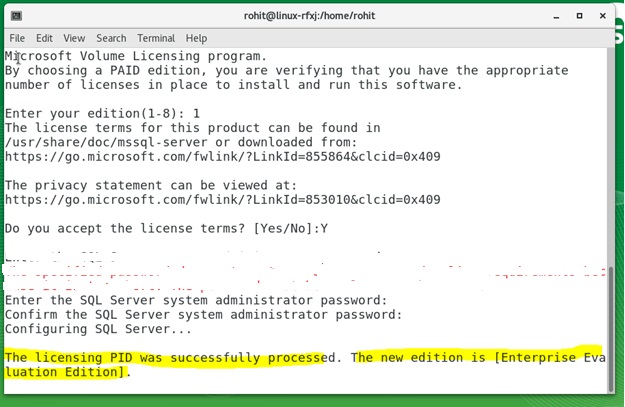
15. Verify setup has successfully completed and SQL Server Service has started
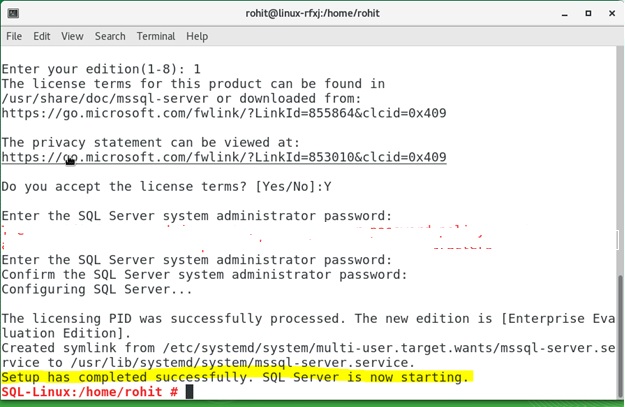
16. Verify if SQL Services are up and running
Run
systemctl status mssql-server
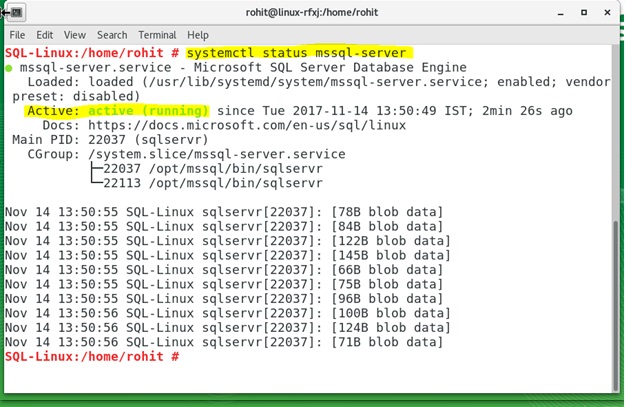
At this point, SQL is running on SLES machine and is ready to use
Connecting to SLES SQL Server remotely and create database using client tool
Since SQL services are up and running, we can go ahead and connect the SQL Server. In this article, i am using SQL Management Studio tool running on Windows machine to connect SLES SQL instance remotely
Note: Since SUSE Linux in not a domain joined machine, please make sure name resolution is working fine (add Suse linux details in DNS if required manually)
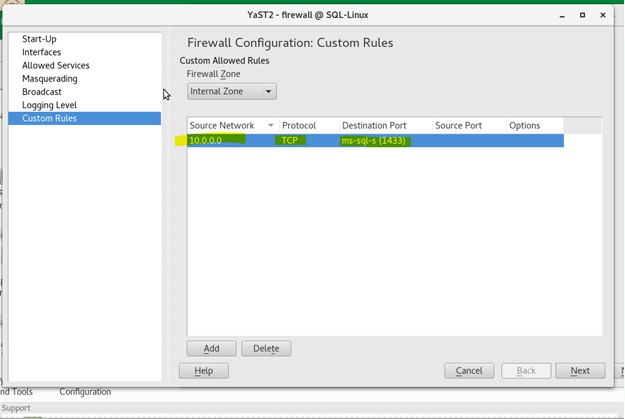
Note: Make sure port 1433 is allowed on SUSE Linux Firewall. In my setup, NIC 'eth1' is on local network and NIC 'eth0' is connected to the internet. I have enabled port 1433 on internal NIC 'eth1'
 t
t
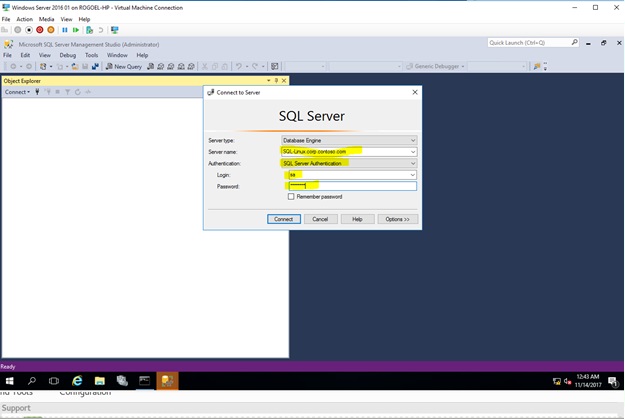
- Login on to the Windows machine 'Win-Node01' running SQL Management Studio. Open SQL Engagement Studio and enter below detailsServer Name: SQL-Linux.corp.contoso.comAuthentication: SQL Server AuthenticationLogin: SaPassword: <sa password given at the time of installing SQL>
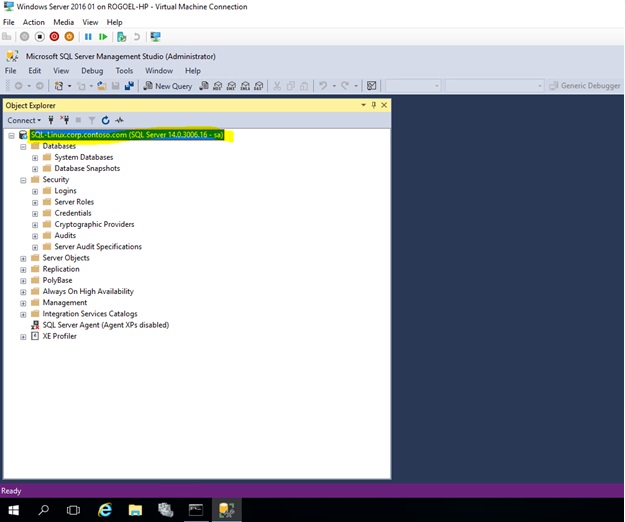
- Verify if SQL is connected successfully running on SUSE LINUX machine
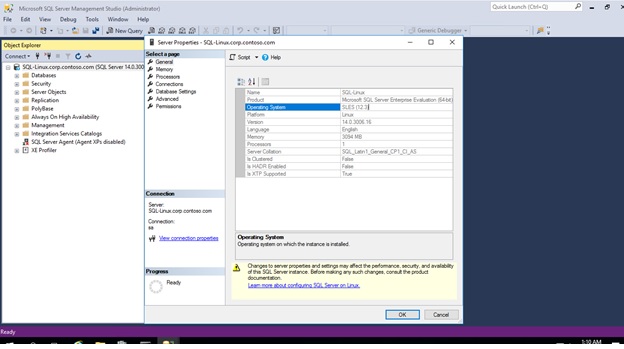
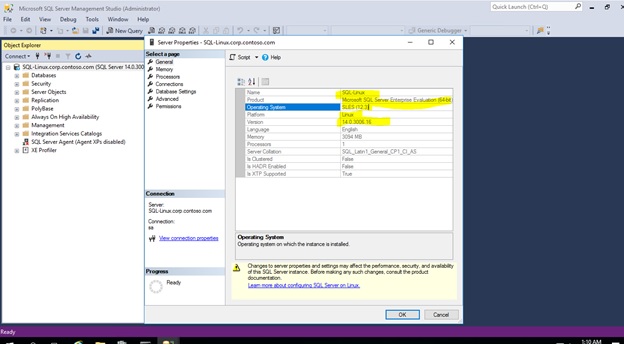
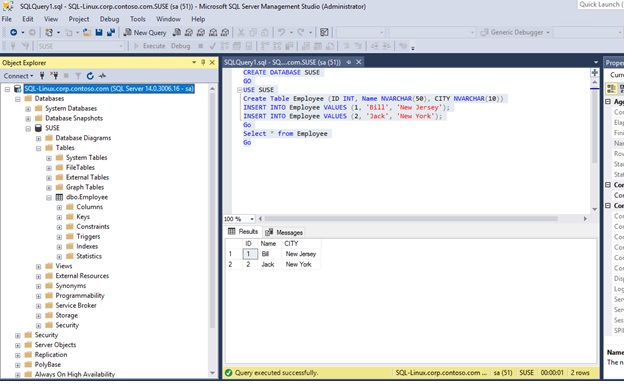
3. Create testing Database, Table and retrieve the records.
Open 'New Query' windows in Microsoft SQL Management Studio and type below and execute:
 CREATE DATABASE SUSE

GO

USE SUSE

Create Table Employee (ID INT, Name NVARCHAR(50), CITY NVARCHAR(10))

INSERT INTO Employee VALUES (1, 'Bill', 'New Jersey');

INSERT INTO Employee VALUES (2, 'Jack', 'New York');

Go

Select * from Employee

Go