Note
Access to this page requires authorization. You can try signing in or changing directories.
Access to this page requires authorization. You can try changing directories.
Important
This feature is in Beta. To use it, a workspace admin must turn on Unity Gateway Managed Configuration from the Previews page. See Manage Azure Databricks previews.
Use mobile device management (MDM) and the Unity Gateway CLI to distribute your team's coding agent setup. Admins publish the configuration in the workspace, and developers use their familiar agents with the configured models, MCP servers, and skills.
Your MDM software runs a provisioning script with administrator privileges on each device. The script installs ug, the Databricks CLI, and the coding agents machine-wide, then runs ug configure, which installs the workspace's coding agent configuration for the whole device. Developers then launch their agent without administrator privileges and sign in with their own Azure Databricks account.
Roll out with MDM
Configure coding agents
Enable the agents your team uses and publish the configuration in your workspace. See Configure coding agents.
Each enabled agent needs at least one model in the configuration that the service principal from the next step can use. For example, Claude Code needs Claude models. ug configure skips any agent without models.
Create a provisioning service principal
The MDM policy uses a service principal only to read the published configuration while it runs. Developers authenticate as themselves.
Add a service principal to your workspace, for example
ug-mdm-provisioning.Leave only the Workspace access entitlement enabled. The service principal doesn't need other entitlements. See Manage entitlements.
Grant the service principal access to the models, MCP servers, and skills in the published configuration, including the required Unity Catalog privileges. See Grant access to models, MCP servers, and skills.
On the service principal's Secrets tab, click Generate secret. Choose a lifetime that matches your rotation policy. Under Scope, click Other APIs, add the
ai-gatewayandunity-catalogscopes, and set each to Read. See Step 1: Create an OAuth secret.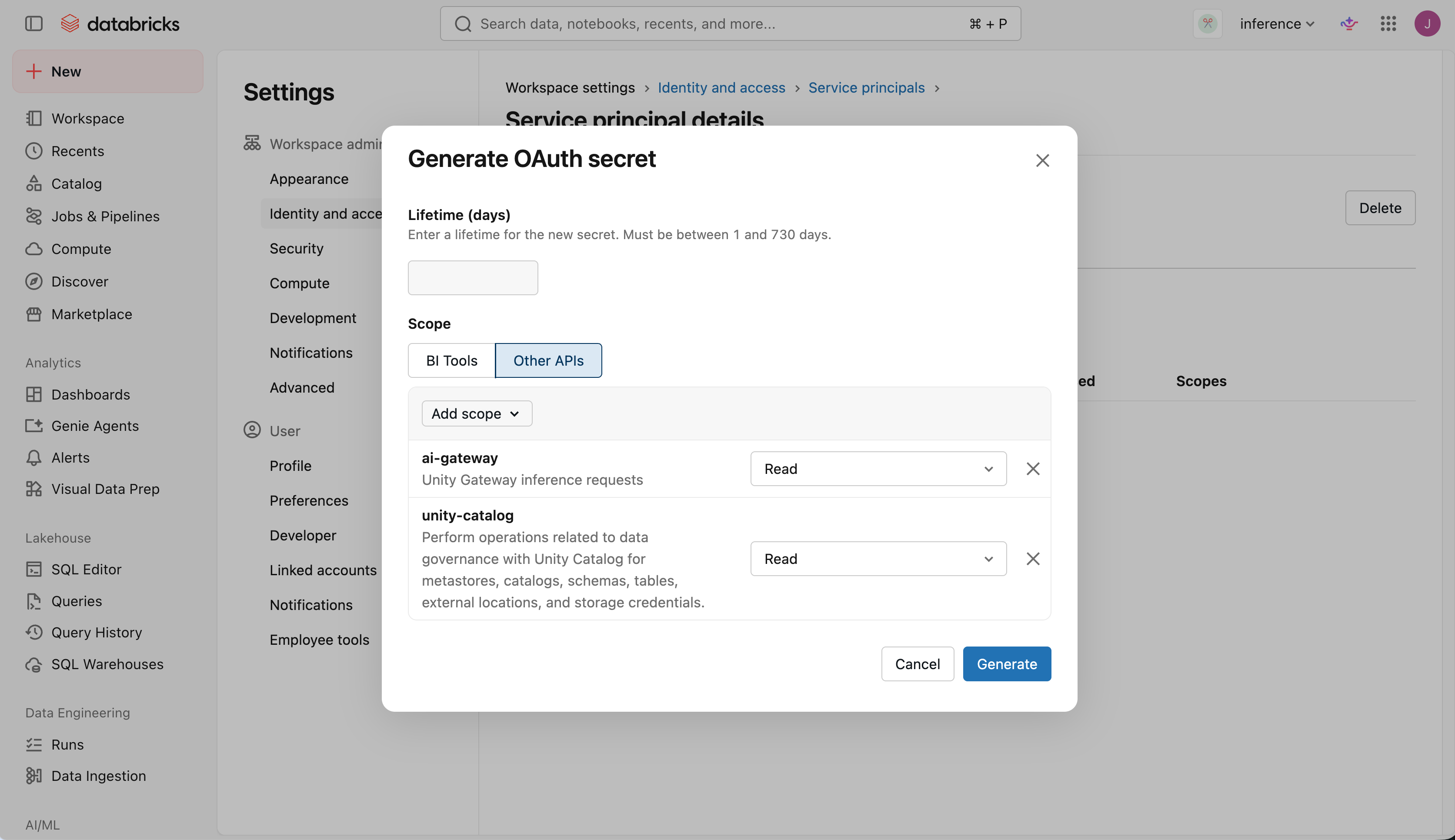
Copy the client ID and secret. You can't view the secret again after you close the dialog.
Deploy with your MDM software
Important
Install ug in a shared location that every user on the device can run, not in the root user's home directory. ug configure records the path to ug in the machine-wide agent settings, and each developer's agent runs ug from that path to authenticate.
Jamf Pro (macOS)
These steps deploy Claude Code and Codex to macOS devices with Jamf Pro. Each device needs:
- Network access to your workspace URL, PyPI (
pypi.organdfiles.pythonhosted.org), GitHub (github.comandraw.githubusercontent.com),astral.sh, anddownloads.claude.ai. - Command Line Tools for Xcode, or permission for the script to install them with
softwareupdate.ugis installed from GitHub, which requiresgit.
Add the script
In Jamf Pro, go to Settings > Computer Management > Scripts > New, and name the script
Unity Gateway provision.On the Script tab, paste the following script:
View the provisioning script
#!/bin/bash
#
# macOS MDM provisioning script, written for Jamf Pro policies: install
# ug, the Databricks CLI, Claude Code and Codex machine-wide and run
# `ug configure` as root, which installs the workspace policy at
# /etc/unitygateway/managed-settings.json.
# Users then launch with no sudo:
#
#   UG_SKIP_OS_SETTINGS=1 ug claude    (or: ug codex)
#
# Jamf parameters ($1-$3 are reserved by Jamf):
#   $4  Databricks workspace URL, starting with https://
#   $5  Service principal OAuth client id
#   $6  Service principal OAuth client secret
#
# The token is used for this run only; developers sign in with their own
# OAuth. Needs access to PyPI, GitHub, astral.sh and downloads.claude.ai.

set -euo pipefail
umask 022
export HOME=/var/root
export PATH=/usr/local/bin:/usr/bin:/bin:/usr/sbin:/sbin
WORKSPACE="${4%/}"
PREFIX=/usr/local/unity-gateway
CLAUDE_RELEASES=https://downloads.claude.ai/claude-code-releases
CODEX_RELEASES=https://github.com/openai/codex/releases/latest/download
UG_REPO=https://github.com/databricks/unity-gateway
UV_URL=https://astral.sh/uv/install.sh
CLI_URL=https://raw.githubusercontent.com
CLI_URL="$CLI_URL/databricks/setup-cli/main/install.sh"
CLT_MARKER=/tmp/.com.apple.dt.CommandLineTools
CLT_MARKER="$CLT_MARKER.installondemand.in-progress"

# ug must be in a shared path: the machine-wide agent settings
# run it by absolute path for every user.
export UV_TOOL_DIR="$PREFIX/tools"
export UV_TOOL_BIN_DIR=/usr/local/bin
export UV_PYTHON_INSTALL_DIR="$PREFIX/python"
export UV_PYTHON_PREFERENCE=only-managed
mkdir -p /usr/local/bin

# Get ug from git
if ! xcode-select -p >/dev/null 2>&1; then
  touch "$CLT_MARKER"
  clt="$(softwareupdate -l 2>/dev/null \
    | sed -n 's/^\* Label: \(Command Line Tools.*\)$/\1/p' \
    | tail -n1)"
  softwareupdate -i "$clt"
  rm -f "$CLT_MARKER"
fi

if ! command -v uv >/dev/null; then
  curl -LsSf "$UV_URL" \
    | env UV_INSTALL_DIR=/usr/local/bin UV_NO_MODIFY_PATH=1 sh
fi
uv tool install --force "git+$UG_REPO"

if [ ! -x /usr/local/bin/databricks ]; then
  curl -fsSL "$CLI_URL" | sh
fi

# Download into a private temporary directory, not fixed /tmp paths
tmp="$(mktemp -d)"
trap 'rm -rf "$tmp"' EXIT

# Install Claude Code
if [ ! -x /usr/local/bin/claude ]; then
  case "$(uname -m)" in
    arm64) platform=darwin-arm64 ;;
    *) platform=darwin-x64 ;;
  esac
  version="$(curl -fsSL "$CLAUDE_RELEASES/latest")"
  base="$CLAUDE_RELEASES/$version"
  checksum="$(curl -fsSL "$base/manifest.json" \
    | plutil -extract "platforms.$platform.checksum" raw -o - -)"
  curl -fsSL -o "$tmp/claude" "$base/$platform/claude"
  echo "$checksum  $tmp/claude" | shasum -a 256 -c -
  install -m 755 "$tmp/claude" /usr/local/bin/claude
fi

# Install Codex
if [ ! -x /usr/local/bin/codex ]; then
  case "$(uname -m)" in
    arm64) target=aarch64-apple-darwin ;;
    *) target=x86_64-apple-darwin ;;
  esac
  curl -fsSL "$CODEX_RELEASES/codex-$target.tar.gz" \
    | tar -xzf - -C "$tmp" "codex-$target"
  install -m 755 "$tmp/codex-$target" /usr/local/bin/codex
fi

# Get short lived credential; curl reads the client id and secret from
# stdin (-K -) so they don't appear in its arguments.
resp="$(printf 'user = "%s:%s"\n' "$5" "$6" \
  | curl -sS -K - \
      -d grant_type=client_credentials \
      --data-urlencode 'scope=ai-gateway:read unity-catalog:read' \
      "$WORKSPACE/oidc/v1/token")"
if ! DATABRICKS_BEARER="$(printf '%s' "$resp" \
    | plutil -extract access_token raw -o - -)"; then
  echo "Token request to $WORKSPACE failed: $resp" >&2
  exit 1
fi
export DATABRICKS_BEARER

ug configure --global --workspace "$WORKSPACE" \
  --agents claude,codex </dev/null
On the Options tab, label Parameter 4
Workspace URL, Parameter 5Client ID, and Parameter 6Client secret.Click Save.
The script installs Claude Code, Codex, and the Databricks CLI only when they're missing, and reinstalls ug on each run. It doesn't update the agents or the CLI after the first install. To keep them current, modify the script to match how you update software on your devices.
Create the policy
Go to Computers > Policies > New.
In General, set Trigger to Recurring Check-in and Execution Frequency to Once every day. Each device runs
ug configuredaily, which applies configuration updates you publish in the workspace.In Scripts, add
Unity Gateway provisionwith Priority set to After. Enter the parameters:Parameter Value 4 (Workspace URL) Your workspace URL, starting with https://.5 (Client ID) The service principal's client ID. 6 (Client secret) The service principal's secret. In Scope, select the devices to target. Start with a small group of pilot devices.
Click Save. Jamf Pro runs the policy on each targeted device at its next check-in.
Warning
Jamf Pro passes policy parameters to the script as command-line arguments. Any local user can read the client ID and secret, for example with ps, while the script runs, and Jamf Pro admins who can view the policy can read them too. The script doesn't write the credentials or the token to disk. To limit the impact of a leak, grant the service principal only the Workspace access entitlement, use a short secret lifetime, and rotate the secret regularly.
Launch agents on developer machines
After the policy runs on a device, developers launch their agent from a terminal without administrator privileges:
UG_SKIP_OS_SETTINGS=1 ug claude
UG_SKIP_OS_SETTINGS=1 ug codex
UG_SKIP_OS_SETTINGS=1 tells ug to use the settings the MDM policy installed. Developers can set UG_SKIP_OS_SETTINGS=1 in their shell profile to use it for every session. The first launch opens a browser where the developer signs in to Azure Databricks. Coding agent activity is then attributed to the individual developer, not the service principal.
To shorten the launch command, give developers aliases that set the variable and launch the agent, for example in a shell profile deployed with MDM:
alias claude='UG_SKIP_OS_SETTINGS=1 ug claude'
alias codex='UG_SKIP_OS_SETTINGS=1 ug codex'
Roll out Claude desktop
The same ug configure run also configures the Claude desktop app for every user on the device. To support Claude desktop, install it in your provisioning script before the script runs ug configure. The Jamf Pro script above doesn't install Claude desktop.
When a user first opens Claude desktop, they sign in with their own Azure Databricks account. Users can also import their claude.ai projects and chats.
Verify the rollout
On a pilot device, sign in with the developer's operating-system account and check that:
- The agent opens and responds using a configured model.
- The configured MCP servers and skills are available, and the developer can use them.
- Requests appear in Unity Gateway usage tracking, and traces appear if tracing is enabled. See Monitor coding agent activity.
Repeat these checks after you change the provisioning script or the published configuration.
Maintain credentials and configuration
To rotate the service principal's secret:
- Generate a new secret for the service principal.
- Update the secret in your MDM policy.
- After the policy runs on your devices, delete the old secret.
If the secret is compromised, rotate it immediately and delete the old secret. The token the script requests is short-lived, and the script doesn't write it to the device, so there is no per-device credential to revoke.
To update the configuration, publish changes in the workspace. Devices apply them the next time the policy runs. See Sync configuration updates.
Troubleshooting
| Error | Cause |
|---|---|
Token request to ... failed: {"error":"invalid_client"...} |
The client ID or secret in the MDM policy is wrong, or the secret expired. |
Token request ... failed: ... Scopes ... are not assigned to the client |
The secret doesn't have the ai-gateway:read and unity-catalog:read scopes. |
None of the coding agents enabled by your workspace configuration are available |
No enabled agent has models the service principal can use, for example Claude Code configured without Claude models. |