Note
Access to this page requires authorization. You can try signing in or changing directories.
Access to this page requires authorization. You can try changing directories.
This article is for Azure Databricks customers whose organization has purchased a support contract directly from Databricks. It explains how authorized support contacts open and manage Databricks support cases.
Azure Databricks customers get support in one of two ways:
- Microsoft Azure Support: Your organization gets support for Azure Databricks from Microsoft under an Azure support plan. You open and manage support requests with Microsoft, even when Microsoft works with Databricks to resolve them. This article doesn't apply to you. See Azure support options.
- Databricks Support: Your organization has purchased a support contract directly from Databricks, so authorized support contacts open cases directly with Databricks Support. This article describes the Databricks Support process. To review the available options, contact your Databricks account team or see Databricks support.
If you aren't sure which applies to your organization, ask your workspace admin or your Databricks account team.
If you aren't an authorized contact for your organization's Databricks Support contract, you can find answers to many questions in the Databricks Help Center.
Requirements for Databricks support
Your organization must have a Databricks Support contract, and your email address must be registered as an authorized support contact.
The support contract must be purchased directly from Databricks. An Azure support plan from Microsoft doesn't meet this requirement, even if it covers Azure Databricks.
To purchase a Databricks Support contract, contact us using this request form.
Create a Databricks support case
You can file a support ticket from multiple places:
In the product
Click your user icon in the top bar of the workspace and click Get support, or click Get Support in the Genie Code pane. The form guides you through describing the issue, attaches diagnostics, and suggests a solution before you submit. See Submit a Databricks support case from your workspace.
The Get support menu item appears only for authorized support contacts on accounts with a Databricks Support contract. In Azure Government and Azure China workspaces, the Get support form isn't available. Open cases by email instead.
By email
Only authorized support contacts can open a case by email. If you can't submit a case from the workspace, email help@databricks.com. Databricks rejects cases from email addresses that aren't registered as authorized support contacts. If you have questions, contact your account executive.
How to login to the Help Center for case management
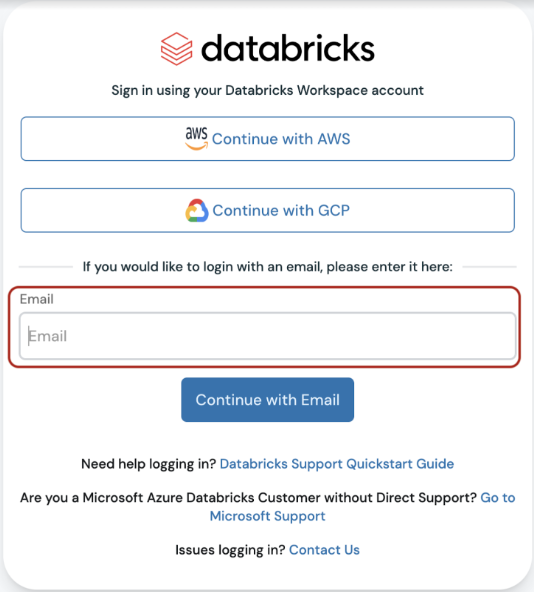
- Navigate to the Help Portal.
- Click Login and sign in either using your Databricks account OR your email address, which triggers an email OTP.
- If you are not able to log in to your account or need any further assistance in setting up your account, contact supportops@databricks.com.
Manage an open support case
After you submit a case, you will be redirected to the case details page, where you can review previously added comments and add new ones.
You can also respond to a support case by replying to new comment notification emails.
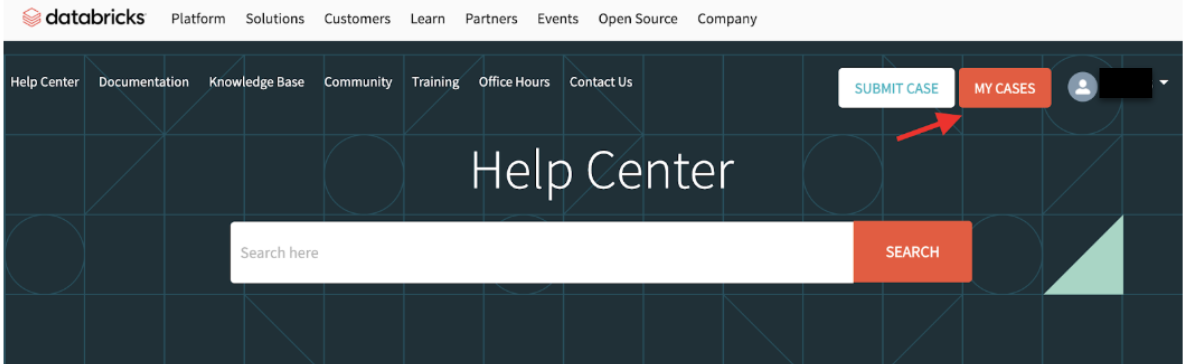
Find your case by clicking the My Cases button in the upper right corner of the Help Center banner and selecting the appropriate case number.
Manage support cases opened by others
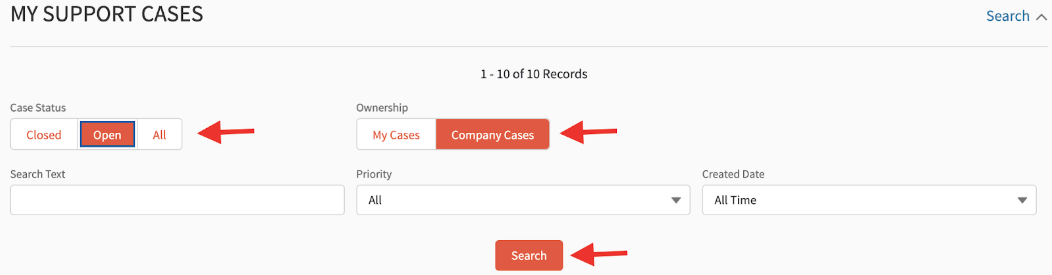
To view or comment on cases opened by other authorized support contacts, click the My Cases button to open the My Support Cases page, select Company Cases, and then click Search. For more information about responding to support cases, see Manage an open support case.
Note
If you are unable to see other cases after you select Company Cases, contact Databricks Support at supportops@databricks.com.
Close a support case
If you no longer require support, click the Close Case button on the case details page. This action marks your case as solved and removes it from your list of open cases.

Cases with a status of Solved are automatically closed if Databricks Support receives no responses for seven days.
Reopen a support case
If you have questions about a closed case, click the Reopen Case button on the case details page to resume the investigation.

To find closed cases, click the My Cases button to open the My Support Cases page, and select My Closed Cases from the drop-down menu.
Escalate a support case
When you submit a support case for an issue that has a critical and time-sensitive impact on your business, select the Urgent priority. If an existing case becomes more urgent, click the Escalate Case button on the case details page to notify the on-duty manager that your case requires immediate attention.
The response service level agreement (SLA) for an escalated case is the same as the SLA for a first response on an Urgent support case, as stated in your Databricks contract.
If your support contract does not include 24/7 coverage, the support engineer contacts you during your stated local business hours.

Schedule a call
You can schedule a call with the engineer for the case by clicking the Schedule a Call option, selecting a preferred time window, and submitting the request. The engineer will receive notification of the scheduled call.

Update your profile
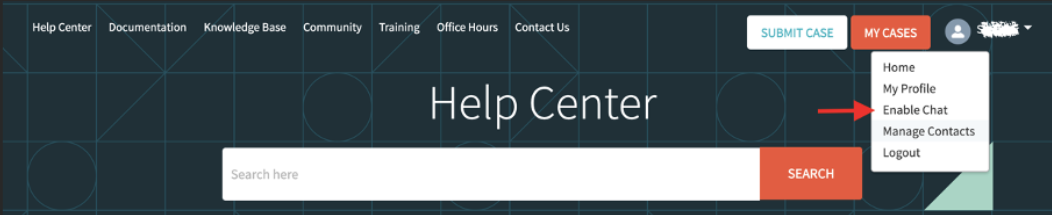
Updating your profile helps Databricks Support stay in touch with you by having your current phone number and preferred working hours. To update your profile, click the profile icon in the upper right corner of the Help Center banner, select My Profile, and click the Edit button on your profile card.
Databricks Support will use the phone number in your profile to reach you if we cannot reach you by email or through the support case.
Note
If your support account does not include 24/7 support, Databricks cannot guarantee a technical solutions engineer will be available during your preferred working hours.
Help Center admin tasks
Your organization's registered Help Center admins can add, remove, or modify registered account support contacts. Admins can also set a global preferred time zone, impacting the SLAs associated with your support cases.
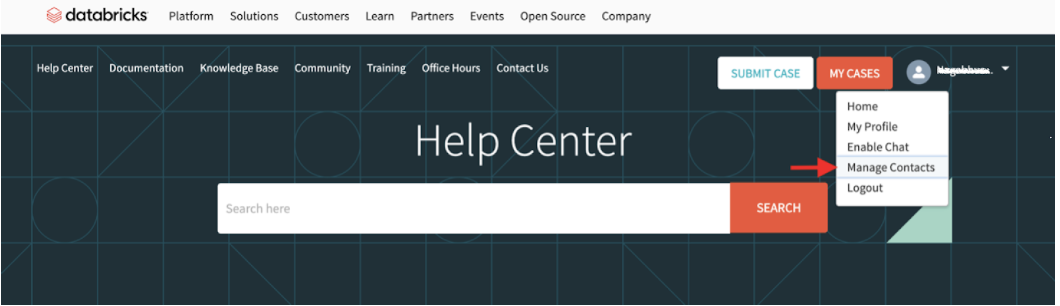
To access the admin console, click the profile icon in the upper right corner of the Help Center banner and select Manage Contacts.
Note
If you do not see the Manage Contacts option on your profile menu, you do not have administrative privileges for your support contract. Support contract administrative privileges are not the same as administrative privileges on your Databricks workspace.
Create and activate contacts
In the admin console, you will see a list of account contacts stored by Databricks. If a contact has a grey status button, that contact is not an activated support contact. To activate a contact, click the grey status toggle. The toggle will change to green, indicating that this contact is active.
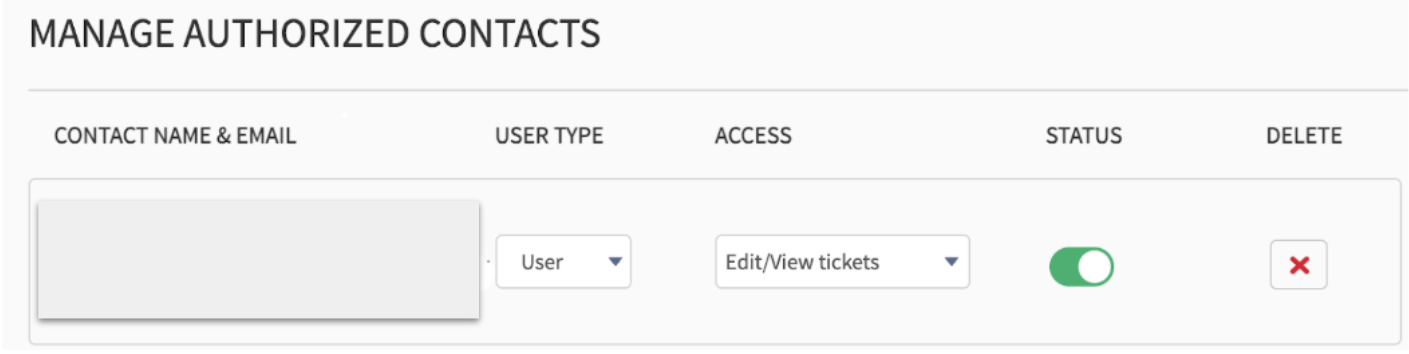
If you want to create a new contact, click the Create Contact button and select the level of access you want the contact to have.
Set read and write access
Your support contract includes a set number of seats for people who can comment on support cases. You have a separate seat allocation for people who can view and follow active cases. Manage these seat allocations in the admin console.
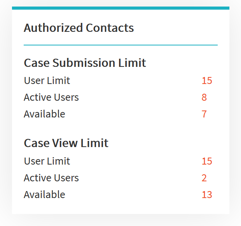
To provision a user to create or update support cases, select Edit/View tickets from the drop-down menu in the Access column. If you want to provision a user with view-only access, select View tickets only.
Update your organization's preferred time zone
Your preferred time zone determines the business hours during which your SLAs are in effect. To view or change your preferred time zone, click Manage Contacts. When you select a preferred time zone, the preference is applied globally to all contacts in your organization.
Note
If your account includes 24/7 production support, cases filed as High or Urgent priority are eligible for responses across all time zones, regardless of your selection.
Enable chat
If chat support is included in the support contract, you can enable the chat option for your company. Contact your account executive for more information about the support contract. Only help center admin users can use this option.