Note
Access to this page requires authorization. You can try signing in or changing directories.
Access to this page requires authorization. You can try changing directories.
Applies to: ✔️ Fleet Manager ✔️ Fleet Manager with hub cluster
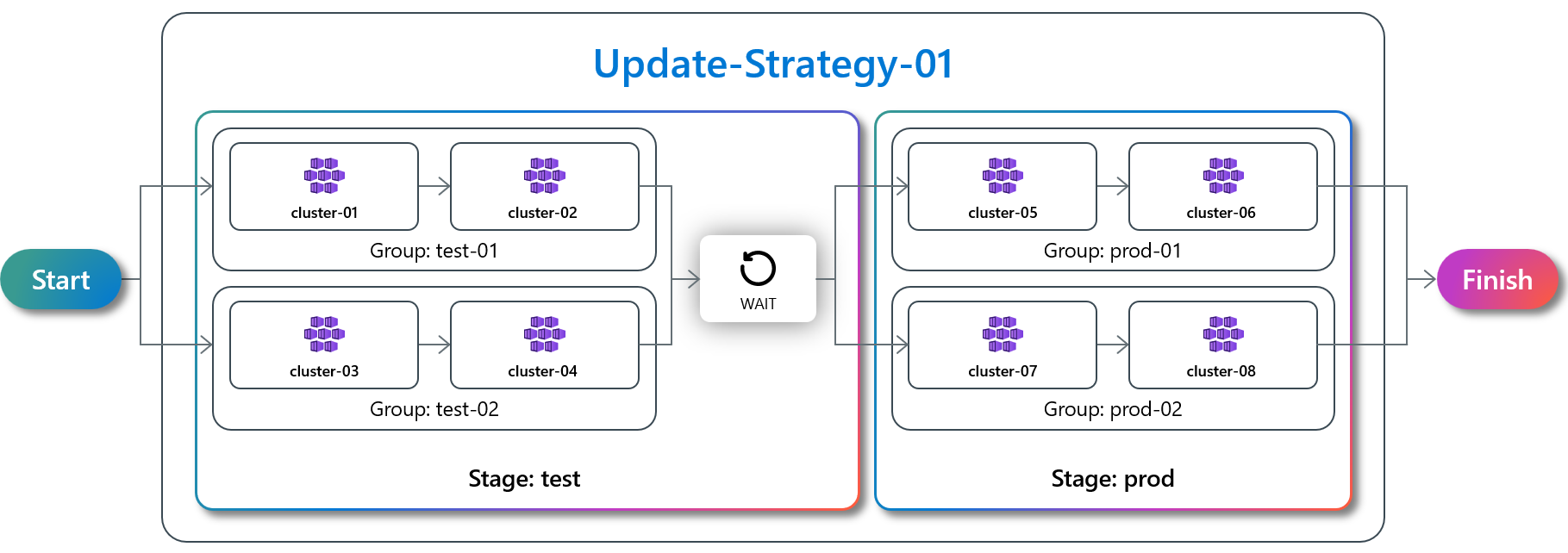
Administrators can control the sequence of updates to Fleet-managed clusters by defining a series of stages and groups. They can configure when approvals and pauses should occur within those stages and groups. The entire configuration can be saved as an update strategy which can be managed independently of update runs or auto-upgrades, allowing strategies to be reused as required.
This article covers how to define update strategies using groups and stages.
Prerequisites
Read the conceptual overview of Fleet updates, which provides an explanation of update runs, stages, groups, and strategies referenced in this guide.
You must have a Fleet resource with one or more member clusters. If not, follow the quickstart to create a Fleet resource and join Azure Kubernetes Service (AKS) clusters as members.
Set the following environment variables:
export GROUP=<resource-group>
export FLEET=<fleet-name>
export CLUSTERID=<aks-cluster-resource-id>
export STRATEGY=<strategy-name>
If you're following the Azure CLI instructions in this article, you need Azure CLI version 2.70.0 or later installed. To install or upgrade, see Install the Azure CLI.
You also need the
fleetAzure CLI extension version 1.6.0 or later, which you can install by running the following command:az extension add --name fleetRun the
az extension updatecommand to update to the latest version of the extension released:az extension update --name fleet
Create an update strategy using update groups
Clusters can be selected in update strategies by assigning them to a single update group. You can define an update strategy that assigns these update groups to stages. Within an update stage, updates are applied to each update group in parallel. Within an update group, member clusters update sequentially.
Note
A fleet member can only be a part of one update group, but an update group can have multiple fleet members assigned to it. An update group itself isn't a separate resource type. Update groups are only strings representing references from the fleet members. So, if all fleet members with references to a common update group are deleted, that specific update group ceases to exist as well.
Assign clusters to update groups
Assign to group when adding member cluster to the fleet
In the Azure portal, navigate to your Azure Kubernetes Fleet Manager resource.
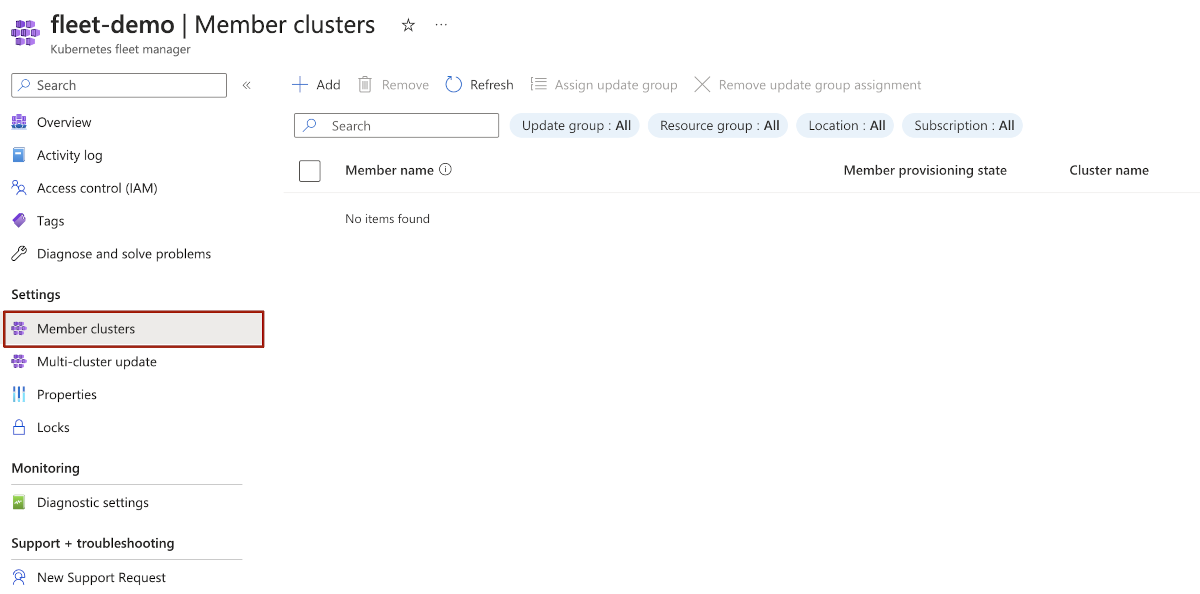
From the service menu, under Settings, select Member clusters > Add.
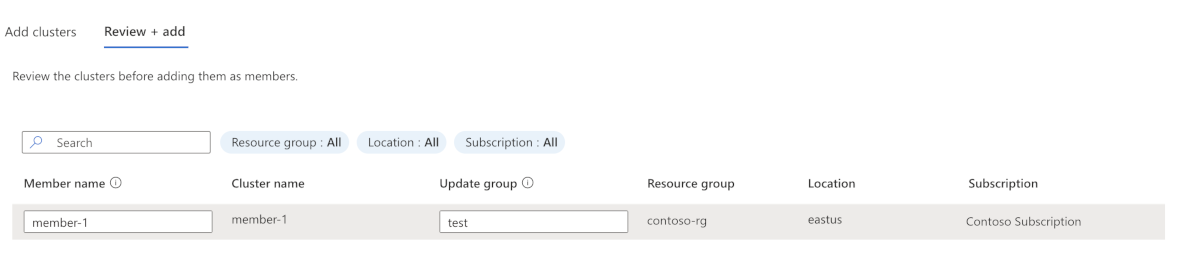
Select the cluster that you want to add, and then select Next: Review + add.
Enter the name of the update group that you want to assign the cluster to, and then select Add.
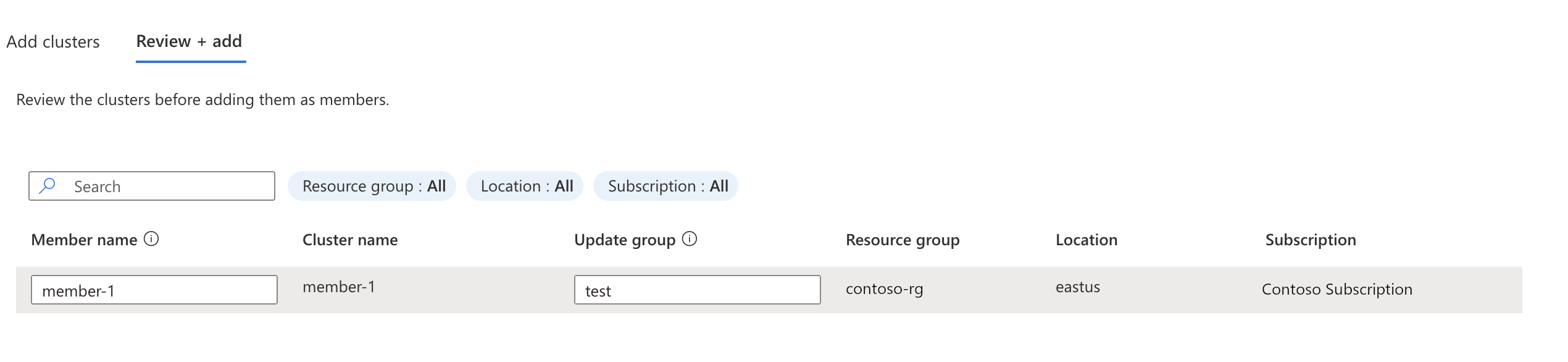
Assign a member cluster to an update group when adding the member cluster to the fleet using the az fleet member create command with the --update-group parameter set to the name of the update group.
az fleet member create \
    --resource-group $GROUP \
    --fleet-name $FLEET \
    --name member1 \
    --member-cluster-id $CLUSTERID \
    --update-group group-1a
Assign an existing fleet member to an update group
In the Azure portal, navigate to your Azure Kubernetes Fleet Manager resource.
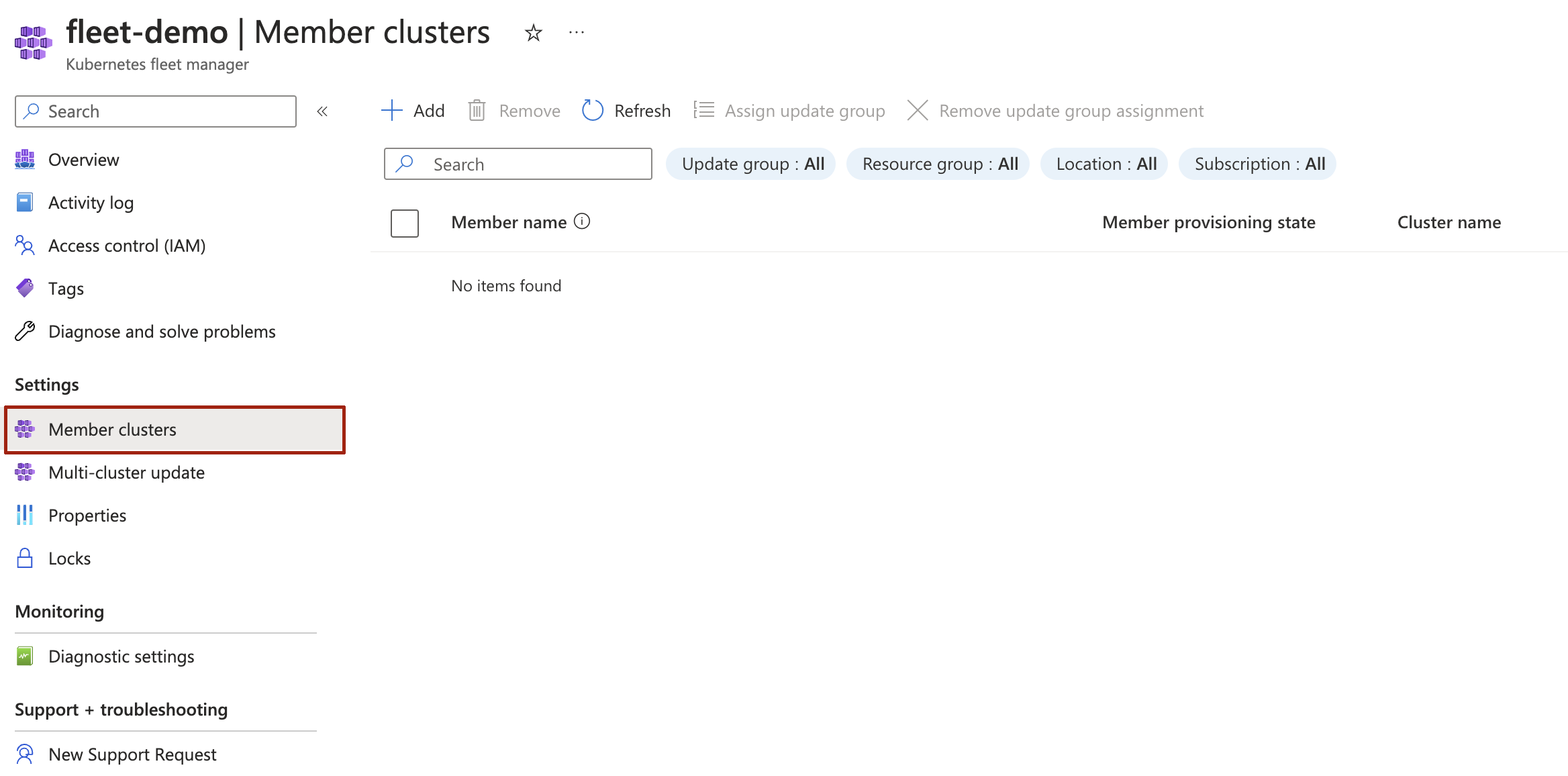
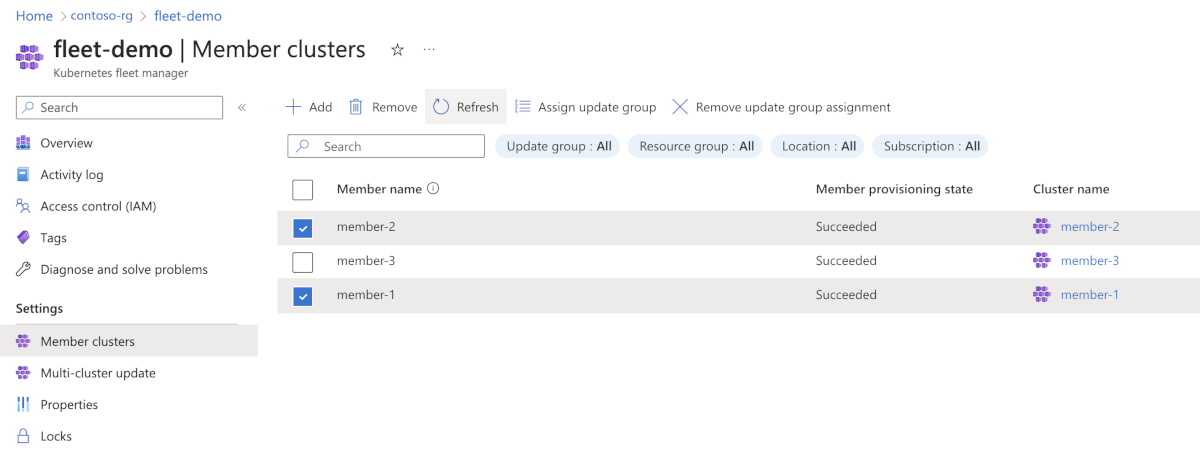
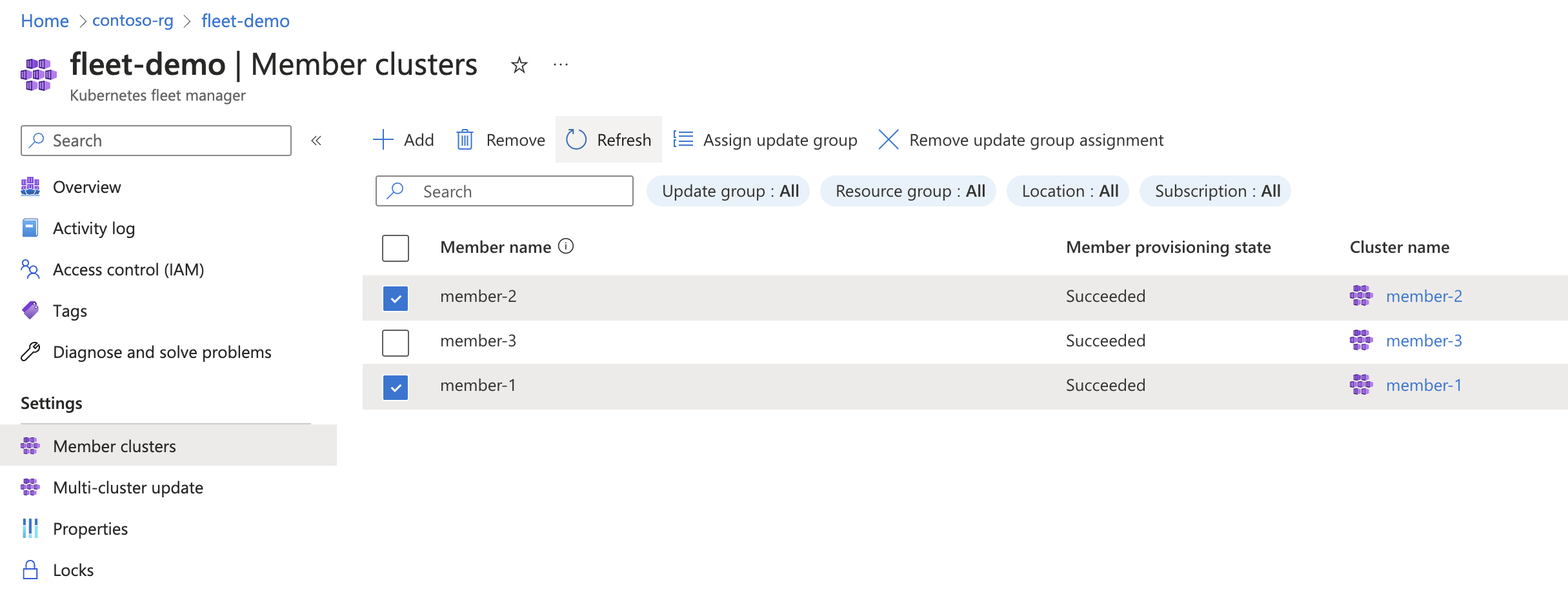
From the service menu, under Settings, select Member clusters.
Select the clusters that you want to assign to an update group, and then select Assign update group
Enter the name of the update group that you want to assign the cluster to, and then select Assign.
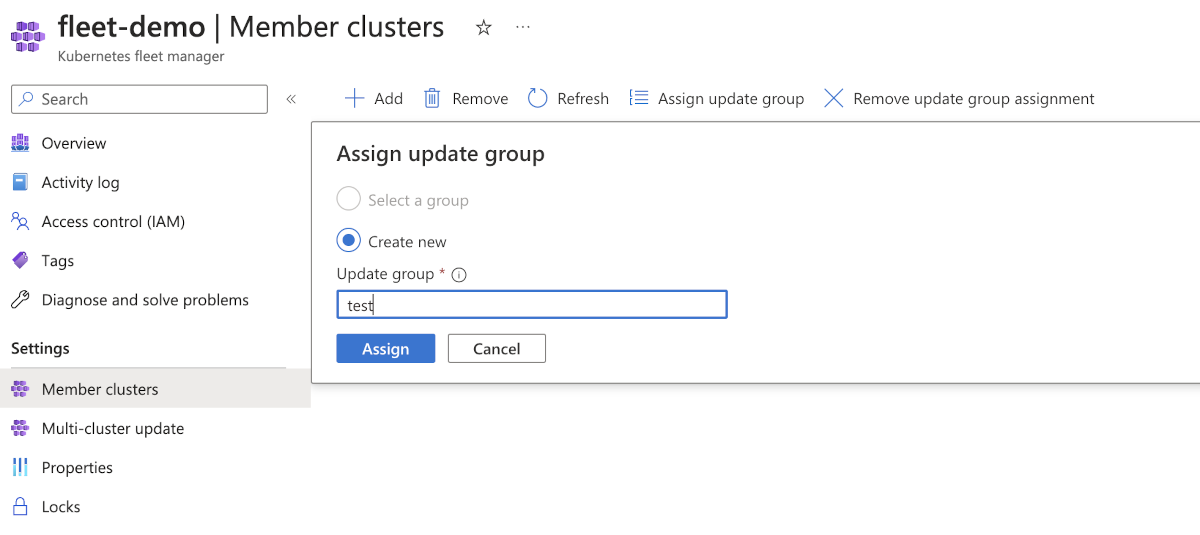
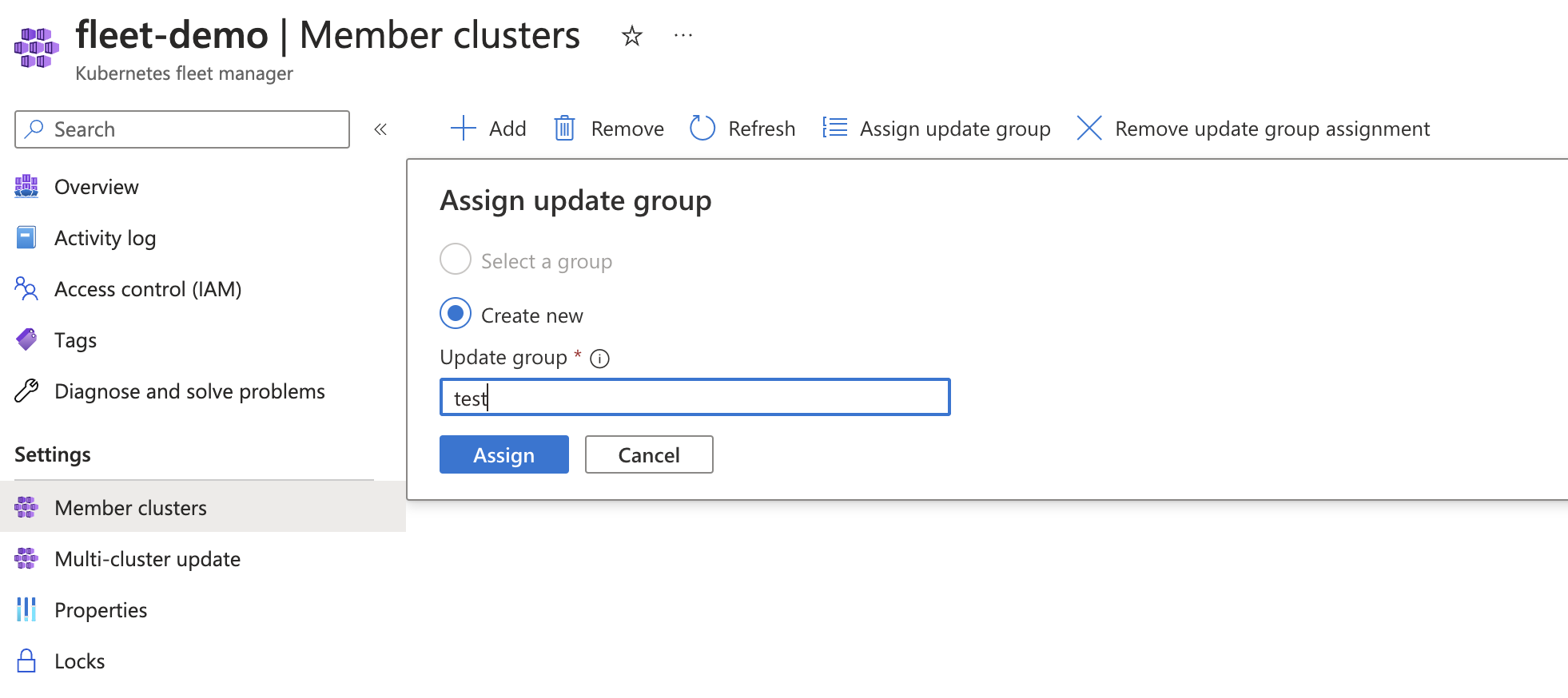
Assign an existing fleet member to an update group using the az fleet member update command with the --update-group flag set to the name of the update group.
az fleet member update \
 --resource-group $GROUP \
 --fleet-name $FLEET \
 --name member1 \
 --update-group group-1
Create an update strategy
An update strategy consists of one or more stages, where a stage can contain one or more update groups.
In the Azure portal, navigate to your Azure Kubernetes Fleet Manager resource.
From the service menu, under Settings, select Multi-cluster update > Strategies, then Create.
Enter a name for the strategy.
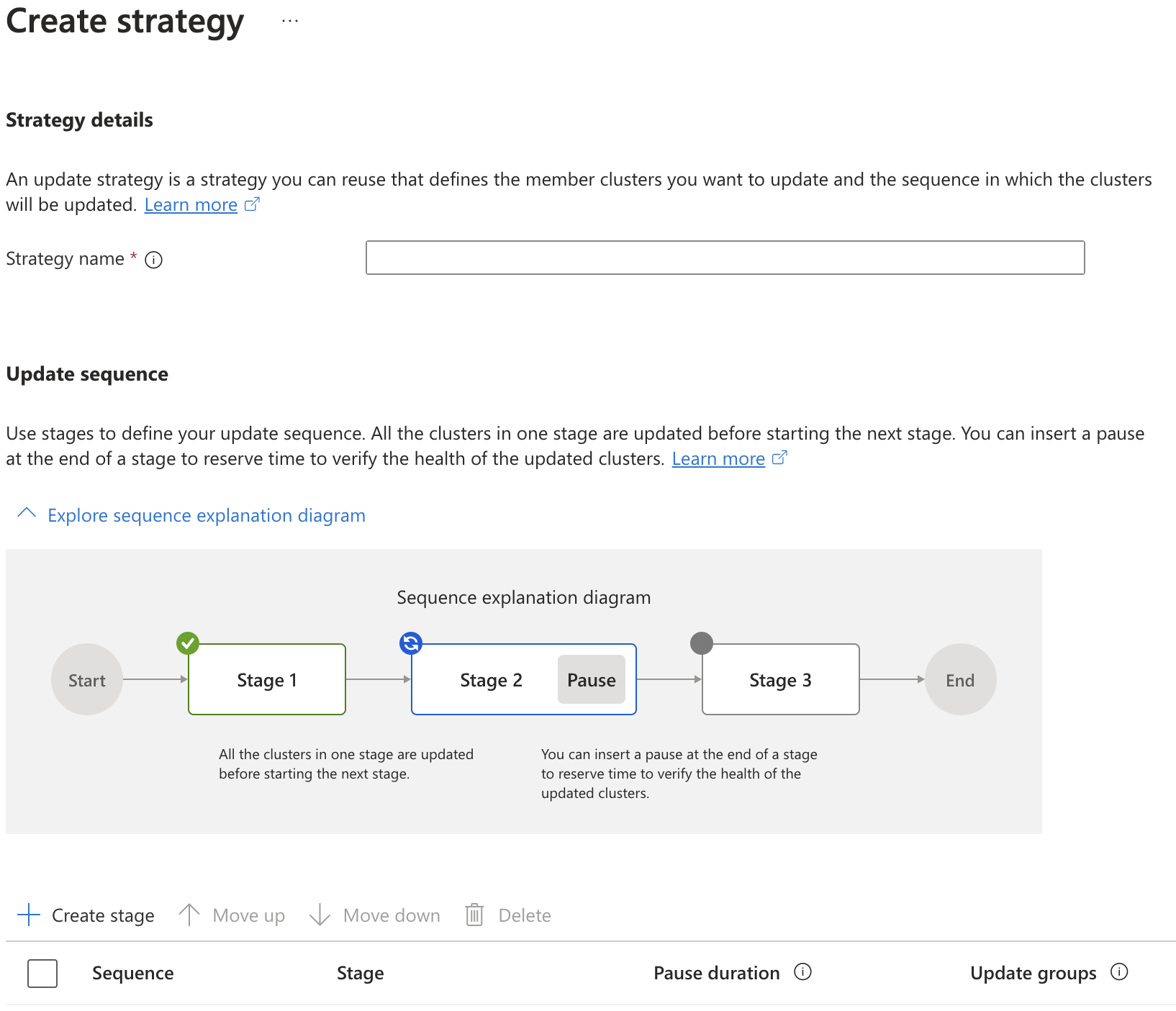
The first time you view the page, an update strategy explanation diagram is displayed which can help visualize how strategies function.
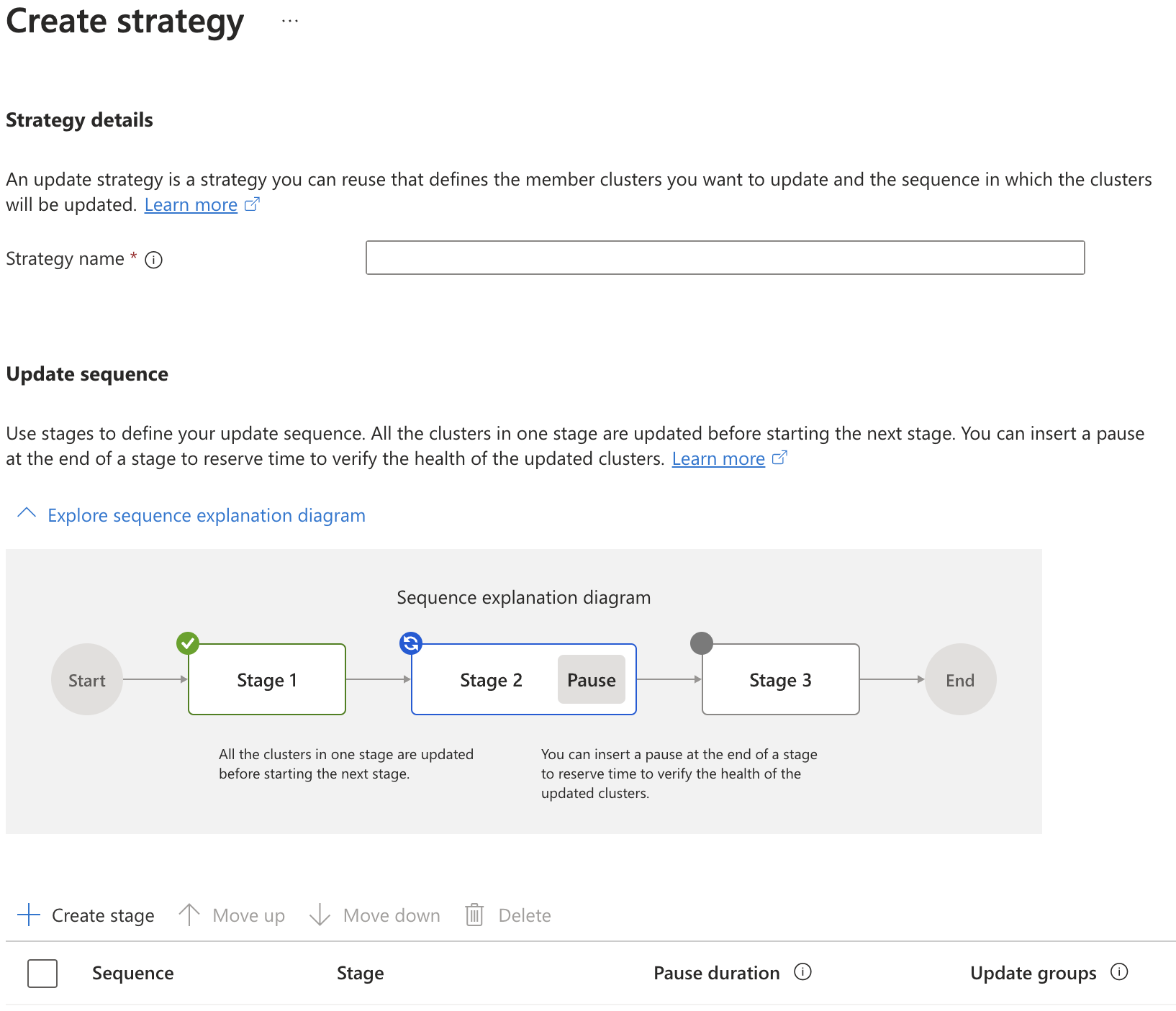
Select Create Stage and enter:
- Stage name - name the stage - it must be unique across all stage names in the strategy.
- (Optional) Stage approvals - select this option if you would like to wait for an approval before this stage starts or after it completes. For more information, see Add approvals to update groups and stages.
- (Optional) Pause after stage - select this option if you would like to define a pause before moving to the next stage.
- (Optional) Pause duration - select a predefined duration, or enter a custom value in seconds.
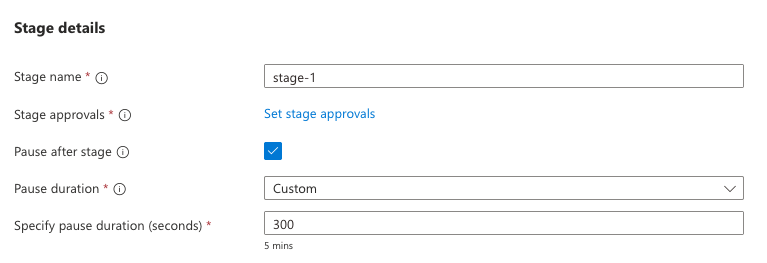
Assign one or more Update Groups to the stage, and then select Create.
Note
The maximum number of Update Groups in each Update Stage is 50.

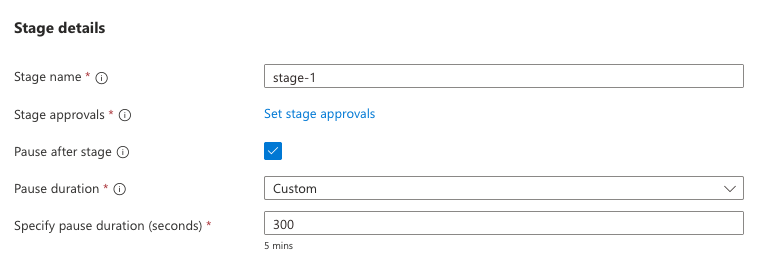

For this scenario, we create stages and groups to match the details used for the Azure portal process.
Create a JSON file to define the stages and groups for the update run. Stages run sequentially in the order they appear in the JSON file. Groups run in parallel within each stage, so ordering isn't important. The following example file (example-stages.json) defines a strategy with two stages and includes optional
maxConcurrencysettings:{ "stages": [ { "name": "stage-1", "maxConcurrency": "7", "groups": [ { "name": "group-1", "maxConcurrency": "3" }, { "name": "group-2", "maxConcurrency": "50%" } ], "afterStageWaitInSeconds": 300 }, { "name": "stage-2", "maxConcurrency": "100%", "groups": [ { "name": "group-3", "maxConcurrency": "2" } ] } ] }Note
The
maxConcurrencyfield is optional and controls how many clusters can upgrade concurrently at the stage or group level. Use a larger value to upgrade clusters faster across your fleet, or a smaller value for a more controlled rollout that limits the blast radius if issues arise.In this example,
stage-1setsmaxConcurrencyto"7", which allows up to"7"clusters in this stage to upgrade concurrently. Withinstage-1,group-1limits concurrency to"3"clusters, which means up to"3"in this group can upgrade concurrently.group-2allows up to"50%"of its clusters to upgrade concurrently (for example, if the group contains 4 clusters, up to 2 can upgrade at the same time).Values can be a fixed integer (for example,
"3") or a percentage (for example,"100%"). If omitted, the system applies default values. For details on how these values are resolved and their upper limits, see Maximum concurrency (preview).Create a new update strategy using the
az fleet updatestrategy createcommand with the--stagesflag set to the name of your JSON file.az fleet updatestrategy create \ --resource-group $GROUP \ --fleet-name $FLEET \ --name $STRATEGY \ --stages example-stages.json
Next steps
You can use an update strategy as part of a manual update run or an auto-upgrade profile. See: