Note
Access to this page requires authorization. You can try signing in or changing directories.
Access to this page requires authorization. You can try changing directories.
This article provides information about the Business activity statement (BAS) for Australia. All businesses submit the BAS form to the Australian Taxation Office (ATO) to report their taxation obligations.
The Business activity statement (BAS) feature helps you fill in your BAS. The statement resembles the calculation worksheet that the ATO provides when you receive the BAS form in the mail.
The BAS includes the following taxation liabilities:
- Goods and Services Tax (GST) amounts that you owe the ATO from sales
- GST amounts that the ATO owes you from purchases
- Pay-As-You-Go (PAYG) Tax Withheld
- PAYG Installment
- Fringe Benefit Tax (FBT)
Set up sales tax reporting codes
Set up sales tax reporting codes by following the instructions in Set up sales tax reporting codes. The following reporting codes are associated with fields on the BAS report.
| Report layout | Reporting code | Report text | Report setup | Field on the BAS report |
|---|---|---|---|---|
| GST | ||||
| Default | 1 | G1 Total sales & income and other supplies | Taxable sales and Sales tax payable | G1 |
| Default | 2 | G2 GST free exports | Tax-free sales or Taxable sales | G2 |
| Default | 3 | G3 Other GST free supplies | Tax-free sales or Taxable sales | G3 |
| Default | 4 | G4 Input taxed sales & income and other supplies | Taxable purchases and Sales tax receivable | G4 |
| Default | 7 | G7 Adjustment payable | Sales tax payable | G7 |
| Default | 10 | G10 Capital acquisitions | Taxable purchases and Sales tax receivable | G10 |
| Default | 11 | G11 Other acquisitions | Taxable purchases and Sales tax receivable | G11 |
| Default | 18 | G18 Adjustment (credit) | Sales tax receivable | G18 |
| Default | 1013 | G10 and G13 Acquisitions for making input taxed sales, income, and other supplies | Taxable purchases and Sales tax receivable | G10 and G13 |
| Default | 1014 | G10, G14 Capital acquisitions with no GST in the price | Tax-free purchases or Taxable purchases | G10 and G14 |
| Default | 1015 | G10, G15 Capital acquisitions for private use or with non-deductible tax Note: On the Sales tax codes page (Tax > Indirect taxes > Sales tax > Sales tax codes), enter a value in the Non deductible field for the sales tax code that uses this reporting code in the setup. | Taxable purchases and Sales tax receivable | G10 and G15 |
| Default | 101 | 1C Wine equalization tax payable | Sales tax payable | 1C |
| Default | 102 | 1D Wine equalization tax refundable | Sales tax receivable | 1D |
| Default | 201 | 1E Luxury car tax payable | Sales tax payable | 1E |
| Default | 202 | 1F Luxury car tax refundable | Sales tax receivable | 1F |
You can also set up the following reporting codes, and then make transactions or manually fill in corresponding fields of the BAS report. For more information, see the Generate additional BAS report boxes for the settlement period section later in this article.
| Report layout | Reporting code | Report text | Field on the BAS report |
|---|---|---|---|
| Default | 700 | 7 Deferred company/ fund installment | 7 |
| Default | 701 | 7A Deferred GST on imports | 7A |
| Default | 400 | 4 Pay-As You Go Withholding | 4 |
| Default | 501 | 5A Pay As You Go Installment | 5A |
| Default | 502 | 5B Credit arising from reduced Pay As You Go installment | 5B |
| Default | 31 | W1 Total of salary, wages, and other payments | W1 |
| Default | 32 | W2 Amounts withheld from salary, wages, and other payments | W2 |
| Default | 33 | W3 Amounts withheld from investment distributions where no TFN is quoted | W3 |
| Default | 34 | W4 Amounts withheld from payment of invoices where no ABN is quoted | W4 |
| Default | 51 | T1 Installment income | T1 |
| Default | 601 | 6A Fringe benefit tax installment | 6A |
| Default | 602 | 6B Credit arising from fringe benefits tax installment | 6B |
| Default | 61 | F1 ATO-calculated fringe benefits tax installment | F1 |
| Default | 62 | F2 Estimated total fringe benefits tax payable | F2 |
| Default | 63 | F3 Varied fringe benefits tax installment | F3 |
You can also set up the following reporting codes. However, we recommend that you use reporting codes 1,013 through 1,015, which generate both field G10 and fields G13 through G15, because the amount in field G10 of the BAS report must contain the amounts in fields G13 through G15.
| Report layout | Reporting code | Report text | Field on the BAS report |
|---|---|---|---|
| Default | 13 | G13 Acquisitions for making input taxed sales & income and other supplies | G13 |
| Default | 14 | G14 Acquisitions with no GST in the price | G14 |
| Default | 15 | G15 Non-income tax deductible acquisitions | G15 |
Set up the BAS
In Microsoft Dynamics 365 Finance, go to Organization administration > Organizations > Legal entities.
On the Legal entities page, on the Tax registration FastTab, in the Tax registration number field, enter the tax registration number.
In Microsoft Dynamics Lifecycle Services (LCS), in the Shared asset library, download the latest versions of the Electronic reporting (ER) configurations for the following report format:
- BAS(AU)
For more information, see Download Electronic reporting configurations from Lifecycle Services.
Back in Finance, go to General ledger > Ledger setup > General ledger parameters.
On the Sales tax tab, set the Apply sales tax taxation rules option to No.
In the Format mapping field, select the BAS(AU) format that you downloaded earlier.
Set up additional BAS report boxes
Set up an additional BAS reconciliation account
- Go to Tax > Setup > Sales tax > Additional BAS reconciliation account.
- In the BAS reconciliation account field, specify the ledger account that the Settle and post GST procedure uses to post sales tax amounts that you enter manually.
Set up PAYG reason codes
- Go to Tax > Setup > Sales tax > BAS PAYG reason codes.
- Select New, and set the Reason code and Description fields.
For a list of PAYG reason codes, see PAYG reason codes.
Set up fringe benefit reason codes
- Go to Tax > Setup > Sales tax > BAS fringe benefit reason codes.
- Select New, and set the Reason code and Description fields.
For a list of fringe benefit reason codes, see FBT reason codes.
Generate and print the BAS report
Generate additional BAS report boxes for the settlement period
Go to Tax > Declarations > Sales tax > Additional BAS report boxes.
Select New, and set the following fields.
Field Description Settlement period Select the settlement period for sales tax reporting. From date Enter the start date of the settlement period. To date Enter the end date of the settlement period. Document identification number Enter the document identification number for the BAS. Date The date when tax is settled. This field is automatically set when you create a sales tax payment. Voucher The voucher number of the sales tax payment. This field is automatically set when you create a sales tax payment. 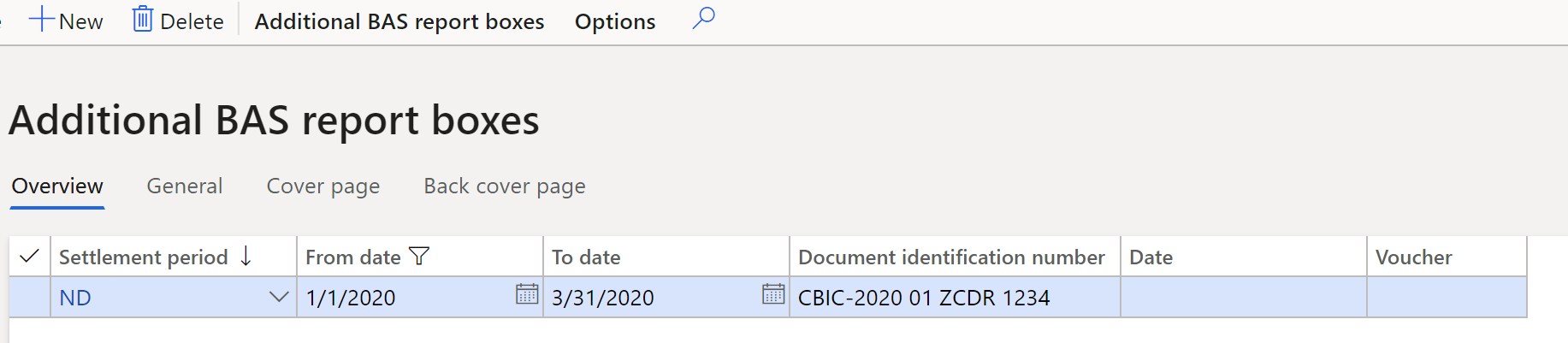
Note
When you create a sales tax payment, the date and voucher are filled in for the period, and you can no longer edit the line. If a line on the Additional BAS report boxes page wasn't manually created, it's automatically created when the Sales tax payment or Settle and post GST procedure is run.
On the Cover page tab, manually set the following fields if you didn't post tax transactions on the corresponding reporting codes.
Field Description 7 Deferred installment Enter the company or fund of the deferred installment. 7A Deferred GST on imports This field isn't used in the official BAS form. Note: In earlier versions of official BAS form, you could use this field to enter the deferred GST amount on imports that organizations can use under the Deferred GST Imports Scheme. 1G Credit for wholesale sales tax This field isn't used in the official BAS form. Note: In earlier versions of the official BAS form, you could use this field to enter the sales tax for items that are traded wholesale. 5B Credit from PAYG Enter the credit that is created when PAYG installments are reduced. 6B Credit fringe benefits tax Enter the credit that is created when FBT installments are reduced. On the Back cover page tab, manually set the following fields if you didn't post tax transactions on the corresponding reporting codes.
Field Description W1 Total payroll Enter the total for salary, wages, and other payments. W-2 Withheld from payroll Enter the amount that is withheld from salary, wages, and other payments. W3 Withheld from investment where no TFN Enter the amount that is withheld from investment distributions that no tax file number (TFN) is available for. W4 Withheld from invoices where no ABN Enter the amount that is withheld from invoice payments that no Australian Business Number (ABN) is available for. T1 Installment income Enter the PAYG installment income. T2 Installment rate Enter the PAYG commissioner's installment rate as a percentage. T3 New varied installment rate Enter the PAYG new varied installment rate as a percentage. T4 Reason for variation Select the reason code for the variation. The list of available reason codes is shown on the BAS PAYG reason codes page. For more information, see the Set up PAYG reason codes section earlier in this article. F1 ATO fringe benefit Enter the FBT installment that is calculated by the ATO. F2 Estimated total fringe benefits Enter the estimated total FBT that must be paid. F3 Varied fringe benefits tax Enter the varied FBT installment. F4 Reason for variation Select the reason code that explains why the amount on the BAS was changed. The list of available reason codes is shown on the BAS fringe benefit reason codes page. For more information, see the Set up fringe benefit reason codes section earlier in this article. 7C Fuel tax credit over claim This field isn't used in the official BAS form. Note: In earlier versions of the official BAS, you could use this field to enter the amount of credit that must be claimed on tax for fuel that was used for business activities, machinery, plant equipment, and heavy vehicles. 7D Fuel tax credit This field isn't used in the official BAS form. Note: In earlier versions of the official BAS, you could use this field to enter the amount that you want to reduce your previously claimed fuel tax refund by.
Generate and preview a BAS report, and settle and post GST
- Go to Tax > Declarations > Sales tax > Australian BAS.
- In the Australian BAS dialog box, set the following fields.
| Field | Description |
|---|---|
| Settlement period | Select the settlement period. |
| From date | Enter the start date of the settlement period. |
| Transaction date | Enter the posting date for the sales tax settlement. |
| Sales tax payment version | Select the version of the sales tax report to settle:
|
| Post and settle GST | Set this option to Yes to post and settle the transactions for GST and create a sales tax payment. Before you complete the Post and settle GST procedure, make sure that you set up the BAS reconciliation account as described in the Set up an additional BAS reconciliation account section earlier in this article. |
- Select OK.
- In the Print Australian BAS dialog box, select OK.
Note
You can find the form for the 2020 official Quarterly BAS report in BAS C - Quarterly business activity statement. For GST, option 1 is supported. For PAYG, option 2 is supported.
- On the generated BAS report, you can review the following data. You can then use the data to fill in the official BAS form.
Note
In the following table, in the formulas in the "Calculation" column, brackets ([…]) enclose the values of reporting codes.
| Field | Description | Calculation | Reference to the box in official BAS report |
|---|---|---|---|
| G1 | Total sales and income and other supplies | [1] + G2 + G3 + G4 | G1 |
| G2 | Exports | [2] | G2 |
| G3 | Other GST-free supplies | [3] | G3 |
| G4 | Input taxed sales and income and other supplies | [4] | This data isn't printed. It's used to calculate G9. |
| G5 | Total GST-free and input taxed supplies | G2 + G3 + G4 | This data isn't printed. It's used to calculate G9. |
| G6 | Total taxable supplies | G1 – G5 | This data isn't printed. It's used to calculate G9. |
| G7 | Adjustments | [7] or the manual calculation on the Additional BAS report boxes page. For more information, see the Generate additional BAS report boxes for the settlement period section earlier in this article. | This data isn't printed. It's used to calculate G9. |
| G8 | Total taxable supplies after adjustments | G6 + G7 | This data isn't printed. It's used to calculate G9. |
| G9 | GST on sales | The sales tax amount that is included in G1 + [9] | This data isn't printed. It's used to calculate 1A. |
| G10 | Capital acquisitions | [10] + [1013] + [1014] + [1015] | G10 |
| G11 | Other acquisitions | [11] + [13] + [14] + [15] | G11 |
| G12 | Total acquisitions | G10 + G11 | This data isn't printed. It's used to calculate G20. |
| G13 | Acquisitions for making input taxed sales and income and other supplies | [13] + [1013] | This data isn't printed. It's used to calculate G20. |
| G14 | Acquisitions with no GST in price | [14] + [1014] | This data isn't printed. It's used to calculate G20. |
| G15 | Total of estimated private use of acquisitions and non-income tax deductible acquisitions | [15] + [1015] | This data isn't printed. It's used to calculate G20. |
| G16 | Total of non-creditable acquisitions | G13 + G14 + G15 | This data isn't printed. It's used to calculate G20. |
| G17 | Total of creditable acquisitions | G12 – G16 | This data isn't printed. It's used to calculate G20. |
| G18 | Adjustments | [18] | This data isn't printed. It's used to calculate G20. |
| G19 | Total of creditable acquisitions after adjustments | G17 + G18 | This data isn't printed. It's used to calculate G20. |
| G20 | GST on purchases | The sales tax amount that is included in G12 | This data isn't printed. It's used in 1B. |
| W1 | Total of salary, wages, and other payments | [31] or the manual calculation on the Additional BAS report boxes page | W1 |
| W2 | Amounts withheld from salary, wages and other payments | [32] or the manual calculation on the Additional BAS report boxes page | W2 |
| W3 | Amounts withheld from investments distributions where no tax file number (TFN) is quoted. | [33] or the manual calculation on the Additional BAS report boxes page | W3 |
| W4 | Amounts withheld from payment of invoices where no Australian business number (ABN) is quoted. | [34] or the manual calculation on the Additional BAS report boxes page | W4 |
| T1 | Installment income | [51] or the manual calculation on the Additional BAS report boxes page | T1 |
| T2 | Commissioner's installment rate | [52] or the manual calculation on the Additional BAS report boxes page | T2 |
| T3 | New varied installment rate | [53] or the manual calculation on the Additional BAS report boxes page | T3 |
| T4 | Reason for variation | The value from the Additional BAS report boxes page | T4 |
| F1 | ATO-calculated fringe benefits tax installment | [61] or the manual calculation on the Additional BAS report boxes page | F1 |
| F2 | Estimated total fringe benefits tax payable | [62] or the manual calculation on the Additional BAS report boxes page | F2 |
| F3 | Varied fringe benefits tax installment | [63] or the manual calculation on the Additional BAS report boxes page | F3 |
| F4 | Reason for fringe benefits tax variation | The value from the Additional BAS report boxes page | F4 |
| 1A | Goods and services tax payable | G9 | 1A |
| 1B | Credits for goods and services tax paid | G20 | 1B |
| 1C | Wine equalization tax payable | [101] or the manual calculation on the Additional BAS report boxes page | 1C |
| 1D | Wine equalization tax refundable | [102] or the manual calculation on the Additional BAS report boxes page | 1D |
| 1E | Luxury car tax payable | [201] or the manual calculation on the Additional BAS report boxes page | 1E |
| 1F | Luxury car tax refundable | [202] or the manual calculation on the Additional BAS report boxes page | 1F |
| 1G | Credit for wholesale sales tax | The value from the Additional BAS report boxes page | Not used |
| 2A | Total amounts you owe the ATO | 1A + 1C + 1E | Not used |
| 2B | Total amounts the ATO owes you | 1B + 1D + 1F + 1G | Not used |
| 3 | GST net amount | 2A – 2B | Not used |
| 4 | PAYG tax withheld | W2 + W3 + W4 + [400] | 4 |
| 5A | PAYG installment | T1 × T3 ÷ 100, if T3 is entered. Otherwise, T1 × T2 ÷ 100. | 5A |
| 5B | Credit arising from reduced PAYG installments | [502] or the manual calculation on the Additional BAS report boxes page | 5B |
| 6A | FBT installment | F3, if a value is entered for that field. Otherwise, F1. | 6A |
| 6B | Credit arising from reduced FBT installments | [602] or the manual calculation on the Additional BAS report boxes page | 6B |
| 7 | Deferred company or fund installment | [700] or the manual calculation on the Additional BAS report boxes page | 7 |
| 7A | Deferred GST on imports | [701] or the manual calculation on the Additional BAS report boxes page | Not used |
| 7C | Fuel tax credit over claim | The value from the Additional BAS report boxes page | Not used |
| 7D | Fuel tax credit | The value from the Additional BAS report boxes page | Not used |
| 8A | Total amounts you owe the ATO | 2A + 4 + 5A + 6A + 7 + 7A | 8A |
| 8B | Total amounts the ATO owes you | 2B + 5B + 6B | 8B |
| 9 | Net amount for the statement | 8A – 8B, if 8A > 8B. 8B – 8A, if 8B > 8A. | 9 |
Generate an E-BAS XML file
In the Print Australian BAS dialog box, set the Generate E-BAS option to Yes to generate the E-BAS statement. If you set this option on the Select a file page, browse to the XML file that you want to use as a template.
For example, create an XML template file that contains the following information.
<?xml version="1.0" encoding="UTF-8"?>
<DATA>
    <FIELD_LIST>
        <field ID="fA1">BAS1</field>
        <field ID="fA3">1/1/2020</field>
        <field ID="fA4">31/3/2020</field>
        <field ID="fMANUAL_MODE">true</field>
    </FIELD_LIST>
</DATA>
Replace the values in the fA1, fA3, and fA4 fields with the document identification number and dates that you require. To use this XML file as a template, browse to it on the Select a file page.
Note
If you previously selected the Generate E-BAS option, you don't have to generate the XML file again the next time that you run the procedure. Instead, follow these steps:
- Go to Settings > User options.
- Select Usage data.
- On the General tab, select Reset.
Print the BAS report from Sales tax payments page
- Go to Tax > Inquiries and reports > Sales tax inquiries > Sales tax payments.
- Select the required line.
- Select Print Australian BAS.
Print the BAS report from the Additional BAS report boxes page
- Go to Tax > Declarations > Sales tax > Additional BAS report boxes.
- Select the required line.
- Select Additional BAS report boxes > Print Australian BAS.
Example
Generate the BAS statement
The following example shows how you set up sales tax codes and sales tax reporting codes, post transactions, and generate and print the BAS report. It uses the USMF legal entity.
- Go to Organization administration > Organizations > Legal entities.
- On the Tax registration FastTab, in the Tax registration number field, enter AU89434123400.
- Go to Tax > Indirect taxes > Sales tax > Sales tax codes, and set up the following sales tax codes.
| Sales tax code | Percentage | Description |
|---|---|---|
| CAPITAL | 10 | Capital acquisitions at a rate of 10 percent. |
| GST | 10 | Taxable sales and purchases at a rate of 10 percent. |
| NONDED CAP | 10 (non-deductible part = 25%) | Capital acquisitions at a rate of 10 percent, where the non-deductible part of tax is 25 percent. |
| EXPORTS | 0 | Export sales where the Exempt option is set to Yes. |
| FREE | 0 | GST-free sales and purchases where the Exempt option is set to Yes. |
| CAPFREE | 0 | GST-free capital acquisitions where the Exempt option is set to Yes. |
| LUX | 10 | Luxury car sales and purchases at a rate of 10 percent. |
On the Report setup FastTab, assign reporting codes to sales tax codes.
The following table shows how to assign the sales tax reporting codes to sales tax codes.
| Sales tax code | Taxable sales | Tax-free sale | Sales tax payable | Taxable purchases | Tax-free purchase | Sales tax receivable |
|---|---|---|---|---|---|---|
| CAPITAL | 10 | 10 | ||||
| GST | 1 | 1 | 11 | 11 | ||
| NONDEDCAP | 1015 | 1015 | ||||
| EXPOTRS | 2 | 2 | ||||
| FREE | 3 | 3 | ||||
| CAPFREE | 1014 | 1014 | ||||
| LUX | 201 | 202 |
Note
This configuration is just an example and depends on the structure of the sales tax codes that you use. To calculate values and transfer them to the sales tax report, set a relevant sales tax reporting code in one or more fields on the Report setup tab for each tax code that you use in the sales tax payment process.
- Post the following transactions.
For example, for customer invoices, go to Accounts receivable > Invoices > All free text invoices. For vendor invoices, go to Accounts payable > Invoices > Invoice journal.
| Date | Transaction type | Amount net | VAT amount | Sales tax code | Amount is expected on the reporting code | Amount is expected on BAS report in the field |
|---|---|---|---|---|---|---|
| January 1, 2020 | Customer invoice | 2,000 | 200 | GST | 1 | G1 |
| January 1, 2020 | Vendor invoice | 800 | 80 | CAPITAL | 10 | G10 |
| January 1, 2020 | Vendor invoice | 1,400 | 140 (includes a non-deductible amount of 35) | NONDEDCAP | 1015 | G10, G15 |
| January 1, 2020 | Vendor invoice | 700 | 0 | CAPFREE | 1014 | G10, G14 |
| January 1, 2020 | Customer invoice | 1,200 | 0 | EXPOTRS | 2 | G2 |
| January 1, 2020 | Customer invoice | 500 | 0 | FREE | 3 | G3 |
| January 1, 2020 | Customer invoice | 300 | 30 | LUX | 201 | 1E |
- Go to Tax > Declarations > Sales tax > Additional BAS report boxes.
- Select New, and create the following line.
| Settlement period | From date | To date | Document identification number |
|---|---|---|---|
| ND | 1/1/2020 | 3/31/2020 | BAS1 |
- Go to Tax > Declarations > Sales tax > Australian BAS.
- In the Australian BAS dialog box, set the following values:
- Settlement period: ND
- From date: 1/1/2020
- Transaction date: 1/1/2020
- Select OK.
- In the Print Australian BAS dialog box, set the Generate E-BAS option to No.
- Select OK, and review the following data in the printed form.
| Field | Description | Value |
|---|---|---|
| GST | ||
| G1 | Total sales and income and other supplies | 3,900 (= 2,000 + 200 + 1,200 + 500) |
| G2 | Exports | 1,200 |
| G3 | Other GST-free supplies | 500 |
| G5 | Total GST-free and input taxed supplies | 1,700 (= 1,200 + 500) |
| G6 | Total taxable supplies | 2,200 (= 3,900 – 1,700) |
| G8 | Total taxable supplies after adjustments | 2,200 |
| G9 | GST on sales | 200 |
| G10 | Capital acquisitions | 3,120 (= 800 + 80 + 700 + 1,400 + 140) |
| G12 | Total acquisitions | 3,120 |
| G14 | Acquisitions with no GST in price | 700 |
| G15 | Total of estimated private use of acquisitions and non-income tax deductible acquisitions | 385 (= [1,400 + 140] × 25%) |
| G16 | Total of non-creditable acquisitions | 1,085 (= 700 + 385) |
| G17 | Total of creditable acquisitions | 2,035 (= 3,120 – 1,085) |
| G19 | Total of creditable acquisitions after adjustments | 2,035 |
| G20 | GST on purchases | 185 (= 80 + [140 × 75%]) |
| Totals | ||
| 1A | Goods and services tax payable | 200 |
| 1B | Credits for goods and services tax paid | 185 |
| 1E | Luxury car tax payable | 30 |
| 2A | Total amounts owed to the ATO | 230 (= 200 + 30) |
| 2B | Total amounts owed by the ATO | 185 |
| 3 | GST net amount | 45 (= 230 – 185) |
| 8A | Total amounts owed to the ATO | 230 |
| 8B | Total amounts owed by the ATO | 185 |
| 9 | Net amount for the statement | 45 (= 230 – 185) |
- Create an XML file that contains the following information. Ensure that the date format is
DD/MM/YYYY.
<?xml version="1.0" encoding="UTF-8"?>
<DATA>
        <field ID="fA1">BAS1</field>
        <field ID="fA3">1/1/2020</field>
        <field ID="fA4">31/3/2020</field>
        <field ID="fMANUAL_MODE">true</field>
    <FIELD_LIST>
    </FIELD_LIST>
</DATA>
- Go to Tax > Declarations > Sales tax > Australian BAS.
- In the Australian BAS dialog box, set the following values:
- Settlement period: ND
- From date: 1/1/2020
- Transaction date: 1/1/2020
- Select OK.
- In the Print Australian BAS dialog box, set the Generate E-BAS option to Yes, and then select OK.
- Browse to the XML file that you created in step 13 to generate the printed form and XML file.
- Select OK, and review the following data in the XML file.
<?xml version="1.0" encoding="UTF-8"?>
<DATA>
    <FIELD_LIST>
        <field ID="fA1">BAS1</field>
        <field ID="fA3">1/1/2020</field>
        <field ID="fA4">31/3/2020</field>
        <field ID="fMANUAL_MODE">true</field>
      <FIELD ID="fG10">
        <VALUE>3120</VALUE>
        <IS_EDITABLE>true</IS_EDITABLE>
        <VISIBILITY>normal</VISIBILITY>
      </FIELD>
      <FIELD ID="fG1">
        <VALUE>3900</VALUE>
        <IS_EDITABLE>true</IS_EDITABLE>
        <VISIBILITY>normal</VISIBILITY>
      </FIELD>
      <FIELD ID="f1E">
        <VALUE>30</VALUE>
        <IS_EDITABLE>true</IS_EDITABLE>
        <VISIBILITY>normal</VISIBILITY>
      </FIELD>
      <FIELD ID="fG2">
        <VALUE>1200</VALUE>
        <IS_EDITABLE>true</IS_EDITABLE>
        <VISIBILITY>normal</VISIBILITY>
      </FIELD>
      <FIELD ID="fG3">
        <VALUE>500</VALUE>
        <IS_EDITABLE>true</IS_EDITABLE>
        <VISIBILITY>normal</VISIBILITY>
      </FIELD>
      <FIELD ID="fG9">
        <VALUE>200</VALUE>
        <IS_EDITABLE>true</IS_EDITABLE>
        <VISIBILITY>normal</VISIBILITY>
      </FIELD>
      <FIELD ID="fG14">
        <VALUE>700</VALUE>
        <IS_EDITABLE>true</IS_EDITABLE>
        <VISIBILITY>normal</VISIBILITY>
      </FIELD>
      <FIELD ID="fG15">
        <VALUE>385</VALUE>
        <IS_EDITABLE>true</IS_EDITABLE>
        <VISIBILITY>normal</VISIBILITY>
      </FIELD>
      <FIELD ID="fG20">
        <VALUE>185</VALUE>
        <IS_EDITABLE>true</IS_EDITABLE>
        <VISIBILITY>normal</VISIBILITY>
      </FIELD>
    </FIELD_LIST>
</DATA>
Generate a BAS statement with manual transactions
- Go to Tax > Setup > Sales tax > BAS PAYG reason codes.
- Select New, and create the following line.
| Reason code | Description |
|---|---|
| 21 | Change in investments |
- Go to Tax > Setup > Sales tax > BAS fringe benefit reason codes.
- Select New, and create the following line.
| Reason code | Description |
|---|---|
| 22 | Current business structure not continuing |
- Go to Tax > Declarations > Sales tax > Additional BAS report boxes.
- Select New, and set the following values:
- Settlement period: ND
- From date: 4/1/2020
- To date: 6/30/2020
- On the Cover page tab, set the following values.
| Field | Value |
|---|---|
| 7 Deferred installment | 100 |
| 7A Deferred GST on imports | 200 |
| 1G Credit for wholesale sales tax | 300 |
| 5B Credit from PAYG | 400 |
| 6B Credit fringe benefits tax | 500 |
- On the Back cover page tab, set the following values.
| Field | Value |
|---|---|
| W1 Total payroll | 600 |
| W-2 Withheld from payroll | 700 |
| W3 Withheld from investment where no TFN | 800 |
| W4 Withheld from invoices where no ABN | 900 |
| T1 Installment income | 1,000 |
| T2 Installment rate | 10 |
| T3 New varied installment rate | 15 |
| T4 Reason for variation | 21 |
| F1 ATO fringe benefit | 1,100 |
| F2 Estimated total fringe benefits | 1,200 |
| F3 Varied fringe benefits tax | 1,300 |
| F4 Reason for variation | 22 |
| 7C Fuel tax credit over claim | 1,400 |
| 7D Fuel tax credit | 1,500 |
- Go to Tax > Declarations > Sales tax > Australian BAS.
- In the Australian BAS dialog box, set the following values:
- Settlement period: ND
- From date: 4/1/2020
- Transaction date: 4/1/2020
- Post and settle GST: Yes
- Select OK.
- Go to Tax > Inquiries and reports > Sales tax inquiries > Sales tax payments.
- Select the required line, select Voucher, and review the following data.
| Description | Debit | Credit |
|---|---|---|
| 7 Deferred installments | 100 | |
| 7A Deferred GST on imports | 200 | |
| 1G Credit for wholesale sales tax | 300 | |
| 5B Credit from PAYG | 400 | |
| 6B Credit fringe benefits tax | 500 | |
| Pay as you go withholding | 2,400 (= 700 + 800 + 900) | |
| Pay as you go – installment | 150 (= 1,000 × 0.15) | |
| Fringe benefits tax installment | 1,300 | |
| 7C Fuel tax credit over claim | 1,400 | |
| 7D Fuel tax credit | 1,500 |
Note
The system doesn't generate transactions for amounts in fields W1, F1, and F2 because those fields aren't related to tax.