Note
Access to this page requires authorization. You can try signing in or changing directories.
Access to this page requires authorization. You can try changing directories.
Note
Community interest groups have now moved from Yammer to Microsoft Viva Engage. To join a Viva Engage community and take part in the latest discussions, fill out the Request access to Finance and Operations Viva Engage Community form and choose the community you want to join.
This article explains how to set up and process outgoing customer-related electronic invoices in the Denmark-specific OIOUBL format in Microsoft Dynamics 365 Finance.
Prerequisites
The primary address of the legal entity must be in Denmark.
Import electronic reporting configurations
In the Electronic reporting workspace, import the following or later versions of the electronic reporting (ER) formats from the repository to enable electronic invoice generation in the OIOUBL version 3 format:
- OIOUBL Sales invoice (DK) version 272.46.13
- OIOUBL Project invoice (DK) version 272.40.13
- OIOUBL Sales credit note (DK) version 272.45.12
- OIOUBL Project credit note (DK) version 272.36.9
Note
If you use earlier versions of the ER configurations than those listed earlier, the system continues electronic invoice generation by following the previous OIOUBL format version, which is older than version 3.
For more information about how to import ER configurations, see Import electronic reporting (ER) configurations from Dataverse.
Reference the imported ER format configurations
To reference the imported ER format configurations, follow these steps:
In Dynamics 365 Finance, go to Accounts receivable > Setup > Accounts receivable parameters.
On the Electronic documents tab, in the Electronic reporting section, select the imported formats for electronic documents:
- Sales and Free text invoice: OIOUBL Sales invoice (DK)
- Sales and Free text credit note: OIOUBL Sales credit note (DK)
- Project invoice: OIOUBL Project invoice (DK)
- Project credit note: OIOUBL Project credit note (DK)
Configure parameters
Configure legal entity parameters
To configure legal entity parameters, follow these steps:
In Dynamics 365 Finance, go to Organization administration > Organizations > Legal entities, and select a legal entity.
On the Addresses FastTab, add a valid primary address for the selected legal entity.
On the Tax registration FastTab, in the Tax registration number field, enter the company's VAT number.
On the Bank account information FastTab, in the Routing number field, enter the company's CVR number.
Identify companies by their CVR number (with 0184 schema value) or their Global Location Number, GLN (with 0088 schema value). The GLN is also known as a European article numbering (EAN) location number. To identify a company by its EAN, follow these steps:
- Go to Organization administration > Global address book > Registration types > Registration types.
- Define a new registration type for Denmark that has the name EAN. Enter the name exactly as it appears here.
- Go to Organization administration > Organizations > Legal entities, and select Registration IDs on the Action Pane.
- On the Registration ID FastTab, add the EAN registration type that you created.
- In the Registration number field, enter a valid EAN number.
Note
The EAN has higher priority than the CVR number. If you configure both numbers at the same time, the EAN is used.
In the FI-Creditor ID field, enter the creditor's identification number if you plan to use FIK payments.
Note
Dynamics 365 Finance automatically retrieves the contact information for the legal entity from the related person that you associate with the current user. Make sure that the person has a valid email address and phone number. The phone number must start from + and the country code.
Configure customer parameters
To configure customer parameters, follow these steps:
In Dynamics 365 Finance, go to Accounts receivable > Customers > All customers, and select a customer.
On the Addresses FastTab, add a valid address for the selected customer.
On the Invoice and delivery FastTab, set the eInvoice option to Yes to enable the generation of electronic invoices.
Set the eInvoice attachment option to Yes to attach a PDF copy of the printable invoice to the electronic invoice.
In the Tax exempt number field, enter the customer's tax exempt number.
In the EAN field, enter the customer's identification number.
Note
If you don't define an EAN, the customer's tax exempt number is used for the customer's company identification.
On the Sales demographics FastTab, in the Primary contact field, select a person who is the buyer's contact.
Note
Define all available contact people for the selected customer. Make sure that the selected contact person has a valid email address and phone number. The phone number must start from + and the country code.
Configure methods of payment
According to OIOUBL standards, the payment method codes in the XML file output of electronic invoices must comply with the official list of standardized codes.
The system supports the following predefined codes for payment methods and provides automatic conversion to the official codes.
| Internal payment method code | Official payment method code |
|---|---|
| DK:BANK | 42 |
| DK:FIK | 93 |
| DK:GIRO | 50 |
| All other codes | 97 |
To configure methods of payment, follow these steps:
In Dynamics 365 Finance, go to Accounts receivable > Setup > Payments setup > Methods of payment.
Create a new method of payment, or select an existing method to configure.
On the General FastTab, in the Posting section, in the Account type field, select Bank.
In the Payment account field, enter the company bank account that is associated with the method of payment.
Note
You must already set up the company bank account at Cash and bank management > Bank accounts > Bank accounts.
Configure units of measure
To configure units of measure, follow these steps:
Go to Organization administration > Setup > Units > Units.
Select a unit ID, and then select External codes.
On External codes, in the Overview section, enter a code in the Code column that matches the selected unit ID.
Select the checkbox in the Standard code column.
In the Value section, enter the external code in the Value field according to the required codification.
Note
For scenarios where no specific units of measure are assumed, the default value EA is used.
Configure sales tax codes
Configuration of sales tax codes depends on which OIOUBL format is used, version 3 or earlier. Refer to the respective chapter below.
Configure sales tax codes for version 3 of OIOUBL format
To configure sales tax codes, follow these steps:
- Go to Tax > Indirect taxes > Sales tax > Sales tax codes.
- Select a sales tax code. On the Action Pane, on the Sales tax code tab, in the Sales tax code group, select External codes.
- In the Overview section, create a line for the selected unit. Enter the sales tax code in the External code field that you selected in step 2.
- In the Value section, enter an external code in the Value field to use for the selected sales tax code, according to Duty or tax or fee category code (Subset of UNCL5305).
Configure sales tax codes for the previous OIOUBL format versions
When you generate electronic invoices in OIOUBL format, you must structure the tax information in the output XML file hierarchically in a specific way.
The top level of the hierarchy is Tax Scheme.
The next level of tax data grouping, within the tax scheme, is Tax Category. For the official list of tax categories that are applicable to the OIOUBL format, see OIOUBL Tax Categories.
For some taxes, you must also define an additional attribute, Tax Type Code.
You can associate tax schemes, tax categories, and tax type codes with sales tax codes by using application-specific parameters.
You must configure application-specific parameters for the following configurations:
- OIOUBL Sales invoice (DK)
- OIOUBL Project invoice (DK)
- OIOUBL Sales credit note (DK)
- OIOUBL Project credit note (DK)
For each configuration, follow these steps:
In the Electronic reporting workspace, on the Reporting configurations tile, in the list of configurations, select a required configuration. For example, select OIOUBL Sales invoice (DK).
On the Configurations menu, in the Application specific parameters section, select Setup.
On the Application specific parameters page, on the Lookups FastTab, select TaxSchemeSelector in the grid.
Next, on the Conditions FastTab, you configure the correspondence between internal sales tax codes and official tax schemes codes.
On the Conditions FastTab, select Add to add a condition to the grid.
In the Code field for the new condition, select the sales tax code that is defined in the system.
Note
In the Code field, you can select the *Blank* or *Not blank* placeholder value instead of a specific sales tax code.
In the Lookup result field, select a corresponding official tax schemes code.
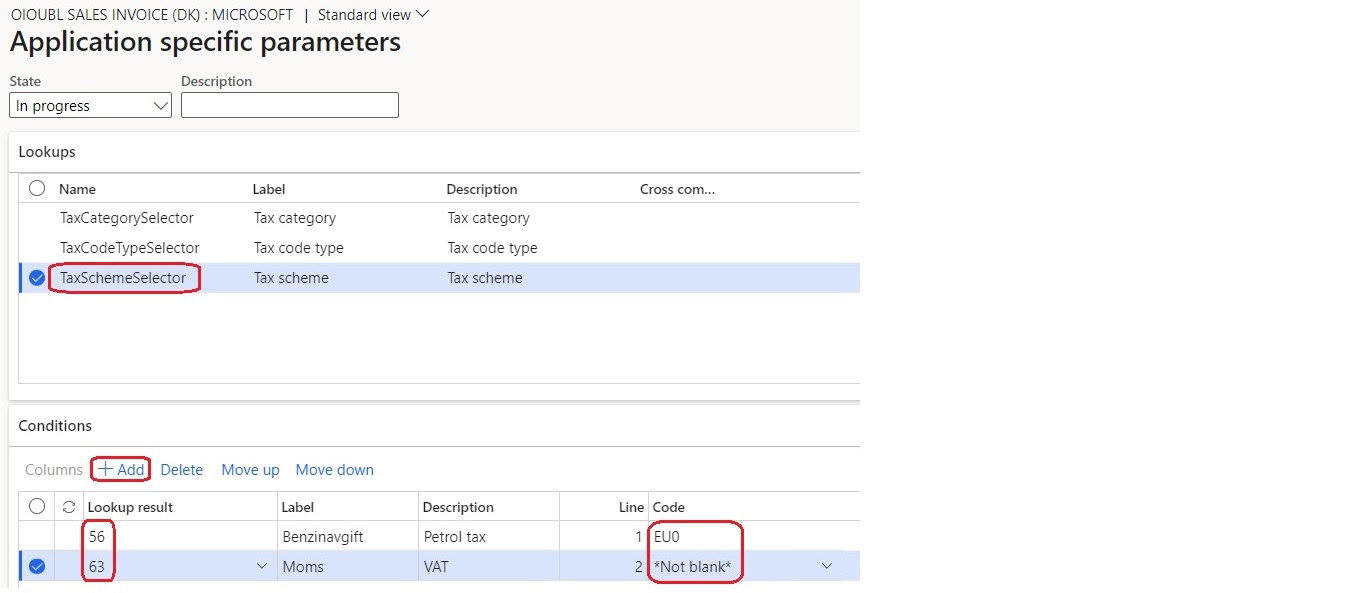
On the Lookups FastTab, select TaxCategorySelector in the grid.
On the Conditions FastTab, repeat steps 4 through 6 to configure the correspondence between internal sales tax codes and official tax categories codes.
On the Lookups FastTab, select TaxCodeTypeSelector in the grid.
On the Conditions FastTab, repeat steps 4 through 6 to configure the correspondence between internal sales tax codes and tax type codes. If no tax type code is required, select Not applicable.
In the State field at the top of the page, select Completed, and then save your changes.
Buyer reference
According to OIOUBL version 3 requirements, when you register free text invoices, invoices that are based on sales orders, or project invoices, you must enter a customer reference.
Free text invoices
- Go to Accounts receivable > Invoices > All free text invoices.
- Create a new invoice, or select an existing invoice.
- In the Header view, on the Customer FastTab, in the References section, enter a value in the Customer reference field.
Sales orders
- Go to Accounts receivable > Orders > All sales orders.
- Create a new sales order, or select an existing sales order.
- In the Header view, on the General FastTab, in the References section, enter a value in the Customer reference field.
Project invoices
Go to Project management and accounting > Projects > Project contracts.
Create a new project contract, or select an existing project contract.
On the Funding sources FastTab, select or create a funding source of the Customer type, and then select Details.
On the Funding source details page, on the Other FastTab, in the References section, enter the default value for the contract in the Customer reference field. Alternatively, you can enter a project-specific value in the corresponding field on the E-invoice FastTab.
To enter customer reference values directly on the project invoice proposal, follow these steps:
- Go to Project management and accounting > Projects invoices > Project invoice proposals.
- Create a new invoice proposal, or select an existing invoice proposal.
- On the Invoice proposal header FastTab, in the e-Invoice section, enter a value in the Customer reference field.
Export customer electronic invoices
Send e-invoices
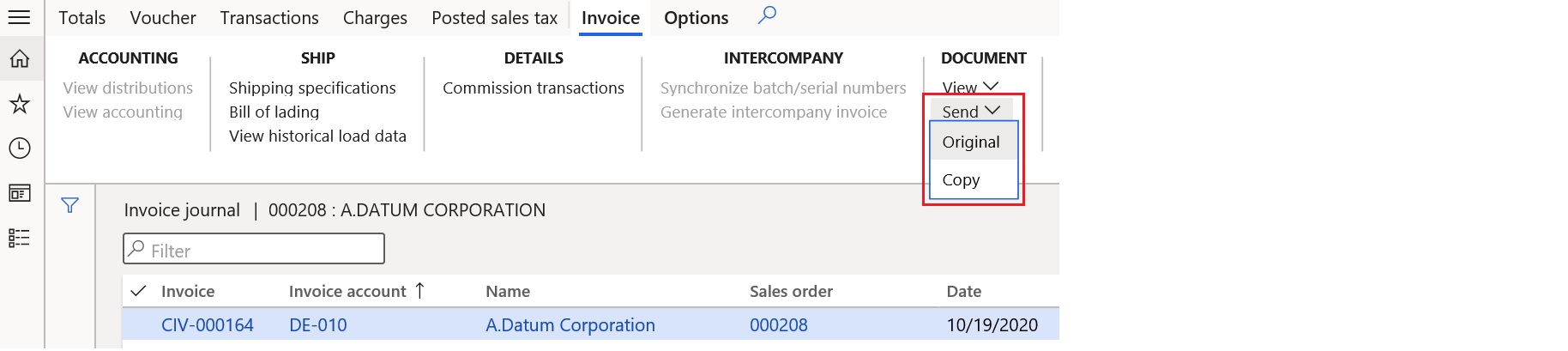
After you post an invoice, you can generate an electronic invoice by selecting the invoice and then selecting Send > Original in the Document group on the Invoice tab of the Action Pane.
View electronic invoices
To view electronic invoices, follow these steps:
In Dynamics 365 Finance, go to Organization administration > Electronic reporting > Electronic reporting jobs.
Select a job, and then select Show files.
Select Open to download the file that contains the electronic invoice.
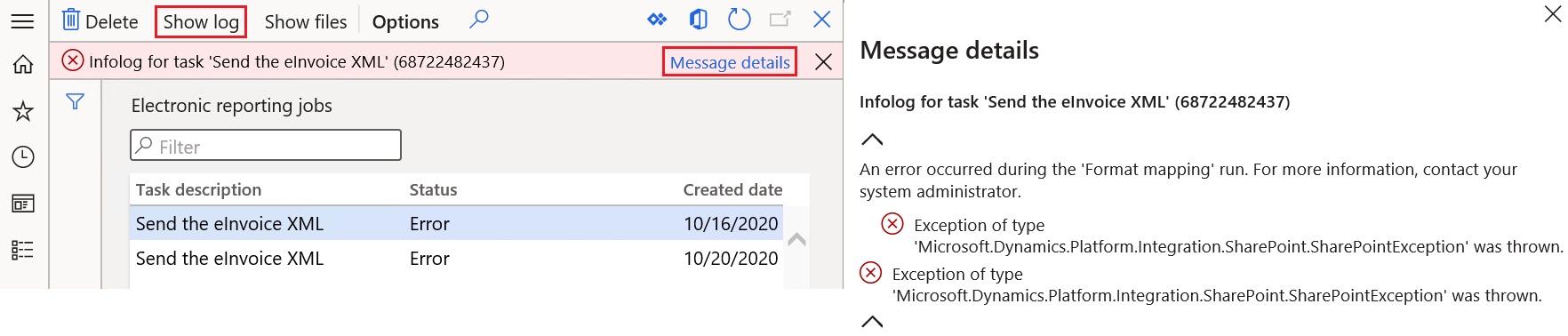
If generation of the electronic invoices failed because of errors, select Show log. Then select Message details in the message bar to view more details about the error.
Send e-invoices to ER destinations
You can set up ER destinations for electronic invoice formats. In this case, output XML files that contain electronic invoices are automatically sent to the defined destinations immediately after the invoices are posted. When you post the invoices, turn on the Print invoice parameter.
For more information about ER destinations, see Electronic reporting destinations.