Note
Access to this page requires authorization. You can try signing in or changing directories.
Access to this page requires authorization. You can try changing directories.
Dataflow Gen2 provides several ways to connect to and get your data. You can browse for data sources, access recently used items, or use Copilot to ingest and transform data with natural language commands.
Prerequisites
Before you begin, make sure you have the following setup:
- A Microsoft Fabric tenant account with an active subscription. Create a free account.
- A Microsoft Fabric enabled workspace.
- A Dataflow Gen2 item, or permissions to create one.
For Copilot features, you also need:
- A subscription which is at least an F2 or P1 SKU: Fabric Copilot Capacity.
Get data from a connector
Dataflow Gen2 supports a wide range of connectors for databases, files, online services, and more. For the full list of supported connectors and their capabilities in Dataflow Gen2, pipelines, and Copy job, see the Connector overview.
The connector overview table shows you:
- Which connectors are available in Dataflow Gen2, pipelines, and Copy job
- Whether a connector supports source (reading data), destination (writing data), or both
- Links to the setup and configuration article for each connector
To find the connector you need, scan the table or use your browser's search (Ctrl+F) to look for a data source name. Select the connector link to see prerequisites, authentication options, and step-by-step setup instructions.
Connect to a data source
To get data in Data Factory:
On the left side of Data Factory, select Workspaces.
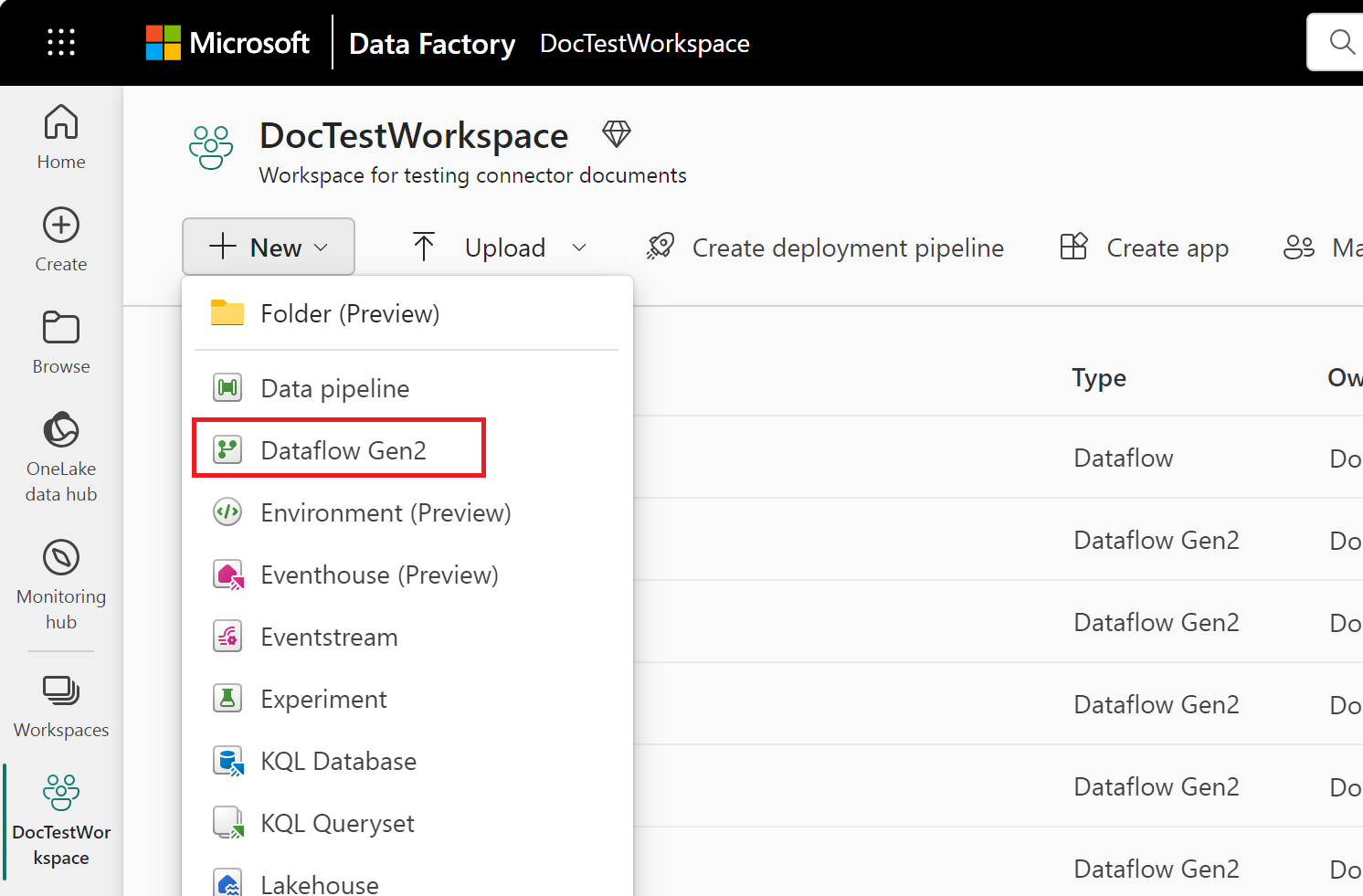
From your Data Factory workspace, select New > Dataflow Gen2 to create a new dataflow.
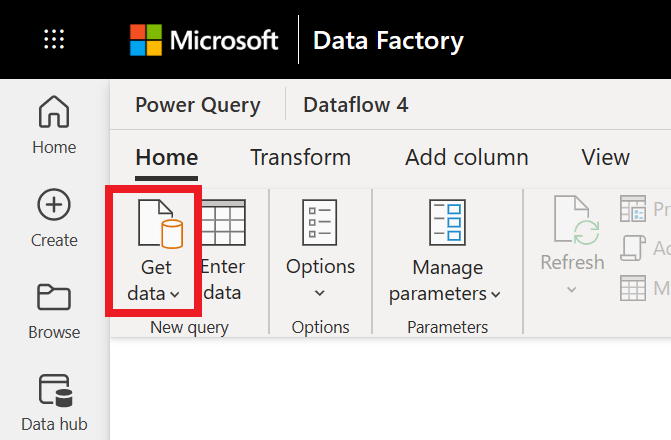
In Power Query, either select Get data in the ribbon or select Get data from another source in the current view.
In the Choose data source page, use Search to search for the name of the connector, or select View more to the right of the connector list to see all the connectors available in Data Factory.

If you choose to view more connectors, you can still use Search to search for the name of the connector, or choose a category to see a list of connectors associated with that category.


After you select a connector, follow the connector-specific instructions to authenticate and choose the tables, files, or other items you want to load into your dataflow.
Recent data (Preview)
Recent data provides quick access to your most frequently used data items. The feature remembers the specific items you've worked with—including tables, files, folders, databases, sheets, etc., so you can return to them without navigating through connection dialogs and folder structures.
Important
This feature is currently only in preview for Dataflow Gen2.
Items that support recent data
Recent data tracks the following types of data items you work with:
- Table: Tables from databases or data sources
- Sheet: Worksheets from Excel files
- Database: Database instances from various data sources
- Schema: Database schemas containing collections of related tables
- Folder: Folders containing files or other data items. Folders in Lakehouse from Fabric workspaces.
- View: Database views that present data from one or more tables
- Function: Custom or built-in functions from data sources
When you access any of these item types in your Fabric hosts, they appear in your recent data list for quick access in future sessions.
Access recent data from the Power Query ribbon
You can access your recent data directly from the Power Query ribbon when working in a Dataflow Gen2.
In your Fabric workspace, open an existing Dataflow Gen2 or create a new one.
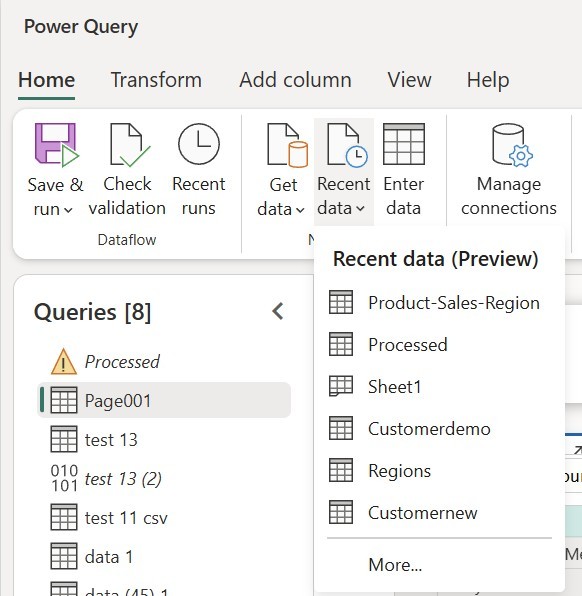
In the Power Query editor, select Recent data from the ribbon.
Review the list of recently used items. The list includes tables, files, folders, databases, and sheets from your previous dataflow sessions.
Select an item to load it into the Power Query editor. The data loads immediately, ready for transformation.
Access recent data from Modern Get Data
You can also access recent data through the Modern Get Data experience when adding data sources to your dataflow.
In your Fabric workspace, open an existing Dataflow Gen2 or create a new one.
In the Power Query editor, select Get data.
In the Modern Get Data dialog, select the Recent data module.
Review the list of recently used items. The list includes tables, files, folders, databases, and sheets from your previous dataflow sessions.
Select an item to load it into the Power Query editor. The data loads immediately, ready for transformation.
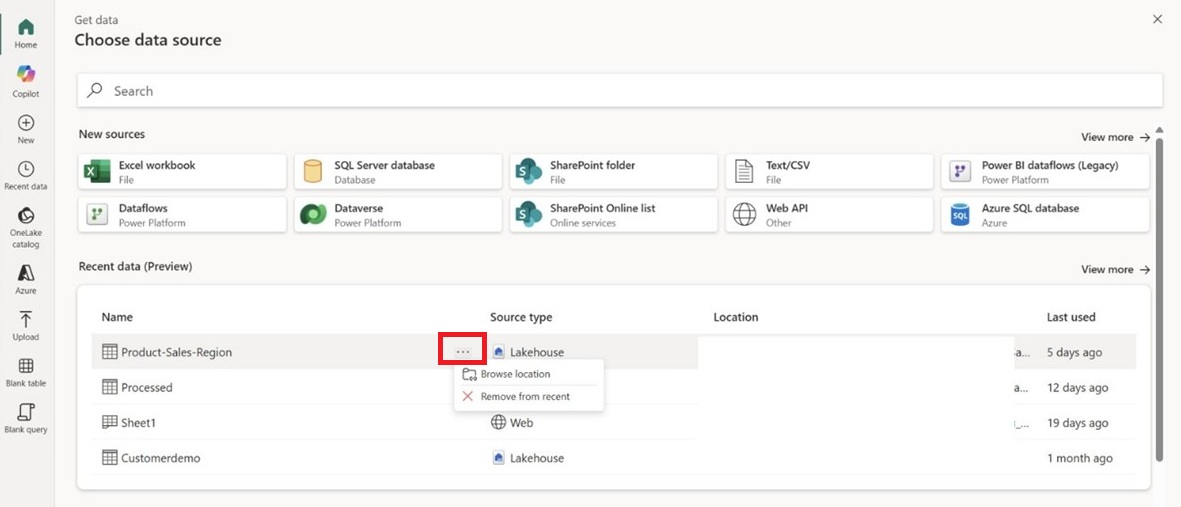
Browse location for related items
After accessing recent data, you can use the Browse location option to explore other items in the same folder or database.
After loading an item from recent data, select Browse location in the Power Query editor.
The navigation pane displays other tables, files, or items available at the same location.
Select other items to include in your dataflow. Each item you select creates a new query in the Power Query editor.
Apply transformations, merge queries, or configure your dataflow as needed.
This option helps you discover related data without leaving the Power Query editor or reconfiguring connections.
Get data with Copilot (Preview)
Copilot in Modern Get Data in Fabric Dataflow Gen2 empowers you to ingest and transform data effortlessly with natural language commands. You can get help finding the right data and applying transformations without leaving the Get Data experience.
- Easily ingest data from your recently used tables by choosing from the recent tables list.
- Chat with your data to apply transformations to find the data you want.
Chat with Copilot in Modern Get Data
In Fabric Dataflow Gen2, click Get data to begin. In the Get Data wizard, click the Copilot tab, then you can start with the list of recently used tables. You can either choose the recently used tables in the get started module or choose recent tables from the "Choose context" in the chat box.
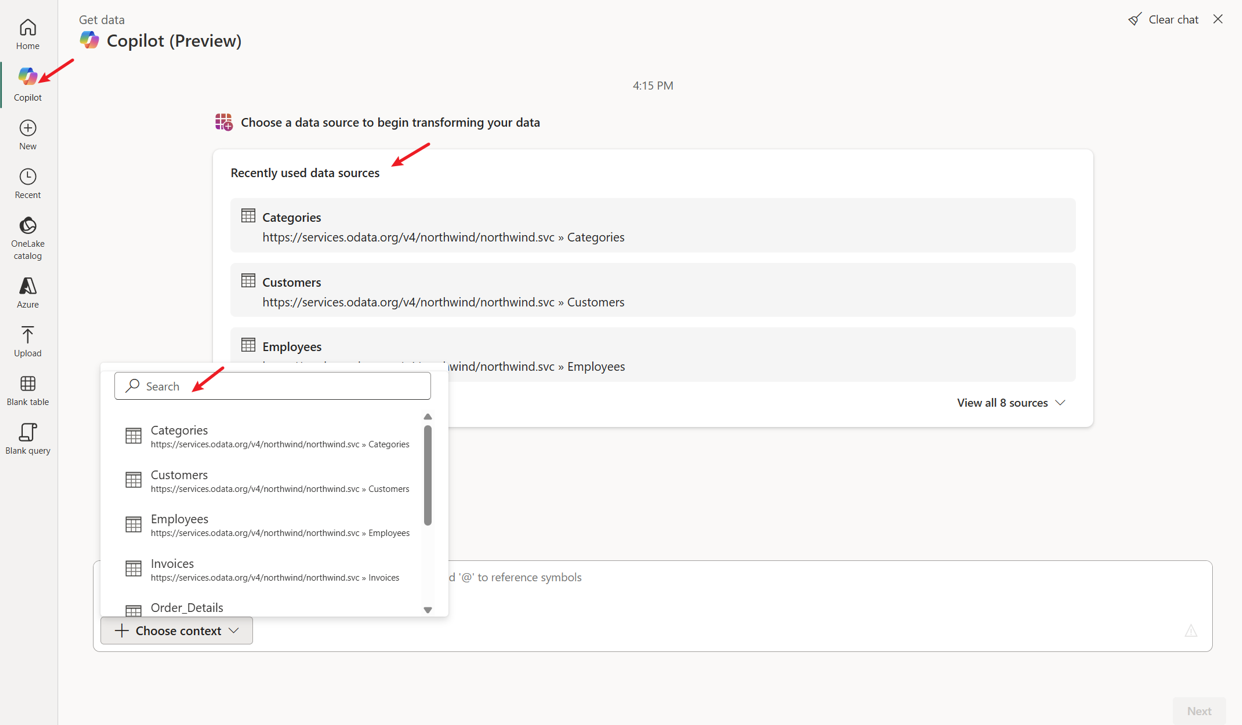
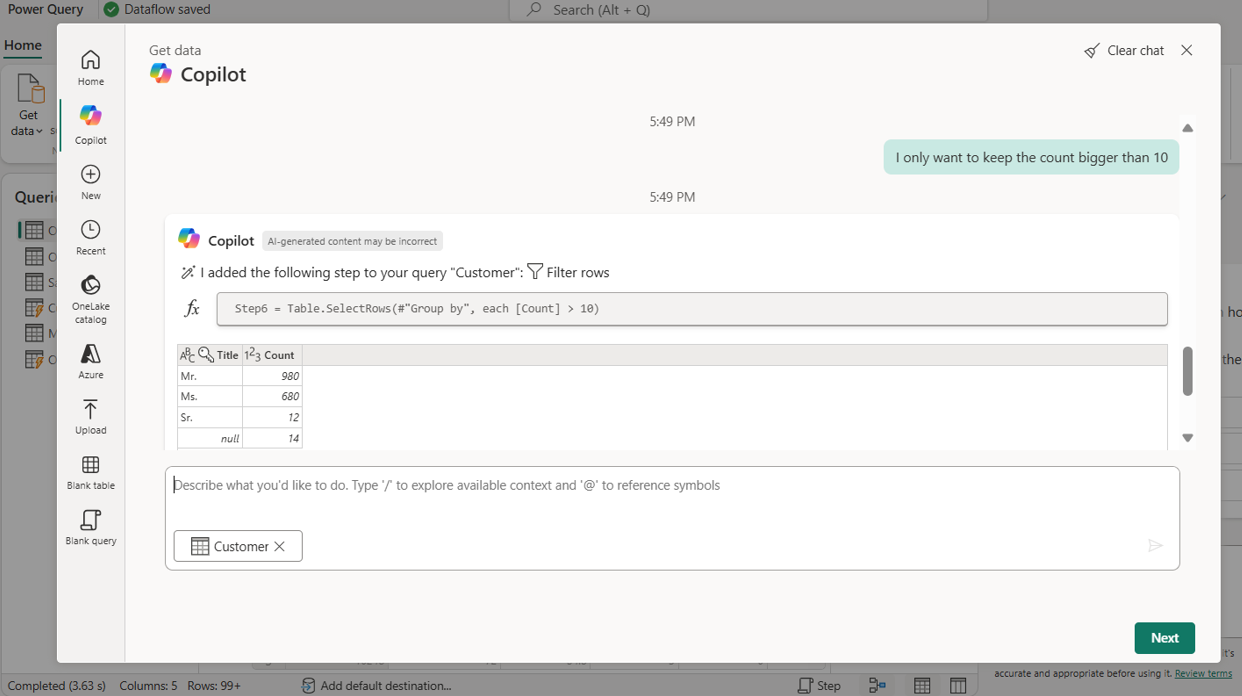
After loading the recently used table, you can chat with Copilot to find the data you want. For step-by-step exploration, we want to first group by the data on customers' titles to check the results. Then depending on the range of the counts, we can decide to include which ranges.
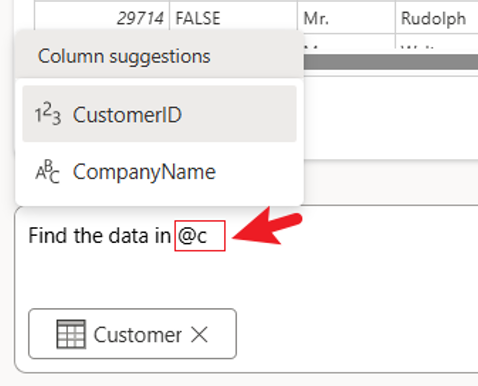
When selecting table columns, use @ to quickly view available columns. Then entering the letter can filter on detail column.
If you know all the operations you want to do in the beginning, you can describe all in one sentence. Then Copilot can quickly understand it and provide the filtered results to you.
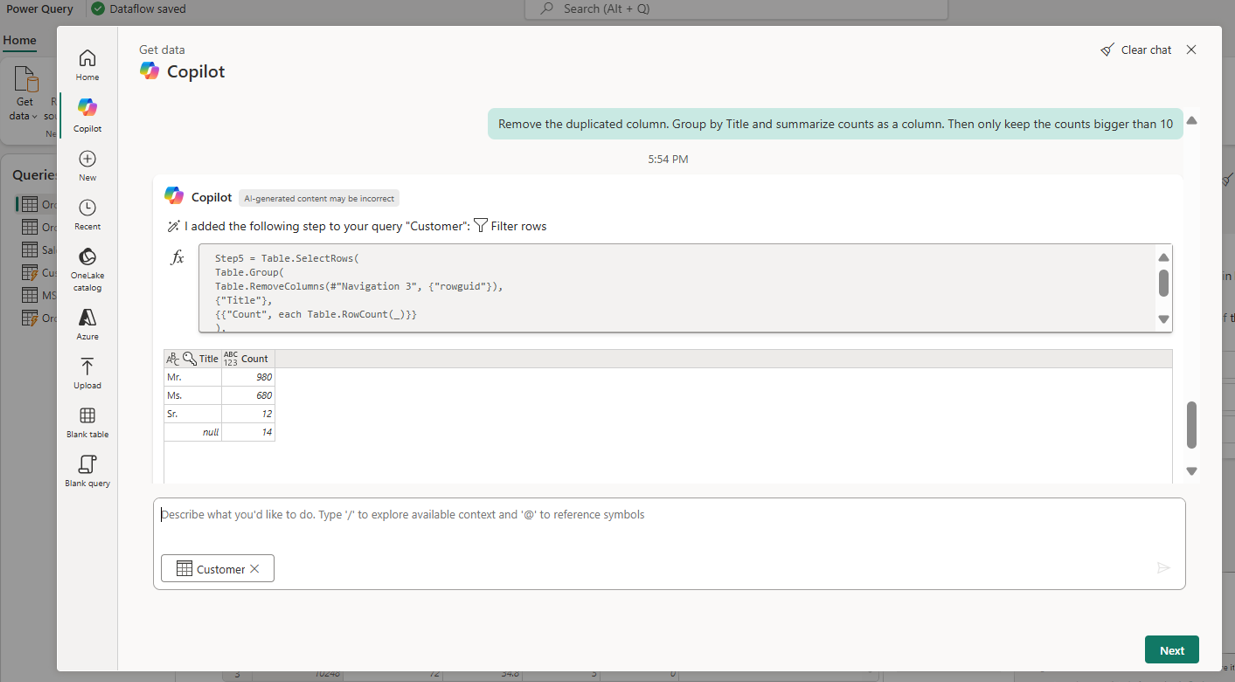
To return to the previous step, click the Restore button next to it and your data will revert to that point. You can also Copy the preview data to confirm with your colleagues before saving it into Dataflow Gen2.