Note
Access to this page requires authorization. You can try signing in or changing directories.
Access to this page requires authorization. You can try changing directories.
Add parameters to Kusto Query Language (KQL) queries to filter the data shown in Real-Time Dashboard visuals. A query can use one or more parameters.
Prerequisites
- Completion of Create and manage Real-Time Dashboard parameters.
- A dashboard that uses the StormEvents table in the Weather analytics sample data from the samples gallery.
Use parameters in your query
A parameter must be used in the query before the filter affects that visual. After you define a parameter, you can see it in the filter bar on the Query page and in query IntelliSense.
Note
If the query doesn't use the parameter, the filter remains inactive. When you add the parameter to the query, the filter becomes active.
Parameter types
The dashboard supports the following parameter types:
- Default time range parameter
- Single-selection fixed-values parameters
- Multiple-selection fixed-values parameters
- Single-selection query-based parameters
- Multiple-selection query-based parameters
- Free text parameters
- Data source parameters
The following examples describe how to use parameters in a query for various parameter types.
Default time range parameter
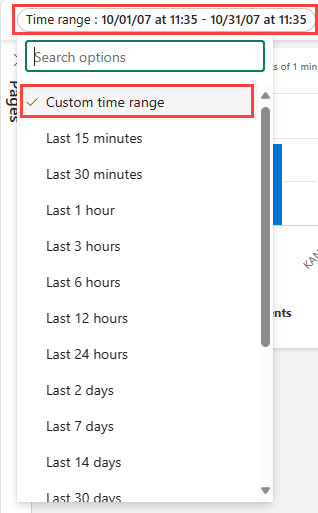
Every dashboard includes a Time range parameter by default. It appears as a filter only when you use it in a query. Use the _startTime and _endTime keywords to apply the default time range parameter, as shown in the following example:
StormEvents
| where StartTime between (_startTime.._endTime)
| summarize TotalEvents = count() by State
| top 5 by TotalEvents
When you save the query, the time range filter appears on the dashboard. You can then filter the visual by selecting a preset in Time range or by selecting Custom time range.
Single-selection fixed-values parameters
Fixed value parameters are based on predefined values that you specify. The following example shows how to create a single-selection, fixed-value parameter.
Create a single-selection fixed-values parameter
Select Parameters to open the Parameters pane, and then select New parameter.
Enter the following details:
Label: Event Type
Parameter type: Single selection
Variable name:
_eventTypeData type: String
Pin as dashboard filter: Selected
Source: Fixed values
In this example, use the following values:
Value Parameter display name Thunderstorm Wind Thunderstorm wind Hail Hail Flash Flood Flash flood Drought Drought Winter Weather Winter weather Add a Select all value: Unchecked
Default value: Thunderstorm Wind
Select Done to create the parameter.
The parameter appears in the Parameters pane, but you aren't using it in any visuals yet.
Use a single-selection fixed-values parameter
Run a sample query that uses the new Event Type parameter by using the
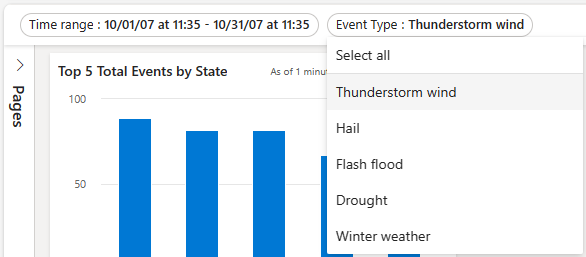
_eventTypevariable name:StormEvents | where StartTime between (_startTime.._endTime) | where EventType == _eventType | summarize TotalEvents = count() by State | top 5 by TotalEventsThe new parameter appears in the parameter list at the top of the dashboard.
Select different values to update the visuals.
Multiple-selection fixed-values parameters
Fixed value parameters are based on predefined values that you specify. The following example shows how to create and use a multiple-selection fixed-value parameter.
Create a multiple-selection fixed-values parameter
Select Parameters to open the Parameters pane, and then select New parameter.
Fill in the details as described in Create a single-selection fixed-values parameter, with the following changes:
- Label: Event Type
- Parameter type: Multiple selection
- Variable name:
_eventType
Select Done to create the parameter.
The new parameter appears in the Parameters pane, but you aren't using it in any visuals yet.
Use a multiple-selection fixed-values parameter
Run a sample query that uses the new Event Type parameter and the
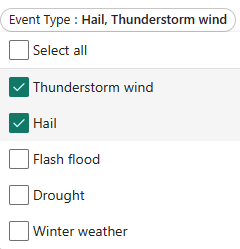
_eventTypevariable.StormEvents | where StartTime between (_startTime.._endTime) | where EventType in (_eventType) or isempty(_eventType) | summarize TotalEvents = count() by State | top 5 by TotalEventsThe new parameter appears in the parameter list at the top of the dashboard.
Select one or more different values to update the visuals.
Single-selection query-based parameters
Query-based parameter values are retrieved during dashboard loading by executing the parameter query. The following example shows you how to create and use a single-selection, query-based parameter.
To use a query-based parameter as a child filter whose values depend on another parameter, see Create cascading parameters.
Create a single-selection query-based parameter
Select Parameters to open the Parameters pane, and then select New parameter.
Fill in the details as described in Create a single-selection fixed-values parameter, with the following changes:
Label: State
Variable name:
_stateSource: Query
Data source: StormEventsSample
Select Edit query and enter the following query. Select Done.
StormEvents | where StartTime between (_startTime.._endTime) | where EventType in (_eventType) or isempty(_eventType) | summarize TotalEvents = count() by State | top 5 by TotalEvents | project StateValue: State
Display name: State
Default value: Choose a default value
Select Done to create the parameter.
Use a single-selection query-based parameter
The following sample query with the new State parameter uses the
_statevariable:StormEvents | where StartTime between (_startTime.._endTime) | where EventType in (_eventType) or isempty(_eventType) | where State == _state | summarize TotalEvents = count() by State | top 5 by TotalEventsThe new parameter appears in the parameter list at the top of the dashboard.
Select different values to update the visuals.
Multiple-selection query-based parameters
Query-based parameter values come from running a user-specified query when the dashboard loads. The following example shows how to create a multiple-selection query-based parameter.
Create a multiple-selection query-based parameter
Select Parameters to open the Parameters pane, and then select + New parameter.
Enter the details as described in Create a single-selection query-based parameter, with the following changes:
- Label: State
- Parameter type: Multiple selection
- Variable name:
_state
Select Done to create the parameter.
Use a multiple-selection query-based parameter
The following sample query uses the new State parameter by using the
_statevariable.StormEvents | where StartTime between (_startTime.._endTime) | where EventType in (_eventType) or isempty(_eventType) | where State in (_state) or isempty(_state) | summarize TotalEvents = count() by State | top 5 by TotalEventsNote
This sample uses the Select All option by checking for empty values with the
isempty()function.The new parameter appears in the parameter list at the top of the dashboard.
Select one or more different values to update the visuals.
Free text parameters
Free text parameters don't contain any values. They allow you to introduce your own value.
Create a free text parameter
- Select Parameters to open the Parameters pane, and then select + New parameter.
- Enter the following details:
- Label: State
- Parameter type: Free text
- Variable name:
_state - Data type: String
- Default value: No default value
- Select Done to create the parameter.
Use a free text parameter
Run a sample query using the new State parameter by using the
_statevariable name:StormEvents | where StartTime between (_startTime.._endTime) | where EventType in (_eventType) or isempty(_eventType) | where State contains _state | summarize TotalEvents = count() by State | top 5 by TotalEvents
Data source parameters
After you add data sources to your dashboard, you can create a parameter that selects one or more of the available data sources. Use this parameter in tiles and other parameters.
Create a data source parameter
Select Parameters to open the Parameters pane, and then select + New parameter.
Enter the following details:
- Label: Source
- Parameter type: Data source
- Show on pages: Select all
- Values: Select all
- Default value: StormEvents
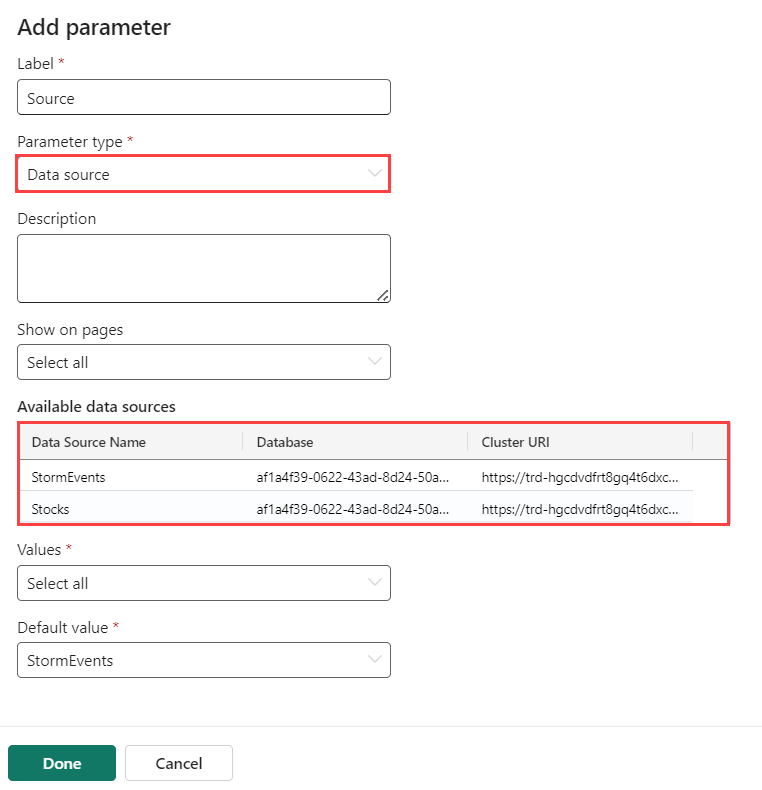
Select Done.
The parameter list at the top of the dashboard now shows the new parameter.
Use a data source parameter
Go to the query of a new or existing tile.
In Source, select the name of your new parameter under Data source parameters, such as the new Source parameter.
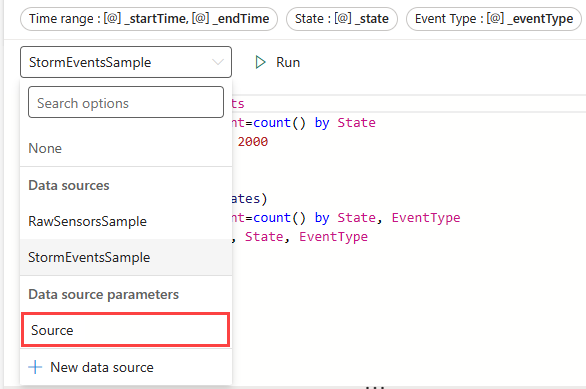
Select Apply changes.
Use the Source parameter to change the data source for this connected query.
Use filter search for single-selection and multiple-selection filters
In single-selection and multiple-selection filters, type the value that you want. The filter updates to show only values that match the search term.