Note
Access to this page requires authorization. You can try signing in or changing directories.
Access to this page requires authorization. You can try changing directories.
Microsoft Intune supports integration with several third-party device compliance partners. When you use a third-party device compliance partner, the partner adds the compliance state data it collects to Microsoft Entra ID. You can use device compliance data from the partner alongside the compliance results you collect with Intune. Together, these signals power Conditional Access policies that help to protect your organization and data.
By default, Intune is the mobile device management (MDM) authority for your devices. When you add a compliance partner to Microsoft Entra ID and Intune, that partner becomes the MDM authority for devices assigned to it through a Microsoft Entra user group.
To enable user data from device compliance partners, complete the following tasks:
Configure Intune to work with the device compliance partner, and then configure groups of users whose devices are managed by that compliance partner.
Configure your compliance partner to send data to Intune.
Enroll your devices to your device compliance partner.
With these tasks complete, the device compliance partner sends device state details to Intune. Intune adds this information to Microsoft Entra ID. For example, devices in a noncompliant state have a not compliant status added to their device record in Microsoft Entra ID.
Supported device compliance partners
The following compliance partners are supported as generally available:
- 42Gears SureMDM
- 7P
- Addigy
- BlackBerry UEM
- Citrix Workspace device compliance
- CLOMO MDM
- Fleet
- IBM MaaS360
- Jamf Pro
- Kandji
- Ivanti Neurons for MDM
- Ivanti EPMM
- mobiconnect
- Mosyle Fuse
- Mosyle Onek12
- Omnissa Workspace ONE UEM
- Scalefusion
- SOTI MobiControl
Note
If you offer an MDM product and want to onboard as a device compliance partner, fill out the form: Intune partner compliance onboarding.
Requirements
 Licensing requirements
- Microsoft Intune subscription with access to the Microsoft Intune admin center.
- Intune licenses assigned to device users.
 Device platform requirements
- Android
- iOS/iPadOS
- macOS
Not all partners support all platforms. Check your partner's documentation for supported platforms.
You also need:
- A subscription to the device compliance partner.
- Check your compliance partner's documentation for prerequisites.
Configure Intune to work with a device compliance partner
Enable support for a device compliance partner to use compliance state data from that partner with your Conditional Access policies.
Add a compliance partner to Intune
Sign in to Microsoft Intune admin center.
Go to Tenant Administration > Connectors and Tokens > Partner Compliance management > Add Compliance Partner.
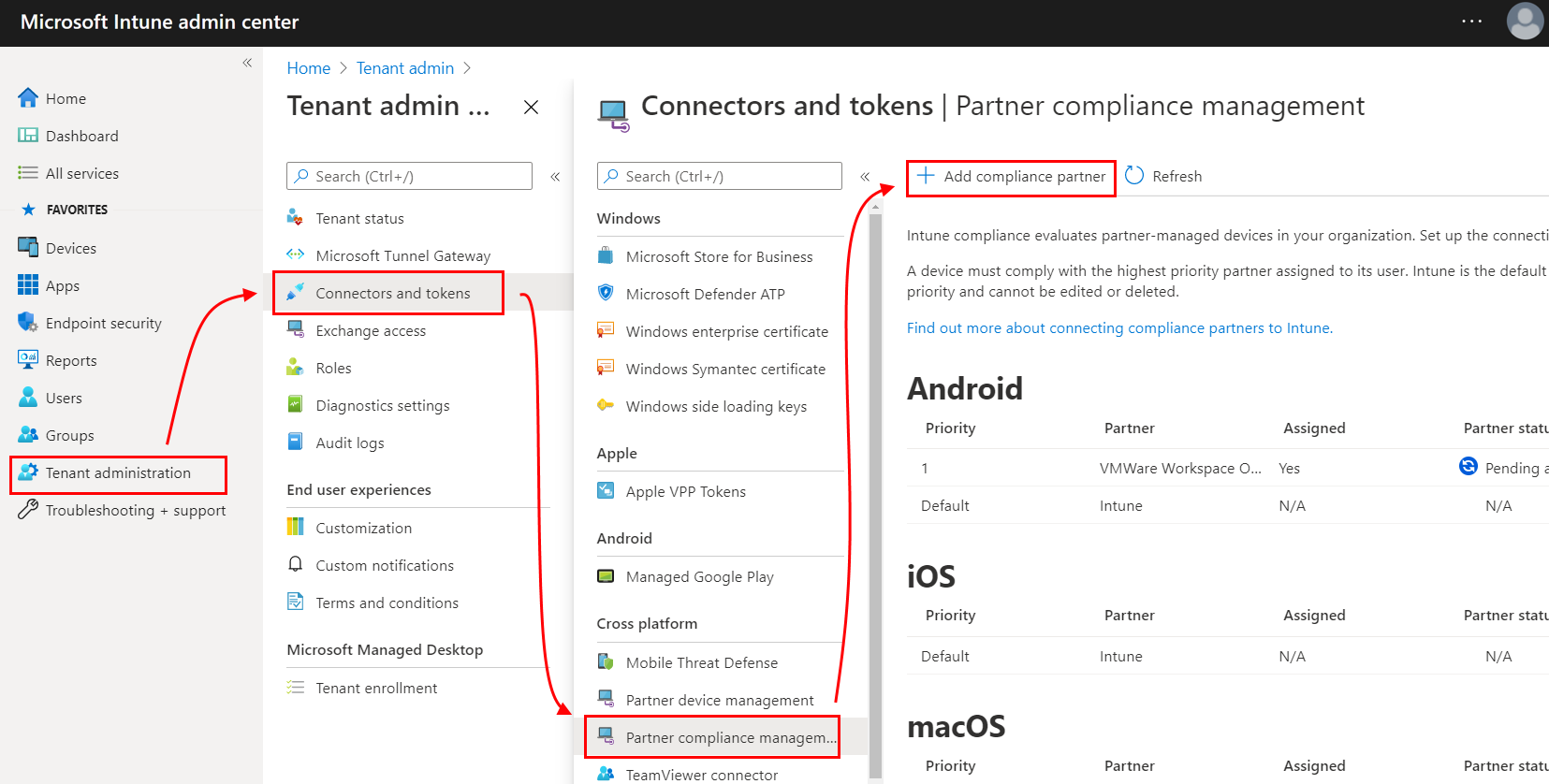
On Basics, expand the Compliance partner dropdown and select the partner you want to add.
- To use Omnissa Workspace ONE UEM as the compliance partner for iOS or Android platforms, select Omnissa Workspace ONE UEM.
Next, select the dropdown for Platform, and select the platform.
You can use only one partner per platform, even if you add multiple compliance partners to Microsoft Entra ID.
On Assignments, select the user groups that contain devices managed by this partner. With this assignment, you change the MDM authority for applicable devices to use this partner. Users who have devices managed by the partner must also be assigned a license for Intune.
On Review + create, review your selections, and then select Create to complete this configuration.
Your configuration now appears on the Partner compliance management page.
Modify the configuration for a compliance partner
Sign in to Microsoft Intune admin center.
Go to Tenant Administration > Connectors and Tokens > Partner Compliance management, and then select the partner configuration you want to modify. Configurations appear by platform type.
On the partner configuration Overview page, select Properties to edit the assignments.
On the Properties page, select Edit to change the assigned groups.
Select Review + save and then Save to save your edits.
This step only applies when you use Omnissa Workspace ONE:
From within the Workspace ONE UEM console, you must manually synchronize the changes you saved in the Microsoft Intune admin center. Until you manually sync changes, Workspace ONE UEM isn't aware of configuration changes, and users in newly assigned groups don't successfully report compliance.
To manually sync from Azure Services:
Sign in to your Omnissa Workspace ONE UEM console.
Go to Settings > System > Enterprise Integration > Directory Services.
For Sync Azure Services, select SYNC.
Azure services synchronize all changes made after the initial configuration or the last manual synchronization to UEM.
Configure your compliance partner to work with Intune
To enable a device compliance partner to work with Intune, you must complete configurations specific to that partner. For information on this task, see the documentation for the applicable partner:
- 42Gears SureMDM
- Citrix Endpoint Management integration with Microsoft Endpoint Manager
- CLOMO MDM
- Fleet
- Kandji Device Compliance
- mobiconnect
- Omnissa Workspace ONE UEM
- Scalefusion
Enroll your devices to your device compliance partner
See your device compliance partner's documentation to enroll devices. After devices enroll and submit compliance data to the partner, that compliance data is forwarded to Intune and added to Microsoft Entra ID.
Monitor devices managed by third-party device compliance partners
After you configure a third-party compliance partner and enroll devices, the partner forwards compliance data to Intune. You can then view device details in the Microsoft Entra admin center.
Sign in to the Microsoft Entra admin center and go to Devices > All devices.
Best practices for migrating devices from third-party MDM to Intune MDM
When you migrate devices from third-party MDM providers to a full Intune stack, follow these cleanup steps:
Initiate a retirement action from the third-party MDM service before enrolling the device with Intune MDM. This retirement action notifies Intune to perform the necessary cleanup tasks in its third-party integration services.
Note
Removing the third-party MDM profile locally on a device doesn't sufficiently trigger the Intune cleanup tasks.
Confirm that devices retired from the third-party MDM appear in Microsoft Entra ID with None listed in the MDM column. At this point, your devices can now be enrolled with Intune MDM.
After all devices migrate to Intune through steps 1 and 2, disable the Intune connection in your third-party MDM provider's admin console. If that isn't an option, you can also disable the connection console in the Microsoft Intune admin center.
- Go to Tenant administration > Connectors and tokens > Device compliance partner.
- Select the device compliance partner you want to disable.
- Toggle the connection to Off.
Note
If devices don't complete the cleanup tasks and still appear enrolled in Intune, Intune applies its own compliance policies and ignores third‑party policies.
Next steps
Use your partner's documentation to create compliance policies for devices.