Note
Access to this page requires authorization. You can try signing in or changing directories.
Access to this page requires authorization. You can try changing directories.
Microsoft Intune is built around three pillars: the identities that sign in, the devices they sign in from, and the apps they use to get work done. Intune orchestrates these pillars on top of Microsoft Entra ID and feeds device and app posture back to Microsoft Entra Conditional Access, which gates access to corporate resources.
For an introduction to what Intune does and why, see What is Microsoft Intune?. For the components, integrations, and deployment view, see Microsoft Intune architecture.
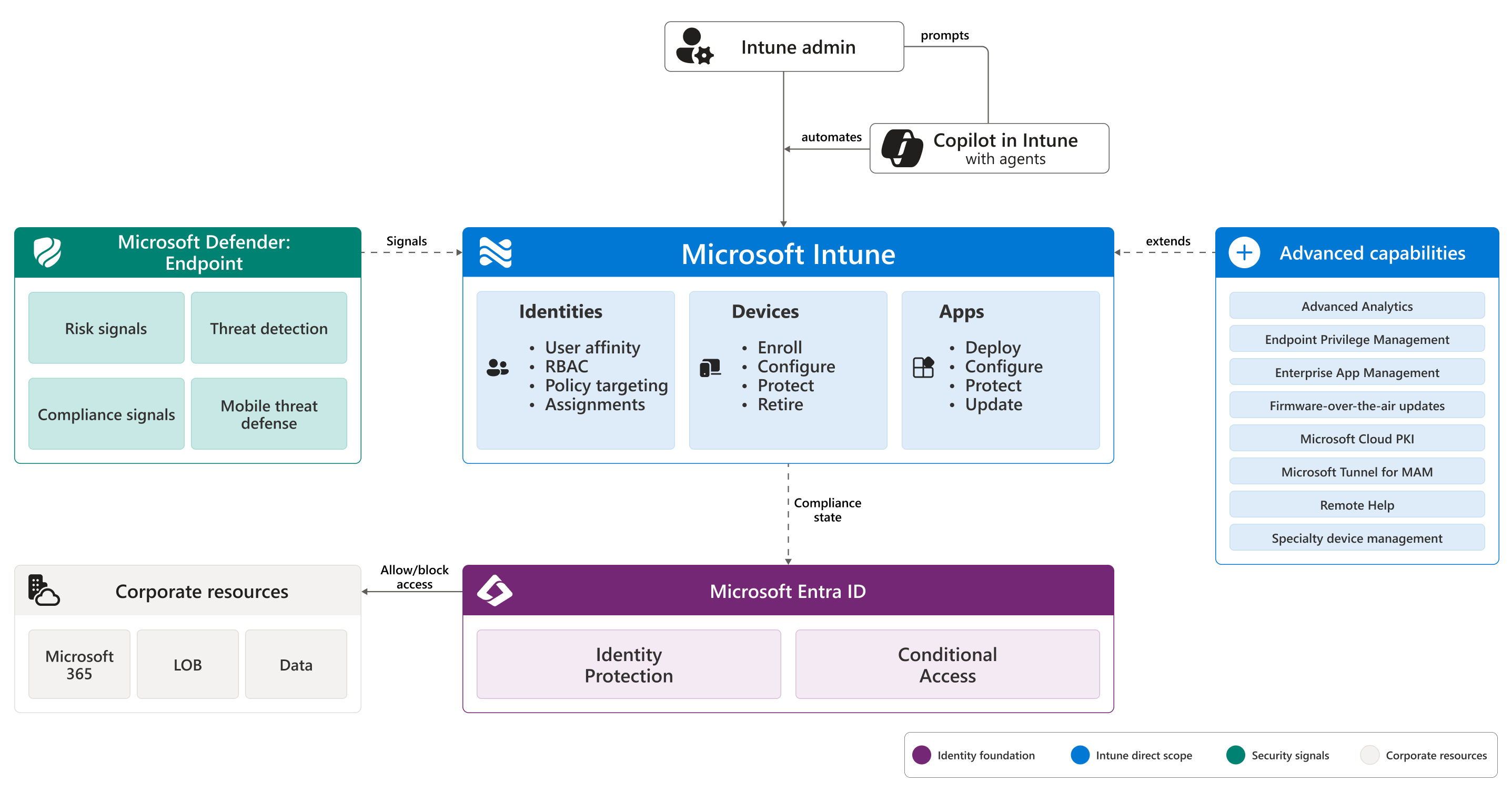
The three pillars
| Pillar | What Intune does | What Intune relies on |
|---|---|---|
| Identities | Targets policies to users and groups, scopes admin access through role-based access control (RBAC), and creates user affinity at enrollment. | Microsoft Entra ID for accounts, groups, authentication, and Conditional Access. |
| Devices | Enrolls, configures, protects, and retires the hardware that runs your organization's work. Reports compliance state for Conditional Access. | Platform enrollment programs (Windows Autopilot, Apple Automated Device Enrollment, Android Enterprise). |
| Apps | Deploys, configures, protects, and updates the apps users need, on enrolled and personal devices. | App stores and vendor catalogs (Microsoft Store, App Store, Managed Google Play, Apple Business). |
The rest of this article walks through each pillar and ends with a worked example that traces a single sign-in across all three.
Identities
Intune doesn't store user identities. It uses Microsoft Entra ID for accounts, groups, authentication, and Conditional Access. Within Intune, identities surface in three places.
User affinity at enrollment
When a user signs into a device for the first time, the device becomes associated with that user. This association is called user affinity. Policies assigned to the user follow them across all of their associated devices, and the user can access their email, files, and apps from any of those devices.
When no user is associated with a device, the device is user-less. This pattern is common for kiosks dedicated to a single task and for shared devices used by multiple people.
Decide the device's intended purpose before enrollment so you can choose the right enrollment method. For platform-specific guidance, see Device enrollment in Microsoft Intune.
Role-based access for admins
Intune uses role-based access control (RBAC) to determine what each admin can see and do in the admin center. Built-in roles such as Application Manager and Policy and Profile Manager scope permissions to specific endpoint-management tasks. Because Intune uses Microsoft Entra ID, the built-in Microsoft Entra roles (including Intune Administrator) are also available.
Pair RBAC with scope tags to narrow what an admin can see, not just what they can do. For example, give a regional help desk a role that allows device wipes, but tag it so they can only see and wipe devices in their region.
For details, see Role-based access control with Microsoft Intune and Use scope tags to filter policies.
Targeting policies and assignments
Intune is cloud-based and targets policies directly to users or groups. There's no hierarchy of containers like organizational units. You create a policy, then assign it to one or more Microsoft Entra groups.
You can target a policy to:
- User groups, when the setting should follow the user across their devices. For example, an email profile or an app deployment.
- Device groups, when the setting should apply regardless of who's signed in For example, a kiosk configuration or a frontline-worker policy.
- Built-in virtual groups (All users, All devices) when a setting applies tenant-wide.
For details, see Add groups to organize users and devices and Assign device profiles in Microsoft Intune.
Devices
Intune manages and secures the desktops, laptops, tablets, and phones your organization relies on across Android, iOS, iPadOS, Linux, macOS, tvOS, visionOS, and Windows. For the full supported-OS matrix, see Supported operating systems and browsers.
Device lifecycle
Every managed device passes through four stages, all handled in the same admin center.
- Enroll: Bring devices under management. Organization-owned hardware typically uses automated enrollment through Windows Autopilot, Apple Automated Device Enrollment, or Android Enterprise. Personal devices enroll through the Company Portal app.
- Configure: Apply settings for Wi-Fi, VPN, certificates, email, device features, and platform-specific options. The settings catalog exposes thousands of platform settings.
- Protect: Enforce compliance rules, encrypt disks, deploy security baselines, and integrate with mobile threat defense. Compliance state feeds Microsoft Entra Conditional Access.
- Retire: When a device is lost, replaced, or no longer needed, remote actions let you wipe organization data, factory-reset the device, or unenroll it.
MDM and MAM
Intune supports two management modes. You can use them independently or together.
- Mobile device management (MDM) brings the entire device under Intune control: settings, apps, and data. MDM is typical for organization-owned hardware.
- Mobile application management (MAM) manages only the work apps and the data inside them. The user keeps control of the rest of the device. MAM is typical for bring-your-own-device (BYOD) scenarios.
You can combine the two on the same device. For example, an enrolled corporate phone (MDM) can also have app protection policies (MAM) on apps that handle especially sensitive data.
For details, see Device enrollment in Microsoft Intune and App protection policies overview.
Organization-owned and personal devices
Most organizations manage two device populations: hardware they own and personal devices that employees use for work. Intune supports both with different controls.
- Organization-owned devices should be enrolled in MDM. Don't rely on users to manage these devices themselves.
- Personal devices can be MDM-enrolled when users want full access to organizational resources, or they can use only MAM policies that protect data inside Outlook, Teams, and other managed apps.
Device groups
Device groups are Microsoft Entra groups that contain only devices. They're useful when a setting should apply regardless of who's signed in: kiosks, shared PCs, frontline-worker devices, or specialty hardware.
Membership can be static or dynamic:
- Static groups require manual addition and removal of devices. They're useful for small, stable sets of devices.
- Dynamic groups automatically add and remove devices based on criteria you define. They're useful for large, changing fleets of devices
Apps
Intune covers the full app lifecycle (deploy, configure, protect, update) across every supported platform.
App lifecycle
- Deploy apps from public stores, vendor catalogs, your own line-of-business (LOB) packages, or built-in entries in the admin center.
- Configure apps before users open them, using app configuration policies. Set the app language, add your organization's logo, block personal accounts, and more.
- Protect the data inside apps using app protection policies. Require a PIN, block copy-paste to personal apps, prevent backups to personal cloud services, encrypt at-rest data, and selectively wipe organization data.
- Update apps automatically as new versions become available. For Microsoft 365 apps, Microsoft Edge, and Microsoft Teams on Windows, you can hand updates to Windows Autopatch.
App protection without enrollment (MAM-WE)
App protection policies don't require MDM enrollment. They work on three device populations:
- Personal devices that aren't enrolled in any MDM (BYOD).
- Devices enrolled in another MDM provider: Intune can still protect the data inside its managed apps.
- Intune-enrolled devices, for apps that need an extra layer beyond MDM.
For details, see App protection policies overview.
Apps by platform
Intune supports public store apps, line-of-business (LOB) apps, web apps, and platform-specific app types across Android, iOS, iPadOS, macOS, and Windows. For the per-platform breakdown of app types and where they come from, see Add and update apps in Microsoft Intune.
How the pillars fit together
A typical access decision touches all three pillars:
- A user signs in to a managed device and Microsoft Entra ID authenticates the user.
- The device checks in with Intune and reports its compliance state and inventory.
- Intune forwards the compliance state to Microsoft Entra ID.
- The user opens a corporate app. Microsoft Entra Conditional Access evaluates the request using the user, the device's compliance state, the app, the location, and signals from Endpoint security in Microsoft Defender.
- Conditional Access allows or blocks access. If access is allowed and the app is a managed app, app protection policies enforce in-app controls (PIN, copy-paste restrictions, selective wipe).
Every access decision exercises all three pillars together: the user's identity, the device's compliance, and the app the user is opening.
Related content
- Identities: Microsoft Entra ID fundamentals, Use Conditional Access with Microsoft Intune, Role-based access control with Microsoft Intune
- Devices: Device enrollment in Microsoft Intune, Use compliance policies to set rules for devices you manage, Manage endpoint security in Microsoft Intune
- Apps: Add and update apps in Microsoft Intune, App configuration policies, App protection policies overview
- Architecture: Microsoft Intune architecture