Note
Access to this page requires authorization. You can try signing in or changing directories.
Access to this page requires authorization. You can try changing directories.
The Azure AI Bot Service helps you create agents that can access online resources that require user authentication. Your agent doesn't need to handle authentication tokens because Azure manages this process. Azure uses OAuth 2.0 to generate a token based on each user's credentials. Your agent uses the token generated by Azure to access those resources. By using this approach, the user doesn't need to provide an ID and password to the agent to access a secured resource but only needs to provide them to a trusted identity provider.
Important
Web Chat and Direct Line considerations: To reduce security risks when connecting to an agent by using the Web Chat control, use Direct Line with enhanced authentication enabled. For more information, see Direct Line enhanced authentication.
To set up OAuth on an agent, register an Azure Bot if you haven't done so already.
Important
When you register an agent in Azure, the agent gets assigned a Microsoft Entra ID application. However, this application secures channel-to-bot access. You need an extra Microsoft Entra ID application for each external secured resource you want the agent to access on behalf of the user.
Microsoft Entra ID identity service
Microsoft Entra ID is a cloud identity service that you can use to build applications that securely sign in users by using industry standard protocols like OAuth 2.0.
Use one of these three identity services:
- Microsoft identity platform (v2.0): Also known as the Azure Active Directory v2 endpoint, which is an evolution of the Azure AD platform (v1.0).
- Federated Credentials: Also known as AAD v2 with Federated Credentials.
- Certificates: Also known as AAD v2 with Certificates.
By using these services, you can build applications that sign in to all Microsoft identity providers and get tokens to call Microsoft APIs, such as Microsoft Graph, or other APIs that developers have built.
Create the Microsoft Entra ID identity provider
This section shows how to create a Microsoft Entra ID identity provider that uses OAuth 2.0 to authenticate the agent for Microsoft Graph.
Tip
You need to create and register the Microsoft Entra ID application in a tenant where you can consent to delegate permissions requested by an application.
Create an app registration
Open the Microsoft Entra ID panel in the Azure portal. If you're not in the correct tenant, select Switch directory to switch to the correct tenant. For information on how to create a tenant, see Access the portal and create a tenant.
Open the App registrations panel.
Set up the app registration:
For Teams SSO, open the existing app registration for the agent/Azure Bot:
On the Authentication pane, if you don't see a Web platform, select Add a platform.
Select Web.
Enter the Redirect URI from the table in the next step.
Select Configure.
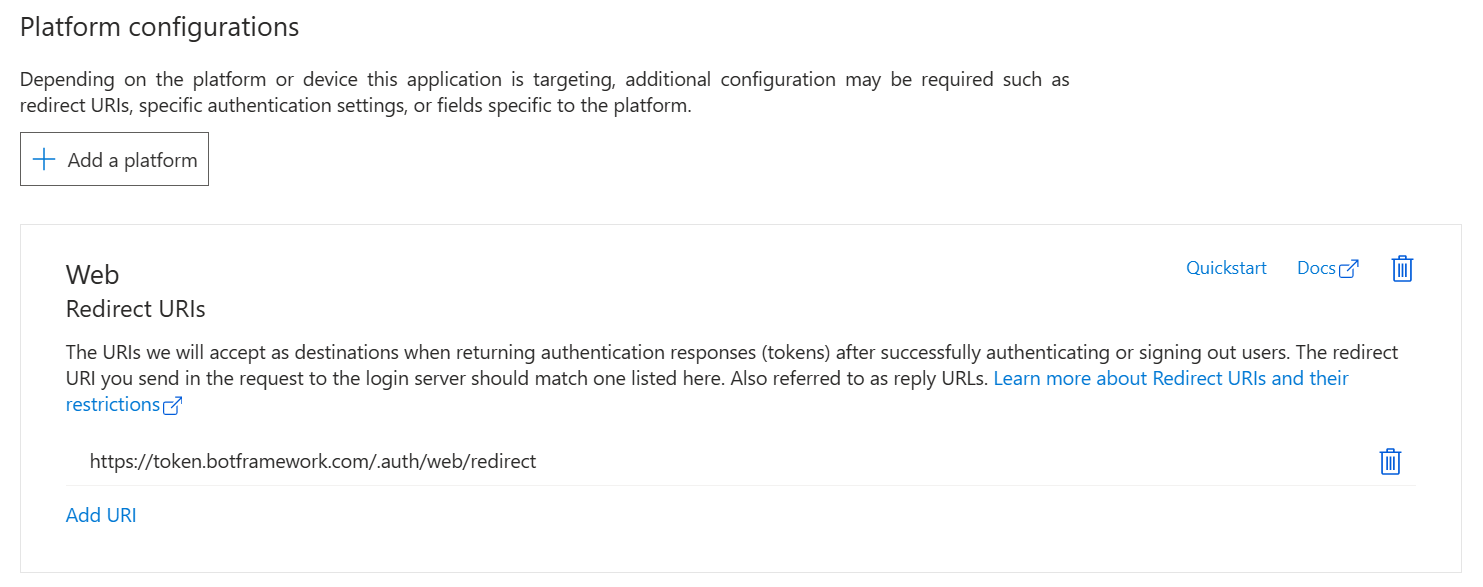
For other channels or OAuth:
In the App registrations panel, select New registration.
Fill in the required fields and create the app registration:
Name your application.
Select the Supported account types for your application. Select Single Tenant.
For the Redirect URI, select Web and set the URL to one of the supported OAuth redirect URLs:
Data residency Cloud OAuth URL OAuth Redirect URL None Public https://token.botframework.com https://token.botframework.com/.auth/web/redirect Europe Public https://europe.token.botframework.com https://europe.token.botframework.com/.auth/web/redirect United States Public https://unitedstates.token.botframework.com https://unitedstates.token.botframework.com/.auth/web/redirect India Public https://india.token.botframework.com https://india.token.botframework.com/.auth/web/redirect None Azure Government https://token.botframework.azure.us https://token.botframework.azure.us/.auth/web/redirect None Azure operated by 21Vianet https://token.botframework.azure.cn https://token.botframework.azure.cn/.auth/web/redirect Select Register. Once the app registration is created, Azure displays the Overview page for the app.
Record the Application (client) ID value. You use this value later as the client ID when you create the connection string and register the Microsoft Entra ID provider with the agent registration.
Record the Directory (tenant) ID value. You use this value to register this provider application with your bot.
Add credentials for your app
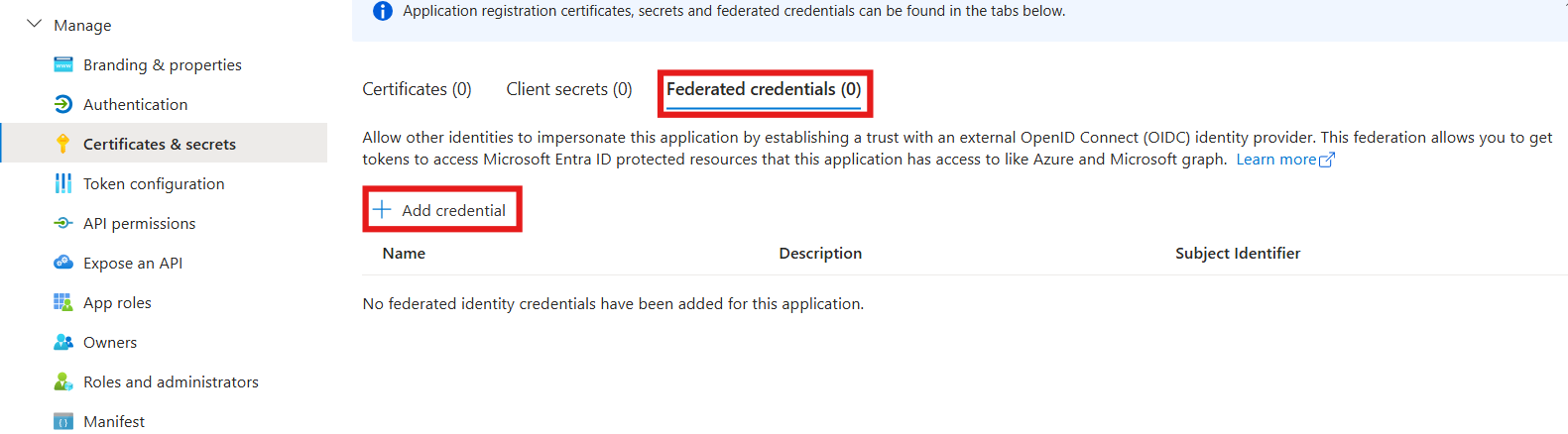
In the navigation pane, select Certificates & secrets to add credentials for your application.
Under Federated Credentials, select Add Credentials.
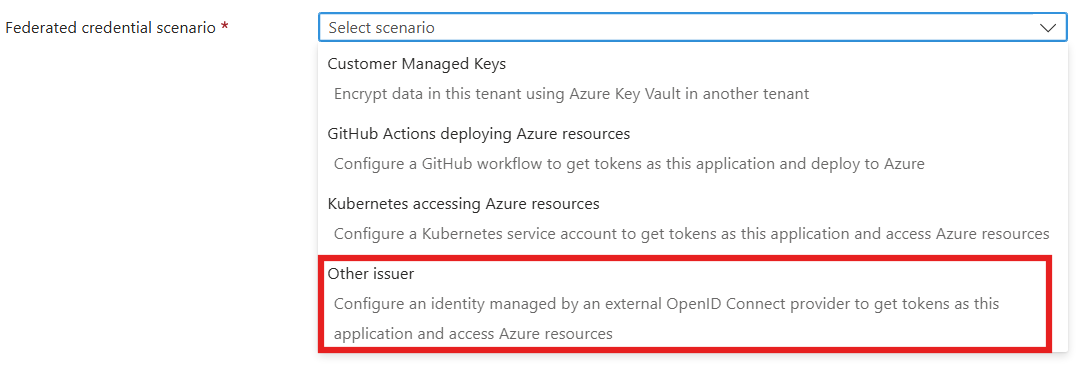
On Add Credentials, choose the Federated credential scenario as Other Issuer.
Enter values in the required fields and review and update settings:
Provide information under Connect your account.
Issuer:
https://login.microsoftonline.com/{customer-tenant-ID}/v2.0.Subject Identifier:
/eid1/c/pub/t/{base64 encoded customer tenant ID}/a/{base64 encoded 1-P app client ID}/{unique-identifier-for-projected-identity}.The following table contains Base64url encoded byte-array representations of supported first-party application IDs. Use the value that represents the first-party app.
Encoded Value Description 9ExAW52n_ky4ZiS_jhpJIQ Base64url encoded of Bot Service Token Store ND1y8_Vv60yhSNmdzSUR_A Base64url encoded of Bot Framework Dev Portal The following table contains Base64url encoded byte-array representation of some supported tenant IDs. Use the value that represents the tenant of your app.
Encoded Value Description v4j5cvGGr0GRqy180BHbRw Base64url encoded MSIT tenant ID (aaaabbbb-0000-cccc-1111-dddd2222eeee) PwFflyR_6Een06vEdSvzRg Base64url encoded PME tenant ID (bbbbcccc-1111-dddd-2222-eeee3333ffff) 6q7FzcUVtk2wefyt0lBdwg Base64url encoded Torus tenant ID (ccccdddd-2222-eeee-3333-ffff4444aaaa) IRngM2RNjE-gVVva_9XjPQ Base64url encoded AME tenant ID (ddddeeee-3333-ffff-4444-aaaa5555bbbb) The primary identity service owners calculate this value once and provide it to their consumers.
Unique-identifier-for-projected-identity: A unique identifier, of your choosing, that you use in the OAuth Connection Setting on the Azure Bot.
Name: Name of your choice, such as "agent oauth".
Audience: api://AzureADTokenExchange (Use Cloud specific values).
Provide information under Credential details.
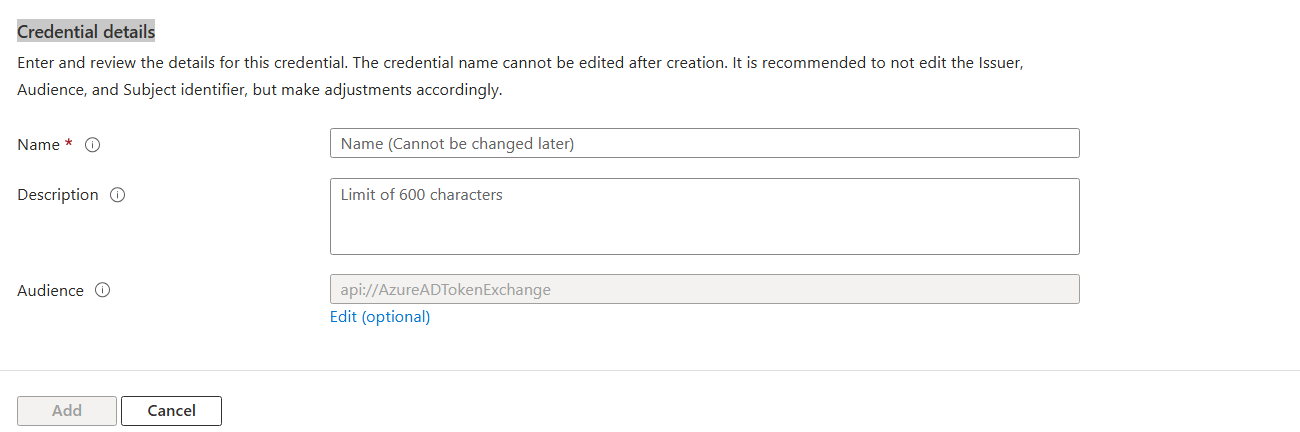
Select Add to add the credential.
Expose an API endpoint
Select Expose an API in the left rail.
- For an Azure Bot Service Bot: The default
api://{appid}is suitable. - For a Teams bot: This format is REQUIRED
api://botid-{appid}.
- For an Azure Bot Service Bot: The default
Add a scope:
Select Add a scope in the Scopes defined by this API section.
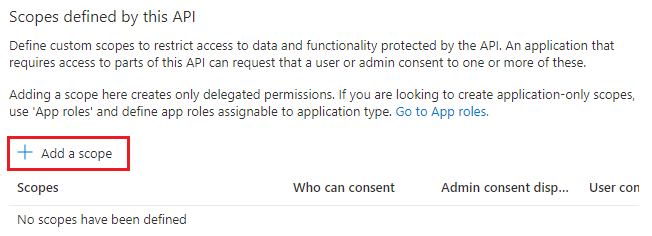
Enter the details for configuring scope.
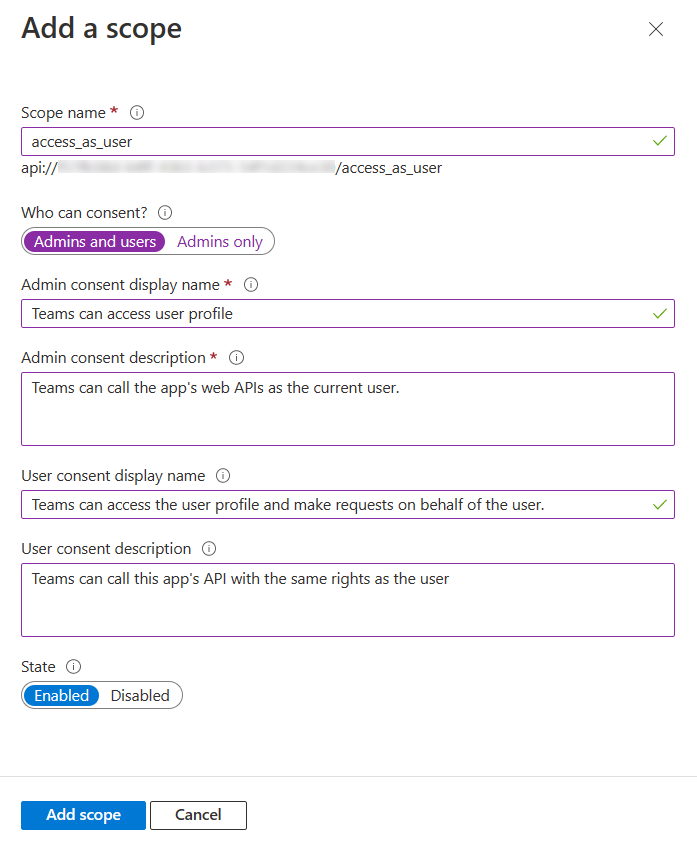
Enter the scope name
defaultScopes.Select the user who can give consent for this scope. The default option is Admins only.
Enter the Admin consent display name.
Enter the description for admin consent.
Enter the User consent display name.
Enter the user consent description.
Select the Enabled option for state.
Select Add scope.
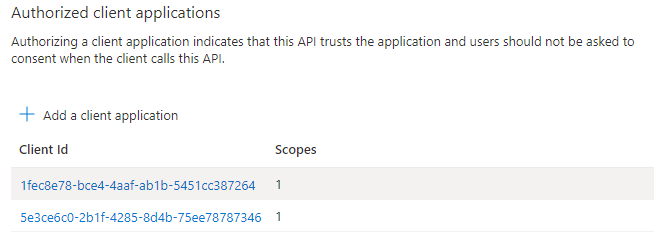
For Teams only, configure an authorized client application:
Select Add a client application.
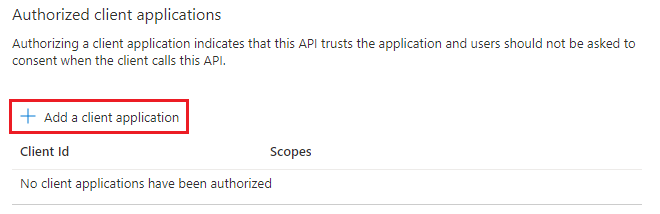
Enter the appropriate Microsoft 365 client ID for the applications that you want to authorize for your app's web application.
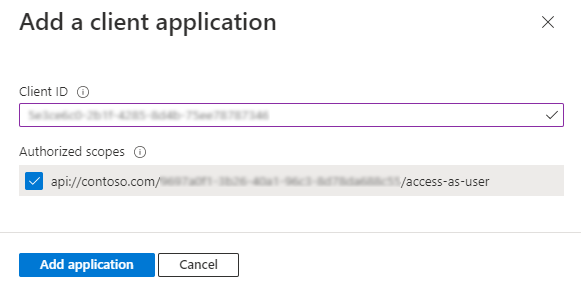
Select one of the following client IDs:
Client ID to use App type to authorize 1fec8e78-bce4-4aaf-ab1b-5451cc387264 Teams mobile or desktop application 5e3ce6c0-2b1f-4285-8d4b-75ee78787346 Teams web application 4765445b-32c6-49b0-83e6-1d93765276ca Microsoft 365 web application 0ec893e0-5785-4de6-99da-4ed124e5296c Microsoft 365 desktop application d3590ed6-52b3-4102-aeff-aad2292ab01c Microsoft 365 mobile application/Outlook desktop application bc59ab01-8403-45c6-8796-ac3ef710b3e3 Outlook web application 27922004-5251-4030-b22d-91ecd9a37ea4 Outlook mobile application Select the application ID URI you created for your app in Authorized scopes to add the scope to the web API you exposed.
Select Add application.
Set API permissions for the app
In the navigation pane, select API permissions to open the API permissions panel. Set the API permissions for the app:
Select Add a permission to show the Request API permissions pane.
For this sample, select Microsoft APIs and Microsoft Graph.
Choose Delegated permissions and make sure the permissions you need are selected. This sample requires
User.Readpermissions.Tip
Avoid permissions marked as ADMIN CONSENT REQUIRED because they require both a user and a tenant admin to sign in.
You now have a OAuth application configured.
Note
You assign the Application (client) ID when you create the connection string and register the identity provider with the agent registration. See next section.
Create an OAuth connection on the Azure Bot
Next, register your identity provider with your agent:
Note
Single Tenant Microsoft Entra Application supports only AAD v2 with Federated Credentials service provider. Support for multitenant apps is coming soon.
Open your bot's Azure Bot resource page in the Azure portal.
Select Settings, and then select Configuration.
Select the OAuth Connection Settings button near the bottom of the page.
Fill in the form as follows:
Name. Enter a name for your connection. Use it in your agent code.
Service Provider. Select AAD v2 with Federated Credentials to display service provider specific fields.
Client id. Enter the application (client) ID you recorded for your Microsoft Entra ID identity provider(Only Single Tenant Supported).
Unique Identifier. Enter the unique identifier you recorded for your Microsoft Entra ID identity provider while creating federated credentials.
Token Exchange URL. For Teams SSO, enter the API endpoint created earlier:
api://botid-{appId}. Otherwise, leave the field blank.Tenant ID. Enter the directory (tenant) ID that you recorded earlier for your Microsoft Entra ID app or
commondepending on the supported account types selected when you created the Azure DD app. To decide which value to assign, follow these criteria:- When creating the Microsoft Entra ID app, if you selected Accounts in this organizational directory only (Microsoft only - Single tenant), enter the tenant ID you recorded earlier for the Microsoft Entra ID app.
- However, if you selected Accounts in any organizational directory (Any Microsoft Entra ID directory - Multitenant and personal Microsoft accounts e.g. Xbox, Outlook.com) or Accounts in any organizational directory(Microsoft Entra ID directory - Multitenant), enter
commoninstead of a tenant ID. Otherwise, the Microsoft Entra ID app verifies through the tenant whose ID you selected and excludes personal Microsoft accounts.
Note
This tenant is associated with the users who can be authenticated. For more information, see Create a tenant in Microsoft Entra ID.
For Scopes, enter the names of the permission you chose from the application registration. For testing purposes, you can just enter:
User.Read. If you need to use this token for OBO to another service (an exchangeable token), useapi://botid-{{appId}}/defaultScopes.
Note
For Microsoft Entra ID, the Scopes field takes a case-sensitive, space-separated list of values.
Select Save.
Test your connection
Select the connection entry to open the connection you created.
Select Test Connection at the top of the Service Provider Connection Setting pane.
The first time, this action opens a new browser tab that lists the permissions your app is requesting and prompts you to accept.
Select Accept.
This action redirects you to a Test Connection to your-connection-name Succeeded page, where
your-connection-succeededis your specific connection name.For exchangeable tokens only:
Copy the JSON Web Token (JWT) token.
Decode the token by using
https://jwt.io/.The
audclaim value should begin withapi://.