Note
Access to this page requires authorization. You can try signing in or changing directories.
Access to this page requires authorization. You can try changing directories.
Copilot Cowork uses the Customize page as the place where you manage everything that extends Cowork—the plugins you added and the skills you created—in one place.
Open the Customize page
Open the Customize page when you want to review or change the plugins and skills available to Cowork.
Open Cowork.
In the left navigation, select Customize. The page opens with two tabs: Plugins and Skills.
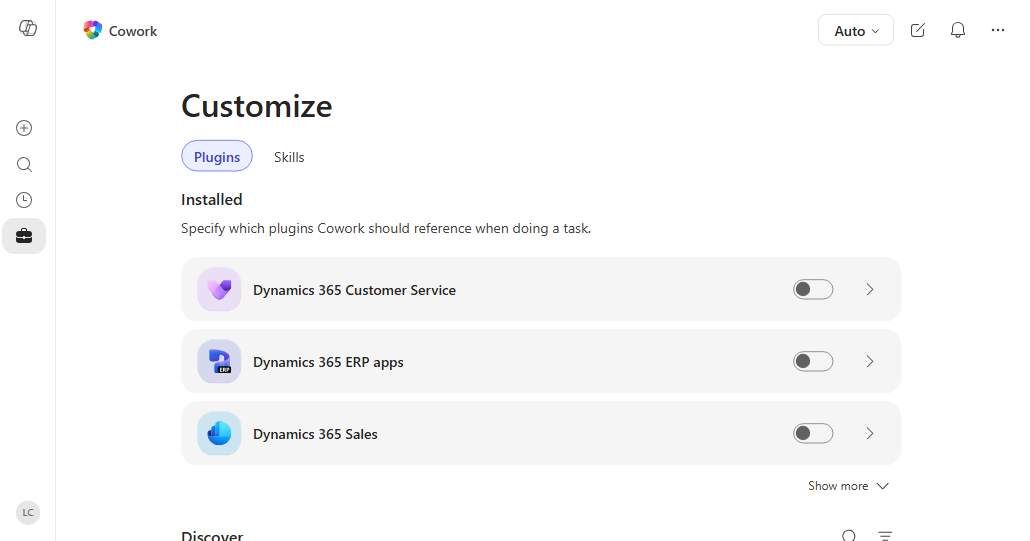
Manage your plugins
Use the Plugins tab to review plugins you added and find plugins that are available to you.
The Installed section shows plugins that you or your admin added. The Discover grid shows plugins available from the Marketplace and plugins you published. The page can also show plugins shared with you.
- Select a plugin card to open its detail page, where you can review the publisher, description, and included skills or connectors.
- Select Add on the detail page to add an available plugin.
- Select an installed plugin to open its detail page. From the detail page, you can turn the plugin on or off for the current conversation, see what data it connects to, and remove it.
- To add a plugin package of your own, select Upload plugin at the top of the Plugins tab. See Upload a plugin package.
For step-by-step instructions, see Use plugins with Cowork.
Manage your skills
To manage the skills that Cowork can use in conversations, use the Skills tab.
The tab has two lists: Your skills for skills you created or added through plugins, and Built-in for the skills that ship with Cowork.
- Use the search box and source filters at the top of the tab to narrow the list.
- Select Add to start a guided conversation that helps you write and save a new skill. Select the arrow next to Add to choose Create new (the guided flow) or Upload skill to import a skill file from your device. See Upload a skill.
- Select any skill to open its detail page. For skills you created, you can edit instructions, download the skill file, open it in OneDrive, share it, or delete the skill. To test changes, start a new conversation.
For more on writing skills, see Use Cowork.
Upload a skill
If you already have a skill file—for example, one you exported, received from a colleague, or built outside of Cowork—you can import it from the Skills tab instead of recreating it.
- Select the + button and Customize , then select the Skills tab.
- Select the arrow next to Add, then select Upload skill.
- In the file picker, choose a skill file. Cowork accepts:
- A
.mdfile containing a singleSKILL.md. - A
.zipor.skillarchive that has aSKILL.mdat its root, plus any companion files the skill uses.
- A
- Cowork validates the file and saves the skill to your OneDrive. The new skill appears in Your skills after it finishes syncing, which can take a few moments.
The skill file must include a name and a description in its frontmatter. If a skill with the same name already exists, Cowork keeps both and adds a number to the new skill's name.
Important
A skill runs as instructions to the AI. Only upload skills from sources you trust. The first time you upload a skill, Cowork shows a reminder about this.
Note
A .md skill file can be up to 1 MB. An archive can be up to 10 MB compressed, up to 50 MB uncompressed, and can contain up to 100 files.
Upload a plugin package
You can upload your own plugin package from the Plugins tab to make it available in Cowork and, optionally, share it with other people in your organization.
- Open the Customize page and select the Plugins tab.
- Select Upload plugin at the top of the tab.
- In the file picker, choose a plugin package (a
.zipfile). - If your file is a Claude or other compatible plugin package, Cowork automatically converts it into a publishable package, including any bundled skills and external connectors it contains.
- The Share dialog opens so you can choose who can use the plugin. See Share skills and plugins.
For more about plugins, see Use plugins with Cowork.
Share skills and plugins
You can share a skill or a plugin you created so that other people in your organization can use it. Sharing makes the item available either to only you or to specific people you choose.
- Open the detail page for a skill (in Your skills) or a plugin you published.
- Select Share in the top-right corner of the detail page.
- In the Share dialog, choose who can use the item:
- Only you keeps the item private to your account.
- Specific users in your organization lets you add people by name or email. Everyone you add can use the item.
- Select Apply. Cowork makes the item available to the people you chose.
When you change a skill or plugin you've already shared, open the detail page and select Re-share to send the latest version to everyone you shared it with. Their copy stays up to date with your changes.
Note
When you share an item with specific people, you can copy a link from the Share dialog to send to them directly.
Tips
- Use the conversation Sources picker to choose the plugins and skills you need for a request.
- Turn off a plugin you're not using for a conversation to keep results focused.
- Test a new skill in a new conversation before using it in your main conversation.
- Add a skill description that explains when Cowork should use the skill. This description helps Cowork pick the right skill for each request.