Note
Access to this page requires authorization. You can try signing in or changing directories.
Access to this page requires authorization. You can try changing directories.
Important
- Agents don't support sending and receiving files in Government Community Cloud High (GCC High), Department of Defense (DoD), and Teams operated by 21Vianet environments.
There are two ways to send and receive files:
Use the Microsoft Graph APIs: This method works in all (
personal,channel,groupchat) Microsoft Teams scopes.Use the Teams SDK file consent APIs: These only support files in
personalcontext.
Use the Graph APIs
Post messages with card attachments that refer to existing SharePoint files, using the Graph APIs for OneDrive and SharePoint. To use the Graph APIs, obtain access to either of the following through the standard OAuth 2.0 authorization flow:
- A user's OneDrive folder for
personalandgroupchatfiles. - The files in a team's channel for
channelfiles.
Graph APIs work in all Teams scopes. For more information, see send chat message file attachments.
Alternately, you can send files to and receive files from an agent using the Teams SDK file consent APIs.
Use the Teams SDK file consent file APIs
Teams SDK file consent APIs work only in the personal context. They don't work in the channel or groupchat context.
Using the Teams SDK, the agent can directly send and receive files with users in the personal context, also known as personal chats. Implement features, such as expense reporting, image recognition, file archival, and e-signatures involving the editing of file content. Files shared in Teams typically appear as cards and allow rich in-app viewing.
The next sections describe how to send file content as direct user interaction, like sending a message. The Teams SDK provides activity routes for handling file consent workflows, including file.consent.accept and file.consent.decline.
Configure the agent to support files
To send and receive files in the agent, set the supportsFiles property in the manifest to true. This property is described in the bots section of the manifest reference.
The definition looks like this, "supportsFiles": true. If the agent does not enable supportsFiles, the features listed in this section do not work.
Receive files in personal chat
When a user sends a file to the agent, the file is first uploaded to the user's OneDrive for business storage. The agent then receives a message activity notifying the user about the user upload. The activity contains file metadata, such as its name and the content URL. The user can directly read from this URL to fetch its binary content.
Message activity with file attachment example
The following code shows an example of message activity with file attachment:
{
  "attachments": [{
    "contentType": "application/vnd.microsoft.teams.file.download.info",
    "contentUrl": "https://contoso.sharepoint.com/personal/johnadams_contoso_com/Documents/Applications/file_example.txt",
    "name": "file_example.txt",
    "content": {
      "downloadUrl" : "https://download.link",
      "uniqueId": "1150D938-8870-4044-9F2C-5BBDEBA70C9D",
      "fileType": "txt",
      "etag": "123"
    }
  }]
}
The following table describes the content properties of the attachment:
| Property | Purpose |
|---|---|
downloadUrl |
OneDrive URL for fetching the content of the file. The user can issue an HTTP GET directly from this URL. |
uniqueId |
Unique file ID. This is the OneDrive drive item ID, in case the user sends a file to the agent. |
fileType |
Type of file, such as .pdf or .docx. |
As a best practice, acknowledge the file upload by sending a message back to the user.
Upload files to personal chat
To upload a file to a user:
- Send a message to the user requesting permission to write the file. This message must contain a
FileConsentCardattachment with the name of the file to be uploaded. - If the user accepts the file download, the agent receives an invoke activity with a location URL.
- To transfer the file, the agent performs an
HTTP POSTdirectly into the provided location URL. - Optionally, remove the original consent card if you do not want the user to accept further uploads of the same file.
Message requesting permission to upload
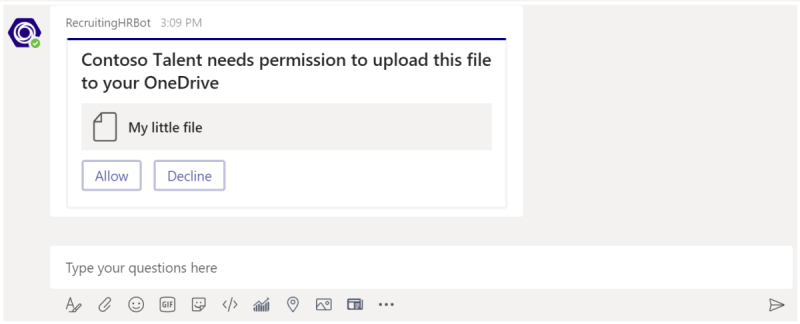
The following desktop message contains a simple attachment object requesting user permission to upload the file:
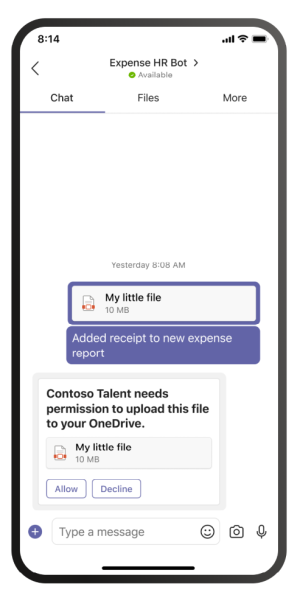
The following mobile message contains an attachment object requesting user permission to upload the file:
{
  "attachments": [{
    "contentType": "application/vnd.microsoft.teams.card.file.consent",
    "name": "file_example.txt",
    "content": {
      "description": "<Purpose of the file, such as: this is your monthly expense report>",
      "sizeInBytes": 1029393,
      "acceptContext": {
      },
      "declineContext": {
      }
    }
  }]
}
The following table describes the content properties of the attachment:
| Property | Purpose |
|---|---|
description |
Describes the purpose of the file or summarizes its content. |
sizeInBytes |
Provides the user an estimate of the file size and the amount of space it takes in OneDrive. |
acceptContext |
Additional context that is silently transmitted to the agent when the user accepts the file. |
declineContext |
Additional context that is silently transmitted to the agent when the user declines the file. |
Invoke activity when the user accepts the file
An invoke activity is sent to the agent when a user accepts the file. It contains the OneDrive for Business placeholder URL that the agent can then issue a PUT to transfer the file contents. For information on uploading to the OneDrive URL, see upload bytes to the upload session.
The following code shows an example of a concise version of the invoke activity that the agent receives:
{
  "name": "fileConsent/invoke",
  "value": {
    "type": "fileUpload",
    "action": "accept",
    "context": {
    },
    "uploadInfo": {
      "contentUrl": "https://contoso.sharepoint.com/personal/johnadams_contoso_com/Documents/Applications/file_example.txt",
      "name": "file_example.txt",
      "uploadUrl": "https://upload.link",
      "uniqueId": "1150D938-8870-4044-9F2C-5BBDEBA70C8C",
      "fileType": "txt",
      "etag": "123"
    }
  }
}
Similarly, if the user declines the file, the agent receives the following event with the same overall activity name:
{
  "name": "fileConsent/invoke",
  "value": {
    "type": "fileUpload",
    "action": "decline",
    "context": {
    }
  }
}
Notifying the user about an uploaded file
After uploading a file to the user's OneDrive, send a confirmation message to the user. The message must contain the following FileCard attachment that the user can select, either to preview or open it in OneDrive, or download locally:
{
  "attachments": [{
    "contentType": "application/vnd.microsoft.teams.card.file.info",
    "contentUrl": "https://contoso.sharepoint.com/personal/johnadams_contoso_com/Documents/Applications/file_example.txt",
    "name": "file_example.txt",
    "content": {
      "uniqueId": "1150D938-8870-4044-9F2C-5BBDEBA70C8C",
      "fileType": "txt",
    }
  }]
}
The following table describes the content properties of the attachment:
| Property | Purpose |
|---|---|
uniqueId |
OneDrive or SharePoint drive item ID. |
fileType |
Type of file, such as .pdf or .docx. |
Fetch inline images from message
Fetch inline images that are part of the message using the OnMessage handler. The Teams SDK handles authentication automatically, so you can access attachment content URLs directly from the activity context.
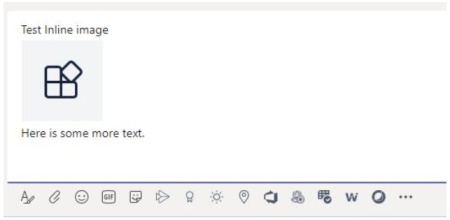
The following code shows an example of fetching inline images from a message:
using Microsoft.Teams.Api;
using Microsoft.Teams.Apps;
using Microsoft.Teams.Plugins.AspNetCore.Extensions;

var builder = WebApplication.CreateBuilder(args);
builder.AddTeams();
var app = builder.Build();
var teams = app.UseTeams();

teams.OnMessage(async (context, cancellationToken) =>
{
    var attachment = context.Activity.Attachments?[0];
    if (attachment != null && attachment.ContentType.Contains("image"))
    {
        // Download the inline image from the content URL.
        var client = new HttpClient();
        var responseMessage = await client.GetAsync(attachment.ContentUrl);

        // Save the inline image to Files directory.
        var filePath = Path.Combine("Files", "ImageFromUser.png");
        using (var fileStream = new FileStream(filePath, FileMode.Create, FileAccess.Write, FileShare.None))
        {
            await responseMessage.Content.CopyToAsync(fileStream);
        }

        // Create reply with the received image.
        var imageData = Convert.ToBase64String(File.ReadAllBytes(filePath));
        var reply = new MessageActivity(
            $"Attachment of {attachment.ContentType} type and size of {responseMessage.Content.Headers.ContentLength} bytes received.");
        reply.AddAttachment(new Attachment
        {
            Name = "ImageFromUser.png",
            ContentType = "image/png",
            ContentUrl = $"data:image/png;base64,{imageData}",
        });
        await context.SendAsync(reply, cancellationToken);
    }
});

app.Run();
Basic example
The following example shows how to handle the complete file consent workflow, including sending consent cards, handling accepted and declined responses, and uploading files to OneDrive.
Send File Consent Card
The following code sends a file consent card to the user, requesting permission to upload the received file to their OneDrive:
async Task SendFileConsentCard<T>(IContext<T> context, string fileName, string fileId, int fileSize)
    where T : IActivity
{
    var consentContext = new { filename = fileName, file_id = fileId };

    var fileCard = new FileConsentCard
    {
        Description = "This is the file I want to send you",
        SizeInBytes = fileSize,
        AcceptContext = consentContext,
        DeclineContext = consentContext
    };

    var message = new MessageActivity
    {
        Attachments =
        [
            new Attachment
            {
                Content = fileCard,
                ContentType = new ContentType(ContentTypeFileConsent),
                Name = fileName
            }
        ]
    };
    await context.Send(message);
}
Handle File Upload
The following code performs the actual file upload after the user accepts the consent card, uploads the content to OneDrive, and sends a success message with a file info attachment. In C#, this logic is inline within the OnFileConsent handler.
async function handleFileUpload(context: any, uploadInfo: FileUploadInfo, fileId: string): Promise<void> {
  try {
    const content = pendingUploads.get(fileId)!;
    pendingUploads.delete(fileId);
    await uploadToOnedrive(uploadInfo.uploadUrl!, content);
    await context.send({
      type: 'message',
      text: `<b>${uploadInfo.name}</b> has been successfully uploaded.`,
      attachments: [{
        content: {
          uniqueId: uploadInfo.uniqueId,
          fileType: uploadInfo.fileType
        },
        contentType: CONTENT_TYPE_FILE_INFO,
        name: uploadInfo.name,
        contentUrl: uploadInfo.contentUrl
      }]
    });
  } catch (e: any) {
    pendingUploads.delete(fileId);
    console.log(`File upload failed: ${e}`);
  }
}

async function uploadToOnedrive(url: string, content: Buffer): Promise<void> {
  const fileSize = content.length;
  const response = await axios.put(url, content, {
    headers: {
      'Content-Type': 'application/octet-stream',
      'Content-Length': fileSize.toString(),
      'Content-Range': `bytes 0-${fileSize - 1}/${fileSize}`
    }
  });
  if (![200, 201].includes(response.status)) {
    throw new Error(`Upload failed with status ${response.status}`);
  }
}
Code sample
The following code sample demonstrates how to obtain file consent and upload files to Teams from an agent:
| Sample name | Description | .NET | Node.js | Python |
|---|---|---|---|---|
| File upload | This agent sample for Teams demonstrates file upload capabilities using Bot Framework v4, enabling users to upload files and view inline images within chats. | View | View | View |
See also
Collaborate with us on GitHub
The source for this content can be found on GitHub, where you can also create and review issues and pull requests. For more information, see our contributor guide.
Platform Docs