Note
Access to this page requires authorization. You can try signing in or changing directories.
Access to this page requires authorization. You can try changing directories.
This feature enables you to create a Power Automate credential that retrieves CCP CyberArk secrets from the vault during runtime.
Availability
Currently, this feature isn't available for US Government Clouds.
Prerequisites
Set up your CyberArk Central Credential Provider (CCP)
If your CyberArk Central Credential Provider (CCP) isn't set up, complete the following actions:
- Install the Central Credential Provider (CCP). To learn more, see CCP Installation.
- Ensure that your machines can communicate with the CyberArk server.
- Allow https connections to contact the CCP AIMWebService.
Create an application with client certificate authentication from PVWA.
When you use a signed certificate, the application authenticates by using the certificate serial number.
To add a signed certificate:
Sign-in to CyberArk's Password Vault Web Access (PVWA).
From the left navigation, select the Applications tab, and then select Add Application.
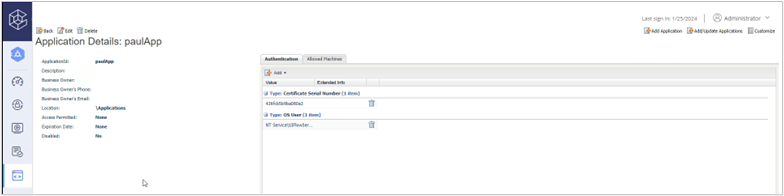
Provide the information in the Application window (at least a name) and select Add.
In the details of the application, select Add on the Authentication tab.
Select Certificate serial number and enter the value. For more information, see Application authentication methods.
Set up a CyberArk safe that contains your user accounts
(Optional) If you don't have a safe yet, you can create a Safe from PVWA:
From the left navigation, select Policies and then select Safes.
Select Create Safe.
Enter a safe name and select PasswordManager.
Enter Safe members and Access, and then select Create Safe.
From PVWA, you can then add your machine accounts.
Note
You can also create accounts from PrivateArk client.
From the left navigation, select Accounts > Add Account.
Select Windows as system type.
Select the safe you created to store your robotic process automation (RPA) machine accounts.
Provide information about your account and select Add.
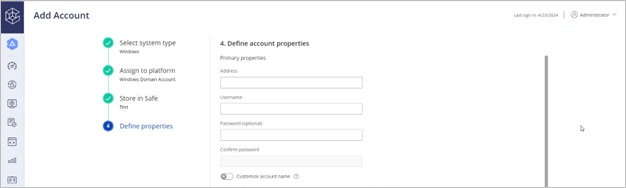
Define application and credential provider as safe member
Add the Credential Provider user as a Safe Member with the following authorizations:
- List accounts
- Retrieve accounts
- View Safe Members
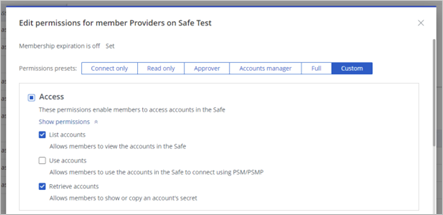
Add the application as a Safe Member with the following authorizations:
- Retrieve accounts
Add a CyberArk application to machine or group
Important
You can't currently associate a CyberArk application with machines or groups that you share with other users.
To run a desktop flow on a machine or a group by using CyberArk credentials, add your CyberArk application information in the Power Automate portal.
Sign in to Power Automate.
From the left navigation, select Machines, and then select the machine or the group.
In the Machine details, select Configure CyberArk.
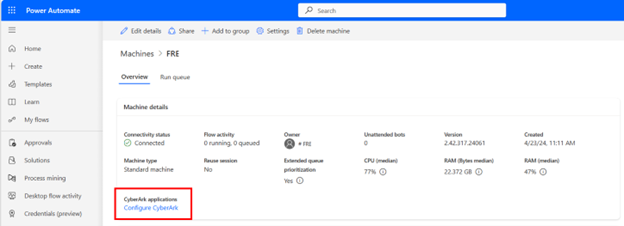
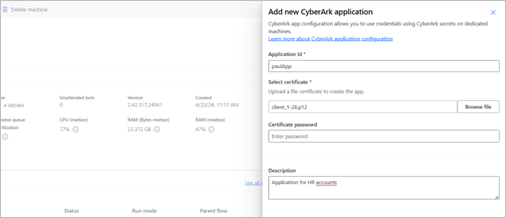
Select New application.
Enter the app ID of the application you created from CyberArk PVWA.
Select the certificate, which stores the private and the public key of the certificate.
- The allowed formats are .pfx or .p12 files.
- The private key should be marked as exportable.
Enter the certificate file password that is used to open the certificate file.
Note
The password isn't stored. The certificate is opened and encrypted by using the public key of the machine group so it's only readable from the registered machines.
Enter a description (optional) and then select Save.
Note
If you create a CyberArk application with the same Application ID as an existing one on the machine or group, this action automatically replaces the existing application. This replacement includes the certificate, certificate password, and related configuration.
Configure CyberArk for multiple machines or groups
If you need to configure the same CyberArk application across multiple machines or groups, use the centralized configuration wizard instead of configuring each machine individually.
- Sign in to Power Automate.
- From the left navigation, select Machines.
- Select the CyberArk tab.
- Select New CyberArk application.
- In the Select CyberArk application step, provide the following information:
- Application Id: Enter the Application ID as registered in your CyberArk CCP.
- Select certificate: Upload the certificate file (.pfx or .p12) used to authenticate with CyberArk.
- Certificate password: Enter the password for the certificate file.
- Description (optional): Add a description for this configuration.
- Select Next.
- In the Select machine groups step, select the machines and machine groups that should use this CyberArk application.
- Use Select all or Clear all for bulk selection.
- Use the search box to find specific machines or groups.
- Select Next.
- In the Review and create step, verify your configuration:
- Application ID
- List of machines and groups that use this application
- Select Create.
Tip
Use one unique CyberArk configuration for each machine group to simplify management.
Create a CyberArk credential
After you complete all the prerequisite steps, create your CyberArk credentials.
From the left navigation, select Credentials.
Select New credential.
In the wizard, enter a credential name and a brief description, and then select Next.
When you create a credential in Power Automate, specify where to use this credential. You can use a credential for two types of usage:
- Connection: These credentials belong to the user session on which the desktop flow runs.
- Desktop flows: These credentials are for use in a desktop flow. For example, SAP credential, SharePoint credential, Excel password, and so on.
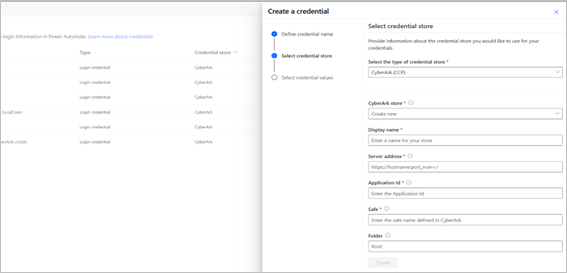
Select CyberArk CCP as the type of credential store.
If you already defined a CyberArk store, select it from the dropdown. Otherwise, select Create new.
Display name: Enter a name for your CyberArk store.
Server address: Enter the server address, which is the Central Credential Provider URL. For example,
https://svc.skytap.com:8992.Note
Versions before the August release don't support a server address ending with a "/".
Application Id: To find the Application ID, open CyberArk PVWA (Password Vault Web Access) on a web browser and navigate to the Applications tab.
Safe: Enter the name of the safe displayed in CyberArk PVWA.
Folder (optional): Enter the folder name where your credentials are stored. By default, credentials are stored in the Root folder.
In the last step of the wizard, provide the information about the user account:
Username: Select a username from your text environment variables or create a new one by selecting new.
If you create a CyberArk credential to use in a desktop flow connection, provide your device account. Enter the name of the user (for example,
<MACHINENAME\User>or<local\User>) or a Microsoft Entra ID account, such as<DOMAIN\User>or<username@domain.com>.Object name: The object name corresponds to the CyberArk object name store in the CyberArk safe. This value is also called account name in PVWA.
Use the credential in a desktop flow connection
You created the credential. Use it in a desktop flow connection to run desktop flows from cloud flows.
Use the credential in a desktop flow action
Ensure you have a registered machine where you execute your desktop flow. The credential is retrieved from this machine.
Note
The registered machine is required for credentials to work properly at runtime, even for local attended or debugging runs.
In the desktop flow designer, select the Power Automate secret variables module and then select the Get credential action.
Specify which credential to retrieve. You see only the credentials defined as usable in a desktop flow. Credentials that use Azure Key Vault or CyberArk as a vault are supported.
Define the name of your produced variable. This variable is marked as sensitive and can't be modified. This restriction means the value of this variable isn't stored in the logs.
Note
Credential type variables are always enforced as sensitive, independently of how they're produced (Get credential action or reassigning a credential variable to a new one, which inherits the same variable type). The same rule applies to the 'Password' property of credential variables.
After you select Save, use your credential in another action. All Power Automate actions can use credentials.
In the action field, select the variable picker. In your flow variables list, find your credential and expand it. You can see the attributes Username and Password. Select the one you want to use in this action (double-click).
Run the flow.