Note
Access to this page requires authorization. You can try signing in or changing directories.
Access to this page requires authorization. You can try changing directories.
In this tutorial we will see how we can use the card-designer card's property pane to explore geolocation actions.
We will:
- Update the card strings
- Introduce geolocation actions on the Card View, Primary button and Secondary button
First, figure out the domain to the URL of your SharePoint tenant and site you want to use for testing and access the workbench.aspx page. For example: https://contoso.sharepoint.com/sites/devsite/_layouts/workbench.aspx.
Here, click on the '+' icon in the middle of the page, and add the card-designer card on the canvas.
Next, click the pencil icon adjacent to this card to open the property pane.
Update the card strings
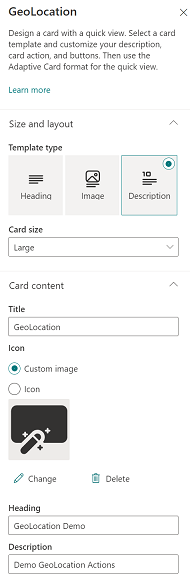
Here, first set the card size to Large.
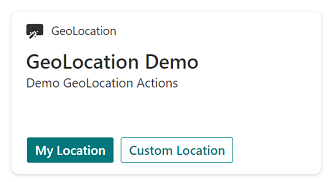
To provide descriptive labels, change Title to GeoLocation, Heading to GeoLocation Demo and description to Demo GeoLocation Actions.
Adding action on Card View
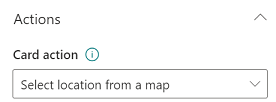
Under Actions, click the drop-down menu of card action and select Select location from a map option.
Adding action on Primary button
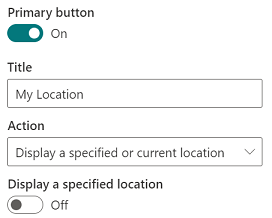
Next, for the Primary Button, set the Title to My Location and from its action drop-down menu, select Display a specified or current location.
Adding action on Secondary button
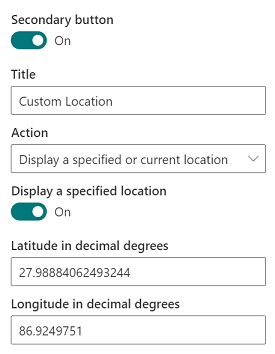
Finally, for the Secondary Button, set the Title to Custom Location and from its action drop-down menu, select Display a specified or current location.
Next, turn on the Display a specified location toggle button.
This will bring up two text boxes for location coordinates.
Here you may provide any location coordinates of your choice.
For our example, we are putting in 27.98884062493244 as the value for the text-box labeled latitude and 86.9249751 for the text-box labeled longitude. These are the coordinates of Mount Everest.
Try the geolocation actions
Now close the property pane and click Preview from the top right hand corner of the page:
- Click on the card itself to select a location from the map
- Clicking on
My locationwill open a map showing your current location - Clicking on
Show custom locationwill open a map showing your custom location (Mount Everest)
You can now check out the three geolocation actions that you introduced via the property pane.
Note
This property-pane experience doesn't allow you to introduce onAction callback, and hence the action Select location from a map is actually a no-op.