Detect AI threats at runtime with Cloud Workload Protection (CWP)
Configuration hardening reduces risk before deployment, but active workloads need continuous protection. Cloud Workload Protection (CWP) in Microsoft Defender for Cloud detects and responds to threats across AI workloads, containers, and compute resources that power your models and data pipelines.
CWP helps identify and respond to threats such as malicious prompt injections, data exfiltration attempts, or compromised containers. These threats can manipulate AI models or expose sensitive data. It complements the AI workloads plan by protecting the operational layer of your AI ecosystem. For example, if a malicious prompt or injected command targets an AI model, CWP can detect the behavior in real time and generate an alert with details about the affected resource.
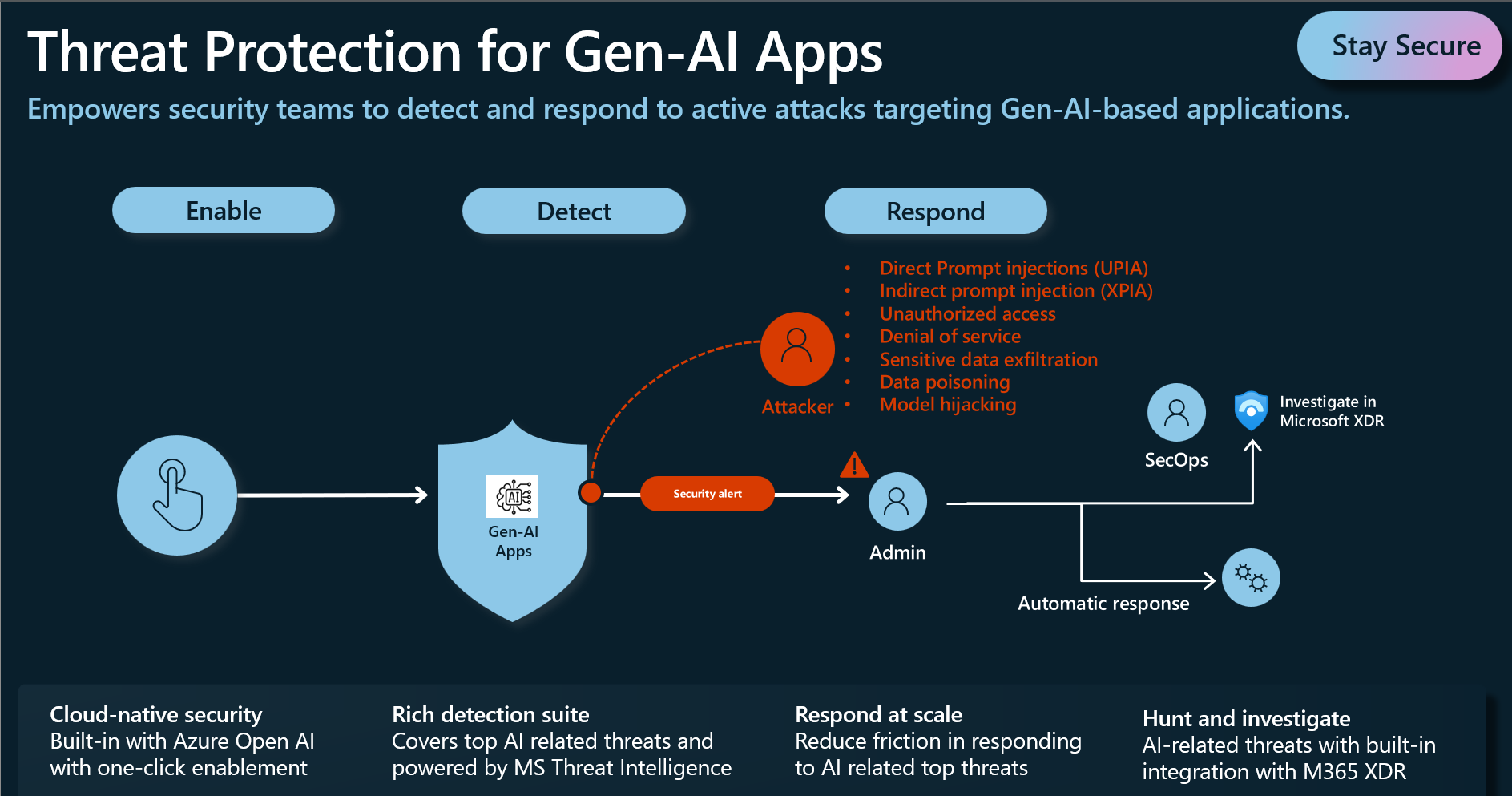
Defender for Cloud provides built-in AI threat protection that detects prompt injection, data exfiltration, and model hijacking attempts, and integrates with Microsoft XDR for investigation.
Detect threats in AI environments
CWP continuously analyzes runtime signals from virtual machines, containers, and managed AI services. For AI workloads, it correlates these signals with AI-specific threat intelligence to identify suspicious behavior, including:
- Unusual access patterns to model or data storage accounts
- Code injection or privilege escalation within containers hosting inference workloads
- Unauthorized outbound connections from compute nodes running AI models
- Anomalous API calls that might indicate abuse of an AI service endpoint
When a threat is detected, Defender for Cloud generates an alert that includes affected resources, severity, and recommended actions.
In the Azure portal, open Microsoft Defender for Cloud.
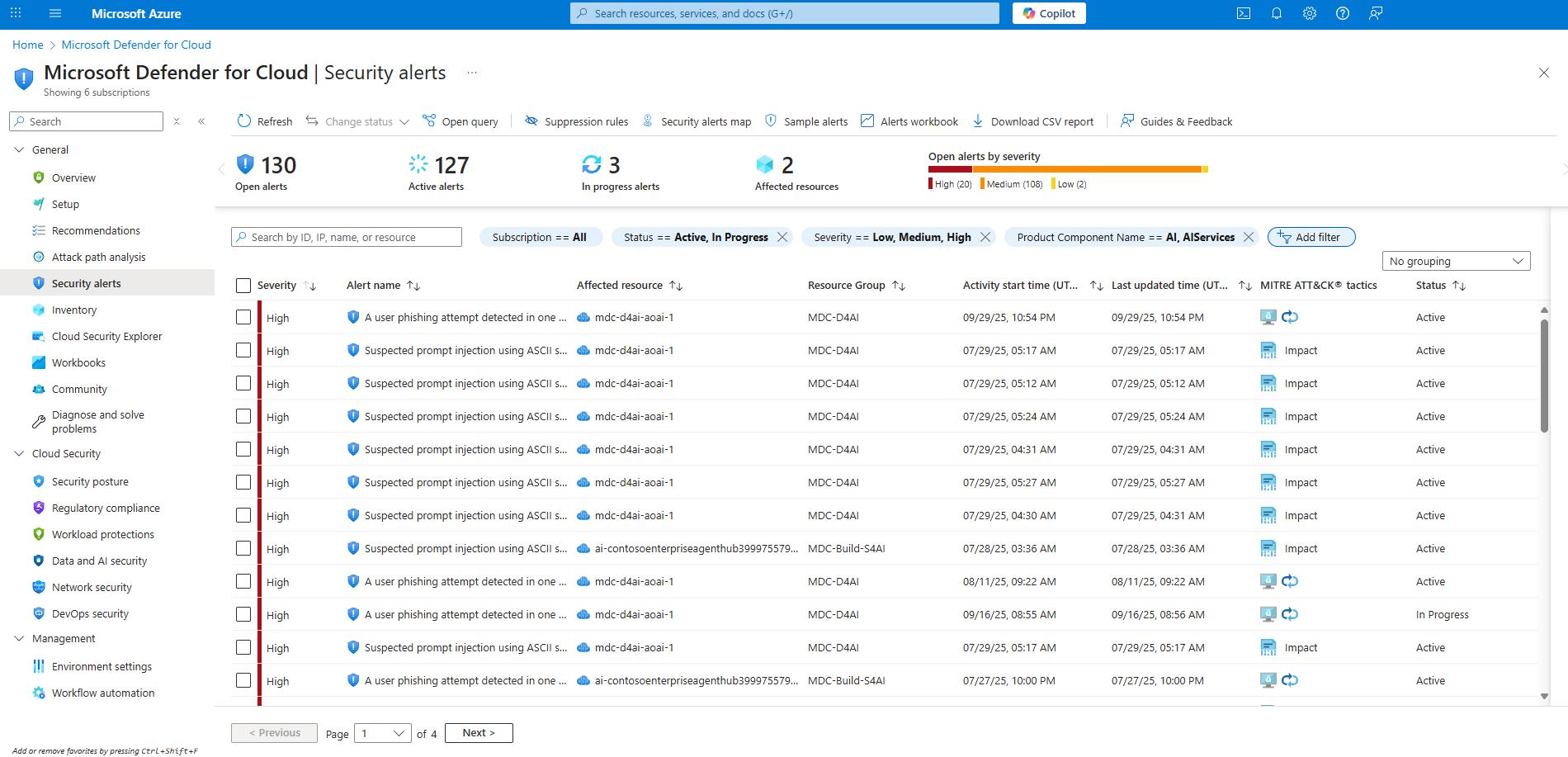
Under General, select Security alerts.
Select Add filter, then choose Product Component Name.
In the Value list, select AI and AIServices, then select OK.
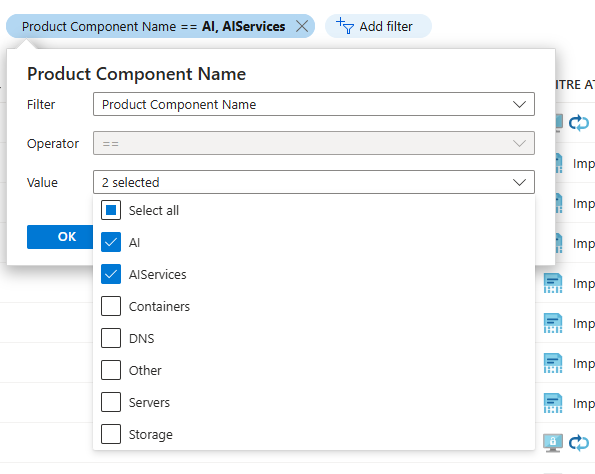
Review the filtered list to see alerts related to AI workloads and services.
Select an alert to view details such as affected resources, detection source, evidence, and recommended actions.
Tip
You can also access the same alerts by selecting Workload protections under Cloud Security, then clicking anywhere in the Security alerts chart. Both paths open the same alert list.
Each alert links to context across Defender for Cloud and Defender XDR, allowing you to see whether the threat originated from a prompt injection, malicious script, or suspicious data movement.
Investigate and respond to AI threats
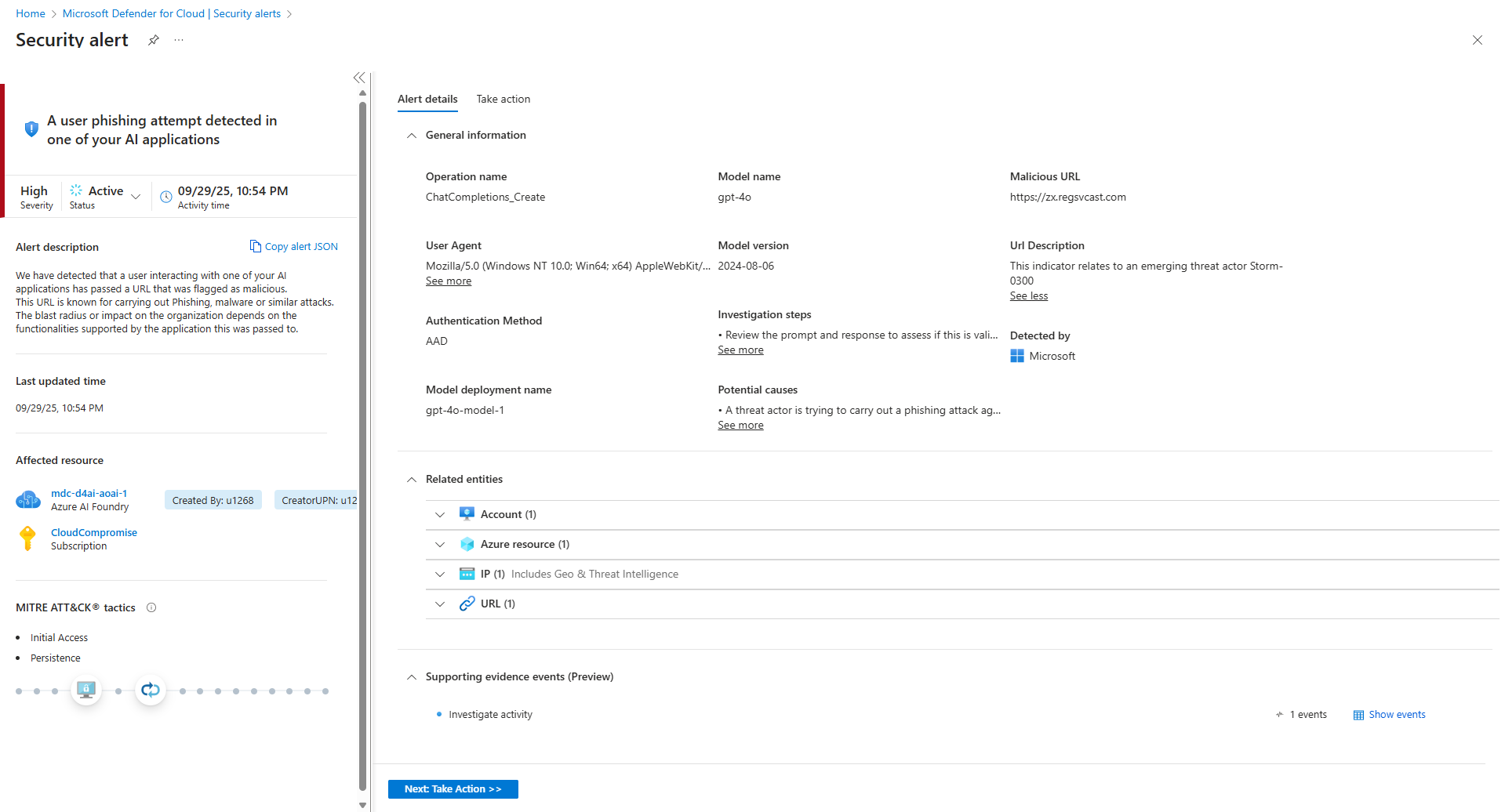
When you select an alert, a summary panel opens with key information such as severity, description, affected resources, and MITRE ATT&CK tactics. From here, you can take immediate action or open the full alert view for deeper analysis.
In the Security alerts list, select an AI-related alert to open the Alert summary panel.
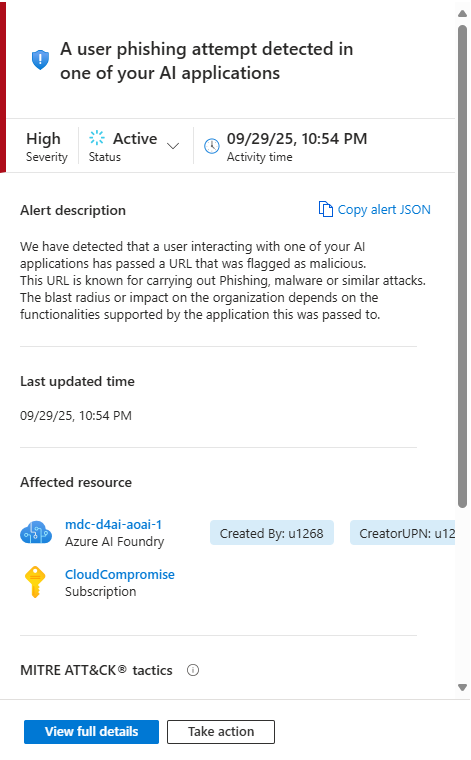
Select View full details to open the Alert details page.
The Alert details page shows:
A description of the detected behavior and why it's considered suspicious
Impacted resources, such as model endpoints, containers, or storage accounts
Evidence gathered from logs, detection data, and related entities such as accounts, Azure resources, and IP addresses
Supporting evidence events (Preview), which might include a Prompt Suspicious Segment showing the portion of input or API call that triggered the detection
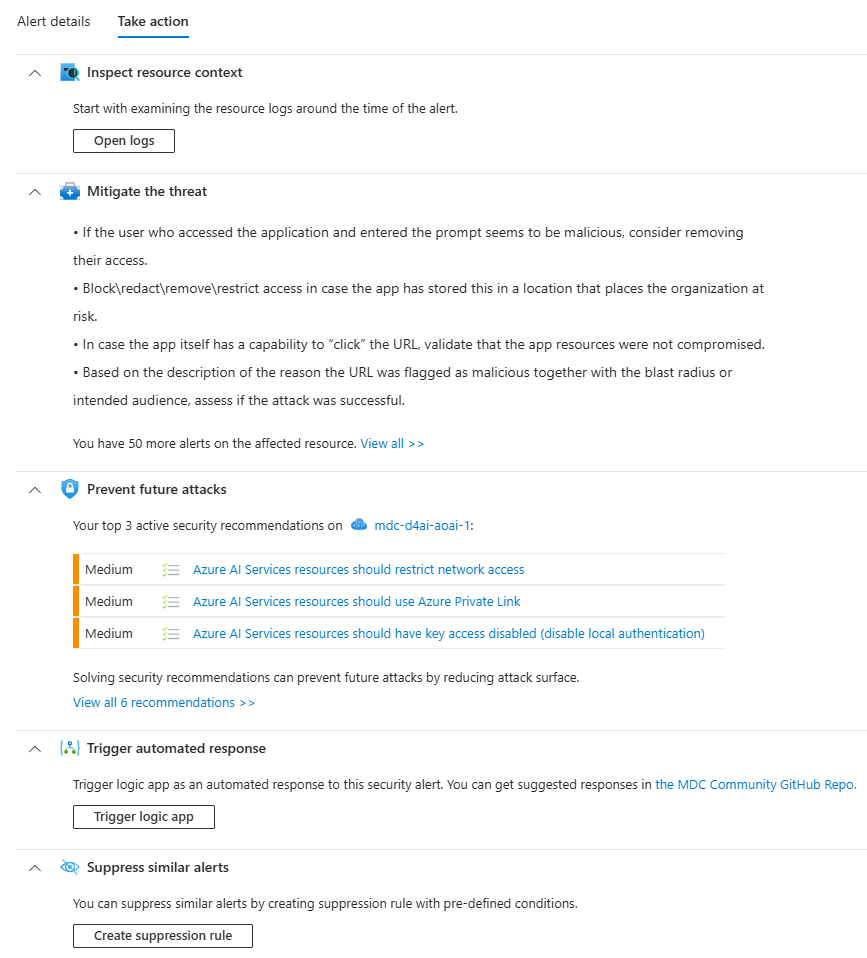
Recommended actions for mitigation and follow-up investigation
Use the Take action menu to start guided response steps, such as changing an alert's status, creating an automation rule, or triggering a Logic App playbook for remediation. Playbooks can automatically quarantine affected resources, disable compromised credentials, or send notifications in Microsoft Teams or ServiceNow.
Strengthen AI runtime protections
To improve threat coverage and reduce false positives, verify that the following plans and configurations are active:
- Defender for Servers: Protects compute hosting AI workloads with EDR and vulnerability scanning.
- Defender for Containers: Secures containerized training and inference environments.
- Defender for Storage: Detects malware or suspicious access in model and dataset repositories.
- Microsoft Defender XDR integration: Correlates AI-specific alerts with other incidents for unified investigation.
These integrations help Defender for Cloud detect suspicious activity across compute, data, and model services, providing the context needed to contain and remediate threats before they affect production workloads. Once threats are detected, you can investigate them in Microsoft Defender XDR to trace related activity and coordinate response actions.