Enable the AI workloads plan
AI workloads often rely on multiple connected services, including models in Microsoft Foundry, data in Azure Storage or SQL, and compute hosted in containers or virtual machines. Without centralized discovery, it can be difficult to know where these resources exist or how they relate to each other.
The AI workloads plan in Microsoft Defender for Cloud automatically identifies AI assets across your cloud environments and builds an inventory that shows how data, models, and services connect. This discovery process creates the foundation for assessing and protecting your AI environment.
Defender for Cloud extends protection across the AI lifecycle. It helps you:
- Address risks during development
- Evaluate configuration and posture
- Detect runtime threats through integrated security capabilities
Enabling the AI workloads plan is the first step in protecting AI environments. Once it's turned on, Defender for Cloud begins discovering AI resources and building the inventory that supports posture management and threat detection.
Turn on the AI workloads plan
Before you can review AI-specific insights in Defender for Cloud, you need to make sure the AI workloads plan is enabled for each subscription that contains AI resources.
Steps to turn on the AI workloads plan
In the Azure portal, open Microsoft Defender for Cloud.
Expand Management, then select Environment settings.
Choose the subscription you want to configure.
Under Defender plans, switch AI workloads to On.
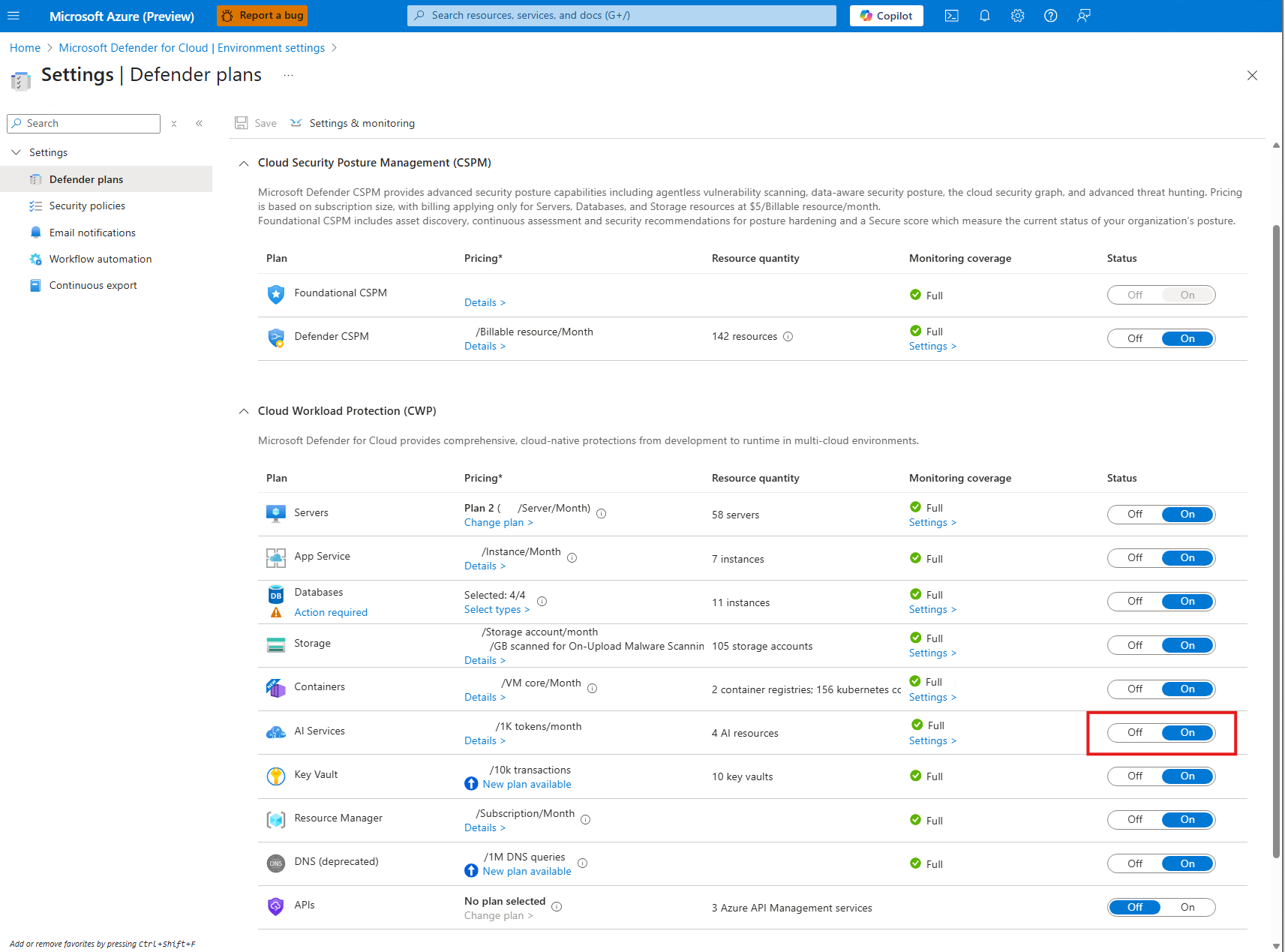
Once enabled, Defender for Cloud begins discovering AI services such as Microsoft Foundry, Azure OpenAI Service, and Azure Machine Learning. Discovery results typically appear in the Data & AI security dashboard within minutes.
Configure optional AI settings
After turning on the AI Services plan, select Settings under Monitoring coverage to view optional extensions for suspicious prompt evidence and data security for AI interactions.
Suspicious prompt evidence captures short, redacted snippets of AI prompts that triggered security alerts. These appear in Microsoft Defender XDR during alert investigations.
Data security for AI interactions integrates with Microsoft Purview to classify and protect prompt and response data for compliance and data security outcomes.
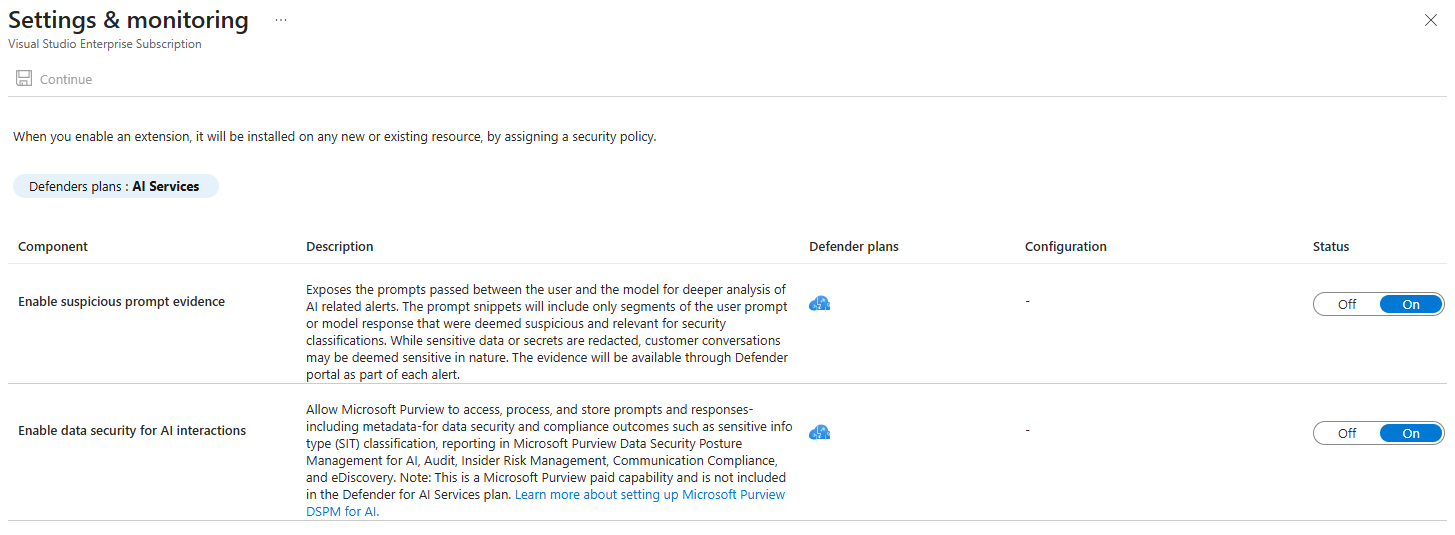
These extensions aren't required for the AI workloads plan to function, but turning them on provides deeper visibility and investigation capabilities across Defender and Purview.
Supporting steps for full coverage
To give the AI workloads plan complete context across your environment, verify that related plans and configurations are also active. These aren't required to enable the plan but improve the quality and depth of findings.
- Defender CSPM: Provides posture recommendations and attack path analysis for AI-related resources.
- Sensitive data discovery: Adds visibility into where sensitive or regulated data resides.
- Defender for Storage and Defender for Databases: Extend protection to AI data stores and models that rely on these services.
- Cross-cloud connectors (optional): If your organization uses AWS or GCP, connect those environments so Defender for Cloud can discover AI workloads there as well.
- Microsoft.Security resource provider: Confirm this provider is registered for each subscription to ensure policy and assessment data flow correctly.
Once the AI workloads plan is enabled, insights appear in the Data & AI security dashboard. The dashboard brings together information about AI and data resources, showing protection coverage and highlighting issues such as exposed assets or misconfigurations. These insights serve as a foundation for assessing and improving your AI security posture.