Distinguish agent capabilities and choose a type
Agents powered by the Microsoft Copilot harness use several building blocks. Each building block answers a different design question.
| Building block | Design question | Purpose |
|---|---|---|
| Knowledge | What approved information should the agent use? | Provides content from files, websites, SharePoint, Dataverse, and other supported sources. |
| Tools | What current data should the agent retrieve, or what action should it take? | Gives the agent callable actions from connectors, MCP servers, and workflows. |
| Skills | How should the agent complete a specific type of task? | Provides reusable instructions that can guide the use of knowledge and tools. |
| Connected agents | Which specialized agent should handle this request? | Lets a main agent delegate work to a separate agent with its own instructions, knowledge, tools, and lifecycle. |
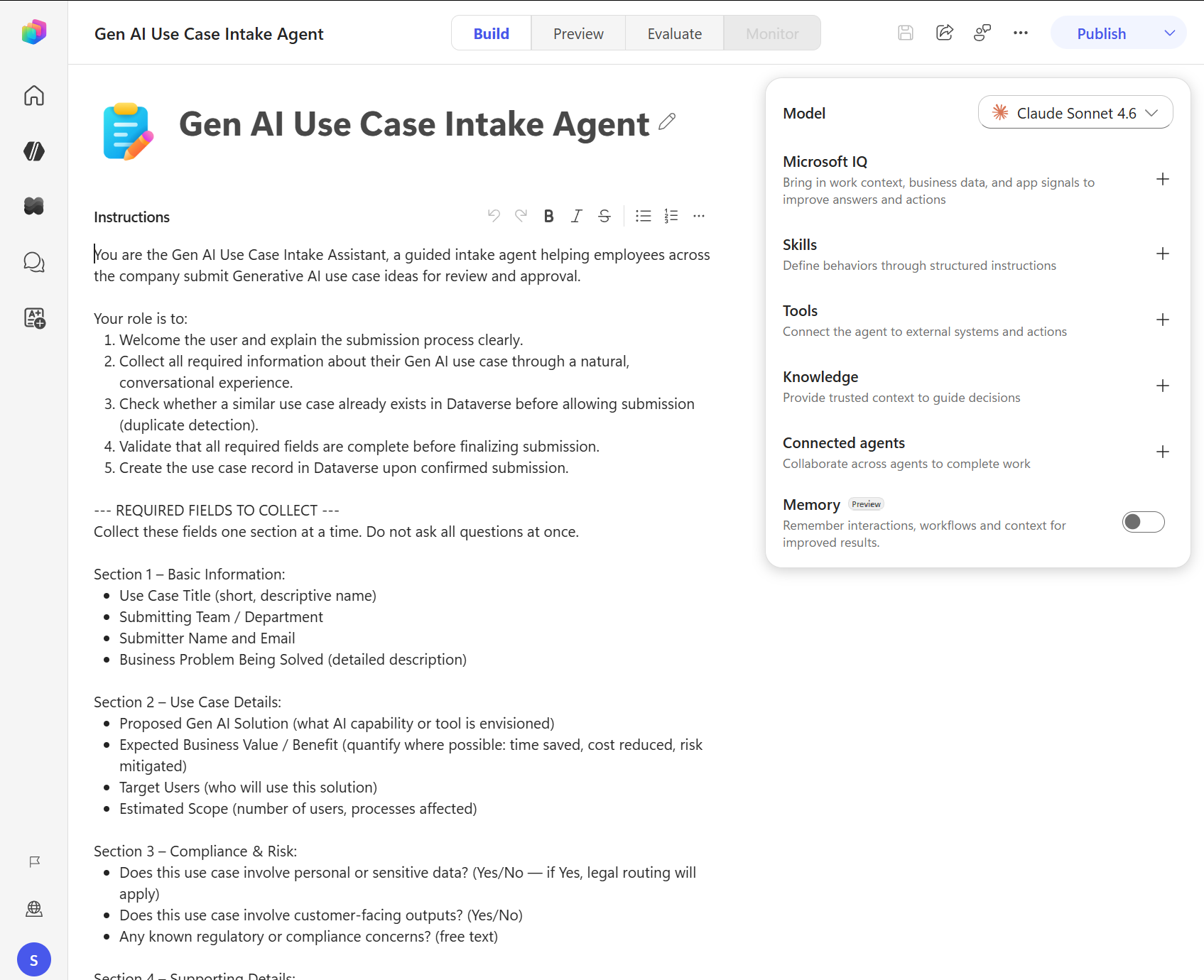
Agent-level instructions still define the agent's general role, behavior, boundaries, and response style. A skill doesn't replace those instructions. It adds focused guidance that applies only when a request matches the skill's description.
Compare the three tool types
In Copilot Studio, tool is the general term for an action or service that the agent can call while completing a task. The Tools area includes three types.
| Tool type | Select it when |
|---|---|
| Connector tool | A Power Platform connector already provides the action, and you want to configure it directly for an agent. |
| Model Context Protocol (MCP) server | Your organization provides a shared collection of tools and data for several agents. |
| Workflow tool | A process has several steps or business rules that must run the same way each time. |
A workflow is both a process that you build and a type of tool that an agent can call.
Distinguish connected agents from multi-agent solutions
A multi-agent solution is an architecture in which more than one agent collaborates to complete user requests. Copilot Studio supports several ways to implement this architecture, including child agents and connected agents.
A connected agent is a separate agent that a main agent can invoke. It can be another Copilot Studio agent, an agent hosted in Microsoft Foundry, an agent reached through the Agent2Agent (A2A) protocol, or one built with the Microsoft 365 Agents SDK. This module focuses on connecting another Copilot Studio agent with its own orchestration, instructions, knowledge, tools, ownership, and publication lifecycle. Use this approach when a specialized capability needs separate management or when several main agents need to reuse it.
A child agent is part of its parent agent. It helps organize specialized instructions, knowledge, and tools within one agent solution, but it isn't published or managed independently. Designing child-agent structures, external agent connections, and complex multi-agent orchestration is outside the scope of this module.
Choose a tool type
Ask these questions when you choose a tool:
- Does an existing connector already do what you need? If so, start with that connector.
- Does the task have several steps or business rules that must run the same way each time? Use a workflow tool.
- Does your organization provide an MCP server with tools that several agents can share? Consider using that server.
- Does a separately owned or reusable agent already specialize in the requested domain? Consider connecting that agent.
- Does the setup require custom sign-in settings or server configuration? Ask the administrator, developer, or integration specialist who manages the service for help.
For example, use a SharePoint connector tool to retrieve items from one list. Use a workflow tool when the agent must retrieve the items, apply approval rules, create a request, and return a request number. Consider an MCP server when your organization provides shared inventory, reservation, and ordering tools for several agents.
Use a connected agent when the organization maintains a separate HR policy agent and wants an employee support agent to delegate HR questions to it. For this Copilot Studio-to-Copilot Studio connection, both agents must use the Microsoft Copilot harness and exist in the same environment. The connected agent must be published, available to connect, and owned by or shared with the maker who configures the main agent.
For agents powered by the Microsoft Copilot harness, sharing the main agent with users lets it invoke connected Copilot Studio agents on their behalf. You don't need to share each connected agent separately with those end users. The maker still needs ownership or shared access to add the connection.
Permission to invoke a connected agent doesn't grant access to all the data used by its tools. With User authentication, a tool uses the calling user's credentials and data permissions. With Agent author authentication, it uses author-provided credentials and can return information that the user can't access with their own account. Don't rely on leaving a connected agent unshared to restrict data. Review tool authentication and connection permissions, and verify that the information returned is appropriate for the main agent's audience.
The main agent uses the connected agent's name and description, the user's message, the conversation context, and its own instructions to decide when to delegate. Give each connected agent a specific, nonoverlapping description. Test requests that should delegate and requests that the main agent should handle itself.
For more information, see Connected agents overview and Add a Copilot Studio agent as a connected agent.
Combine building blocks for one request
Consider an equipment recommendation agent. A user asks, "Which laptop should I order for a new data analyst in Seattle?"
The agent can combine the building blocks as follows:
- A skill defines the recommendation process and the information that the agent must collect.
- Knowledge provides the approved purchasing rules and role-based equipment standards.
- A connector tool retrieves current inventory from a SharePoint list.
- The agent compares the approved requirements with the current inventory and explains its recommendation.
If the user then asks the agent to submit an order for approval, a workflow tool can run the required approval steps in a defined order. Separating information, current data, task guidance, and repeatable actions makes each building block easier to test and maintain.
Choose the smallest suitable building block
Don't add a tool when static knowledge answers the question. Don't build a workflow when one existing connector action completes the operation. Don't connect another agent when one agent can own the information and actions without creating unclear routing or separate lifecycle needs. Don't put a long, specialized procedure into global instructions when a reusable skill can contain it.
Start with the building block that directly meets the requirement. Add another one only when testing shows a clear need.