Create, add, and update skills
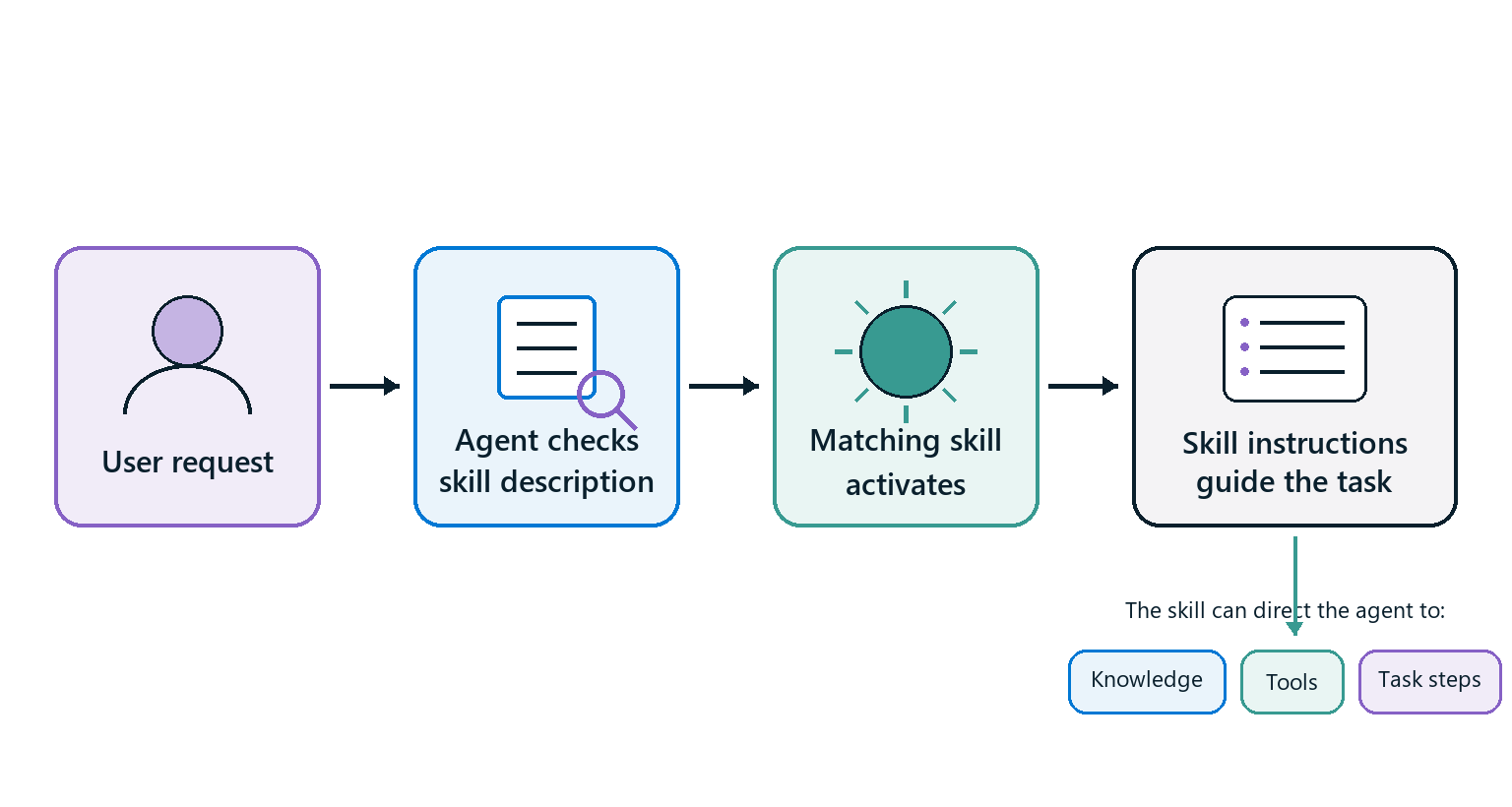
A skill is a reusable set of task instructions for an agent powered by the Microsoft Copilot harness. It contains a name, a description, and instructions written in Markdown. The agent compares a user's request with the skill description. When the request matches, the skill's instructions guide the agent through that task.
Skills can guide the use of other building blocks. For example, an equipment recommendation skill can tell an agent to gather requirements, consult policy knowledge, call an inventory tool, apply decision rules, check the result, and refer unsupported requests to the appropriate team.
Recognize skill structure
A skill file starts with a short metadata section called YAML front matter. This section contains the skill's name and description. The Markdown instructions follow it.
---
name: equipment-recommendation
description: Recommends approved equipment for employee work scenarios.
---

## Required inputs

Collect the employee's role, work location, and primary work scenario.

## Steps

1. Consult the approved equipment policy.
2. Retrieve current inventory.
3. Recommend only items that meet the policy and are in stock.
A skill package is a ZIP file that contains a SKILL.md file and can include supporting scripts, templates, or reference files. You can upload a ready-made skill, create one from blank, or generate one with AI.
Evaluate supplied skill instructions
Before you add a supplied skill, review whether it defines:
- The requests that should activate the skill.
- The information that the agent must collect.
- The steps and decision rules to follow.
- The knowledge and tools to use.
- The validation and success criteria.
- The conditions that require escalation or refusal.
Open the agent's Build tab, select Skills, and upload the supplied Markdown file or ZIP package. Copilot Studio validates the file before it adds the skill.
Create a skill
On the Build tab, select Skills, and then select Create from blank. Define the following fields:
- Name: Enter a unique identifier that uses lowercase letters, numbers, and hyphens. Don't start or end the name with a hyphen.
- Description: State what the skill does and when the agent should activate it.
- Instructions: Use Markdown to define the steps, response format, constraints, edge cases, and any tools the skill should use.
Select Create, and then test representative requests in Preview. Alternatively, select Generate with AI, describe the behavior, answer the follow-up questions, review the generated skill, and select Add to agent.
Update a skill
How you update a skill depends on how it was added:
- For a skill created from blank, select the skill in the Skills section, update its name, description, or instructions, and then select Save.
- For an uploaded skill, edit the source Markdown file or package. Select the skill, select More options (...) > Replace, and upload the updated version.
After an update, start a new conversation in Preview and rerun both a request that should activate the skill and a nearby request that shouldn't.
Refine activation guidance
A narrow or vague description can prevent the skill from activating for valid requests. A description that's too broad can activate it for unrelated requests. Test representative requests and adjust the description so it states both what the skill does and when it should run.
Change only the description when the task steps are correct but activation is wrong. Change the skill instructions when the skill activates correctly but performs the task incorrectly.
Check that the skill loads
Before diagnosing an activation problem, confirm that the skill appears under Skills after you save the agent. A skill can fail a load-time check while the rest of the agent continues to work.
If the skill is missing or behaves as though it isn't installed, check:
- The YAML front matter is valid and includes a nonempty name and description.
- The skill name is unique within the agent.
- The file uses UTF-8 encoding without a byte-order mark.
- The package contains a readable
SKILL.mdfile and any referenced supporting files.
Correct the source file or package and upload it again. Refine the activation description only after confirming that the skill loads.
For more information, see Create a skill, Add and manage an uploaded skill, and Manage skills.